Hello! Welcome to the final lesson in our first module on Exam Technique.
In our last session, we built a strategic framework for managing your time in the exam using the "one minute per mark" rule. We discussed how to survey the paper and make multiple passes to secure marks efficiently. Today, we'll equip you with the practical tools to make that strategy a reality. Saving time and preventing errors under pressure often comes down to one thing: how well you know your calculator.
This lesson is designed to help you apply calculator memory functions and rapid checking techniques to improve your speed and accuracy under exam conditions. This directly addresses one of your key challenges—avoiding small calculation errors that can cost you valuable marks. By mastering these functions, your calculator becomes less of a simple number-cruncher and more of a strategic partner in the exam.
1. The Hidden Danger: Premature Approximation
Before we learn the functions, we must understand the main enemy they help us defeat: premature approximation. This is one of the most common ways students lose accuracy marks in IGCSE exams, even when their method is perfectly correct.
To understand this problem fully, let's turn to the official Cambridge advice.
The official Cambridge IGCSE Mathematics Learner Guide repeatedly warns against a specific type of rounding error. Let's examine what they say about it.
Please read the following sections from the guide, paying close attention to the advice about rounding and accuracy: Start by reading the 'General advice for all Papers' section. Locate the text box with the example candidate response for a trigonometry question (sin p = 8 / 15). Read the examiner's comment about 'premature approximation'. Next, find the bullet points discussing 'How the candidate could have improved their answer'. Read the third bullet point, which begins 'In part (c) the candidate rounded an intermediate answer...'. Then, look at the 'Common mistakes' section and read the first bullet point about 'Accuracy of answers'. Finally, read the 'During the exam' section and find the tip that starts 'Avoid rounding intermediate values...'.
As you've just read, premature approximation is the act of rounding a number in the middle of a multi-step calculation.
Let's use the guide's example to see the impact:
- Problem: Find angle if .
- Step 1: The student calculates
- Step 2 (The Error): They round this to
0.53and write it down. - Step 3: They calculate , which gives
32.005... - Incorrect Final Answer:
32.0(to 1 d.p.)
However, the examiner expects you to use the full, unrounded value:
- Correct Method: Calculate directly.
- Correct Final Answer:
32.2(to 1 d.p.)
Losing that 0.2 might seem small, but it costs you the final accuracy mark. The solution is to never write down and re-type an intermediate answer. Instead, use your calculator's memory functions.
2. Mastering Your Calculator's Memory Functions
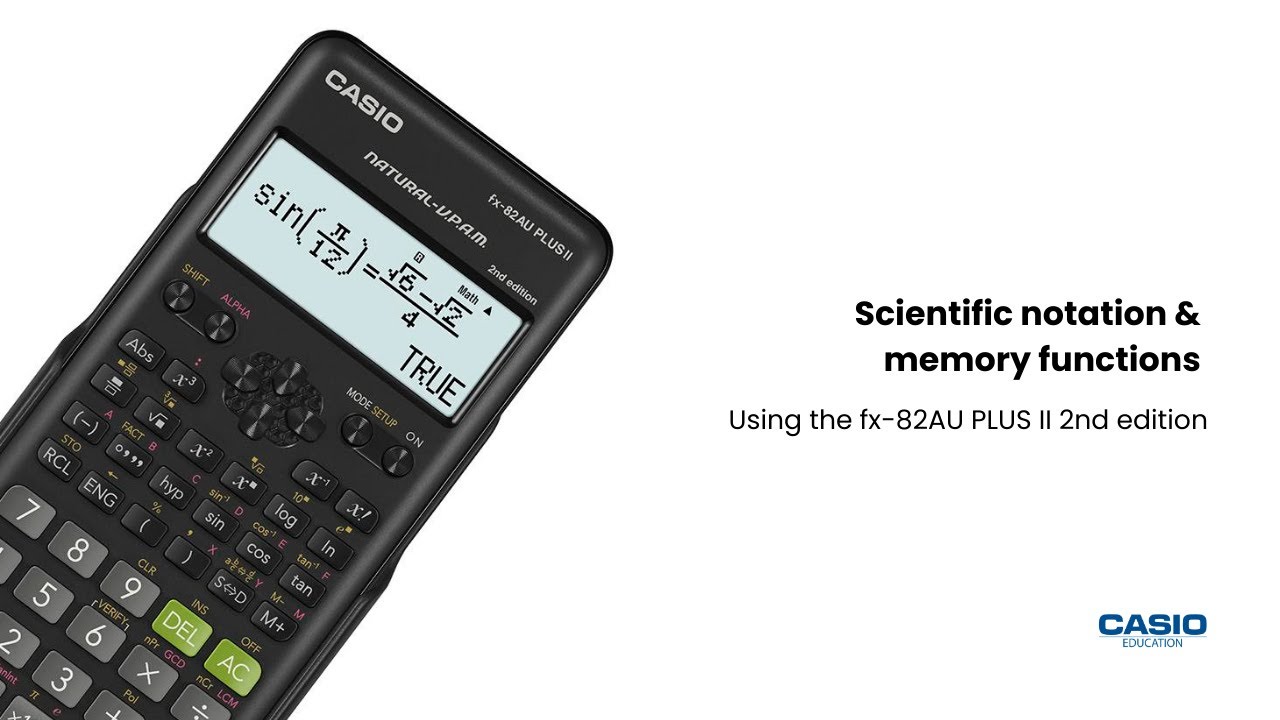
Your calculator has powerful features designed specifically to avoid premature approximation and speed up your work. We'll focus on the three most important ones for your Casio calculator.
A. The Ans Key: The Last Answer Memory
This is your go-to for simple, sequential calculations. The Ans key automatically stores the result of the last calculation you performed.
How it works:
- Perform a calculation, e.g.,
8 ÷ 15, and press=. The result0.5333...is now stored inAns. - For the next step, use the
Anskey as if it were the number itself. To calculate of that result, you would pressSHIFTsinAns).
Let's try a typical exam problem:
In a right-angled triangle, the two shorter sides are 5 cm and 7 cm. Find the length of the hypotenuse, and then use it to find the size of the smallest angle.
- Step 1: Find the hypotenuse.
- Using Pythagoras' theorem: .
- On your calculator, enter
√(5²+7²), press=. You get , or8.6023...
- Step 2: Find the smallest angle.
- The smallest angle () is opposite the smallest side (5 cm).
- We can use .
- To find , we need .
- Since is your last answer (
Ans), you can type:
SHIFTsin(5÷Ans)= - This gives the answer
35.537..., which you would round to35.5°(1 d.p.).
This method is fast and guarantees you use the full-precision value of the hypotenuse.
B. STO and RCL: The Variable Memories
For more complex problems, especially those in Paper 4, you might need to store several intermediate values. This is where the variable memories (A, B, C, D, X, Y) are invaluable.
STO(Store): This function saves a value into a lettered memory.RCL(Recall): This function retrieves the value from that memory.
This short video gives a clear demonstration of the key presses.
Storing In The Memory - Use The Store (STO) & Recall (RCL) function - Casio Calculator fx-85GT PLUS
Let's watch a quick tutorial from The Calculator Guide on how to use the Store (STO) and Recall (RCL) functions.
Watch the video from 00:14 to 01:46. Notice the key sequence: first the number, then SHIFT + RCL (STO), then the letter you want to store it in. To use it, you press ALPHA + the letter.

Practical Application: The Quadratic Formula
This is a perfect place to use STO/RCL. Consider solving .
The formula is .
A common source of error is calculating the discriminant () and the denominator () separately.
-
Calculate the discriminant and store it.
a=3,b=-7,c=-11- Calculate :
(-7)² - 4(3)(-11)=49 - (-132)=181. - Press
=. The answer181is on screen. - Store this:
SHIFTRCL(-)(to select memory A). The screen will showAns→A. Your calculator now has181saved in memoryA.
-
Calculate the two roots using memory A.
- First root (): Use the fraction button.
- Numerator:
-(-7) + √A - Denominator:
2(3) - Key presses:
(-(-7) + √ (ALPHA A)) / (2×3)= - Result:
3.39(to 3 s.f.)
- Numerator:
- Second root (): Use the arrow keys to edit your last entry. Change the
+before the square root to a-.- Key presses:
(-(-7) - √ (ALPHA A)) / (2×3)= - Result:
-1.06(to 3 s.f.)
- Key presses:
- First root (): Use the fraction button.
By storing the discriminant, you avoid re-typing it and ensure full accuracy.
C. The CALC Button: Your Rapid-Check Tool
The CALC button is a powerful but often overlooked function. It allows you to substitute values into an algebraic expression instantly. This is fantastic for checking your work.
CALC button on Casio Calculator
The CALC button can save you a lot of time when checking solutions or evaluating functions. This video from Maths with Jay explains how it works.
Watch this video from 00:00 to 02:42. Pay attention to how an expression is typed using ALPHA + X, and then how the CALC button is used to test different values for X.
How to Use CALC for Rapid Checking:
Imagine you've just solved the equation and you think one of the solutions is .
- Enter the expression: Type
2ALPHAXx³-5ALPHAXx²-ALPHAX+6. - Press
CALC: The calculator will ask for a value forX. - Enter your solution: Type
2and press=. - Check the result: The calculator displays the answer
0. This confirms your solution is correct!
This is much faster and more reliable than substituting the value back in by hand, especially under exam pressure.
Test your understanding!
You have just rearranged the formula to make the subject, and your answer is .
You want to quickly check if your rearrangement is correct using some simple numbers. Let's pick , , .
- Calculate using your rearranged formula: .
- Now, how would you use the original formula () on your calculator to verify this? Which calculator function would be most efficient for this check?
Show answer
The most efficient way is to use the CALC button.
- Enter the original formula into your calculator using letters for the variables (e.g.,
V,R,H). Since the calculator only has a few letter memories, you might type:(1/3) × π × R² × H - Press
CALC. - The calculator will ask for values. Enter
R=1andH=10. - Press
=. The result should be10.47...(which is ). Since you are checking against , and this is very close, your rearrangement is likely correct. The small difference is because we used for the mental check, but the calculator used its full value. This demonstrates the "sensibility check" aspect.
3. Creating a System for Checking
Knowing the buttons is one thing; using them systematically is another. Here are three rapid checks you should aim to use in the exam.
-
The Substitution Check (using
CALC):- Use for: Solving linear, quadratic, or simultaneous equations.
- Method: After finding a value for , type the original expression into your calculator, press
CALC, enter your solution, and confirm the result matches the other side of the equation.
-
The Inverse Operation Check:
- Use for: Square roots, trigonometry, logarithms.
- Method: This is a quick mental or one-step calculator check.
- If you found , quickly calculate to see if you get 169.
- If you found , quickly calculate to see if you get 0.5.
-
The Estimation Check (Sanity Check):
- Use for: Any calculation involving awkward numbers, especially in questions about bounds or mensuration.
- Method: Before you press
=on a complex calculation, do a quick mental approximation.- Calculation:
- Mental Estimate: .
- If your calculator gives you an answer like
47.7, you can be confident it's reasonable. If it gives4.77or477, you know you've likely made a keying error.
Key Takeaways
- Defeat Premature Approximation: Always use the full precision of your calculator for intermediate steps. Use
Ansfor simple sequences andSTO/RCLfor complex problems. - Master the
AnsKey: This is your fastest tool for two-step calculations. - Leverage
STO/RCL: Use variable memories to break down complex Paper 4 questions (like the quadratic formula or multi-step trigonometry) into manageable, error-free parts. - Embrace
CALC: Use theCALCfunction as your primary method for checking solutions to any kind of equation. It is fast and virtually eliminates substitution errors. - Check, Check, Check: Combine calculator functions with estimation to create a robust system for verifying your answers. This will build confidence and catch the small mistakes you've identified as a weakness.
In our next module, we will begin our deep dive into core topics, starting with "Core Number Skills and Estimation". The first lesson will focus on fluently calculating with fractions, decimals, and percentages. The calculator skills you've learned today will be the perfect foundation for handling these numbers with speed and precision.