Hello! Welcome to the final lesson in our module on PostgreSQL administration.
In our last few lessons, you've learned how to secure your database with user roles, perform manual backups and restores using pg_dump and pg_restore, and ensure PostgreSQL coexists peacefully with SELinux. These are all essential sysadmin skills. However, a backup you have to remember to run manually is a backup that's easy to forget.
Today, we'll solve that problem. Our goal is to automate periodic database backups using a systemd timer. This will bring together everything you've learned about PostgreSQL into a reliable, automated system. We will use systemd timers, the modern and powerful standard for scheduling tasks on Fedora, to create a "set it and forget it" backup solution for your Django projects.
1. Understanding systemd Timers vs. Cron
For decades, cron was the standard tool for scheduling tasks on Linux. While still functional, modern systems like Fedora use systemd, which offers a more powerful and integrated alternative: systemd timers.
A systemd timer is simply a systemd unit that triggers another unit (usually a service) based on a time event. This approach has several advantages:
- Integrated Logging: All output and errors from your scheduled task are automatically captured by
journalctl, making debugging much easier. - Dependency Management: You can specify that your backup should only run after the PostgreSQL service has started.
- Better Management: Each scheduled task gets its own set of unit files, which is cleaner than managing a single, potentially complex
crontabfile. - Guaranteed Execution: You can ensure that a missed job (e.g., if the server was off) runs as soon as the system boots up.
To get a solid foundation, let's watch a video that explains these concepts and shows how to create the necessary files.
Automate Your Tasks with systemd Timers: A Step-by-Step Guide
This video from Learn Linux TV provides an excellent guide to systemd timers. It explains the core concepts, compares them to cron, and walks through creating the two files required for any scheduled task.
Please watch the following segments: Introduction to Timers (00:40 - 07:21): Focus on the comparison between systemd timers and cron, and the benefits of using timers. The Service File (07:36 - 13:30): Pay attention to how a .service file is created to define what command will be executed. The Timer File and Activation (13:30 - 22:36): Understand the structure of the .timer file, which defines when the service runs, and how the timer and service are linked by name. The 'Persistent' Option (25:34 - 27:23): This part covers a key feature for backups: ensuring a missed job runs on the next boot.
As the video explained, automating a task with systemd requires two files that share the same base name:
- A
.servicefile: This defines the task itself—the command or script to execute. For us, this will be a script that runspg_dump. - A
.timerfile: This defines the schedule—when the.servicefile should be triggered.
Let's build these now.
2. Hands-On: Creating the Backup Solution
We will create a complete backup solution in three parts: the backup script, the systemd service to run it, and the systemd timer to schedule it.
Part 1: The Backup Script
First, we need a shell script that performs the actual backup and cleans up old files. This combines the pg_dump command you learned previously with some basic shell scripting.
Your Task: Create the Backup Script
-
Open a terminal and create a new script file. A good location for custom scripts is
/usr/local/bin/.sudo vim /usr/local/bin/pg-backup.sh -
Enter insert mode (press
i) and paste the following script. Remember to changeyour_db_nameto the actual name of your Django database.#!/bin/bash # === Configuration === # The database you want to back up PGDATABASE="your_db_name" # The user to connect as (postgres user has passwordless local access) PGUSER="postgres" # The directory to store backups in BACKUP_DIR="/var/lib/pgsql/backups" # The number of days to keep backups RETENTION_DAYS=7 # === Script Logic === # Ensure backup directory exists # -p creates parent directories if needed # -m sets the mode (permissions) sudo -u postgres mkdir -p -m 700 "${BACKUP_DIR}" # Create a filename with a timestamp TIMESTAMP=$(date +%Y%m%d_%H%M%S) BACKUP_FILE="${BACKUP_DIR}/${PGDATABASE}_${TIMESTAMP}.dump" echo "Starting backup of database '${PGDATABASE}' to ${BACKUP_FILE}" # Dump the database using pg_dump's custom format (-Fc is compressed) # We use 'sudo -u postgres' to run the command as the postgres user sudo -u postgres pg_dump -U "${PGUSER}" -d "${PGDATABASE}" -Fc -f "${BACKUP_FILE}" if [ $? -eq 0 ]; then echo "Backup completed successfully." else echo "ERROR: Backup failed!" >&2 exit 1 fi # Remove backups older than the retention period echo "Cleaning up backups older than ${RETENTION_DAYS} days..." find "${BACKUP_DIR}" -name "*.dump" -mtime +${RETENTION_DAYS} -delete echo "Cleanup complete."Note: We use
sudo -u postgresto ensure the backup directory and file are owned by thepostgresuser, which simplifies permissions. -
Save and quit
vim(pressEsc, then type:wq). -
Make the script executable:
sudo chmod +x /usr/local/bin/pg-backup.sh
Part 2: The systemd Service File
Now we need a .service file that tells systemd how to run our script.
Your Task: Create the Service File
-
Create the service unit file in
/etc/systemd/system/.sudo vim /etc/systemd/system/pg-backup.serviceNotice the name
pg-backup.servicematches the script's purpose. -
Enter insert mode and paste the following content.
[Unit] Description=PostgreSQL Backup Service # Ensures this runs only after the database is ready Requires=postgresql.service After=postgresql.service [Service] # 'oneshot' means it's a short-lived task, not a long-running daemon Type=oneshot # The command to execute ExecStart=/usr/local/bin/pg-backup.sh -
Save and quit (
:wq).
This service file is simple but powerful. The Requires and After directives ensure that systemd will never try to back up a database that isn't running yet.
Part 3: The systemd Timer File
Finally, we'll create the .timer file to schedule our service.
Your Task: Create the Timer File
-
Create the timer unit file. It must have the same name as the service file, but with a
.timerextension.sudo vim /etc/systemd/system/pg-backup.timer -
Enter insert mode and paste this content:
[Unit] Description=Daily PostgreSQL Backup Timer [Timer] # Run daily at 2:00 AM OnCalendar=daily # Run the job on boot if the last scheduled run was missed Persistent=true [Install] # Ensures the timer is started at boot WantedBy=timers.target -
Save and quit (
:wq).
The OnCalendar=daily is a convenient shorthand for *-*-* 00:00:00. You can be more specific, like *-*-* 02:30:00 to run at 2:30 AM every day. The Persistent=true directive is the magic that protects you if your server is powered off at 2:30 AM—the backup will run as soon as it boots up again.
3. Activation and Verification
With all the files in place, let's tell systemd about them and activate our timer.
-
Reload the systemd daemon to make it aware of your new unit files:
sudo systemctl daemon-reload -
Enable and start the timer. You do not need to enable the service file; the timer will trigger it automatically. The
--nowflag both enables the timer to start on boot and starts it immediately.sudo systemctl enable --now pg-backup.timer -
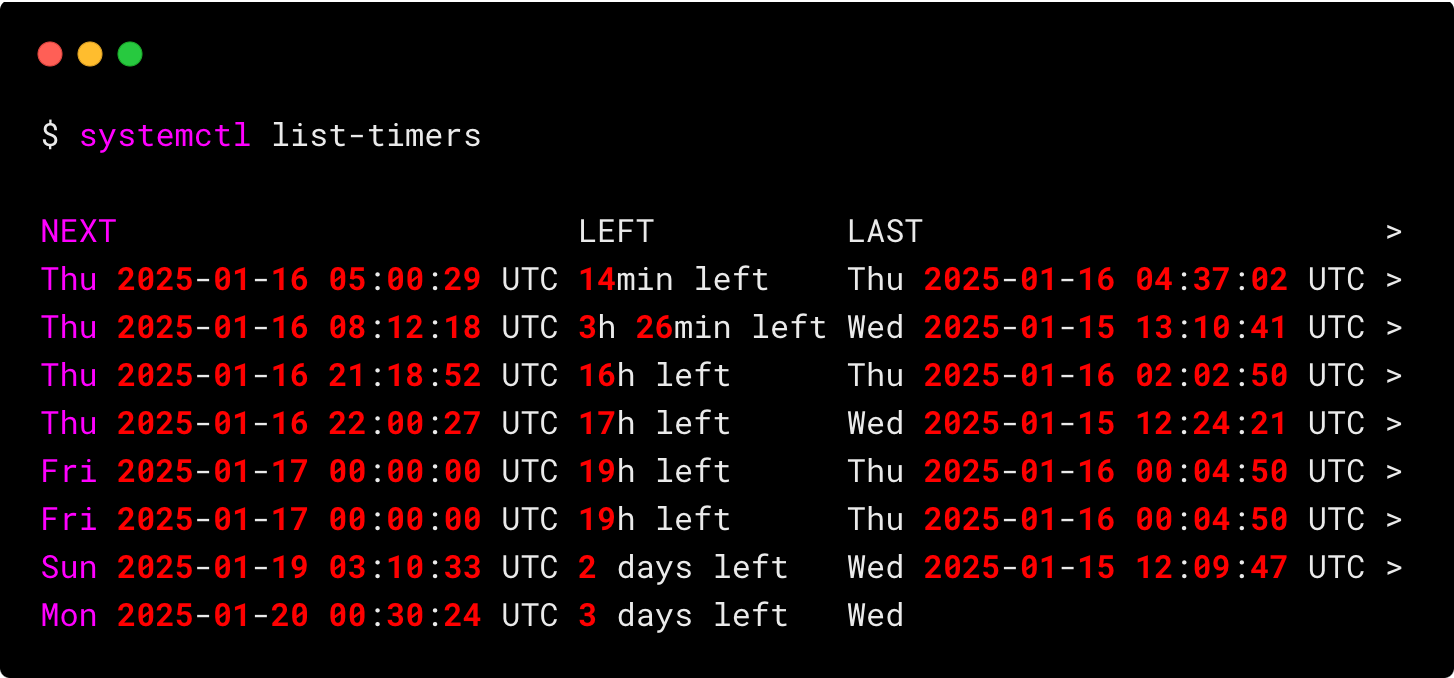
Verify the timer is active and see when it's scheduled to run next.
systemctl list-timersYou should see
pg-backup.timerin the list.
Testing Your Timer
Waiting until 2 AM to see if it works isn't practical. To test it now:
- Edit the timer file (
sudo vim /etc/systemd/system/pg-backup.timer). - Change the
OnCalendarline to a time a few minutes in the future. For example, if it's 15:20, set it to*-*-* 15:23:00. - Save the file, then run
sudo systemctl daemon-reloadandsudo systemctl restart pg-backup.timerto apply the new schedule. - Wait for the scheduled time to pass.
- Check if the backup file was created:
sudo ls -l /var/lib/pgsql/backups. - Check the logs to see the output from your script:
If successful, you'll see the "Backup completed successfully" messages from your script.journalctl -u pg-backup.service

Once you've confirmed it works, remember to change the OnCalendar setting back to daily or your desired schedule and reload/restart the timer again.
Conclusion
Congratulations! You have successfully built a robust, automated backup system for your PostgreSQL database using modern system administration tools. This is a critical piece of infrastructure for any serious web application.
Key Takeaways:
systemd timersare the modern way to schedule tasks on Fedora, offering better integration, logging, and control thancron.- Automation requires a
.servicefile (defining what to do) and a.timerfile (defining when to do it). - The
OnCalendardirective sets the schedule, andPersistent=trueensures missed jobs are run at the next opportunity. - You manage timers with
systemctl(enable,start,list-timers) and review their execution withjournalctl.
Preview of the Next Module:
This lesson completes our deep dive into PostgreSQL administration. You are now fully equipped to install, secure, manage, and back up a production-ready database.
Next, we will move on to our final module, Containerized Django Deployment with Podman. You've learned how to set up each piece of your web stack—Nginx, Gunicorn, and PostgreSQL—directly on your Fedora system. Now, you'll learn how to package your entire Django application and its services into containers. This is the standard for modern, portable, and scalable web development, and your skills with Podman on Fedora will be directly applicable.