Introduction
Welcome back! In our last lesson, you mastered how to chain commands together with pipes (|) and redirect their input and output. You saw how a command like grep could be used in a pipeline to filter output, such as when we did ps aux | grep python.
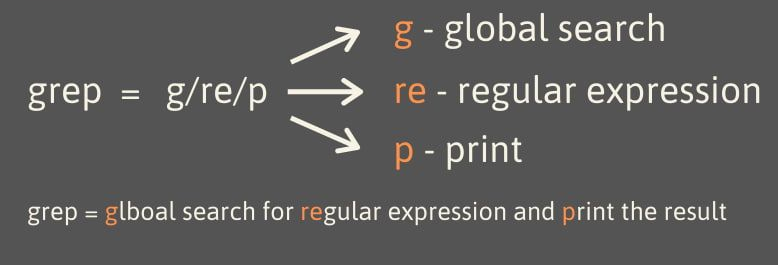
Today, we're going to put grep under the microscope. This lesson is dedicated to searching for patterns within files and command output using grep combined with the power of regular expressions. The name grep itself is a clue to its function: Global search for a Regular Expression and Print the matching lines.
This is an indispensable skill for you as an aspiring full-stack developer. You'll constantly use grep to sift through log files for specific errors, search your entire Django project for a particular function or variable, or analyze the output of system commands.
grep Fundamentals: Searching for Text
At its most basic, grep searches for a literal string of text within a file or input stream.
The basic syntax is:grep "pattern" filename
Or when used with a pipe:command | grep "pattern"
Let's watch a quick video that demonstrates this fundamental usage.
This short clip from the video 'grep: A Practical Guide' by Navek shows the two most common ways to use grep: searching directly in a file and filtering the output from another command via a pipe.
Watch the first minute of the video (from 00:00 to 00:55). Notice how piping the output of cat into grep achieves the same result as running grep directly on the file.
Refining Your Search with grep Options
grep becomes much more powerful when you use its command-line options (flags) to change its behavior. Here are some of the most essential ones you'll use daily:
-i(ignore case): Makes your search case-insensitive.-v(invert match): Shows all lines that do not match the pattern.-n(line number): Displays the line number for each match.-c(count): Instead of showing the matching lines, it just shows a count of how many lines matched.-w(word): Matches the pattern only if it forms a whole word. For example,grep -w "is"won't match "this".-ror-R(recursive): Searches for the pattern in all files within a directory and its subdirectories. This is invaluable for searching through a source code project.
To see these flags in action, we'll turn to a comprehensive article from DigitalOcean. It also provides instructions for creating a sample file to practice with.
Mastering grep with Regular Expressions
Let's read the 'Basic Usage' and 'Common Options' sections of the article 'Mastering grep with Regular Expressions for Efficient Text Search'. This will solidify your understanding of the basic command and its most useful flags.
Read from the 'Prerequisites' heading down to the end of the 'Common Options' section. You can follow the instructions to copy the GPL-3 file to your home directory, which will be useful for practice.
Unleashing the Power of Regular Expressions (RegEx)
Searching for literal text is useful, but the real power of grep comes from using regular expressions (RegEx). A regular expression is a special sequence of characters that defines a search pattern. This lets you find things like "a line that starts with 'Error'" or "a line containing a three-digit number".
Let's explore the fundamental building blocks of basic regular expressions.
1. Anchors (^ and $):
Anchors don't match characters; they match a position.
^matches the beginning of a line.$matches the end of a line.
Example: grep "^Error" finds lines that start with the word "Error".
2. The Wildcard (.):
The dot . is a wildcard that matches any single character.
Example: grep "gr.y" would match "gray", "grey", and even "gr_y".
3. Character Sets ([]):
Square brackets let you define a set of characters to match.
[aeiou]matches any single vowel.[0-9]matches any single digit.[A-Z]matches any single uppercase letter.[^...](a caret inside the brackets) creates a negated set, matching any character that is not in the brackets. For example,[^0-9]matches any non-digit character.
Example: grep "log[1-3].txt" would match log1.txt, log2.txt, and log3.txt.
4. Escaping Special Characters (\):
What if you need to search for a literal dot . or a dollar sign $? You must "escape" it with a backslash \ to tell grep to treat it as a regular character, not a special RegEx character.
Example: grep "192\.168\.1\.1" searches for the literal IP address, preventing the . from acting as a wildcard.
The following comprehensive reading covers all these concepts with clear examples.
Mastering grep with Regular Expressions
Let's continue with the DigitalOcean article. This next section is the core of today's lesson, introducing the fundamental concepts of regular expressions.
Read the entire 'Regular Expressions' section. Focus on understanding Anchors, the 'any character' wildcard (.), Bracket Expressions, and why you need to escape meta-characters. This is your reference guide for the practice section.
Extended Regular Expressions and Alternation
Sometimes you need to search for one pattern or another. This is called alternation, and it's handled by the pipe | character within a regular expression. To use alternation and other advanced features, you need to tell grep to use extended regular expressions with the -E flag (or by using the egrep command, which is equivalent).

Let's see how this works.
This clip from 'grep: A Practical Guide' clearly explains the difference between basic and extended regular expressions and demonstrates how to use alternation.
Watch from 07:21 to 12:19. Pay close attention to the part explaining why you need to escape the | in basic RegEx but not when using the -E flag. Using -E is the modern and more readable approach.
Your Turn: Hands-on Practice
Time to apply these concepts. Open your terminal and let's get to work!
1. Setup Your Practice Environment
First, create a directory and a mock web server log file. As a web developer, analyzing logs like this is a very common task.
cd ~
mkdir -p grep_practice
cd grep_practice


# Create a mock access log file
cat << 'EOF' > access.log
192.168.1.10 - - [10/Oct/2023:13:55:36] "GET /index.html HTTP/1.1" 200
172.16.0.5 - - [10/Oct/2023:13:56:12] "GET /styles.css HTTP/1.1" 200
192.168.1.10 - - [10/Oct/2023:13:57:01] "POST /login HTTP/1.1" 404 Not Found
10.0.0.23 - - [10/Oct/2023:13:58:22] "GET /images/logo.png HTTP/1.1" 200
203.0.113.4 - - [10/Oct/2023:13:59:55] "GET /app.js HTTP/1.1" 500 Internal Server Error
192.168.1.10 - - [10/Oct/2023:14:01:15] "GET /admin/dashboard HTTP/1.1" 403 Forbidden
This is not a real log entry.
EOF
2. Practice Exercises
Run these commands in your grep_practice directory. Try to figure out the command yourself before looking at the solution!
-
Exercise 1: Find all successful requests (status code
200) inaccess.log.Solution
grep "200" access.log -
Exercise 2: Find all client and server errors. These are typically status codes in the 400s and 500s. Use alternation.
Solution
grep -E "40[34]|500" access.log # This searches for '403', '404', or '500'. -
Exercise 3: Count how many requests came from the IP address
192.168.1.10. Remember to escape the dots!Solution
grep -c "192\.168\.1\.10" access.log -
Exercise 4: Display all lines that are not valid log entries. A simple way is to find lines that do not start with an IP address (i.e., they don't start with a digit).
Solution
grep -v "^[0-9]" access.log -
Exercise 5 (Developer-focused): Let's simulate searching through a project.
First, create a mini Python project structure:mkdir -p my_django_project/users # Create a file cat << 'EOF' > my_django_project/users/views.py from django.shortcuts import render def get_user_profile(request): # A simple function to get user profile user = request.user return render(request, 'profile.html', {'user': user}) def list_all_users(request): # TODO: Implement user listing pass EOFNow, search your entire project directory for any function definitions (lines that start with
def). Search case-insensitively to also find any comments likeDef....Solution
grep -r -i "^def" my_django_project/The output should show you which file and which lines contain function definitions. This is incredibly useful in large codebases!
Conclusion
Great job! You've just acquired a foundational command-line superpower. You can now efficiently search for virtually any piece of text or pattern, whether it's buried in a massive log file or hidden somewhere in a complex project directory.
Key Takeaways:
grepis your primary tool for filtering text from files or command output.- Flags like
-i(ignore case),-v(invert),-n(line numbers),-c(count), and-r(recursive) are your everyday companions. - Regular Expressions turn
grepfrom a simple text finder into a sophisticated pattern-matching engine. - Basic RegEx: Use
^for start-of-line,$for end-of-line,.for any character, and[]for character sets. - Extended RegEx (
-E): Use this to enable powerful features like alternation (|) for OR conditions.
In the next lesson, we will build directly on this knowledge. Now that you know how to find patterns with grep, you will learn how to modify them on the fly using sed, the stream editor. This will open up a new world of text manipulation and automation possibilities.