Introduction
Welcome to a new module focused on text manipulation! In the previous lesson, you tackled the abstract but powerful concept of SELinux security contexts. You learned how Mandatory Access Control (MAC) provides a security layer beyond standard file permissions, a crucial concept for securing services on Fedora.
Now, we shift from system security theory to a fundamental hands-on skill: editing text files directly in the terminal. As a future web developer and system administrator, you will constantly need to edit configuration files (nginx.conf, postgresql.conf, shell scripts), review logs, or even make quick code changes on a remote server without a graphical interface.
This lesson introduces you to Vim, a powerful and ubiquitous text editor. Its initial learning curve can feel steep, but mastering its basics will make you incredibly efficient. Our goal today is to perform the most essential operations: opening a file, inserting text, saving your work, quitting the editor, and searching for content.
The Core Idea: Modal Editing
Before you type a single command, you must understand the one thing that makes Vim different from most editors you've used: Vim is a modal editor. This means the same keys on your keyboard do different things depending on which mode you are in.
For today, we only need to focus on two primary modes:
- Normal Mode (also called Command Mode): This is the default mode you're in when you first open Vim. In this mode, keystrokes are interpreted as commands (e.g., to move the cursor, delete text, or search). You cannot type text directly in this mode.
- Insert Mode: This is the mode where Vim behaves like a regular text editor. Once you're in Insert Mode, whatever you type appears in the file.
To switch between these modes:
- From Normal Mode, press
ito enter Insert Mode. - From Insert Mode, press the
Esckey to return to Normal Mode.
This concept is so fundamental that it's worth seeing visually.
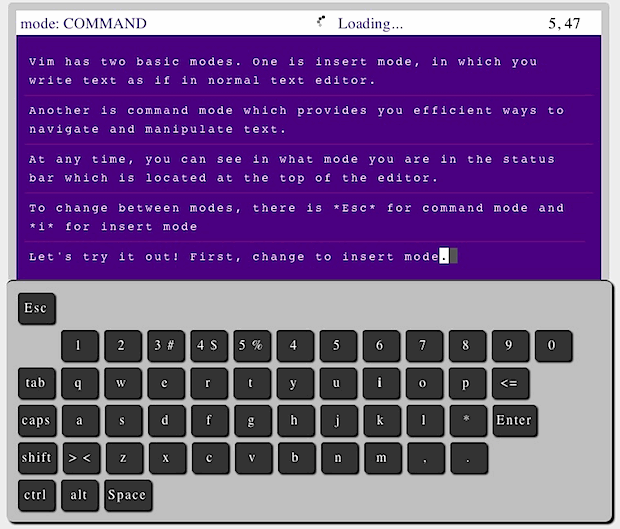
To get a solid grasp of this concept, a short read from an excellent guide by freeCodeCamp will be very helpful.
How to Use Vim – Tutorial for Beginners
The article 'How to Use Vim – Tutorial for Beginners' clearly explains the different modes. Understanding this is the key to unlocking Vim.
Read the section titled 'Vim Modes'. Focus on the descriptions for 'Command Mode' and 'Insert Mode'. This will set the foundation for everything that follows.
Learning by Doing: Your First vimtutor Session
The single best way to learn Vim is by using vimtutor, an interactive tutorial that comes pre-installed with Vim. It's designed to be completed inside Vim itself, forcing you to use the commands as you learn them. This aligns perfectly with your preference for hands-on practice.
Do It Yourself: Start the Tutor
- Open your terminal.
- Type the following command and press Enter:
This will open a special text file with instructions. The tutorial is self-contained and will guide you through the lessons.vimtutor - For today's lesson, focus on completing Lesson 1.1 through Lesson 2.2. This will take about 20-25 minutes and will cover:
- Moving the cursor
- Exiting Vim (
:q!) - Text editing (deleting, inserting)
- Saving your work (
:wq)
Don't worry about memorizing everything perfectly. The goal is to build initial muscle memory. When you've completed up to Lesson 2.2, you can quit the tutor by pressing Esc to ensure you are in Normal Mode, then typing :q! and pressing Enter.
Reinforcing the Basics: Open, Insert, Save, Quit, Search
You've now had a hands-on introduction with vimtutor. Let's consolidate those core commands with a clear summary and video examples.
A fantastic, beginner-friendly video from SavvyNik walks through these exact steps. We'll watch it in segments to focus on each operation.
1. Opening and Creating Files
You can open an existing file or create a new one by simply typing vim followed by the filename.
# To open an existing file named 'config.txt'
vim config.txt


# To create a new file named 'new_notes.md'
vim new_notes.md
Watch this short clip to see it in action.
Vim Text Editor Basics - Using Vim on Linux / Mac / Unix (Beginners Guide)
This clip from 'Vim Text Editor Basics' demonstrates how to open and create files from your terminal.
Watch from 00:27 to 01:46 to see how to open a file, and then from 07:07 to 07:46 to see how a new file is created.
Note: The video uses apt for installation on a Debian-based system. On your Fedora system, Vim is likely already installed. If not, the command would be sudo dnf install vim.
2. Inserting Text
Once a file is open, you're in Normal Mode. To start typing, you must enter Insert Mode.
i: Enters Insert Mode and starts typing before the cursor.a: Enters Insert Mode and starts typing after the cursor (append).o: Creates a new line below the current line and enters Insert Mode.O: Creates a new line above the current line and enters Insert Mode.
Remember to press Esc to return to Normal Mode when you're done typing.
Vim Text Editor Basics - Using Vim on Linux / Mac / Unix (Beginners Guide)
This segment shows how to switch to Insert Mode using 'i' and 'o' to add and edit text.
Watch from 01:46 to 03:51. Pay attention to the -- INSERT -- message that appears at the bottom of the screen.
3. Saving and Quitting
All save and quit commands are typed in Normal Mode and start with a colon (:), which opens the Command-Line Mode at the bottom of the screen.
:w- Write the changes to the file (saves it), but stays in Vim.:q- Quit Vim. This only works if you haven't made any unsaved changes.:wqor:x- Write and Quit. This is the most common way to save your work and exit.:q!- Quit and discard any changes you've made. The!forces the action.
Vim Text Editor Basics - Using Vim on Linux / Mac / Unix (Beginners Guide)
These clips cover the essential commands for quitting without saving, saving, and saving & quitting.
First, watch from 04:47 to 06:15 to learn about quitting. Then, watch from 06:15 to 07:07 to see how to save and exit.
4. Searching for Text
To find a piece of text within a file, you don't need to read every line.
- In Normal Mode, press the
/key. - Type the word or pattern you're looking for and press
Enter. - Vim will jump to the first match.
- Press
nto jump to the next match. - Press
N(Shift + n) to jump to the previous match.
Vim Text Editor Basics - Using Vim on Linux / Mac / Unix (Beginners Guide)
Finally, this clip demonstrates how to use the search functionality to quickly navigate a file.
Watch from 08:46 to 10:47. Notice how the video uses '/' to start a search and 'n' to cycle through the results.
For quick reference, here is a handy cheat sheet. It contains many advanced commands, but you can focus on the basic sections we've discussed today.

Your Turn: Putting It All Together
Let's apply what you've just reviewed with a practical task related to your goals.
- Open your terminal.
- Create a new file called
django_project_ideas.txtusing Vim.vim django_project_ideas.txt - Press
ito enter Insert Mode. - Type a few lines about potential Django projects. For example:
My Django Project Ideas - A personal portfolio website to showcase my graphics design and programming skills. - A web-based inventory tracker. - An automation script dashboard. - Press
Escto go back to Normal Mode. - Save and quit the file by typing
:wqand pressingEnter. - Now, re-open the file:
vim django_project_ideas.txt. - In Normal Mode, search for the word "website". Type
/websiteand pressEnter. - Press
ato append text after the cursor. Add "(using Django and PostgreSQL)". - Press
Escto return to Normal Mode. - This time, quit without saving your last change. Type
:q!and pressEnter. - Verify your last change was discarded by viewing the file's content with
cat django_project_ideas.txt. The text you added in step 9 should be gone.
Conclusion
Excellent work! You've successfully navigated the initial—and most challenging—part of learning Vim. It feels strange at first, but with practice, the modal editing model becomes second nature and a powerful tool in your developer arsenal.
Key Takeaways:
- Vim is Modal: You switch between Normal Mode (for commands) and Insert Mode (for typing). The
Esckey is your reliable way to return to Normal Mode. - Open:
vim filename - Insert:
ito start typing,Escto stop. - Save/Quit: Commands start with
:in Normal Mode.:wqsaves and quits, while:q!quits and discards changes. - Search: Use
/to find text, andn/Nto navigate matches. - Practice is Everything: Continue using
vimtutorand try to use Vim for simple text editing tasks to build your muscle memory.
In our next lesson, we will look at other ways to interact with text files from the command line. You'll learn how to view file contents quickly without opening an editor, using commands like cat, less, head, and tail. This will complement your new editing skills perfectly.