Hello! Welcome back to our series on network administration in Fedora.
In our last lesson, we introduced firewalld, exploring its core concepts of zones and services. You learned how to inspect your firewall's configuration using firewall-cmd to see which services and ports are currently allowed. This was an important first step in understanding your system's security posture.
Today, we move from observing to acting. The goal for this lesson is to master the following outcome: Open and close ports for web services (HTTP, HTTPS) using firewall-cmd and persist the rules. This is a non-negotiable skill for any web developer. When you deploy your Django applications, they won't be accessible to users unless you explicitly tell the firewall to allow traffic to them.
1. Runtime vs. Permanent Configuration
A crucial concept in firewalld is that it operates with two distinct configurations:
- Runtime Configuration: This is the live, active set of rules the firewall is currently enforcing. Any changes you make to the runtime configuration take effect immediately. However, these changes are temporary and will be lost if you reboot the system or restart the
firewalldservice. This makes the runtime configuration perfect for testing a rule to ensure it works as expected without accidentally locking yourself out. - Permanent Configuration: This configuration is stored in files on your disk. These rules are not applied automatically; they are loaded into the runtime configuration only when
firewalldstarts or when you explicitly tell it to reload. Changes made here will survive a reboot.
The standard workflow is:
- Make your changes to the permanent configuration.
- Reload the firewall to apply the permanent configuration to the runtime state.
Alternatively, you can test changes in the runtime configuration and, once you're satisfied, save them to the permanent configuration.
This video from Red Hat provides an excellent explanation of this concept and why it's a critical safety feature.
Implementing a Linux firewall with firewalld and nftables | Into the Terminal 165
Watch this segment from the Red Hat video "Implementing a Linux firewall with firewalld and nftables" to understand the distinction between runtime and permanent rules and the importance of testing changes before making them permanent.
Watch the clip from 05:36 to 08:33. Pay close attention to the explanation of the --permanent flag and the advice on how to avoid locking yourself out of your machine.
2. Opening Ports for Web Services
As you're gearing up for web development with Django, the two most important services you'll need to allow are http (port 80) and https (port 443). firewalld makes this easy by providing predefined services for them.
The command to add a service is firewall-cmd --add-service=<service-name>. To remove it, you'd use firewall-cmd --remove-service=<service-name>.
Let's read a short article that puts this command into practice and emphasizes how to make the changes permanent.
Control the firewall at the command line
The Fedora Magazine article "Control the firewall at the command line" provides a concise guide to modifying the firewall. We'll focus on the section that covers adding services and ports.
Read the section titled "Changing zones, ports, and services". Focus on the commands to add the http and https services and the all-important note about using the --permanent flag.
As the article explained, to make a change permanent, you simply add the --permanent flag. For example:
sudo firewall-cmd --permanent --add-service=http
After running a command with the --permanent flag, the change is saved but not yet active. You must then tell firewalld to reload its rules:
sudo firewall-cmd --reload
The reload command applies the permanent configuration to the live runtime environment.
3. Adding and Persisting Rules: A Practical Demo
Seeing this process in action is the best way to solidify your understanding. The following video demonstrates adding services, making them permanent, and also shows how to add a custom port—something you'll do frequently when using Django's development server.
Manage Firewall Part 1 - RHCSA v9 Review
This series of clips from the "Manage Firewall Part 1" video by beanologi will walk you through the exact commands you need.
Please watch the following segments: Adding HTTP/HTTPS (12:30 - 13:50): This directly addresses our learning outcome, showing how to add services permanently and then reload. Adding a Custom Port (13:50 - 14:37): This shows how to open a non-standard port like 8080/tcp, which is very similar to opening port 8000 for the Django development server. Making Changes Permanent (11:11 - 12:30): This clip introduces an alternative method, --runtime-to-permanent, for saving your active configuration.
You now have two methods for making your rules persist:
- The Recommended Method: Add the
--permanentflag to each command, then runsudo firewall-cmd --reloadonce at the end. - The "Test-First" Method: Make your changes without the
--permanentflag, test them, and then runsudo firewall-cmd --runtime-to-permanentto save the live configuration.
4. Do-It-Yourself: Preparing Fedora for a Django App
Time to put this all into practice. This exercise simulates the exact steps you would take to prepare your Fedora system for both developing and deploying a web application.
Open your terminal and follow along.
Part 1: Configure for Production Deployment
Your final deployed application will run on standard web ports. Let's open them.
- Add the HTTP service to your permanent configuration.
sudo firewall-cmd --permanent --add-service=http - Add the HTTPS service to your permanent configuration.
sudo firewall-cmd --permanent --add-service=https - Apply the changes to the runtime configuration.
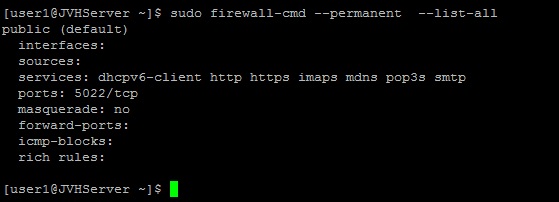
sudo firewall-cmd --reload - Verify your work. Check the list of active services. You should now see
httpandhttpsin the list.sudo firewall-cmd --list-services
Part 2: Configure for Development
While developing, you'll use Django's built-in server, which typically runs on port 8000. Let's open that port.
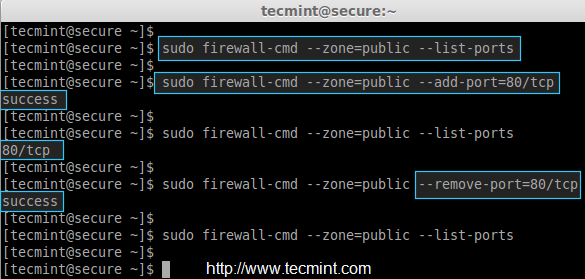
- Add port 8000/tcp to the permanent configuration.
sudo firewall-cmd --permanent --add-port=8000/tcp - Reload to apply the change.
sudo firewall-cmd --reload - Verify the port is open. You can see all open ports with
--list-ports.
You should seesudo firewall-cmd --list-ports8000/tcpin the output.
Part 3: Clean Up
Once you move to a production setup, you no longer need the development port open. Let's close it.
- Remove port 8000/tcp from the permanent configuration.
sudo firewall-cmd --permanent --remove-port=8000/tcp - Reload to apply the change.
sudo firewall-cmd --reload - Verify the port is closed.
Thesudo firewall-cmd --list-ports8000/tcpentry should now be gone.
By completing this exercise, you've successfully manipulated your firewall rules in a persistent way, directly preparing your system for your web development goals.
Conclusion
Fantastic work! You have now bridged the gap between knowing what the firewall does and knowing how to control it. This is a fundamental skill that moves you from being a desktop Linux user to a capable system administrator.
Key Takeaways:
firewall-cmdhas two configurations: runtime (live, temporary) and permanent (stored, persistent).- To open a port for a standard web server, use
sudo firewall-cmd --permanent --add-service=httpand--add-service=https. - To open a custom port for a development server, use
sudo firewall-cmd --permanent --add-port=8000/tcp. - Changes made with the
--permanentflag are only activated after runningsudo firewall-cmd --reload.
In our next lesson, we will begin a new module focused on Secure Remote Access with SSH. Now that you can configure services and manage the firewall, the next logical step is learning to securely connect to and manage your machine from anywhere, which is essential for working with servers.