Hello! Welcome to the first lesson in your course.
Our ultimate goal is to get you job-ready for a role in data center operations. This journey starts with the fundamentals of the machines you'll be working with every day. This first module focuses on PC hardware, and today, we'll begin with the very heart of any computer: the motherboard.
In this lesson, you will learn to identify the core components of a motherboard (CPU, RAM, and PCIe slots) and interpret specification sheets to ensure compatibility between them. This is a critical skill for building, upgrading, and troubleshooting any computer, from a desktop PC to a server in a data center.
Let's get started.
1. The Motherboard: Your System's Foundation
The motherboard is the primary printed circuit board (PCB) in a computer. Think of it as the central hub or nervous system that connects all the individual components, allowing them to communicate with each other and receive power. Your background in Electronics and Communication Engineering will make the concepts of buses, traces, and sockets quite familiar.
To get a quick visual overview of a modern motherboard and its key parts, watch the first minute of this video.
This video from PowerCert Animated Videos provides a clear, animated introduction to the motherboard and its primary components.
Watch from the beginning until 00:51. Focus on identifying the location and basic function of the CPU socket, memory (RAM) slots, and expansion slots.
Now, let's look at a static image of a high-performance motherboard. As we go through the lesson, use this as a reference to visualize where each component fits.
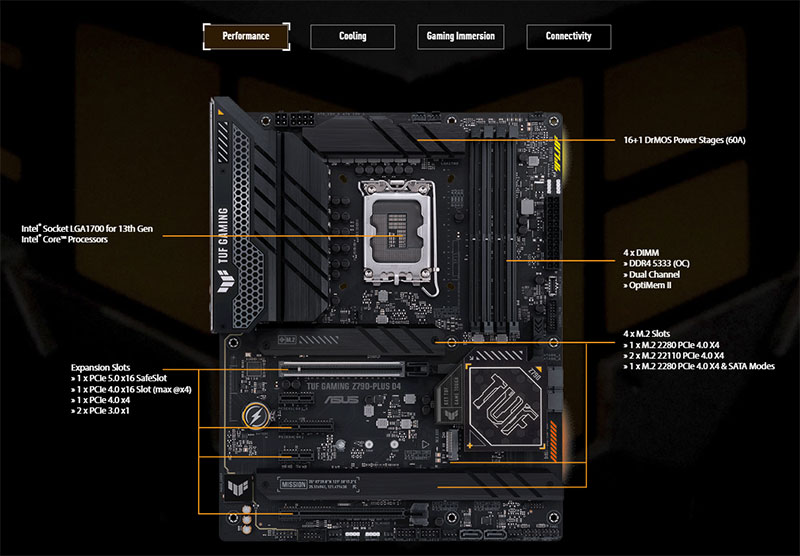
The three components we'll focus on today are the CPU, RAM, and PCIe slots because their compatibility is the most critical factor when building or upgrading a system.
2. The Core Trio: CPU, RAM, and PCIe
Ensuring components work together is a daily task in hardware maintenance. A mismatch can lead to anything from a system not booting to subtle performance issues. Let's break down the key compatibility points for each core component.
The following video provides an excellent, practical guide on how to think about compatibility. We will watch it in sections as we discuss each component.
How To Make Sure All Your Computer Hardware Parts Are Compatible [Simple]
We'll be using this video from GamingScan throughout this section. It does a great job of explaining the practical side of checking hardware compatibility.
No need to watch anything just yet. I will guide you to specific timestamps for each component we discuss below.
A. The CPU (Central Processing Unit)
The CPU is the "brain" of the computer, executing instructions and performing calculations. For a CPU to work, it must be physically and electronically compatible with the motherboard.
Key Compatibility Factor: The CPU Socket
The socket is the physical connector on the motherboard that houses the CPU. Each socket has a specific pin layout and design.
- A CPU must be designed for the specific socket on the motherboard. For example, an Intel CPU designed for an LGA1700 socket will not fit in an AMD AM5 socket, or even an older Intel LGA1200 socket.
- The socket type is one of the first things you'll see on a motherboard's or CPU's specification sheet. The image above shows an "Intel Socket LGA1700".
Now, let's see this explained in practice.
How To Make Sure All Your Computer Hardware Parts Are Compatible [Simple]
Watch this segment of the 'How To Make Sure All Your Computer Hardware Parts Are Compatible' video to understand CPU and motherboard socket compatibility.
Watch from 00:57 to 04:01. Pay close attention to the explanation of CPU sockets (like AM4 and LGA 1151) and the role of the chipset in determining compatibility.
As the video mentions, the chipset is also crucial. The chipset is a set of electronics on the motherboard that manages data flow between the CPU, memory, and peripherals. A motherboard's chipset is designed to work with specific generations of CPUs, even if they share the same socket type. This is why you must always check the motherboard's official CPU support list on the manufacturer's website.
B. RAM (Random Access Memory)
RAM serves as the computer's short-term working memory. It's much faster than a hard drive or SSD, and it holds the data for applications that are currently running.
Key Compatibility Factors:
- DDR Generation: RAM comes in generations like DDR3, DDR4, and DDR5. The modules are physically different and are not interchangeable. A motherboard with DDR5 slots cannot accept DDR4 RAM, and vice-versa.
- Speed and Capacity: The motherboard and CPU have a maximum supported RAM speed (measured in MHz or MT/s) and total capacity (in GB). While you can install RAM that is faster than what the motherboard officially supports, it will only run at the highest supported speed.
- Memory Channels: Most modern motherboards use a dual-channel architecture. This means that if you install RAM in pairs (e.g., two 8GB sticks instead of one 16GB stick), you can effectively double the data transfer bandwidth between the memory and the CPU, improving performance.
Let's return to our video guide for a practical look at RAM compatibility.
How To Make Sure All Your Computer Hardware Parts Are Compatible [Simple]
This next segment from the GamingScan video explains what you need to look for when choosing RAM.
Watch from 05:41 to 07:29. Focus on the importance of DDR generation, maximum supported speed, and the concept of dual-channel setups.
C. PCIe (Peripheral Component Interconnect Express)
PCIe slots are used to add expansion cards to the motherboard, such as:
- Graphics cards (GPUs)
- High-speed network cards (10GbE, 25GbE)
- RAID controllers for managing multiple storage drives
- Fast NVMe SSDs mounted on adapter cards
Key Compatibility Factors:
- Physical Size (Lanes): PCIe slots come in different physical sizes: x1, x4, x8, and x16. The number indicates the number of data "lanes" the slot provides. A card can be placed in a slot that is the same size or larger (e.g., an x4 card will work in an x16 slot), but not in a smaller one.
- Version: PCIe has evolved through versions (e.g., 3.0, 4.0, 5.0). Each version doubles the bandwidth of the previous one. The components are cross-compatible (a PCIe 4.0 card will work in a PCIe 3.0 slot), but the connection will run at the speed of the slower component.
Now for the final segment from our video guide.
How To Make Sure All Your Computer Hardware Parts Are Compatible [Simple]
This last segment from the GamingScan video discusses GPU compatibility, which primarily relies on the PCIe interface.
Watch from 04:01 to 05:57. Note the explanation of the PCIe interface and how physical size within the computer case is also a compatibility factor.
3. Practical Application: Interpreting a Spec Sheet
Now it's time to apply what you've learned, just as you would on the job. Imagine a manager asks you to confirm the compatibility of some components for a new workstation build. You're given the motherboard's specification sheet.
To practice this, we'll use a resource that contains a sample spec sheet and some questions.
The following PDF document from Pearson IT Certification's A+ Guide contains an excellent exercise for analyzing motherboard specifications. We will focus only on this exercise.
Please open the document and navigate to page 122, titled 'Exercise 3.2 Motherboard Analysis'. You will see a table named 'XYZ Motherboard Specifications' (Figure 3.43). Take about 10 minutes to analyze this table and answer the questions below. You don't need to write down the answers in the PDF; just think them through.
Using the "XYZ Motherboard Specifications" table, answer these questions:
- CPU Compatibility: What does "LGA1155" tell you about the CPU you can use? Which processor families are supported?
- RAM Upgrade: You need to install 32GB of RAM.
- What RAM generation (e.g., DDR3, DDR4) must you buy?
- The spec sheet lists speeds like "2600(O.C.)". What do you think "O.C." means?
- To get the best performance, how many RAM sticks would you install to make up the 32GB, and why? (Hint: Think about the "Memory channel" specification).
- Expansion Card: A colleague wants to install a dedicated sound card that uses a standard PCI slot (not PCIe). Does this motherboard have a slot for it?
- Graphics Cards: You want to install two graphics cards. The spec sheet says "2 (single x16 or dual x8)". What does this mean for performance if you install two cards?
Take your time to find the answers in the spec sheet. This exercise directly mirrors the process of validating hardware for a build or upgrade.
Click here to check your answers.
- CPU: "LGA1155" is the socket type. This motherboard only accepts CPUs designed for this specific socket. The supported families are listed as Celeron, Pentium, and Core i3, i5, i7 (of the generation that uses LGA1155).
- RAM: You must buy DDR3 RAM. "O.C." stands for Overclocked, meaning the motherboard can support those faster speeds if you manually configure it, but the standard non-overclocked speeds are 1600 and 1333 MHz. For the best performance, you should install two 16GB sticks or four 8GB sticks to take advantage of the Dual Channel memory architecture.
- Expansion: Yes, the spec sheet lists "PCI: 2", meaning there are two older PCI slots available.
- Graphics Cards: It means if you install one card in the primary PCIe x16 slot, it will run with 16 lanes of bandwidth. If you install two cards, they will both run with 8 lanes of bandwidth each (x8). The motherboard splits the 16 lanes from the CPU between the two slots.
Conclusion
Great work today. You've taken the first essential step toward mastering computer hardware.
Here are the key takeaways:
- The motherboard connects all computer components.
- The CPU socket type on the motherboard must match the CPU you intend to install.
- RAM compatibility depends on the DDR generation (DDR4, DDR5), maximum supported speed, and capacity. Using pairs of sticks enables dual-channel performance.
- PCIe slots are for expansion cards and are defined by their physical size (lanes x1 to x16) and version (3.0, 4.0, etc.).
- The ability to read a specification sheet is a non-negotiable skill for checking these compatibility points before purchasing or installing hardware.
In our next lesson, we will move from interpretation to action. You will learn how to assemble a PC from its components, covering the physical installation of the CPU, RAM, and motherboard, and the crucial anti-static procedures to keep the hardware safe.