Hello! Welcome to the final lesson of our course on preparing for the Databricks Data Engineer Associate certification.
In our last lesson, we explored data lineage, learning how to trace the journey of data from its source to its destination. We've now covered two of the three pillars of data governance in Unity Catalog: securing data with permissions and tracing it with lineage. Today, we'll complete the trifecta by focusing on the third pillar: data discovery.
In any large-scale data environment, simply having data isn't enough; you need to be able to find the right data, quickly and reliably. Imagine trying to find a specific event file within CERN's petabytes of collision data without a robust catalog or search system—it would be an impossible task. Data discovery is the mechanism that makes data assets findable and understandable across an organization.
Our learning outcome for this final lesson is to use Unity Catalog to discover and search for data assets across the organization. We will cover the two primary methods for this: browsing through the data hierarchy in Catalog Explorer and using the powerful global search functionality.
1. The Foundation of Discovery: Metadata
Before we dive into the tools, it's crucial to understand that effective data discovery is built on a foundation of rich metadata. Simply put, the more context you provide about your data, the easier it is for you and others to find and use it. This metadata includes not just table and column names, but also descriptive comments and organizational tags.
Let's watch a short video that perfectly illustrates this point.
Databricks Unity Catalog Tutorial - Data Governance made easy
This clip from the 'Databricks Unity Catalog Tutorial' by Databricks For Professionals clearly demonstrates why adding descriptive comments to your data assets is so important for discovery.
Please watch from 17:36 to 19:55. Notice how the presenter shows two ways to search and then demonstrates that adding a comment like 'ID of secret agent' to a column instantly makes that column discoverable by searching for the term 'agent'.
This highlights a core principle for any data engineer: well-documented data is usable data. Unity Catalog's search capabilities directly leverage this metadata, making good documentation practices more valuable than ever.
2. Discovering Data by Browsing with Catalog Explorer
The first method of discovery is structured exploration. Catalog Explorer is the UI you use to navigate the three-level namespace of Unity Catalog (catalog.schema.table) in a hierarchical way. This is useful when you have a general idea of where a data asset might be located.
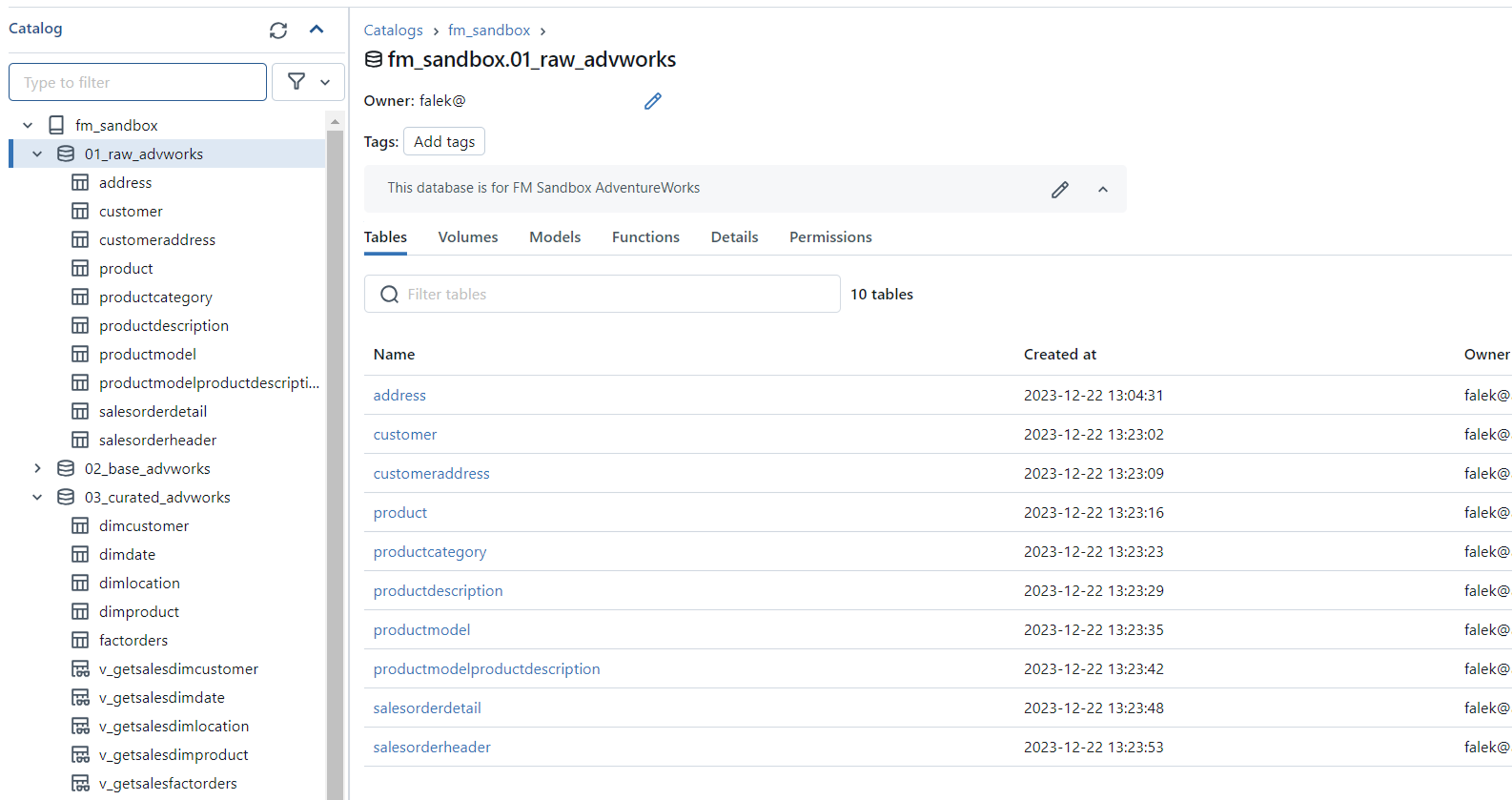
You can perform this exploration using both the UI and SQL commands, which is great for reinforcing your SQL skills.
The Databricks documentation provides a clear guide on how to explore database objects using both the Catalog Explorer UI and equivalent SQL commands.
Please read the sections 'Explore catalogs', 'Explore schemas', and 'Explore tables and views'. For each section, review both the SQL and Catalog Explorer methods. Pay attention to commands like SHOW CATALOGS, USE CATALOG, SHOW SCHEMAS, and SHOW TABLES.
Browsing is effective, but for larger workspaces or when you don't know the location of an asset, a more direct approach is needed: search.
3. Discovering Data with Global Search
Databricks provides a powerful, AI-enhanced global search bar at the top of the workspace. This is your primary tool for finding assets when you don't know their exact location or name.
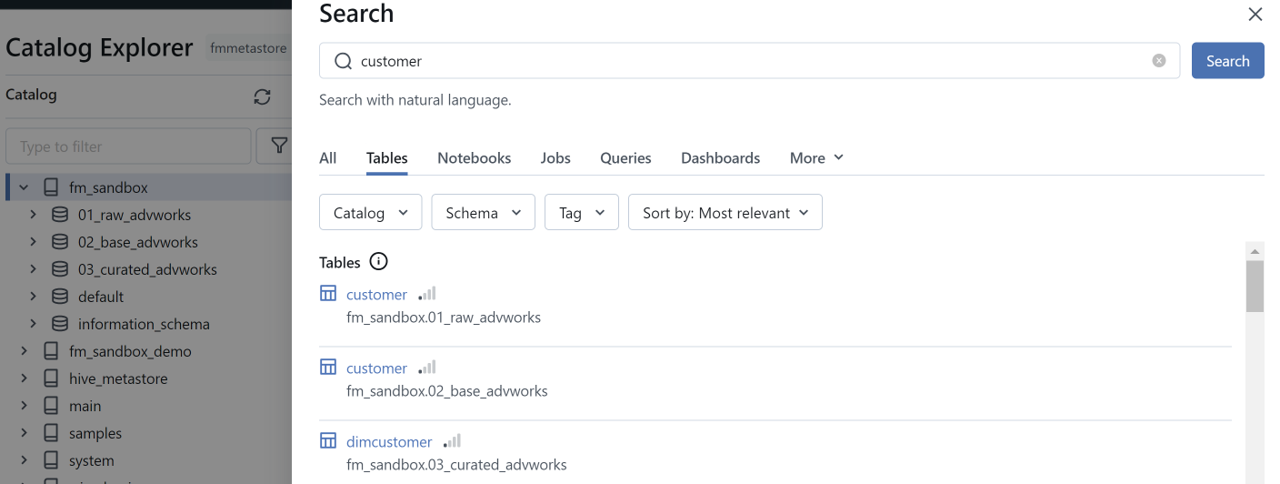
The search functionality is comprehensive, but its effectiveness relies on understanding what you can search for and how to refine your queries.
The official documentation on 'Search for workspace objects' is the definitive resource for this topic. It details all the features of the search functionality.
Please read the following sections to understand the core search capabilities: 'Search by text string': Learn how to perform basic searches and use quotation marks for exact matches. 'Limit search to a specific object type': Understand how to use the UI and syntax like type:table to filter results. 'Search tables and models in Unity Catalog-enabled workspaces': This is a key section. Focus on the list of what can be searched (names, comments, column names/comments, tags). 'Use tags to search': Learn the syntax for searching based on tag keys and values, such as tag:<key>:<value>.
To summarize the key points from the documentation:
- Searchable Fields: The search engine indexes table/column names, comments, and tags. This is why the metadata we discussed earlier is so vital.
- Filtering: You can narrow down results by object type (
type:table), owner (owner:me), and other attributes. - Tag Search: A very powerful feature for finding data related to a specific project, sensitivity level, or data source using the
tag:syntax. - Advanced Features: Databricks also uses AI to provide semantic search (searching by meaning, not just keywords) and ranks results by popularity to help you find the most authoritative assets first.
4. Hands-On: Finding Your Assets
Now, let's put theory into practice. You will create a few tables with rich metadata and then use the search tools to find them.
Instructions:
-
Open a new SQL notebook in your Databricks workspace.
-
Run the following code to create a new catalog and schema, and then populate them with two tables. Notice how we are adding comments and tags.
-- Create a catalog and schema for this exercise CREATE CATALOG IF NOT EXISTS discovery_lab; USE CATALOG discovery_lab; CREATE SCHEMA IF NOT EXISTS health_data; USE SCHEMA health_data; -- Table 1: Patient demographics with PII CREATE OR REPLACE TABLE patient_demographics ( patient_id STRING COMMENT 'Unique identifier for each patient, compliant with HIPAA.', full_name STRING, date_of_birth DATE ) COMMENT 'Contains personally identifiable information (PII) for patients.' TBLPROPERTIES ('data_sensitivity' = 'high'); ALTER TABLE patient_demographics SET TAGS ('project' = 'apollo', 'pii' = 'true'); -- Table 2: Lab results data CREATE OR REPLACE TABLE lab_results ( result_id STRING, patient_id STRING COMMENT 'Foreign key linking to the patient_demographics table.', test_name STRING, test_value DOUBLE, result_date TIMESTAMP ) COMMENT 'Anonymized clinical lab test results. Join with patient_demographics on patient_id.'; ALTER TABLE lab_results SET TAGS ('project' = 'apollo', 'data_source' = 'clinic_A', 'pii' = 'false'); -
Now, use the global search bar at the top of your workspace to perform the following searches and observe the results.
- Simple text search: Type
patientand press Enter. You should see both tables, notebooks, and columns that match. - Exact phrase search: Type
"personally identifiable information"(including the quotes). This should primarily return thepatient_demographicstable because of its comment. - Search a column comment: Type
HIPAA. This should find thepatient_demographicstable by matching the comment on itspatient_idcolumn. - Filter by type: Search for
apolloand then use the filters on the search results page to show only Tables. - Tag-based search:
- Search for
tag:pii:true. This should return only thepatient_demographicstable. - Search for
tag:project:apollo. This should return both tables.
- Search for
- Simple text search: Type
This exercise demonstrates how a little effort in documenting your data pays huge dividends in making it discoverable for the entire organization.
Conclusion
Congratulations on completing the final lesson! Today, we learned how to find and explore data assets using Unity Catalog's discovery features. This skill, combined with your knowledge of permissions and lineage, completes your understanding of data governance on the Databricks platform.
Key Takeaways
- Data discovery relies on two main methods: browsing via Catalog Explorer and searching via the global search bar.
- Rich metadata (descriptive comments and tags) is the single most important factor for enabling effective data discovery.
- The global search bar allows for powerful queries, including text search, filtering by object type, and searching by tags.
- Unity Catalog respects permissions, meaning you will only see assets in search results that you have the privilege to access.
Final Words and Next Steps
Over the past ten modules, we have journeyed from the foundational concepts of the Databricks Lakehouse to the intricacies of building production-grade ELT pipelines and governing data with Unity Catalog. You have built a solid foundation across all five domains of the Data Engineer Associate exam.
Your next step is to consolidate this knowledge and prepare for the exam itself. I recommend you:
- Review all the lessons and your notes.
- Re-run the hands-on exercises to ensure the concepts are firm.
- Seek out and complete official Databricks practice exams to get a feel for the question format and timing.
Thank you for your dedication throughout this course. You are now well-equipped to tackle the certification and advance your career as a data engineer. Good luck