Welcome to the first lesson of our module on Data Governance with Unity Catalog.
In the previous module, we mastered Databricks Workflows, learning how to build, schedule, and orchestrate complex, multi-task data pipelines. Now that we know how to process data, it's time to focus on how to manage and govern it. In any large organization, ensuring data is secure, discoverable, and of high quality is just as important as the transformations you apply to it.
This is where Unity Catalog comes in. It is Databricks' unified solution for data governance. Today's lesson will introduce you to its most fundamental concept. Our learning goal is to describe the three-level namespace in Unity Catalog: catalog, schema, and table. Understanding this structure is the first and most critical step to working with data in a modern Databricks environment, and it is a core topic for your certification exam.
1. The Shift to Centralized Governance
Before Unity Catalog, data governance in Databricks was managed on a per-workspace basis. Each workspace had its own independent "Hive metastore," which kept track of its tables. This meant that if your organization had multiple workspaces (e.g., for different teams or environments), there was no single source of truth for your data assets or access policies.
Unity Catalog changes this by introducing a centralized metastore that is shared across all workspaces in a given cloud region.
To see a clear comparison of the old and new models, let's watch a short introductory clip.
Databricks Unity Catalog: A Technical Overview
This video from Pathfinder Analytics Academy provides an excellent overview of what Unity Catalog is and contrasts it with the previous Hive metastore model.
Watch the segment from 00:11 to 01:57. Focus on understanding the shift from a decentralized, per-workspace model to a centralized, account-level model for managing metadata.
This centralized approach is the foundation for unified governance, lineage tracking, and data discovery—all of which we will explore in this module.
2. The Unity Catalog Object Model
Unity Catalog organizes all data and AI assets into a clear, hierarchical structure. Understanding this hierarchy is key to locating, querying, and securing your data.
At the very top of this hierarchy is the Metastore. A metastore is the top-level container for all your metadata and lives at the account level for a specific cloud region. All of the objects we're about to discuss are contained within a single metastore.
Beneath the metastore, data is organized using a three-level namespace. Think of it like a physical filing system:
- Catalog: The first and highest level. This is like a filing cabinet, used to group data assets. Catalogs often correspond to organizational units (e.g.,
finance,marketing), data domains, or software development environments (e.g.,dev,prod). - Schema: The second level, also known as a database. This is like a drawer within a filing cabinet. Schemas are used to group related tables, views, and other assets within a catalog. They often represent a specific project, dataset, or team sandbox (e.g.,
q1_reports,customer_data). - Table, View, Volume, etc.: The third and most granular level. These are the documents inside the drawer—the actual data assets themselves.
This hierarchical structure is visualized in the diagram below.

To get the official definitions, let's turn to the Databricks documentation.
The official Databricks documentation provides concise definitions for each layer of the object model. Reading this will solidify your understanding of the formal structure.
Please read the section titled 'The Unity Catalog object model'. Focus on the descriptions provided for 'Level one: Catalogs', 'Level two: Schemas', and 'Level three: Tables'.
3. Querying Data with the Three-Level Namespace
This three-level hierarchy directly translates into the syntax you use to access a table in a query. To uniquely identify any table, you must specify its full "path" using the format catalog.schema.table.
This is known as a fully qualified table name.
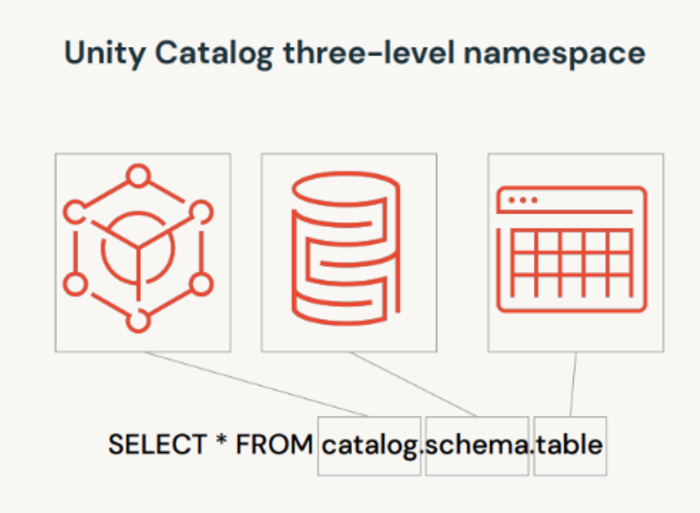
Let's watch a quick demonstration of this syntax in action within a Databricks notebook.
Databricks Unity Catalog: A Technical Overview
The same video from Pathfinder Analytics Academy provides a practical demonstration of how to query a table using the three-level namespace in both SQL and PySpark.
Watch the segment from 08:03 to 09:56. Observe how the presenter uses the hr.bronze.countries three-part name to access the table, first with PySpark (spark.read.table) and then with SQL (SELECT * FROM).
As the video shows, this naming convention is consistent whether you are using SQL or PySpark, providing a predictable way to reference any data asset governed by Unity Catalog.
4. Hands-On: Exploring the Namespace
Now it's your turn to apply this knowledge. We will use the Catalog Explorer in your Databricks workspace to navigate the three-level namespace and run a query.
-
Navigate to the Catalog Explorer: In the left-hand navigation pane of your Databricks workspace, click on the Catalog icon.
-
Explore Catalogs: You will see a list of catalogs available to you. Databricks often provides a
samplescatalog with pre-loaded datasets. Click on thesamplescatalog to expand it. -
Explore Schemas: Inside the
samplescatalog, you will see a list of schemas (databases). Find and click on thenyctaxischema to see its contents. -
Explore Tables: You will now see the tables within the
nyctaxischema. Click on thetripstable. The UI will display details about the table, including its columns and some sample data. -
Query the Table:
-
Create a new SQL notebook in your workspace.
-
In a cell, type the following query to select 10 records from the table you just found. Notice you are using the full three-part name you navigated through:
catalog.schema.table.SELECT * FROM samples.nyctaxi.trips LIMIT 10; -
Run the cell. You should see the query results appear.
-
-
(Optional) Using Context Commands: Typing the full name can be repetitive. You can set your session's context using the
USEcommand. Add a new cell and try this:-- Set the current catalog and schema USE CATALOG samples; USE SCHEMA nyctaxi; -- Now you can query the table using only its name SELECT * FROM trips LIMIT 10;This is a convenient shortcut for running multiple queries against tables in the same schema.
This exercise directly connects the visual hierarchy in the Catalog Explorer with the query syntax you use in a notebook, reinforcing the concept of the three-level namespace.
Conclusion
In this lesson, you were introduced to Databricks Unity Catalog and its foundational organizing principle. We have moved from a world of building data pipelines to understanding how the data assets those pipelines create are governed and structured.
Key Takeaways
- Unity Catalog provides a centralized governance model, replacing the older, per-workspace Hive metastore.
- Data assets are organized in a three-level hierarchy: Catalog -> Schema -> Table.
- The Metastore is the top-level container for all metadata in a region.
- To query a data asset, you use its fully qualified three-part name:
catalog.schema.table. - You can use the Catalog Explorer to visually navigate this hierarchy and the
USEcommand in notebooks to set a default context.
Next Steps
Now that you understand what the objects in Unity Catalog are and how they are structured, the next logical step is to learn how to control access to them. In our next lesson, we will cover how to grant and revoke permissions on catalogs, schemas, and tables using SQL, which is the core of data security in Unity Catalog.