Hello! Welcome to the final lesson in our module on managing tables with Delta Lake.
In our previous lesson, we investigated the _delta_log and saw how every transaction (INSERT, UPDATE, DELETE) creates new data files and marks old ones as inactive within the log. This mechanism is powerful, but it leads to two practical challenges:
- The "Small File Problem": Frequent, small transactions can create a large number of small data files, which slows down query performance.
- Storage Bloat: Old, unreferenced data files remain in storage to support Time Travel, consuming space and potentially causing compliance issues.
Today, we will learn how to solve these problems. You will learn to use the OPTIMIZE command to compact small files and the VACUUM command to securely remove old data, ensuring your Delta tables are both performant and cost-effective. Mastering these maintenance operations is a key skill for any data engineer working with the Databricks Lakehouse.
1. The Small File Problem and the OPTIMIZE Command
Big data query engines like Apache Spark are designed for high throughput and perform best when reading large, columnar files. When a query has to read thousands of small files instead of a few large ones, it spends more time opening files and reading metadata than actually processing data. This overhead can severely degrade query performance.
This situation frequently occurs in data pipelines with streaming data or frequent small updates, where each transaction might generate one or more small files.
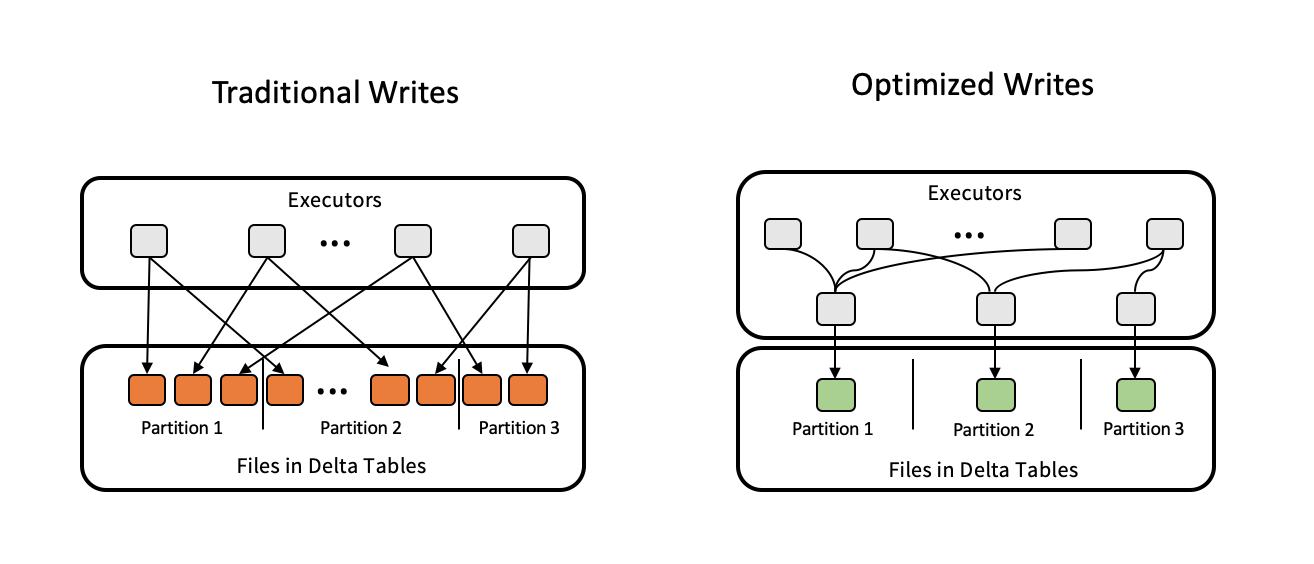
The solution to this is file compaction, which we can perform using the OPTIMIZE command.
What does OPTIMIZE do?
The OPTIMIZE command reads the small files in a Delta table and rewrites them into a smaller number of larger files. By default, it aims to create 1GB files. This is a background operation that does not interrupt concurrent reads or writes on the table.
Let's watch a video that demonstrates this process in action.
64. Databricks | Pyspark | Delta Lake: Optimize Command - File Compaction
This video, "Databricks | Pyspark | Delta Lake: Optimize Command - File Compaction" by Raja's Data Engineering, provides a clear, step-by-step demonstration of the small file problem and how OPTIMIZE solves it.
Please watch the following segments to understand the entire workflow: 00:00 - 01:25: Introduction to why we need OPTIMIZE and the concept of optimal file sizes. 01:25 - 08:56: The presenter demonstrates how INSERT, UPDATE, and DELETE operations lead to the creation of many small files, and how inactive files are tracked in the log. 08:56 - 00:12:53: The presenter explains the performance impact of small files and then runs the OPTIMIZE command, showing how it compacts the active files into a single new, larger file.
As the video showed, operations that modify the table don't just add new files; they also create new transaction log entries that mark old files as inactive. OPTIMIZE works by reading the latest transaction log to identify all the active small files and combines them.
2. Hands-On: Compacting Files with OPTIMIZE
Now, it's your turn to apply this. Open a new Databricks SQL notebook and follow these steps.
Step 1: Create a Sample Table and Generate Small Files
We'll create a table and run a series of INSERT statements to simulate a scenario that generates many small files.
-- Create a table in a specific location so we can inspect its files
CREATE OR REPLACE TABLE cosmic_ray_events (
  event_id BIGINT,
  energy_tev DOUBLE,
  particle_type STRING
)
LOCATION 'dbfs:/tmp/cosmic_ray_events';

-- Insert records one by one to create small files
INSERT INTO cosmic_ray_events VALUES (101, 1.5, 'proton');
INSERT INTO cosmic_ray_events VALUES (102, 12.0, 'iron');
INSERT INTO cosmic_ray_events VALUES (103, 0.8, 'proton');
INSERT INTO cosmic_ray_events VALUES (104, 3.2, 'helium');
INSERT INTO cosmic_ray_events VALUES (105, 25.1, 'iron');
Step 2: Inspect the Data Files
Let's use a Python cell to list the files in the table's directory.
# Use the %python magic command to switch to Python
%python


# List the Parquet files in our table's directory
table_location = "dbfs:/tmp/cosmic_ray_events"
display(dbutils.fs.ls(table_location))
Filter the results by the .parquet extension. You should see multiple Parquet files, each likely containing just one record from our INSERT statements. These are our "small files."
Step 3: Run the OPTIMIZE Command
Now, let's compact these files.
OPTIMIZE cosmic_ray_events;
The output of this command will show you metrics about the operation, including how many files were removed and how many were added. Notice that it "removed" 5 files and "added" 1.
Step 4: Re-inspect the Data Files
Let's look at the directory again.
%python

table_location = "dbfs:/tmp/cosmic_ray_events"
display(dbutils.fs.ls(table_location))
You will now see a new, larger Parquet file that was created by the OPTIMIZE operation. This single file contains all 5 records. You will also see that the original 5 small files are still there. OPTIMIZE does not delete the old files; it simply marks them as no longer part of the active version of the table in the transaction log.
3. Further Improving Performance with ZORDER
You can enhance OPTIMIZE by adding a ZORDER BY clause. Z-Ordering is a technique that co-locates related data in the same set of files. When you filter on a Z-Ordered column in your queries, Databricks can skip reading irrelevant files altogether, which can dramatically speed up queries.
Given your physics background, you can think of this as organizing a particle data archive. Simple OPTIMIZE is like binding loose research notes into large volumes. OPTIMIZE with ZORDER BY particle_type is like organizing those notes within each volume so that all data about "protons" is together, and all data about "neutrinos" is together. When you need data only on protons, you can skip all the other sections.
The syntax is straightforward.
-- This command compacts small files AND sorts the data by particle_type
-- to speed up queries that filter on particle_type.
OPTIMIZE cosmic_ray_events
ZORDER BY (particle_type);
Choosing the right columns for Z-Ordering (typically high-cardinality columns used in WHERE clauses) is an important performance tuning strategy.
4. Cleaning Up Old Files with VACUUM
After running OPTIMIZE, our table is faster, but the old, small files still exist in storage, consuming space. The VACUUM command is used to physically remove these obsolete files.
Critically, VACUUM has a built-in safety mechanism. By default, it will not delete any files that are less than 7 days old (168 hours). This retention period serves two purposes:
- It ensures that long-running queries that started before the
OPTIMIZEcommand can still finish successfully. - It preserves the ability to use Time Travel to query recent versions of the table.
65. Databricks | Pyspark | Delta Lake: Vacuum Command
The video "Databricks | Pyspark | Delta Lake: Vacuum Command" explains the purpose of VACUUM, the importance of the retention period, and how to use it safely.
Please watch these segments: 09:40 - 10:23: The video explains the two conditions for a file to be vacuumed: it must be unreferenced and older than the retention period. 10:23 - 11:34: An important demonstration of VACUUM ... DRY RUN, which lets you preview which files will be deleted without actually deleting them. 11:34 - 14:07: This part shows how to change the retention period and explains the risks of setting it to zero. 14:07 - 15:13: The presenter executes the final VACUUM command and verifies that the old files are gone.
5. Hands-On: Removing Files with VACUUM
Let's continue with our cosmic_ray_events table.
Step 1: Preview the VACUUM Operation
It's always a best practice to perform a dry run first.
-- This command shows a list of files that would be deleted, but doesn't delete them.
VACUUM cosmic_ray_events DRY RUN;
This command will likely return an empty list because the files we created moments ago are not older than the default 7-day retention period.
Step 2: Override Retention and VACUUM (For Demonstration Only)
To demonstrate the command for this exercise, we can temporarily disable the retention period check.
Warning: Disabling the retention check and setting the duration to zero hours is dangerous in a production environment. It can break running queries and makes recent data unrecoverable via Time Travel. Only do this for this tutorial.
-- Disable the retention period check for this session
SET spark.databricks.delta.retentionDurationCheck.enabled = false;

-- Now vacuum files older than 0 hours
VACUUM cosmic_ray_events RETAIN 0 HOURS;
Step 3: Verify the Cleanup
Let's list the files one last time.
%python
table_location = "dbfs:/tmp/cosmic_ray_events"
display(dbutils.fs.ls(table_location))
Now, you should see that all the old, small Parquet files are gone. Only the single, compacted file from the OPTIMIZE operation remains, along with the _delta_log directory.
Summary: A Maintenance Workflow
OPTIMIZE and VACUUM are powerful tools for maintaining the health of your Delta tables. The following flowchart provides a simple mental model for when to use them.

Conclusion
In this lesson, you've learned two essential commands for managing the physical layout of your Delta tables. This concludes our module on managing tables with Delta Lake.
Key Takeaways
- Frequent small writes can lead to a "small file problem," which degrades query performance.
- The
OPTIMIZEcommand resolves this by compacting small files into larger, more efficient ones. - You can use
ZORDER BYwithOPTIMIZEto collocate data and enable faster queries through data skipping. - The
VACUUMcommand permanently deletes old data files that are no longer referenced by a Delta table and are older than the retention period. VACUUMhas a default 7-day retention period as a safety feature, which should only be overridden with extreme caution.
Next Steps
You now have a solid understanding of how to create, modify, and maintain reliable Delta tables. In our next module, "Transforming Data with Spark SQL," we will shift our focus to more advanced data manipulation techniques. The first lesson will introduce how to use temporary views and common table expressions (CTEs) to build clean, modular, and readable data transformation pipelines.