Hello! Welcome to the seventh lesson in our module on managing tables with Delta Lake.
In our last lesson, we explored how to use DESCRIBE HISTORY to view a table's audit log and how to use Time Travel to query previous table versions. We established that every operation (INSERT, UPDATE, DELETE, MERGE) creates a new, immutable version of your table.
Today, we'll pull back the curtain to understand the mechanism that makes these powerful features possible. We're going to dive into the Delta Lake transaction log. You will learn how to inspect the log files directly to see how Delta Lake records every change, providing a robust, single source of truth for your data. Understanding this is key to mastering Delta Lake and debugging data pipelines.
1. The Heart of a Delta Table: The Transaction Log
Every Delta table is backed by a directory of files. The most important subdirectory within it is named _delta_log. This directory is the brain of your Delta table; it contains an ordered record of every transaction ever performed. This log is the definitive source of truth that allows Delta Lake to provide ACID guarantees and reliability.
Let's start with a short video that introduces the concept of the _delta_log and contrasts Delta files with standard Parquet files.
Understanding Delta File Logs - The Heart of the Delta Lake
This video, "Understanding Delta File Logs" by Bryan Cafferky, introduces the core idea that the _delta_log directory is what elevates Parquet files into a full-fledged, reliable table format.
Watch the following segments to get a high-level overview: 01:12 - 02:10: The speaker explains the limitations of Parquet files and introduces the Delta log as the solution. 05:09 - 05:59: The video demonstrates the creation of a Delta table and points out the _delta_log folder, highlighting it as the key differentiator.
As the video explains, while the data itself is stored in Parquet files, the _delta_log folder is what orchestrates everything, turning a simple collection of files into a transactional table.
2. Anatomy of the Transaction Log
The transaction log consists of a series of files within the _delta_log directory. Let's break down its structure.
Commit Files (JSON)
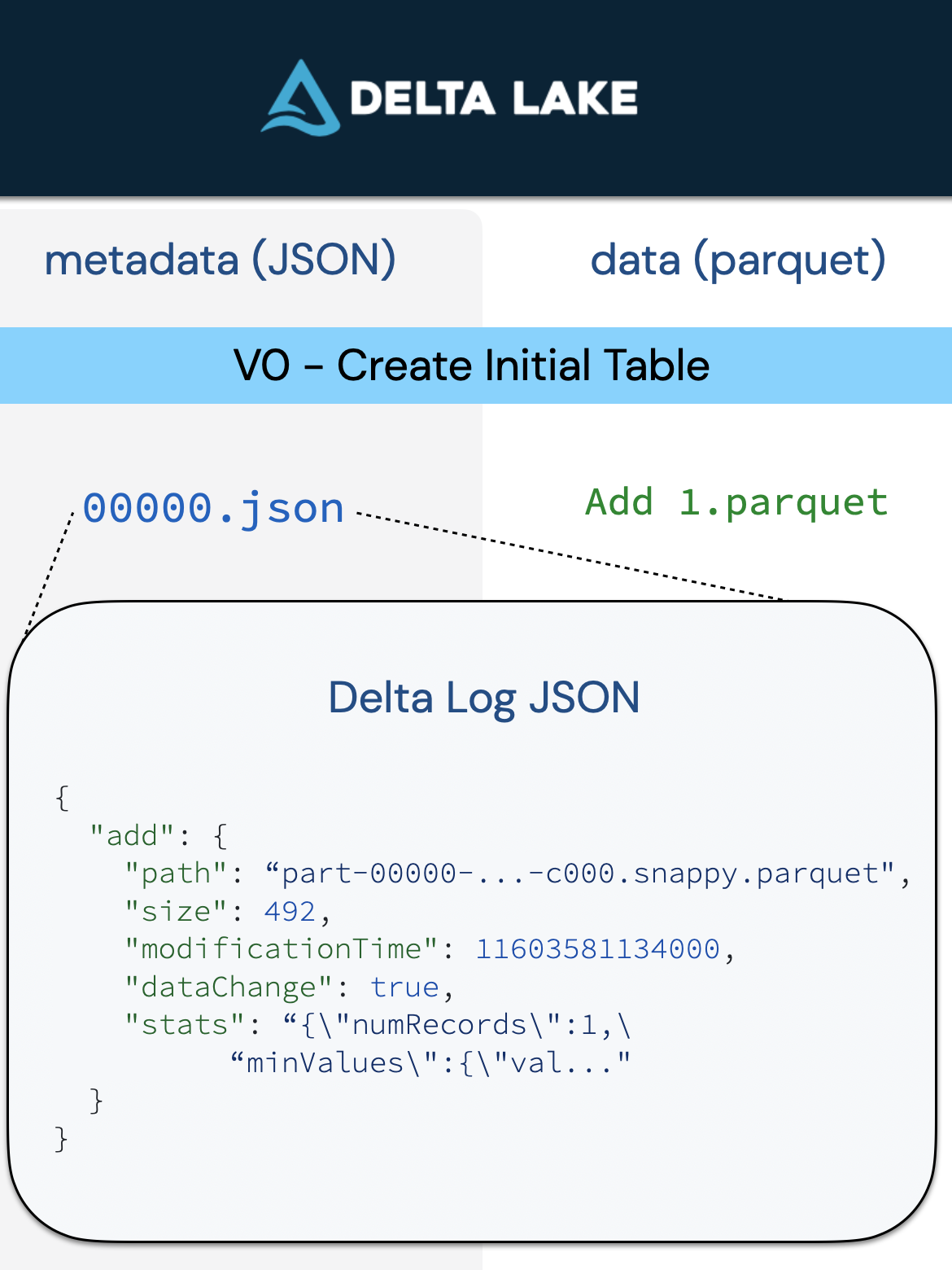
Each transaction, or change, to a Delta table is recorded as a single commit. Each commit is stored as a separate JSON file in the _delta_log directory. These files are named with sequentially increasing numbers, starting from 00000000000000000000.json.
0000...0.json: Represents version 0 of the table (e.g., theCREATE TABLEoperation).0000...1.json: Represents version 1 of the table (e.g., anINSERToperation).0000...2.json: Represents version 2 of the table (e.g., anUPDATEoperation).- and so on...
This ordered sequence of commits is what allows Delta Lake to reconstruct the state of the table at any version.

Atomic Actions within a Commit
Each JSON commit file contains one or more actions. These actions describe the specific changes made in that transaction.
To dive deeper into the contents of these JSON files, let's watch a segment from a Databricks tech talk.
Tech Talk | Diving into Delta Lake Part 1: Unpacking the Transaction Log
This clip from the official Databricks YouTube channel, titled "Diving into Delta Lake Part 1: Unpacking the Transaction Log", provides a detailed breakdown of the actions recorded within a commit file.
Please watch from the beginning to 07:10. The speakers introduce the transaction log and detail the key actions you'll find inside the JSON files: 00:00 - 02:46: Introduction to the _delta_log directory and its role as the single source of truth. 03:15 - 07:10: A detailed explanation of the primary actions: metaData, add file, remove file, setTransaction, and commitInfo.
To summarize the key actions you just learned about:
commitInfo: Information about the commit itself, like the timestamp, the user who performed it, and the operation type (WRITE,UPDATE, etc.).protocol: The version of the Delta Lake protocol, ensuring compatibility.metaData: Information about the table's schema, partitioning, and other properties. This is typically found in the first commit.add: An action indicating that a new data file (Parquet) has been added to the table. It includes the file's path and statistics (like min/max values and null counts) which are used for performance optimization (a technique known as data skipping).remove: An action indicating that a data file should no longer be considered part of the current table version. Note that this is a logical removal; the file isn't physically deleted from storage immediately.
3. Hands-On: Inspecting the Log
Now, let's put this theory into practice. You'll create a table and inspect its _delta_log directory directly to see these files and actions for yourself. Please open a new Databricks SQL notebook and follow these steps.
Step 1: Create a Table and Find its Location
First, we'll create the particle_inventory table from our previous lesson and then find where its files are stored. The DESCRIBE DETAIL command provides this location.
-- Create our inventory table
CREATE OR REPLACE TABLE particle_inventory (
  particle_id INT,
  particle_name STRING,
  mass_gev DOUBLE
) USING DELTA
LOCATION 'dbfs:/tmp/my_particle_inventory'; -- Using a custom location for clarity

-- Get the table's location
DESCRIBE DETAIL particle_inventory;
From the output of the second command, copy the path from the location column. It should be dbfs:/tmp/my_particle_inventory.
Step 2: Inspect the Initial Commit Log
When you create a table, Delta Lake creates the _delta_log directory and an initial commit file. Let's look inside. We'll use a Python cell to list the files and read the JSON.
Note: Use the
%pythonmagic command at the start of a cell to switch the language from SQL to Python for that cell.
# List the contents of the _delta_log directory
# Replace the path with your table's location if it's different
table_location = "dbfs:/tmp/my_particle_inventory"
delta_log_path = f"{table_location}/_delta_log/"

display(dbutils.fs.ls(delta_log_path))
You should see one JSON file: 00000000000000000000.json. This is Version 0 of your table. Now, let's read its contents using Spark SQL directly on the file.
# Read the first JSON commit log
# We use f-strings in Python to build the file path dynamically
json_path_v0 = f"{delta_log_path}/00000000000000000000.json"
display(spark.read.json(json_path_v0))
Examine the output. You will see rows for commitInfo, protocol, and metaData. Expand the metaData struct to see the table schema you defined in the CREATE TABLE statement. Notice there are no add actions because no data has been inserted yet.
Step 3: Insert Data and Inspect the New Log
Now, let's insert a record. This will create a new transaction and a new commit file.
-- Insert a record into the table
INSERT INTO particle_inventory VALUES (1, 'Proton', 0.938);
This operation creates Version 1 of the table. Let's inspect the _delta_log again.
# List the contents of the _delta_log directory again
display(dbutils.fs.ls(delta_log_path))
You will now see a new file: 00000000000000000001.json. Let's inspect it.
# Read the second JSON commit log for Version 1
json_path_v1 = f"{delta_log_path}/00000000000000000001.json"
display(spark.read.json(json_path_v1))
In this output, you'll see a row for the add action. Expand it. Notice the path column points to a newly created Parquet file that contains the data for the 'Proton' you just inserted. This is how Delta Lake knows which data files constitute version 1 of the table.
4. Checkpoints for Performance
Imagine a table with millions of transactions. To figure out the current state, would Spark have to read all one million JSON files every time you run a query? That would be incredibly inefficient.
To solve this, Delta Lake periodically creates checkpoint files. A checkpoint file is written in Parquet format and consolidates the state of the table up to a specific version. By default, this happens every 10 commits.
Diving Into Delta Lake: Unpacking The Transaction Log - Databricks
The official Databricks blog post, "Diving Into Delta Lake: Unpacking The Transaction Log," provides an excellent explanation of why checkpoints are necessary and how they work.
Please read the section titled 'Quickly Recomputing State With Checkpoint Files'. Focus on understanding how Spark uses a combination of the latest checkpoint and the few subsequent JSON files to efficiently determine the table's most recent state.
When you query a Delta table, Spark is smart:
- It finds the most recent checkpoint file.
- It reads this single Parquet file to get a near-complete state of the table.
- It then reads only the few JSON files created after that checkpoint to bring the state fully up to date.
This process dramatically speeds up query planning and makes metadata management in Delta Lake highly scalable.
Conclusion
In this lesson, you went under the hood of Delta Lake to see how it achieves its reliability. By inspecting the transaction log, you've seen firsthand how every change to your data is meticulously recorded.
Key Takeaways
- The
_delta_logdirectory is the single source of truth for a Delta table. - Transactions are recorded as sequentially numbered JSON commit files.
- Each commit contains actions (
metaData,add,remove,commitInfo) that describe the change. - The
addandremoveactions track the data files (Parquet) that belong to each version of the table. - Checkpoint files (in Parquet format) are created periodically to consolidate the transaction history and ensure read performance remains high even for tables with many versions.
- Commands like
DESCRIBE HISTORYare simply user-friendly tools that parse the information stored in these log files.
Next Steps
You've seen that remove actions in the log mark old data files as "deleted," but the files themselves remain in storage for a period to enable Time Travel. This can lead to an accumulation of obsolete files. In our next and final lesson of this module, we will cover how to manage these files by using the OPTIMIZE command to compact small files and the VACUUM command to safely remove old, unreferenced data files.