Hello! Welcome to the fifth lesson in our module on managing Delta Lake tables.
In our previous lesson, you learned how to use the standard DML commands INSERT, UPDATE, and DELETE to manipulate data. We noted that when you need to synchronize data from a source to a target, running these as separate operations can be cumbersome and inefficient.
Today, we'll address that challenge by focusing on a powerful, atomic operation that is a cornerstone of modern data engineering: the MERGE statement. This lesson will teach you how to use MERGE to perform "upsert" operations, where you can update existing records, insert new ones, and even delete records that no longer exist in the source, all within a single, reliable transaction.
Mastering this command is essential for building efficient and robust ELT pipelines and is a key topic for the Databricks Data Engineer Associate exam.
1. The Power of a Single Command
Imagine you have a target table and a file with a batch of recent changes. Some changes are updates to existing rows, and some are brand-new rows. Traditionally, in a data lake, you would need a complex, multi-step process to apply these changes.
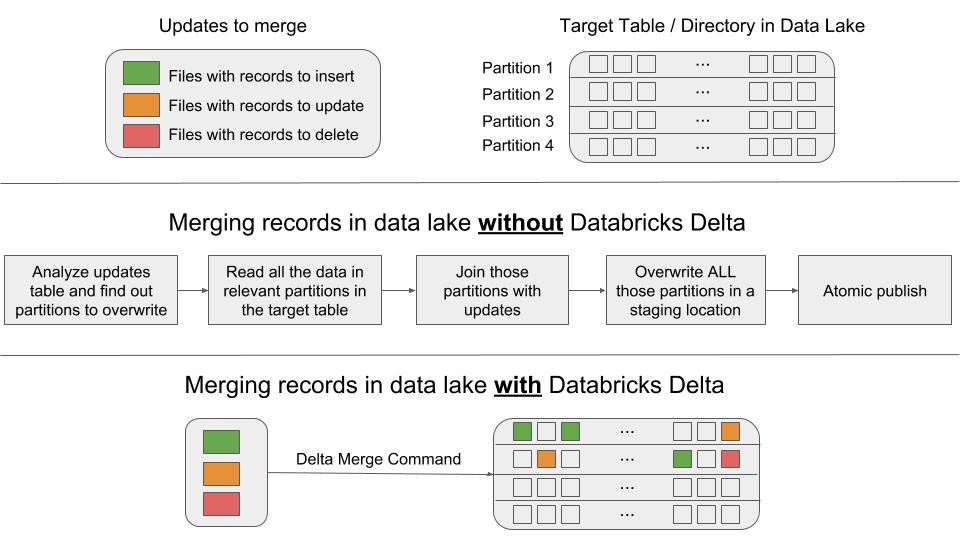
As the image illustrates, Delta Lake's MERGE command elegantly replaces this entire sequence. Let's dive into how it works.
2. Understanding the MERGE Statement
The MERGE operation, often called an "upsert," allows you to merge a source table (or a view/subquery with updates) into a target Delta table. The core idea is to define a join condition and then specify different actions based on whether a row matches or not.
The video below provides an excellent walkthrough of the concept and syntax. It will introduce the two primary clauses: WHEN MATCHED and WHEN NOT MATCHED.
15 Delta Tables MERGE and UPSERTS | SCD1 in Delta | Soft Delete with Incremental data using Merge
This video from Ease With Data clearly explains the MERGE operation, its syntax, and demonstrates a practical example of updating existing records and inserting new ones.
Please watch from the beginning until 07:30. The video will cover: The concept of MERGE (or upsert). Setting up a target table (EMP) and a source table (EMP_updates). The full SQL syntax for a MERGE statement with WHEN MATCHED and WHEN NOT MATCHED clauses.
As you saw in the video, the basic structure of a MERGE statement is:
MERGE INTO target_table AS target
USING source_table AS source
ON target.key_column = source.key_column
WHEN MATCHED THEN
  UPDATE SET target.col1 = source.col1, target.col2 = source.col2 -- Action for matching rows
WHEN NOT MATCHED THEN
  INSERT (col1, col2, key_column) VALUES (source.col1, source.col2, source.key_column) -- Action for new rows
This structure is highly logical:
MERGE INTO ... USING ... ON: Defines the target table, the source of changes, and the key(s) to join them on.WHEN MATCHED THEN ...: Specifies what to do when a key from the source is found in the target. The most common action isUPDATE.WHEN NOT MATCHED THEN ...: Specifies what to do when a key from the source is not found in the target. The most common action isINSERT.
For a quick reference, the official Databricks documentation provides a very clear and concise example of this syntax.
Tutorial - Create and manage Delta Lake tables
Let's look at the official documentation for a straightforward example of the SQL MERGE syntax. This will reinforce what you just saw in the video.
In this tutorial, please review only the SQL code block under the 'Upsert to a table' section. Notice the use of UPDATE SET * and INSERT * as a shorthand when schemas match.
3. Practice: Synchronizing Particle Observations
Now, let's apply this in a hands-on exercise. We'll continue with our particle physics theme. Imagine our particle_inventory table is our main "target" table. We've just received a new batch of observations (new_observations) that we need to merge in.
Please open a Databricks SQL notebook and run the following queries.
Step 1: Set Up the Tables
First, let's create our target table and a temporary view to act as our source of updates.
-- Create our main inventory table (the target)
CREATE OR REPLACE TABLE particle_inventory (
  particle_id INT,
  particle_name STRING,
  particle_class STRING,
  mass_gev DOUBLE,
  quantity_observed LONG
) USING DELTA;

-- Insert initial data into the target table
INSERT INTO particle_inventory VALUES
  (1, 'Proton', 'Baryon', 0.938, 10500),
  (2, 'Neutron', 'Baryon', 0.939, 9700),
  (3, 'Electron', 'Lepton', 0.000511, 25000),
  (4, 'Higgs Boson', 'Boson', 125.1, 85);

-- Create a temporary view for our new batch of observations (the source)
CREATE OR REPLACE TEMP VIEW new_observations AS SELECT * FROM VALUES
  (3, 'Electron', 'Lepton', 0.000511, 28000),   -- Update: More electrons observed
  (4, 'Higgs Boson', 'Boson', 125.1, 92),      -- Update: More Higgs bosons observed
  (5, 'Tau', 'Lepton', 1.777, 30)               -- Insert: New particle observed
  AS t(particle_id, particle_name, particle_class, mass_gev, quantity_observed);
Step 2: Write the MERGE Statement
Now, write the MERGE statement to synchronize new_observations into particle_inventory.
- Target:
particle_inventory - Source:
new_observations - Join Condition: Match on
particle_id. - When Matched: Update the
quantity_observedin the target with the value from the source. - When Not Matched: Insert the entire new row from the source into the target.
Click to see the solution
MERGE INTO particle_inventory AS target
USING new_observations AS source
ON target.particle_id = source.particle_id
WHEN MATCHED THEN
  UPDATE SET target.quantity_observed = source.quantity_observed
WHEN NOT MATCHED THEN
  INSERT *;
Step 3: Verify the Results
Run the MERGE statement and then query the particle_inventory table to see the results.
SELECT * FROM particle_inventory ORDER BY particle_id;
You should see:
- The
quantity_observedfor Electron and Higgs Boson are updated to 28000 and 92, respectively. - A new row for the Tau particle has been inserted.
- The rows for Proton and Neutron remain untouched.
4. Advanced MERGE: Deleting and Soft-Deleting
The MERGE statement has a third powerful clause: WHEN NOT MATCHED BY SOURCE. This is used for cases where you want the target table to be an exact mirror of the source. If a record exists in the target but not in the source, this clause can delete it.
A common, and often safer, alternative to hard deletes is "soft-deleting"—marking a record as inactive instead of physically removing it. The next video segment demonstrates both hard deletes and the more robust soft-delete pattern.
15 Delta Tables MERGE and UPSERTS | SCD1 in Delta | Soft Delete with Incremental data using Merge
Let's return to the 'Ease With Data' video to learn about deleting records with MERGE and implementing soft deletes.
Please watch from 07:30 to 13:13. This part covers: Using WHEN NOT MATCHED BY SOURCE THEN DELETE to remove records from the target that aren't in the source. A more advanced pattern: adding an is_active column and using MERGE to update it, effectively performing a 'soft delete'.
The soft-delete pattern is extremely valuable in data engineering. Instead of losing historical information, you preserve it and simply flag it as inactive. This requires a schema change (adding a status column like is_active) and then modifying your MERGE logic.
For example, to implement a soft delete and handle schema evolution:
- Add a column:
ALTER TABLE particle_inventory ADD COLUMN is_active BOOLEAN; UPDATE particle_inventory SET is_active = true; -- Set existing records to active - Modify the
MERGEstatement:MERGE INTO particle_inventory AS target USING new_observations AS source ON target.particle_id = source.particle_id WHEN MATCHED THEN UPDATE SET target.quantity_observed = source.quantity_observed, target.is_active = true WHEN NOT MATCHED THEN INSERT (particle_id, ..., quantity_observed, is_active) VALUES (source.particle_id, ..., source.quantity_observed, true) WHEN NOT MATCHED BY SOURCE THEN UPDATE SET target.is_active = false; -- Soft delete
This creates a far more resilient pipeline where you never lose track of data that was once present.
Conclusion
In this lesson, you've learned to wield one of the most powerful DML commands in Databricks SQL. The MERGE statement is the go-to tool for efficiently synchronizing data between tables, forming the heart of many ELT processes.
Key Takeaways
MERGEis Atomic: It combinesINSERT,UPDATE, andDELETEoperations into a single, ACID-compliant transaction.- Three Core Clauses:
WHEN MATCHED: Updates rows that exist in both the source and target.WHEN NOT MATCHED: Inserts new rows that exist in the source but not the target.WHEN NOT MATCHED BY SOURCE: CanDELETEorUPDATErows that exist in the target but not the source.
- Upsert Pattern: The combination of
WHEN MATCHEDandWHEN NOT MATCHEDis known as an "upsert." - Soft Deletes: Using
WHEN NOT MATCHED BY SOURCEto update a status column (e.g.,is_active = false) is a robust alternative to permanently deleting data.
Next Steps
Every MERGE, UPDATE, or DELETE operation you perform on a Delta table creates a new version of that table by writing new data files and updating the transaction log. In our next lesson, we will explore how to leverage this powerful feature by learning to query previous versions of a Delta table using time travel.