Hello! Welcome back to our module on orchestrating production workflows.
In our last lesson, you learned how to create a basic multi-task job, treating it as a container for individual units of work. You successfully built a job with two parallel tasks. However, in most real-world scenarios, the order of operations is critical. You can't transform data you haven't ingested yet, and you can't train a model on features that haven't been built.
This lesson focuses on that crucial next step: configuring task dependencies to define the execution order in a workflow. By the end of our 60 minutes, you will be able to build robust, sequential, and conditional pipelines by controlling precisely how and when your tasks run in relation to one another.
From Parallel to Sequential: Defining Execution Order
In the previous lesson, when you added two tasks to a job, they appeared side-by-side with no connecting lines. This visual represents parallel execution—Databricks will try to run both tasks simultaneously.
To enforce an order, you need to create a dependency. This turns your workflow into a Directed Acyclic Graph (DAG).
- Directed: The relationship has a direction (Task A runs before Task B).
- Acyclic: The workflow cannot contain loops (Task A can't depend on Task B if Task B already depends on Task A).
This graph is the blueprint for your pipeline's execution.
Configuring a Basic Dependency
Let's see how to create a simple sequential dependency where one task follows another. This is done using the Depends on field in the task configuration UI.
The following video demonstrates this by adding a "Silver Layer" task that depends on the initial "Ingestion Layer" task.
Automating Databricks Workflows - A Game Changer for Data Engineering
Watch this segment from The Data Master channel. It clearly shows how adding a new task can automatically link it to a predecessor and how you can manually configure these dependencies in the UI.
Watch the segment from 17:43 to 20:42. Pay close attention to how the presenter adds a 'Silver Layer' task and how the 'Depends on' field is automatically populated. Notice how removing this dependency makes the tasks independent (parallel) again. Also, observe how you can make a task depend on multiple predecessors.
As you saw, you can select one or more prerequisite tasks in the Depends on dropdown. A task will only start once all the tasks it depends on have completed successfully.
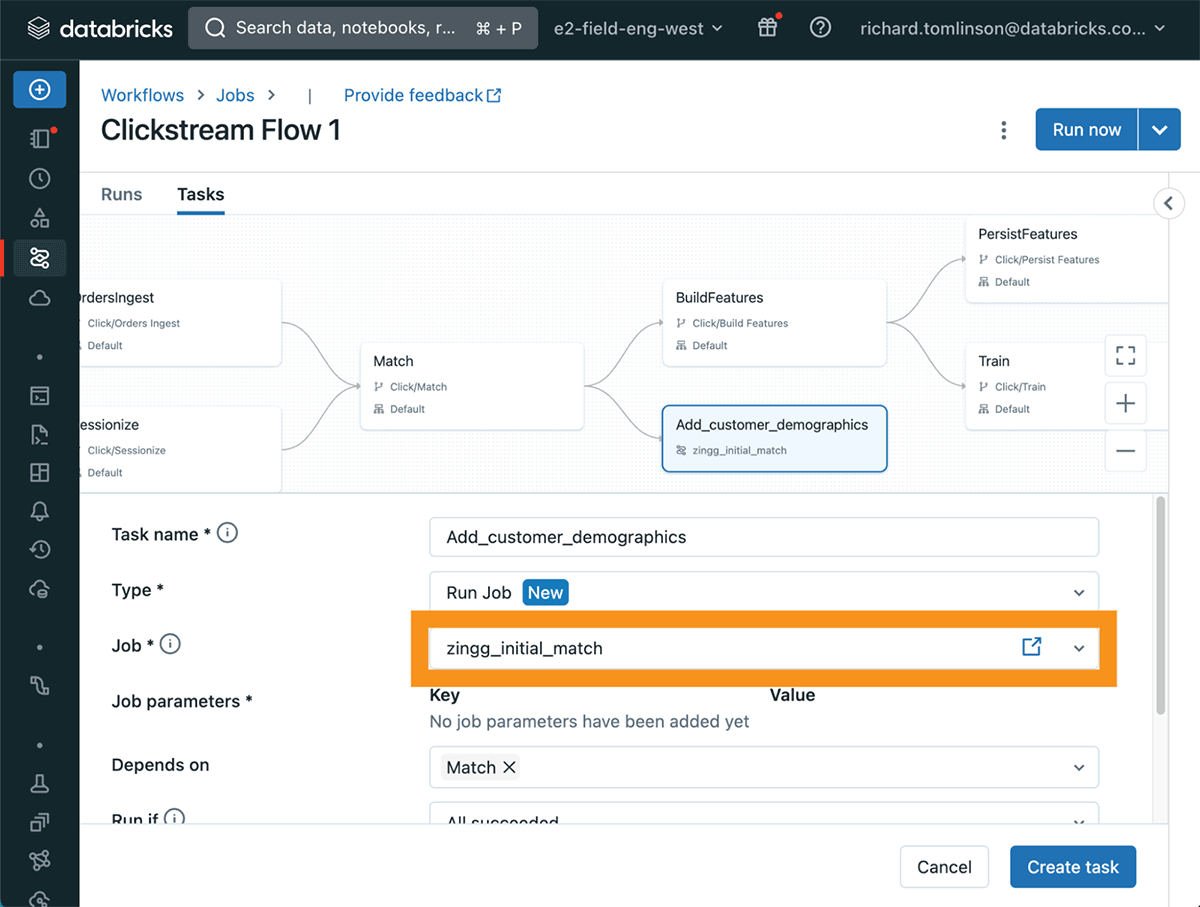
A common pattern is a "fan-in" dependency, where a final task (e.g., 'Aggregate Data') depends on several parallel tasks that must all finish first. This is a powerful way to orchestrate complex workflows efficiently.
Handling Success and Failure with "Run if" Conditions
By default, a task only runs if its dependencies have all succeeded. But what if you need to handle failures? For instance, if an ingestion task fails, you might want to run a separate task to send a notification or clean up partially loaded data.
This is where the Run if condition comes into play. It gives you fine-grained control over the logic that triggers a task.
Let's review the official documentation to see all available options.
This page from the Databricks documentation provides a concise but complete overview of the available 'Run if' conditions. It's a great reference to understand the different control flow possibilities.
Please read the section titled 'Run if condition options'. You don't need to memorize them all, but understand the purpose of key conditions like 'All succeeded', 'At least one failed', and 'All done'.
Here’s a quick summary of the most common Run if conditions and their use cases:
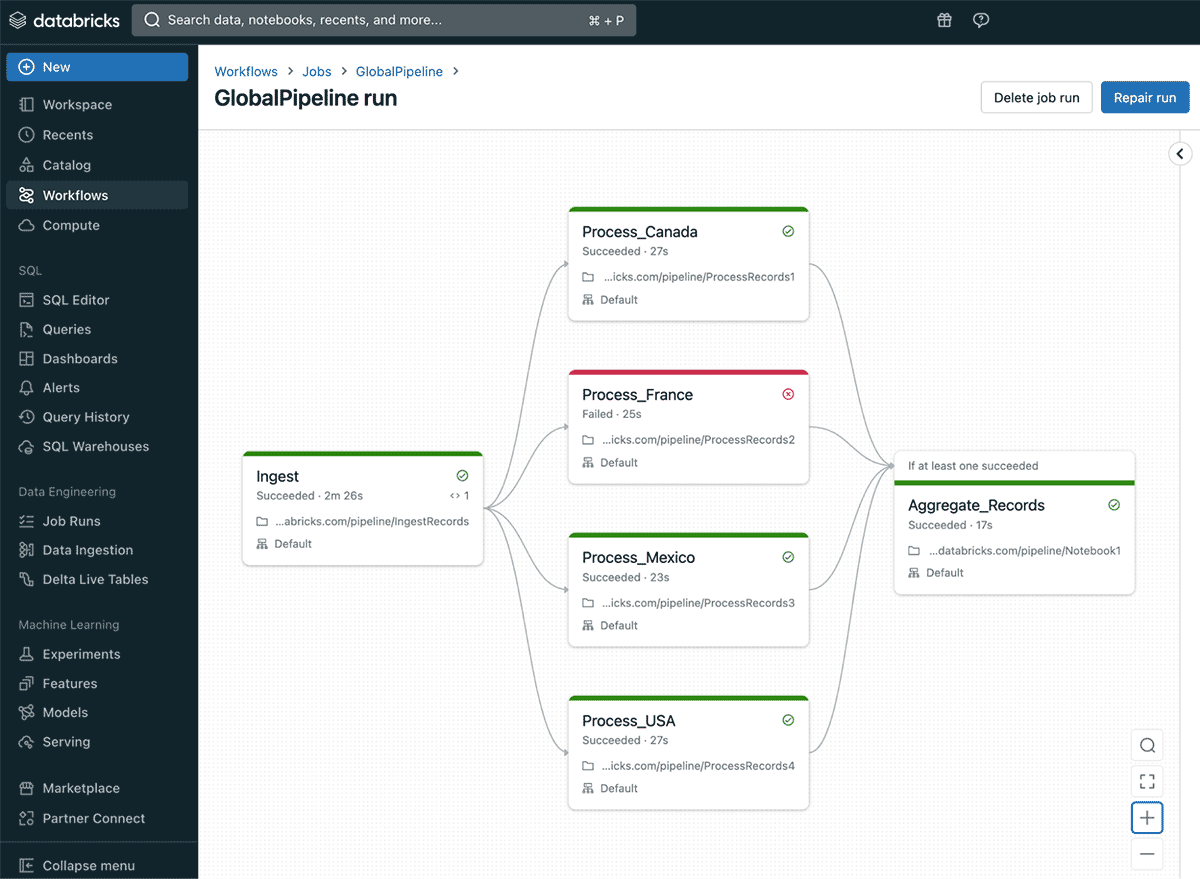
- All succeeded (Default): The standard case for a sequential pipeline. Task B runs only if Task A is successful.
- At least one failed: Perfect for error handling. A "Send Alert" task can be configured to run if any of its upstream dependencies fail.
- All done: Use this for tasks that must execute regardless of the outcome, such as logging the end of a job run or cleaning up temporary resources.
Advanced Control Flow: The "If/else condition" Task
Sometimes, you need to branch your workflow based on a dynamic value, not just success or failure. For example: "If today is the last day of the month, run the 'Generate Monthly Report' task; otherwise, run the 'Generate Daily Summary' task."
For this, Databricks provides a special task type: If/else condition. This task evaluates a boolean expression and directs the workflow down one of two paths: a true path or a false path.
The video below demonstrates this concept perfectly.
22 Workflows, Jobs & Tasks | Pass Values within Tasks | If Else Cond | For Each Loop & Re-Run Jobs
In this clip from the Ease With Data channel, you'll see how to create an 'If/else condition' task and link subsequent tasks to its true and false branches. This is a key technique for building dynamic, intelligent workflows.
Watch from 15:48 to 18:17. Observe how the 'check day' task is configured with the 'If/else condition' type. See how the condition is based on a value from a previous task, and how the 'process data' and 'else condition' tasks are then made dependent on the true and false outcomes, respectively.
This powerful feature allows you to build workflows that can adapt their behavior based on the data they are processing or other external parameters.
Your Turn: Hands-On Practice
It's time to put these concepts into practice. We'll modify the job you created in the last lesson.
Prerequisites: You should have the My Practice Workflow job and the two notebooks, task_1_notebook and task_2_notebook, from the previous lesson.
Part 1: Create a Sequential Dependency
- Navigate to your
My Practice Workflowjob in the Workflows UI. - Click on the task that runs
task_2_notebook. - In the task configuration panel on the right, find the
Depends onfield. - Select your first task (the one that runs
task_1_notebook) from the dropdown menu. - Click Save task. The UI should now show an arrow from Task 1 to Task 2.
- Click Run now and navigate to the Runs tab. Observe the execution. You should see Task 1 run to completion before Task 2 begins.
Part 2: Implement Failure Handling
Now, let's add an error-handling path.
- Create a new notebook: Name it
task_3_cleanup. Add a single cell with the codeprint("A previous task failed. Running cleanup."). - Induce an error: Open
task_2_notebookand change its content to cause a failure. A simple way is to add a line withraise Exception("This is an intentional failure"). - Add the cleanup task to your job:
- Go back to your
My Practice Workflowjob. - Click the
+icon to add a new task. - Configure this task to run your
task_3_cleanupnotebook. - Set its
Depends onfield to be your Task 2. - Crucially, change the
Run if dependenciescondition toAt least one failed. - Save the task. Your graph should now show Task 3 branching off Task 2.
- Go back to your
- Run the job again. This time, you should see Task 1 succeed, Task 2 fail (marked in red), and then Task 3 run successfully. This confirms your failure handling logic is working!
Conclusion
Excellent work! You've moved beyond simple parallel tasks and can now orchestrate complex workflows with precise control over execution order and logic. This is a fundamental skill for building reliable and resilient production data pipelines.
Key Takeaways
- Task dependencies create a Directed Acyclic Graph (DAG) that defines the execution order.
- The
Depends onfield is used in the UI to create a sequential relationship between tasks. - The
Run ifcondition allows you to handle different outcomes, such as task failures, by triggering specific downstream tasks (e.g., for notifications or cleanup). - The
If/else conditiontask type enables dynamic branching in your workflow based on the evaluation of a boolean expression.
Next Steps
You've defined what your job does and in what order. The next logical question is when it should run. In our next lesson, we will explore how to configure a schedule to run a Databricks job at a specific time or interval, moving us one step closer to full automation.