Hello! Welcome back to the course.
In our last module, you did a fantastic job building a complete brand identity for "Aura Coffee," culminating in the design of a professional business card. You've mastered the journey from a logo concept to a print-ready asset, a core workflow for any graphic designer.
Now, we're shifting gears from print to the dynamic world of digital design. Welcome to Module 7: Designing for Social Media. In this module, we'll adapt your design skills for platforms where millions of people engage with brands every day.
Today's lesson addresses a fundamental starting point for any social media project. Our learning outcome is to identify the standard dimensions for common social media platforms like Instagram, Facebook, and LinkedIn. Getting this right is the first step to creating professional, effective online content.
1. Why Dimensions are Crucial in Social Media Design
Imagine designing a beautiful poster, only to have it printed with the top and bottom chopped off. The same thing happens on social media if you use the wrong image sizes. Each platform, and each type of placement within it (like a feed post, a story, or a cover photo), has its own specific size and aspect ratio.
Using the correct dimensions ensures:
- Professionalism: Your designs look polished and intentionally crafted for the platform.
- No Unwanted Cropping: Important information, like your logo or a call-to-action, isn't awkwardly cut off.
- Optimal Quality: Images are displayed at their best resolution without being stretched or pixelated.
- Maximum Impact: You use the full screen real estate available, especially for formats like Instagram Stories.
Before we dive into the numbers, it's important to understand that these dimensions can change. Social media platforms frequently update their layouts. Therefore, the most valuable skill isn't memorizing the exact pixel counts, but knowing how and where to find the most current information.
2. Finding the Correct Social Media Dimensions
There are two primary ways to get the right dimensions for your projects: using Figma's built-in presets and consulting up-to-date online guides.
Figma's Built-in Presets
Figma gives you a head start with pre-sized frames for many common social media formats. The following video demonstrates how to find and use them.
How to Design Social Media Templates in Figma
In this clip from 'How to Design Social Media Templates in Figma' by Envato Tuts+, the instructor shows how to access the social media presets built directly into Figma's Frame tool.
Watch from 07:15 to 09:30. Pay close attention to two things: The instructor mentions a 'cheat sheet' for finding sizes, reinforcing the importance of external resources. At 09:12, he selects the Frame tool (F) and points out the 'Social Media' presets in the right-hand sidebar. Notice the options for Facebook and Instagram.
As you can see, Figma's presets are a convenient starting point. However, they don't cover every possible format.
Using Online "Cheat Sheets"
For the most comprehensive and up-to-date information, designers rely on specialized websites that track these changes. Let's explore one of the best.
Social Media Sizes 2026 + Templates
The website SocialSizes.io is an excellent, constantly updated resource that every designer should have bookmarked. It provides a clear and simple list of dimensions for all major platforms.
Please take a few minutes to explore the website. Specifically, look at the sections for Facebook, Instagram, and LinkedIn. You don't need to memorize anything; just get familiar with the different content types listed for each platform (e.g., Feed, Stories, Cover Photo).
3. A Guide to Common Social Media Dimensions
Let's synthesize this information into a quick reference guide. The image below provides a great overview of the most common sizes you'll be using as a graphic designer.
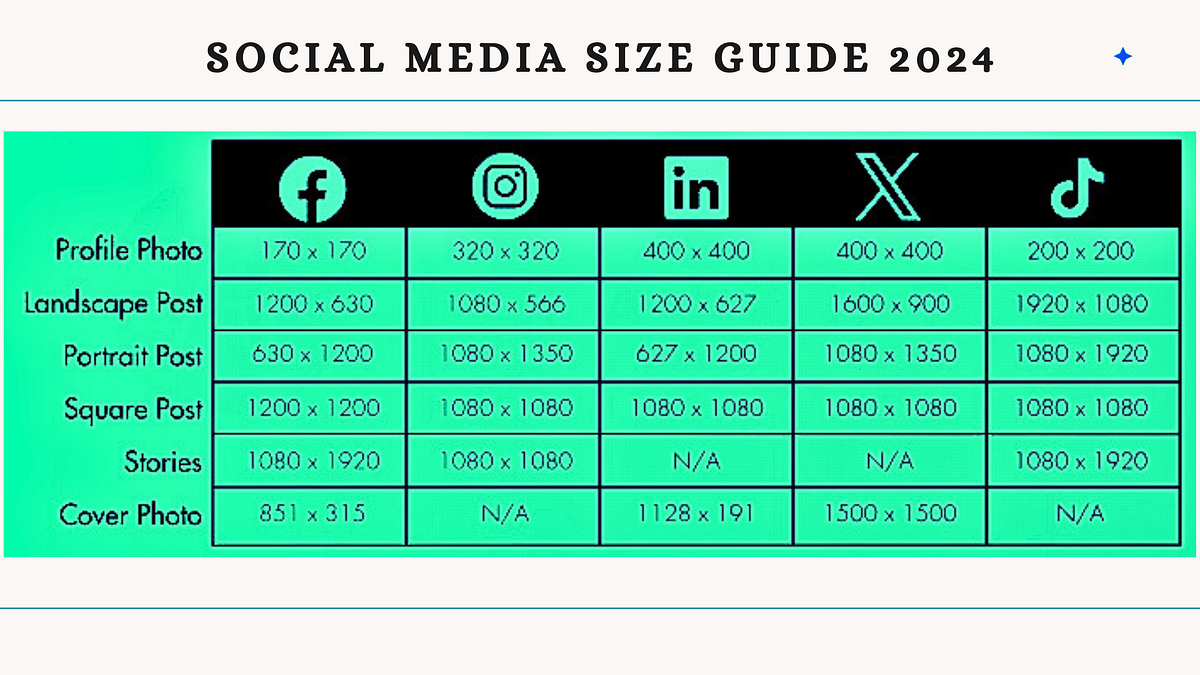
Here is a more detailed breakdown for the platforms we're focusing on:
Instagram is a highly visual platform, offering several formats.
- Feed Posts:
- Square (1:1):
1080 x 1080 px. The classic Instagram look. Great for centered subjects and portraits. - Portrait (4:5):
1080 x 1350 px. This is highly recommended as it takes up the most vertical space in the feed, capturing more attention. - Landscape (1.91:1):
1080 x 566 px. Use for wide, panoramic shots. It takes up the least amount of screen space.
- Square (1:1):
- Stories & Reels:
- Portrait (9:16):
1080 x 1920 px. This is the standard full-screen vertical format. It's crucial to use these exact dimensions to avoid the app cropping or zooming in on your design.
- Portrait (9:16):
Facebook is more versatile, but using optimized sizes is still key.
- Feed Post: While Facebook is flexible, a Square (1:1) post at
1200 x 1200 pxis a reliable choice that works well on both desktop and mobile. - Shared Link Image: For images that appear when you share a link, use a landscape ratio of 1.91:1, typically
1200 x 630 px. The Facebook post designed in the video you watched earlier used these dimensions. - Stories: Same as Instagram,
1080 x 1920 px. This makes it easy to repurpose content between the two platforms. - Cover Photo: This is tricky. It displays differently on desktop (
820 x 312 px) and mobile (640 x 360 px). A pro tip is to keep all essential content (like text) in a central "safe zone" that will be visible on all devices.
LinkedIn is a professional network, and your graphics should reflect that.
- Feed Post: A Square (1:1) post at
1200 x 1200 pxworks very well. - Shared Link Image: A landscape image of
1200 x 627 pxis standard. - Personal Cover Photo: A very wide landscape image, around
1584 x 396 px. Keep key info centered, as the edges can be cropped on different screen sizes.
Test your understanding!
You are tasked with creating a graphic to announce a new promotion. The client wants it posted as an Instagram Story and a Facebook Story. What dimensions, in pixels, should you use for your Figma frame to ensure it looks perfect on both platforms?
Show answer
You should use 1080 x 1920 pixels. This is the standard 9:16 aspect ratio for full-screen stories on both Instagram and Facebook.
4. Creating Your Frame in Figma
Now that you know the dimensions, creating the canvas in Figma is simple.
- Press
Fon your keyboard to select the Frame Tool. - On the right-hand sidebar, you can either select a preset (like "Instagram Story") or manually enter the dimensions.
- To enter custom dimensions, type the desired width in the 'W' field and the height in the 'H' field. For example, for a square Instagram post, you would type
1080for both.
You are now ready to start designing!
Conclusion
Great work! You now have the foundational knowledge needed to start any social media design project correctly. While it may seem like a simple topic, mastering dimensions is a non-negotiable skill that separates amateur designers from professionals.
Key Takeaways:
- Each social media platform and placement has specific, optimal dimensions for images and videos.
- Using the correct dimensions prevents unwanted cropping, ensures high quality, and maximizes your design's impact.
- Social media dimensions change, so knowing how to find up-to-date information from resources like SocialSizes.io is a crucial skill.
- Figma provides helpful presets, but you can easily create a frame with any custom dimensions you need.
In our next lesson, we will put this knowledge into practice immediately. You will design an Instagram post template for the "Aura Coffee" brand, starting by setting up a frame with the correct dimensions and then using the brand components you've already built.