Hello! Welcome back to our module on Vector Illustration Techniques.
In our last lesson, you learned the fine art of editing vector shapes by moving points and adjusting Bezier handles. You took simple shapes and sculpted them into more organic forms, like the strawberry. That skill is all about refining a single shape.
Today, we're going to learn how to create complex shapes by combining multiple simple shapes. This lesson covers how to combine and subtract shapes to create complex forms using Boolean operations. This is a foundational technique in vector illustration, essential for creating everything from simple icons to complex logos efficiently.
1. What are Boolean Operations?
At its core, a Boolean operation is a way to create a new shape by defining the relationship between two or more overlapping shapes. Do you want to merge them together? Cut one out from the other? Keep only the overlapping part? These are the questions Boolean operations answer.
In Figma, these tools are located in the top toolbar and become active when you select two or more shapes.
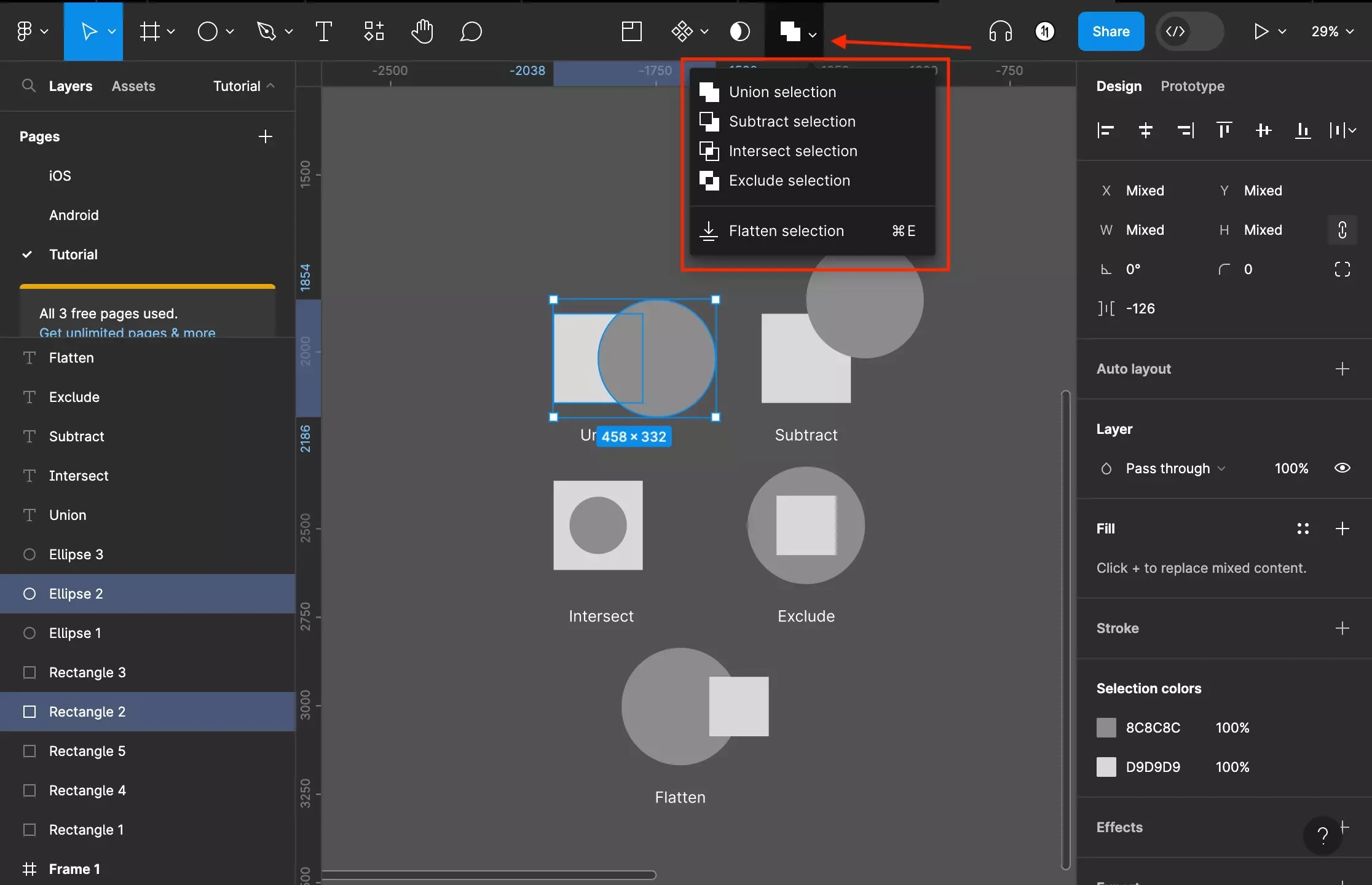
To get a quick overview of what each operation does, let's watch a short video demonstration.
Shapes, Boolean, Flatten vs Outline — Figma Vector Tutorial — Part 1
This clip from a Figma tutorial by Udayraj Sathe provides a clear and concise tour of the four main boolean operations.
Watch from 12:54 to 15:04. Pay close attention to how each operation—Union, Subtract, Intersect, and Exclude—affects the two overlapping shapes. Don't worry about memorizing them just yet; focus on getting a feel for what's possible.
2. The Four Operations in Detail
As you just saw, the four operations give you distinct results:
- Union: Merges all selected shapes into a single new shape.
- Subtract: Uses the top shape(s) to cut away from the bottom shape. Think of it like a cookie cutter.
- Intersect: Keeps only the area where all selected shapes overlap.
- Exclude: Does the opposite of Intersect; it removes the overlapping area and keeps the rest.
Now, let's dive a bit deeper with a reading from Figma's official help center. This resource has excellent animated examples that make the function of each operation very clear. It also explains a crucial concept: non-destructive editing.
FD4B: Combine shapes using boolean operations
This article from the Figma Help Center provides clear definitions and animated examples for each operation. It's a great reference to solidify your understanding.
Please read the sections titled 'About boolean operations' and 'Applying boolean operations'. As you read, notice how the original shapes are still editable inside the new 'boolean group' in the Layers panel. This is the 'non-destructive' aspect, and it's incredibly powerful.
The key takeaway here is that Boolean operations in Figma are non-destructive. This means your original shapes aren't gone forever. They are nested inside a Boolean Group in the Layers panel, and you can still select, move, or resize them to tweak the final combined shape at any time.
Test your understanding!
You want to create a crescent moon shape. You have two overlapping circles. Which Boolean operation would you use, and which circle should be on the top layer?
Show answer
You would use the Subtract operation. The circle you are using to "cut away" the piece should be on the top layer, leaving the crescent shape from the bottom circle.
3. Practical Application: Creating Icons
Boolean operations are the bread and butter of icon design. Let's see how a simple Subtract operation is used to create a common icon shape.
Figma for Edu: Icon basics in Figma.
In this clip from an official Figma tutorial, you'll see how to quickly create a donut icon. This is a perfect, practical example of the Subtract operation in action.
Watch the segment from 52:50 to 53:45. Notice how a smaller circle is placed on top of a larger one and then subtracted to create the hole.
Your Turn: Create a Location Pin Icon
Now, let's put your new skills to the test with a mini-project. Follow these steps in Figma to create a location pin icon, which uses both Union and Subtract.
-
Create the Body:
- Use the Shape tools to create a circle (e.g.,
40x40px). - Create a square (e.g.,
30x30px). Rotate it 45 degrees to make a diamond shape. - Position the diamond below the circle so its top point overlaps with the bottom of the circle.
- Select both shapes and click Union Selection from the Boolean operations menu. You should now have a single, solid pin shape.
- Use the Shape tools to create a circle (e.g.,
-
Create the Hole:
- Create a smaller circle (e.g.,
15x15px). - Move this small circle so it's centered inside the circular part of your pin shape.
- Select your main pin shape (the Union group) and the small circle you just made. Make sure the small circle is the top layer.
- Click Subtract Selection.
- Create a smaller circle (e.g.,
You've done it! You now have a location pin icon. Notice in your Layers panel how you have a Subtract group, and inside it, you can still see your Union group and the small circle. You can still edit them!
4. Advanced Technique: Nesting Boolean Groups
You just nested a Union group inside a Subtract group in the exercise. This principle, called nesting, is what allows you to build incredibly complex vector illustrations from simple, manageable parts.
Let's watch one more quick video that explicitly demonstrates this concept of nesting a Subtract operation inside a Union.
Shapes, Boolean, Flatten vs Outline — Figma Vector Tutorial — Part 1
This clip shows how to create a more complex object by placing one boolean group inside another. Pay close attention to the Layers panel to see the hierarchy.
Watch from 15:22 to 17:01. The video demonstrates creating a hole in a united shape by nesting a 'Subtract Group' inside a 'Union' group.
Conclusion
Fantastic work! You've just unlocked one of the most powerful and efficient features for vector illustration in Figma. By combining simple shapes, you can now construct complex and precise icons, logos, and illustrations far more quickly than drawing them by hand with the Pen tool.
Key Takeaways:
- There are four Boolean operations: Union (merge), Subtract (cut), Intersect (keep overlap), and Exclude (remove overlap).
- These operations are non-destructive, meaning you can always go back and edit the original shapes within the Boolean group in the Layers panel.
- You can nest Boolean groups inside one another to create increasingly complex forms.
In our next lesson, we will learn how to trace a simple sketch or image to create a vector illustration. The skills you learned today—creating custom paths, modifying them, and now combining them with Boolean operations—will all come together to help you translate a static image or a hand-drawn sketch into a clean, scalable vector graphic.