Introduction
Welcome to our new module on Data Governance and Security with Unity Catalog. In the previous module, we concluded by building a gold-layer star schema, creating valuable analytical assets for business users. Now, the critical next step is to properly govern, secure, and organize these assets. This is where Unity Catalog comes in.
This lesson addresses the first and most fundamental aspect of Unity Catalog: Navigating the Unity Catalog three-level namespace (catalog, schema, table).
Unity Catalog provides a unified governance solution for all data and AI assets on your lakehouse. Understanding its organizational structure is the first step toward mastering it. By the end of this lesson, you will be able to:
- Describe the
catalog.schema.tablehierarchy. - Query data objects using fully-qualified names.
- Navigate between different catalogs and schemas using SQL commands.
This foundational knowledge is essential before we can move on to creating objects and managing permissions.
Understanding the Three-Level Namespace
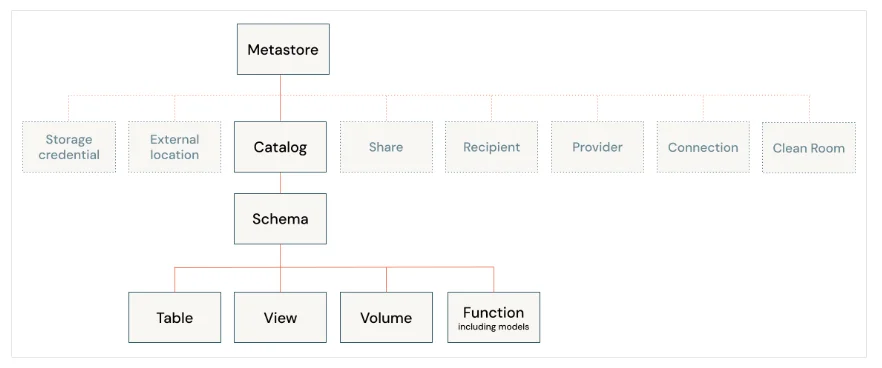
At its core, Unity Catalog organizes all data assets into a simple, hierarchical namespace. Think of it like a file system path for your data: just as C:\Users\MyData\report.docx points to a specific file, Unity Catalog's namespace points to a specific data object.
The structure has three levels:
- Catalog: The highest level in the hierarchy. A catalog is a container for schemas. It's typically used to segregate data across major organizational units (e.g.,
finance,sales), environments (dev,prod), or specific projects. - Schema: The middle level, also known as a database. A schema is a container for data objects like tables, views, and functions. It helps group related assets within a catalog (e.g.,
raw_data,processed_data). - Table/View/Function: The lowest level, representing the actual data object you want to work with.
This entire structure lives within a Metastore, which is the top-level container of objects in Unity Catalog. A single metastore is typically shared across multiple workspaces in the same cloud region. For day-to-day data engineering tasks, your primary focus will be on the catalog.schema.table hierarchy.
This diagram shows how these components fit together.
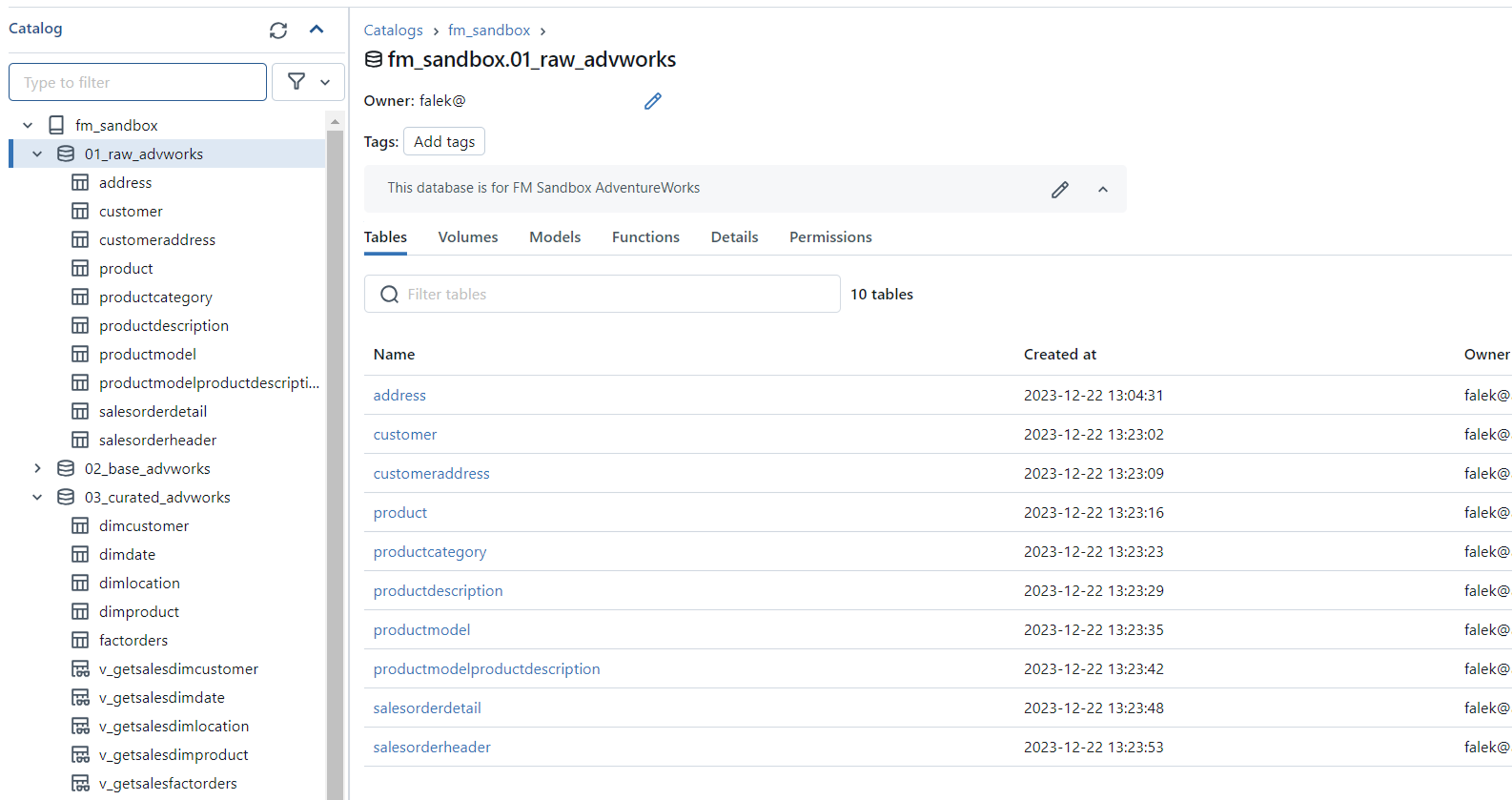
In the Databricks user interface, you can explore this hierarchy directly in the Catalog Explorer.
Querying Objects Using Fully Qualified Names
The most explicit and unambiguous way to access any object in Unity Catalog is by using its fully qualified name. This is a three-part identifier that specifies the exact path to the object.
The official Databricks documentation provides a concise explanation of querying by name and the three-tier namespace format. Please read the following section to see the syntax in both SQL and Python.
In the linked resource, please read the section titled 'Query tables by name'. Focus on the format catalog_name.schema_name.table_name and review the simple SQL and Python code examples.
As you saw in the documentation, the syntax is straightforward:
SQL:
SELECT * FROM catalog_name.schema_name.table_name;
Python:
df = spark.read.table("catalog_name.schema_name.table_name")
Using the fully qualified name is a best practice, especially in production code and automated jobs, because it eliminates any ambiguity about which table is being accessed, regardless of the session's current context.
For example, to query the fact_sales table we discussed in the previous module, assuming it's in a catalog named analytics and a schema named gold, you would write:
SELECT * FROM analytics.gold.fact_sales;
Navigating the Namespace with SQL
While fully qualified names are great for scripts, typing them out repeatedly during interactive analysis can be tedious. To make navigation easier, Unity Catalog maintains a "current" catalog and a "current" schema for your session. You can then refer to objects using partially qualified or unqualified names.
Setting Your Context
You can change your current catalog and schema using the USE CATALOG and USE SCHEMA commands. When you use these, subsequent queries can omit the parts of the name you've set in your context.
Let's explore how this works.
The same Databricks documentation page explains how to change your session's context and how Databricks resolves identifiers. This is key to effective navigation.
Please read the sections 'Unity Catalog identifier resolution' and 'What is the current catalog and schema?'. Pay close attention to: The table that explains how object_name and schema_name.object_name are resolved. The USE CATALOG and USE SCHEMA commands and what they do.
Hands-On Navigation Practice
Let's put this into practice. Imagine you're working in a Databricks notebook. Here is a typical workflow for navigating the namespace to query the fact_sales table.
-
Check your starting point. You can always see your current context.
-- Returns the name of the current catalog and schema SELECT current_catalog(), current_schema(); -
Set the catalog. This narrows your focus to a specific high-level container. All subsequent queries will assume this catalog unless specified otherwise.
USE CATALOG analytics; -
Query using a two-part name. Now that the catalog is set, you only need to provide the schema and table name.
-- This works because the current catalog is 'analytics' SELECT * FROM gold.fact_sales LIMIT 10; -
Set the schema. You can go one level deeper to set the schema context.
USE SCHEMA gold; -- You can also set both at once: -- USE SCHEMA analytics.gold; -
Query using an unqualified name. With both the catalog and schema set, you can refer to the table by its name alone.
-- This works because the current catalog is 'analytics' and the current schema is 'gold'
SELECT * FROM fact_sales LIMIT 10;
The following video provides a practical demonstration of these navigation commands.
Create and Manage Catalog, Schema, Tables in UNITY CATALOG #4 #data #datagovernance
This video from CloudFitness shows how to use SQL commands to interact with catalogs and schemas. While the video also covers creation (which we'll tackle next lesson), it's useful for seeing the navigation commands in action.
Watch the following clips to see a live demonstration: Catalogs (1:31 - 2:47): Focus on the SHOW CATALOGS and USE CATALOG commands. Schemas (5:31 - 6:05): Observe the USE SCHEMA and SHOW SCHEMAS commands. Full Names (10:27 - 11:12): This part reinforces how to query using the full catalog.schema.table name.
Why the Hierarchy Matters: A Foundation for Governance
You might be wondering why this strict, three-level hierarchy is so important. It's not just for organization; it's the fundamental structure upon which all of Unity Catalog's governance features are built.
Permissions, for example, are inherited down the hierarchy. Granting a user access to a catalog gives them certain rights within all schemas in that catalog. This concept, known as privilege inheritance, makes security management scalable. To access a table, a user needs USE CATALOG permission on its parent catalog, USE SCHEMA permission on its parent schema, and SELECT permission on the table itself.
We will dive deep into permissions in a later lesson. For now, seeing how the namespace acts as a series of gates for access can help solidify your understanding of its structure.
Data Access Control with Databricks Unity Catalog
This video from Pathfinder Analytics Academy provides an excellent demonstration of how the namespace hierarchy directly impacts data access. Watching this will help you understand the practical importance of the three levels.
Watch from 03:08 to 06:03. You don't need to memorize the permission details right now. Instead, focus on how the user in the video is blocked at each level: First, they can't even see the HR catalog. After being granted access to the catalog, they can see it but can't see the schemas inside. After being granted access to a schema, they can see it but can't see the tables inside. This sequence perfectly illustrates the three-level namespace in action as a security model.
Conclusion
In this lesson, you've taken the first and most important step in mastering Databricks data governance. You now understand the structure that underpins every object and policy in Unity Catalog.
Key Takeaways:
- Unity Catalog organizes all data assets into a three-level namespace:
catalog.schema.table. - This hierarchy provides a logical structure for your data, often aligned with business units or environments.
- You can access any object directly using its fully qualified name, which is a best practice for production code.
- For interactive sessions, you can navigate the namespace using
USE CATALOGandUSE SCHEMAto set your context and use shorter, unqualified names. - The namespace hierarchy is the foundation for security and governance, with permissions flowing down from catalogs to schemas to tables.
Preview of the Next Lesson:
Now that you can confidently navigate the namespace, you're ready to start populating it. In our next lesson, we will move from navigating to building. You will learn how to create and manage catalogs, schemas, and tables using Unity Catalog SQL commands, giving you the power to define the structure of your data lakehouse.