Introduction
Hello! In our previous lesson, we established the foundation for running workflow tasks by configuring their compute resources, differentiating between all-purpose and job clusters. You learned how to select the right cluster type to balance cost and performance, a crucial skill for production pipelines.
However, in the real world, things don't always go as planned. Tasks can fail due to transient network issues, bad data, or code bugs. This lesson addresses that reality by focusing on the learning outcome: Implement error handling and retry policies for job tasks. We'll move from simply running tasks to building resilient, fault-tolerant workflows that can handle failures gracefully.
Today, you will learn how to:
- Automatically retry failed tasks to overcome transient errors.
- Set timeouts to prevent tasks from running indefinitely.
- Configure notifications to stay informed about job status.
- Implement conditional logic to execute specific tasks upon failure.
- Manually repair and resume a failed job run efficiently.
By the end of this lesson, you'll be able to transform a simple workflow into a robust production pipeline that can manage and recover from common failures.
1. Building Resilience: Automatic Retries and Timeouts
The first line of defense against temporary issues—like a brief network interruption or a momentarily unavailable API—is an automatic retry policy. Instead of letting the entire job fail, you can configure a task to re-attempt execution a set number of times.
This simple configuration has significant benefits, as it minimizes disruptions and reduces the need for manual intervention for non-critical, transient failures.
Basics of Databricks Workflows - Part 2: Monitoring your pipeline
To understand the value of these settings, let's start with a high-level overview from a Databricks Community blog post.
Read the introductory section and focus on the table under 'Enhance operational rigour with additional Workflow configurations'. Pay close attention to the rows for 'Automatic Retries' and 'Late Task/Job Warnings' to understand their business and technical benefits.
Now, let's see how to configure this in practice. You can specify not only the number of retries but also set timeouts to prevent a task from getting stuck and wasting compute resources.
Explained on how to create Jobs & Different Types of Tasks in in Databricks Workflow
This video provides a clear, concise demonstration of setting up retry and timeout policies for a task.
Watch the segment from 06:36 to 07:01. The presenter quickly shows where to find the 'Retries' and 'Timeout' settings in the task configuration UI. Notice that you can set both a warning threshold and a hard timeout.
For those who manage infrastructure as code, which is common in a Data Engineering role, it's useful to see how these settings are represented in a job's JSON definition.
How to Orchestrate Databricks Notebooks as Workflows with Job ...
This article provides the JSON configuration for a task with a retry policy.
Navigate to the section 'Step 4: Configure Error Handling' and review the code block under 'Retry Policies'. You can see how max_retries, min_retry_interval_millis, and timeout_seconds are defined programmatically.
2. Staying Informed: Configuring Notifications
Automating retries is great, but you still need to know when a task fails permanently. Databricks Workflows integrates with several notification channels to alert you and your team about a job's status.
You can configure notifications at two levels:
- Task-level: Alerts specific to a single task (e.g., notify the on-call engineer if the ingestion task fails).
- Job-level: Alerts for the overall job status (e.g., send an email to stakeholders when the entire nightly pipeline succeeds).
Explained on how to create Jobs & Different Types of Tasks in in Databricks Workflow
Let's watch a detailed walkthrough on setting up various types of notifications.
Watch the following two segments: Task-Level Notifications (05:14 - 06:36): The presenter shows how to add a notification for a specific task and discusses the different destination types available (Email, Teams, Slack, etc.). Job-Level Notifications (12:20 - 12:50): Here, the presenter differentiates between task-level and job-level notifications and shows where to configure alerts for the entire job.
3. Advanced Error Handling: Conditional Execution
What if a simple retry isn't enough? Sometimes, when a critical task fails, you need to run a specific follow-up action, such as:
- Running a cleanup script.
- Reverting a change.
- Posting a detailed error message to a monitoring system.
Databricks Workflows enables this through conditional tasks. You can create branching logic that executes different downstream tasks based on the success or failure of an upstream task. This moves beyond simple failure tolerance to active failure management.
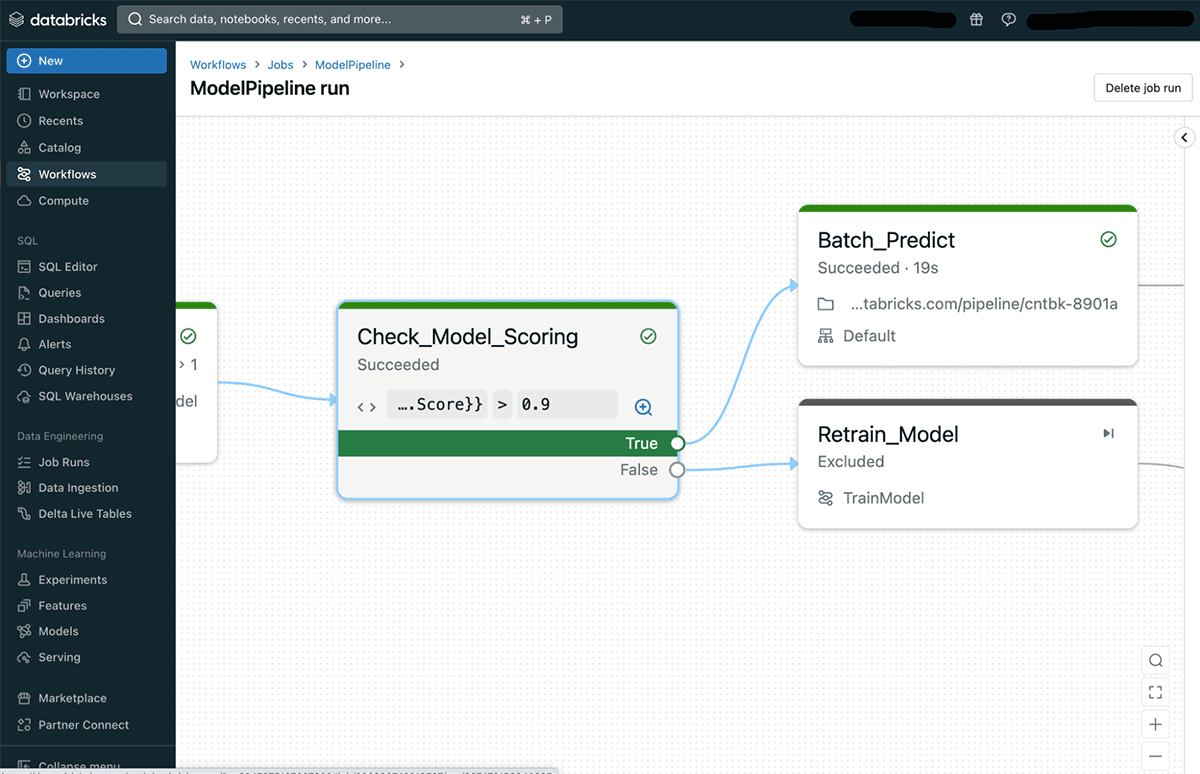
The If/else condition task type allows you to check the status of a previous task and direct the workflow accordingly.
Explained on how to create Jobs & Different Types of Tasks in in Databricks Workflow
This video provides an excellent demonstration of building an if/else condition to handle task failures.
Watch from 09:18 to 11:54. The key part is how the presenter configures the 'If/else condition' task to check the status of the 'final_layer' task. The condition task_values.final_layer.outcome == 'SUCCESS' is used to define 'True' and 'False' execution paths. This is a powerful pattern for building robust pipelines.
This functionality is crucial for creating sophisticated, self-managing pipelines that can respond dynamically to different outcomes.
4. Manual Intervention: Repairing a Failed Run
Even with the best automation, some errors require a human to intervene—for example, fixing a bug in a notebook. Once you've fixed the underlying issue, you don't want to re-run the entire workflow from the beginning. This would be inefficient, costly, and could lead to duplicate data if your tasks are not idempotent.
The solution is the Repair run feature.
First, you need to identify the failure. The Workflows UI makes this straightforward.
Basics of Databricks Workflows - Part 2: Monitoring your pipeline
This article explains how to diagnose a failure within the Workflows UI.
Read the short section titled 'Identifying job failures'. It shows how a failed task is highlighted and where to find the error message.
Once you've identified the error, fixed the code in your notebook, and pushed the change to your Git repo, you can use "Repair run" to resume the job from the point of failure.
How to Create Databricks Workflows (new features explained)
This video demonstrates the entire 'find, fix, and repair' cycle.
Watch from 30:02 to 31:27. The presenter intentionally introduces a syntax error, runs the job, uses the link in the error log to navigate directly to the notebook, fixes the code, and then kicks off a 'Repair rerun'. This is a very common and practical workflow for any data engineer.
Hands-On: Building a Resilient Workflow
Now it's time to apply these concepts. You will create a multi-task job that uses a retry policy and conditional logic to handle failures.
1. Setup:
- In your Databricks workspace, create three new notebooks.
- Notebook 1:
risky_taskimport random import time # This task will fail about 50% of the time. if random.random() < 0.5: raise Exception("A transient error occurred!") else: print("risky_task completed successfully.") dbutils.notebook.exit("Success") - Notebook 2:
success_pathprint("The main task succeeded. Continuing with the normal workflow.") dbutils.notebook.exit("Success") - Notebook 3:
failure_pathprint("The main task failed. Executing cleanup or alert logic.") dbutils.notebook.exit("Success")
- Notebook 1:
2. Create the Workflow:
- Navigate to Workflows and create a new job named
Resilient Pipeline Demo. - Create Task 1:
- Task name:
Run_Risky_Task - Type:
Notebook - Source: Select your
risky_tasknotebook. - Cluster: Choose a suitable job cluster configuration.
- Under Retries, set the policy to 2 retries.
- Under Notifications, click Add and configure an email notification to be sent to you On failure.
- Task name:
- Create Task 2 (Conditional Branch):
- Click the
+icon belowRun_Risky_Taskand select If/else condition. - Task name:
Check_Task_Outcome - Condition: In the left box, enter
{{tasks.Run_Risky_Task.outcome}}. In the right box, enterSUCCESS. The operator should be==. This checks if the first task succeeded.
- Click the
- Create Task 3 (Success Path):
- Under the True branch of your
Check_Task_Outcomecondition, create a new task. - Task name:
Run_Success_Path - Type:
Notebook, and select yoursuccess_pathnotebook. - Ensure it uses the same cluster as the other tasks for efficiency.
- Under the True branch of your
- Create Task 4 (Failure Path):
- Under the False branch of your
Check_Task_Outcomecondition, create a new task. - Task name:
Run_Failure_Path - Type:
Notebook, and select yourfailure_pathnotebook. - Ensure it uses the same cluster.
- Under the False branch of your
Your final workflow should look like Run_Risky_Task -> Check_Task_Outcome -> (Run_Success_Path on True, Run_Failure_Path on False).
3. Run and Observe:
- Click Run now.
- Go to the Runs tab and monitor the execution. You may need to run it a few times to see all possible outcomes:
- Success on first try:
Run_Risky_Tasksucceeds, andRun_Success_Pathexecutes. - Success after retry:
Run_Risky_Taskfails, then succeeds on a retry.Run_Success_Pathexecutes. - Permanent failure:
Run_Risky_Taskfails all of its retries. You will receive a failure email, and theRun_Failure_Pathtask will execute.
- Success on first try:
This exercise provides direct, hands-on experience with the core error-handling mechanisms in Databricks Workflows.
Conclusion
In this lesson, you've learned how to build robust and resilient data pipelines. By implementing automated error handling and recovery mechanisms, you can significantly improve the reliability of your production jobs and reduce the need for manual intervention.
Key Takeaways:
- Retry Policies are your first line of defense against transient, temporary errors.
- Timeouts are a safety net to prevent runaway tasks from consuming excessive resources.
- Notifications are essential for staying informed about your job's health, especially upon failure.
- Conditional Tasks unlock advanced error handling, allowing you to execute custom logic (like cleanup or alerts) when a task fails.
- Repair Run is a powerful and cost-effective feature for manually recovering a job after you've fixed the root cause of a failure.
Preview of the Next Lesson:
Now that we have a robust, error-tolerant workflow, the next logical step is to make it run automatically and monitor its performance. In the upcoming lesson, "Schedule jobs and monitor run history using the Databricks UI," we will cover how to set up cron-based schedules for your jobs and how to use the UI to analyze run history, track performance, and identify trends.