Introduction
Welcome to your second lesson! In our previous session, we explored the "why" behind Databricks, understanding how the Lakehouse architecture unifies the reliability of data warehouses with the flexibility of data lakes. We covered the roles of Delta Lake and Unity Catalog in making this possible and distinguished between the Databricks control plane and the compute/data plane that runs in your cloud account.
Now that you have the architectural context, it's time to get hands-on and explore the "where" and "what." This lesson directly addresses the learning outcome: Navigate the Databricks workspace and identify key components (notebooks, clusters, repos, DBSQL).
Your experience with platforms like AWS, GCP, and various data tools will give you a good reference point as we explore how Databricks integrates these different functionalities into a single web-based interface. Let's start with a guided tour.
A First Look at the Databricks Workspace
Before we break down the components one by one, let's get a feel for the environment. The following video provides an excellent initial walkthrough of the Databricks UI. As you watch, try to map the concepts you see to your existing knowledge of data engineering tools.
Learn Databricks in Under 2 Hours
This segment from 'Learn Databricks in Under 2 Hours' by Alex The Analyst will give you a quick, practical orientation to the Databricks UI. It introduces the main sections you'll be interacting with daily.
Watch the video from the beginning up to 07:53. Pay attention to how the presenter navigates the left-hand sidebar and introduces concepts like the Catalog (for data), Compute (for clusters), and the SQL Editor.
The Anatomy of the Workspace UI
As you saw in the video, the Databricks workspace is your central hub for all data-related activities. Let's formalize our understanding of its main navigational elements.
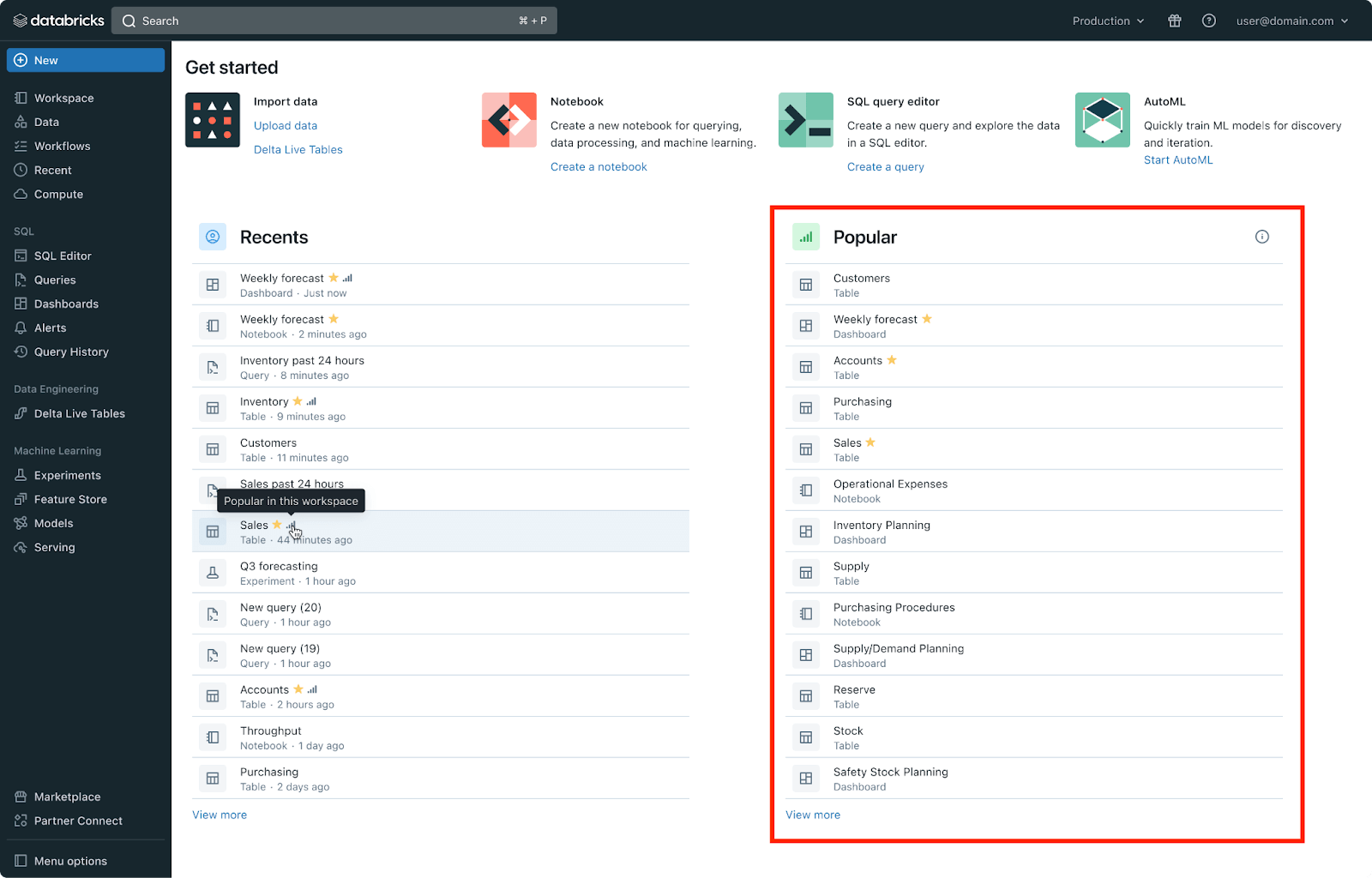
To get a comprehensive overview of all the objects and features available, let's turn to a written guide. This article provides a clear breakdown of each component.
Databricks workspaces 101: Simplified guide to workspaces (2026)
The article 'Databricks workspaces 101' offers a structured guide to the workspace. We'll use it to understand the purpose of each key object.
Please read the sections titled 'What Key Databricks Workspace Objects Does Databricks Provide?' and 'Step-By-Step Guide to Navigating the Databricks Workspace UI'. As you read, focus on creating a mental map of where to find different assets and tools. Don't worry about mastering every detail yet; the goal is to build familiarity.
The article you just read introduced the concept of Personas. This is a fundamental aspect of navigating the Databricks UI. Databricks groups tools based on common job roles (e.g., Data Engineer, SQL Analyst, ML Scientist) to streamline workflows. You can switch between these personas using the dropdown menu at the top of the sidebar.

For this course, we will primarily operate within the Data Science & Engineering and SQL personas.
Identifying Key Components
Now, let's focus on the specific components from our learning outcome. These are the foundational assets you'll use to build data pipelines.
1. Notebooks
As a data engineer, you are likely familiar with notebooks (e.g., Jupyter). Databricks notebooks serve a similar purpose: they are a web-based, interactive environment for writing and executing code, mixing it with markdown for documentation.
A key feature of Databricks notebooks is their multi-language support within a single notebook. While you set a default language for a notebook (e.g., Python), you can execute code in other languages within individual cells using magic commands (%sql, %python, %r, %scala). This is incredibly useful for tasks like using SQL to explore data before switching to Python for complex transformations.
The video you watched earlier demonstrated creating and running code in a notebook. You can refer back to the segment from 19:43 to 22:44 in the "Learn Databricks in Under 2 Hours" video to see a practical example of using both SQL and Python in the same notebook.
2. Clusters (Compute)
Code in a notebook doesn't run on its own; it requires a compute engine. In Databricks, this is handled by clusters. A cluster is a set of computation resources and configurations on which you run your workloads, such as ETL jobs, streaming analytics, and ad-hoc analysis.
You can manage clusters from the Compute section in the sidebar. When you run a command in a notebook, you must "attach" it to a running cluster. Your proficiency with Spark is directly applicable here, as a Databricks cluster is essentially a managed Apache Spark cluster.
We will dive much deeper into the different types of clusters (All-Purpose vs. Job clusters) and their configurations in our next lesson. For now, understand that Compute is where you manage the engines that execute your code.
3. Databricks SQL (DBSQL)
Databricks SQL is a dedicated environment (or persona) within the workspace designed for SQL analysts and BI use cases. It provides a familiar interface for running queries, creating visualizations, and building dashboards directly on the data in your Lakehouse.
The key components of DBSQL are:
- SQL Editor: A professional IDE for writing and executing SQL queries.
- Queries: A collection of your saved SQL queries.
- Dashboards: A way to present visualizations created from your query results.
- SQL Warehouses: A specific type of compute resource optimized for SQL workloads, distinct from the clusters used for data engineering notebooks.
The video "Learn Databricks in Under 2 Hours" provided a brief look at the SQL Editor (from 06:32 to 07:53). This environment allows for rapid, interactive querying without the need to write Spark code in a notebook, making it ideal for exploration and analytics.
4. Databricks Repos
As an experienced engineer, you know that version control is non-negotiable for production code. Databricks Repos provides native Git integration within the workspace. A Repo is a Databricks folder whose contents are synchronized with a remote Git repository (e.g., on GitHub, GitLab, Azure DevOps).
This allows you to:
- Version control your notebooks and other project files (
.py,.sqlscripts). - Collaborate with your team using standard Git workflows (branching, committing, pulling, pushing).
- Build CI/CD automation for testing and deploying your Databricks projects.
Setting up Git integration is a fundamental first step for any serious project. The following official tutorial from Databricks shows exactly how to connect your workspace to a GitHub repository.
Tutorial - Getting Started with Databricks Repos | Databricks Academy
This tutorial from Databricks, 'Getting Started with Databricks Repos', walks through the process of connecting your workspace to a Git provider like GitHub.
Watch the video from the beginning to 06:16. The video covers generating a personal access token in GitHub, configuring it in Databricks, and cloning a remote repository. It also demonstrates the development workflow of creating a branch, making changes, and pushing them back to the remote repository.
Conclusion
In this lesson, we transitioned from theory to practice by exploring the Databricks workspace. We took a tour of the UI and identified the location and purpose of the core components essential for a data engineer.
Key Takeaways:
- The Databricks workspace is a unified web UI for accessing all data assets and tools.
- Personas (like Data Science & Engineering, SQL) tailor the UI for different roles.
- Notebooks are the interactive environment for multi-language development using Python, SQL, Scala, and R.
- Compute (Clusters) provides the managed Spark engine needed to execute your code.
- Databricks SQL (DBSQL) is a dedicated environment for SQL-based analytics and business intelligence.
- Repos integrate your workspace with Git, enabling robust version control and CI/CD workflows.
You now have a solid map of the environment where you'll be building and managing data pipelines throughout this course.
Preview of the Next Lesson:
We briefly touched on Compute in this lesson. In the next session, we will dive deep into this topic. You will learn to configure and differentiate between all-purpose clusters and job clusters, a critical skill for managing performance and cost in a Databricks environment.