Introduction
Welcome to the next lesson in our journey toward production-ready Databricks pipelines. In our previous lesson, we focused on governing how compute resources are used by configuring cluster policies to manage costs and ensure consistency. Now, we'll shift our focus to automating when these resources are used.
This lesson directly addresses the learning outcome: Trigger workflows based on file arrival events.
As a data engineer, you're familiar with scheduling ETL jobs using tools like Airflow. Often, these jobs run on a fixed schedule (e.g., every hour). But what if your source data arrives irregularly? Running a job on a fixed schedule can lead to either processing delays or wasted resources if the job runs when there's no new data.
File arrival triggers offer a more efficient, event-driven approach. They allow you to launch a Databricks Workflow automatically, precisely when new data lands in your cloud storage. This is a fundamental pattern for building modern, responsive data platforms.
By the end of this lesson, you will be able to:
- Explain the benefits of event-driven workflows over traditional time-based schedules.
- Configure a Databricks Job to trigger when new files arrive in a Unity Catalog volume or external location.
- Understand the key requirements and limitations of file arrival triggers.
- Apply advanced settings to control trigger frequency and batching behavior.
1. The Core Concept: Event-Driven Ingestion
The fundamental idea behind a file arrival trigger is to link a Databricks Job to a storage location. Instead of a cron schedule, the trigger for the job is the appearance of a new file in a specified directory.
This architecture is common in modern data engineering and is a powerful way to reduce data latency and improve compute efficiency.

To get a precise understanding of how this works within Databricks, please read the introductory sections of the official documentation.
Trigger jobs when new files arrive
The official Databricks documentation, 'Trigger jobs when new files arrive,' explains the mechanism behind this feature. It's the best place to start for foundational knowledge.
Please read the introduction and the sections 'How do file arrival triggers work?' and 'Before you begin'. Pay close attention to the checking frequency, cost implications, and the prerequisites like Unity Catalog enablement and permissions.
From your reading, here are the key takeaways:
- Mechanism: Databricks polls the specified cloud storage location for new files. It aims to do this about once per minute.
- Prerequisites: This feature is tightly integrated with Unity Catalog. You must be monitoring a Unity Catalog volume or a registered external location, and you need the appropriate
READpermissions on that location. - Efficiency: For best performance and to overcome file limits, the documentation recommends enabling "file events" on the external location. This uses cloud provider notifications (like AWS S3 Event Notifications) for a more scalable discovery mechanism than simple file listing.
2. Hands-On: Configuring a File Arrival Trigger
Now, let's move from theory to practice. The best way to understand this feature is to see it in action. The following video provides a clear, step-by-step walkthrough of creating a job and setting up a file arrival trigger.
31 DLT Truncate Load Source | Workflow File Arrival Triggers | Full Refresh | Schedule DLT pipelines
This video from the 'Ease With Data' channel demonstrates the end-to-end process of setting up a file arrival trigger for a Delta Live Tables (DLT) pipeline within a Databricks Workflow. The principles are identical for any job task.
Please watch the following segments carefully: Create the Job (5:25 - 6:02): Observe how a new job is created in the Workflows UI and a task (in this case, a DLT pipeline) is added. Add the Trigger (6:02 - 7:48): This is the most critical part. Watch how the trigger type is changed from 'Scheduled' to 'File arrival' and how the storage path (a Unity Catalog Volume) is specified. Set Production Mode (7:48 - 8:21): Notice the presenter switches the pipeline to 'Production' mode. This is a crucial point that connects to our last lesson on cost control—it ensures the cluster terminates after the job run, which is exactly what you want for an event-driven workflow. Test the Trigger (8:21 - 9:59): See how uploading a file to the monitored volume automatically starts a new job run.
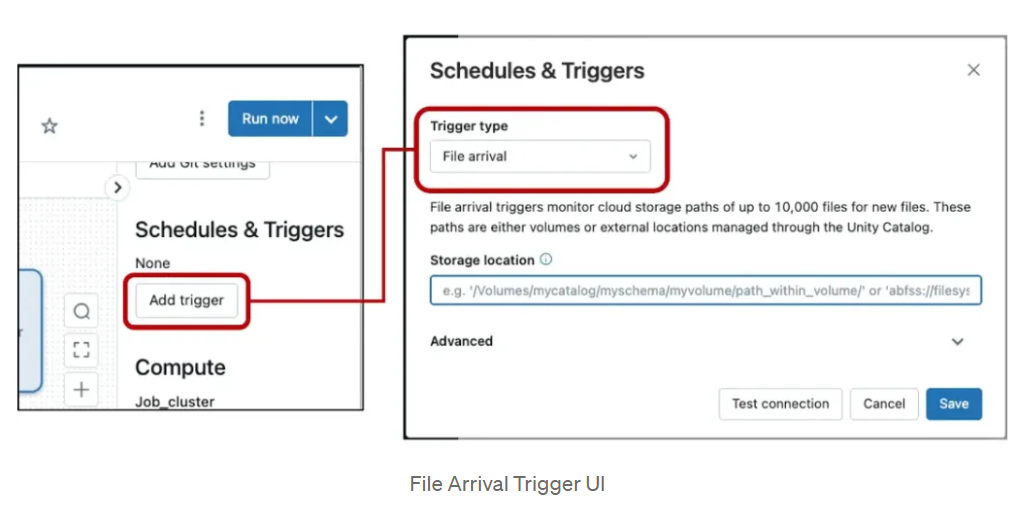
The user interface for adding the trigger is straightforward. In the Job details panel for your job, you simply click Add trigger.
3. Advanced Settings and Production Considerations
For simple use cases, the default trigger configuration works well. However, for professional-level production pipelines, you need to understand the advanced options and limitations.
Fine-Tuning Trigger Behavior
When you configure a file arrival trigger, you have two optional advanced settings:
Minimum time between triggers in seconds: Imagine you receive 100 small files in quick succession. Without this setting, you might launch 100 separate job runs, which is highly inefficient. By setting a minimum time (e.g.,300seconds), you can ensure that after one job is triggered, the system waits at least 5 minutes before launching another, allowing files to accumulate for batch processing.Wait after last change in seconds: This is useful when you expect a batch of related files to be uploaded together, but you don't know how long the upload will take. For example, if you set this to60seconds, the trigger will wait until it sees no new file arrivals in the directory for a full minute before it launches the job. If a new file appears after 30 seconds, the 60-second timer resets. This helps ensure the entire batch is present before processing begins.
These settings are configured directly in the UI, as detailed in the "Add a file arrival trigger" section of the Databricks documentation you reviewed earlier.
Important Limitations
The professional certification exam will expect you to know the constraints of the features you use. Based on the documentation, be aware of these key limitations:
- Overwriting a file does not trigger a run. The trigger only reacts to the creation of new files.
- The storage path cannot contain wildcards (e.g.,
*). You must specify a concrete directory path. - There are limits on the number of files in the monitored directory if the underlying external location is not configured with "file events". The limit is 10,000 files in the path being monitored. For directories with a very large number of files, enabling file events is essential.
4. Integration with Cloud Storage
A file arrival trigger in Databricks doesn't exist in a vacuum. It relies on a correctly configured connection to your cloud storage provider (like AWS S3, Azure Data Lake Storage, or Google Cloud Storage). While the Databricks UI abstracts this away, it's important to understand the underlying setup, which involves storage credentials and external locations.
Given your background with AWS, the following blog post provides excellent context for how the pieces fit together on the cloud provider side.
Get Started with Databricks File Arrival Triggers in S3
The blog post 'Get Started with Databricks File Arrival Triggers in S3' walks through the full setup on AWS. You don't need to perform these steps, but understanding the concepts is valuable.
Skim through the sections 'Configure permissions' and 'Create an external location'. The goal is not to memorize the IAM policy details, but to recognize the key components: a Storage Credential in Databricks that uses an AWS IAM Role, and an External Location that links a specific S3 path to that credential. This demonstrates the hand-off between Databricks and the cloud provider.
This context is important because it highlights that for file arrival triggers to work, Databricks needs permission not only to read files from the location but often also to manage event notifications (like SNS and SQS in AWS) if you are using the more advanced "file events" feature.
Conclusion
In this lesson, you have learned how to build efficient, event-driven workflows using file arrival triggers. This moves you beyond simple time-based scheduling and into a more modern data processing paradigm.
Key Takeaways:
- Event-Driven is Efficient: File arrival triggers launch jobs only when there is new data to process, saving compute costs and reducing data latency.
- Configuration is UI-Driven: Setting up a trigger is done through the Workflows UI by selecting the "File arrival" trigger type and specifying a Unity Catalog path.
- Advanced Controls Provide Flexibility: Settings like
Minimum time between triggersandWait after last changeallow you to handle scenarios with frequent, small files or large batch uploads effectively. - Prerequisites are Key: The feature relies on Unity Catalog, and you must have correctly configured external locations or volumes with the necessary permissions.
- Know the Limitations: Be aware of constraints, such as triggers only firing for new files (not overwrites) and the file limits on locations without "file events" enabled.
Preview of the Next Lesson:
We have now seen how to configure workflows in the UI and have them run automatically based on schedules or file events. The next step in production automation is programmatic control. In our next lesson, "Trigger and monitor Databricks job runs using the REST API," we will explore how to launch and manage jobs using code. This is the foundation for integrating Databricks into larger CI/CD systems and other external applications.