Welcome to the next stage of our journey! In the last module, you mastered integrating external services using APIs, which is fantastic for fetching data. Now, we're diving into another powerful integration method that aligns directly with your goal of incorporating niche tools into your platform: embedding custom code.
This lesson is the crucial first step in that process. We'll focus on how to navigate the vast world of GitHub to find open-source tools that are suitable for embedding directly into your Bubble application. By the end of this lesson, you'll have a systematic process for identifying promising projects, which will form the basis of your multi-tool platform's library.
What Makes a Tool "Embeddable"?
Before we start searching, it's important to understand what we're looking for. Not every project on GitHub can be dropped into a Bubble page. For our purposes, an "embeddable" tool has a few key characteristics:
- Client-Side Technology: The tool must be built using technologies that run in the user's browser. This means it should be made of HTML (for structure), CSS (for styling), and JavaScript (for functionality). You'll often see this referred to as "vanilla JavaScript" if it doesn't rely on large frameworks. Projects built with server-side languages (like Python, PHP, or Ruby) won't work because they need a special server environment to run, which we can't provide within a simple Bubble element.
- Self-Contained: The ideal tool is simple and self-contained. This means it consists of a few files, like a single
index.html, astyle.css, and ascript.js. Projects that require complex "build steps" or have dozens of dependencies are much harder to integrate this way. - Permissive License: Open-source doesn't always mean "free for any use." We need to find projects with a license that allows us to use and modify the code. We'll look for permissive licenses like MIT, Apache 2.0, or BSD.
With these criteria in mind, let's learn how to find these gems on GitHub.
Using GitHub's Advanced Search
GitHub hosts millions of projects, so a simple keyword search can be overwhelming. The trick is to use GitHub's Advanced Search to narrow down the results to exactly what we need.
The following video provides an excellent tour of the most useful filters in Advanced Search.
GitHub Advanced Search - find your open source projects
This video from Eddie Jaoude provides a great walkthrough of GitHub's Advanced Search, a powerful way to find exactly what you need.
As you watch, pay close attention to how these specific filters are used to find quality projects: First, see how to get to the search page. The most important filter for us is the language filter. You'll want to select JavaScript or HTML. The stars range filter helps you find popular, well-regarded projects. Stars are like a "thumbs up" from other developers. Filtering by last pushed date ensures you find projects that are actively maintained and not abandoned. Finally, the license filter lets you search for projects with specific licenses, like the permissive MIT License.
By combining these filters—for example, searching for projects written in JavaScript, with >50 stars, updated in the last year, and with an MIT license—you can dramatically improve the quality of your search results.
How to Evaluate a Repository
Once you've found a few promising candidates from your search, you need to evaluate them to see if they're a good fit. This involves a bit of detective work.
The official GitHub documentation provides a great framework for understanding a new project. We'll apply its principles to our specific goal.
Finding and understanding example code - GitHub Docs
This guide from GitHub Docs outlines a great process for assessing projects. We'll use its principles to evaluate tools for your platform.
Please read the following sections: Start with the section on Orienting yourself within the project. Pay special attention to the part about the README.md file. This is the first and most important place to look for information. Next, read the section on Navigating the source code. This gives you an idea of how to peek inside the files to see if they look simple enough for our needs.
A Practical Checklist for Suitable Tools
Based on what we've learned, here is a simple checklist to run through when you find a potential tool on GitHub:
- Read the README: Does the
README.mdfile clearly explain what the tool does? - Look for a Live Demo: This is the jackpot. Many developers will link to a live version of their tool. If it works there, it has a very high chance of being embeddable.
- Check the File Structure: Click through the files. Does it look simple? A project with an
index.html, ascript.js, and maybe astyle.cssis a perfect candidate. If you see dozens of folders and files with strange names, it might be too complex. - Find the License: Look for a file named
LICENSEorLICENSE.md. Open it and check if it's a permissive license like MIT, Apache, or BSD. If you can't find a license, you should assume you don't have permission to use the code.
Let's Find Some Example Tools
To see these principles in action, let's explore a repository that is a perfect source of embeddable tools for your platform.
This GitHub repository is a collection of 20 small, self-contained projects built with plain ("vanilla") JavaScript. It's an excellent resource for finding embeddable tools.
Scroll through the main project list in the README file. Notice how each project has a description and, most importantly, a live demo link. Click on the links for the Calculator, Custom Countdown, or Book Keeper to see them in action. These are exactly the kind of simple, single-purpose tools we're looking for.
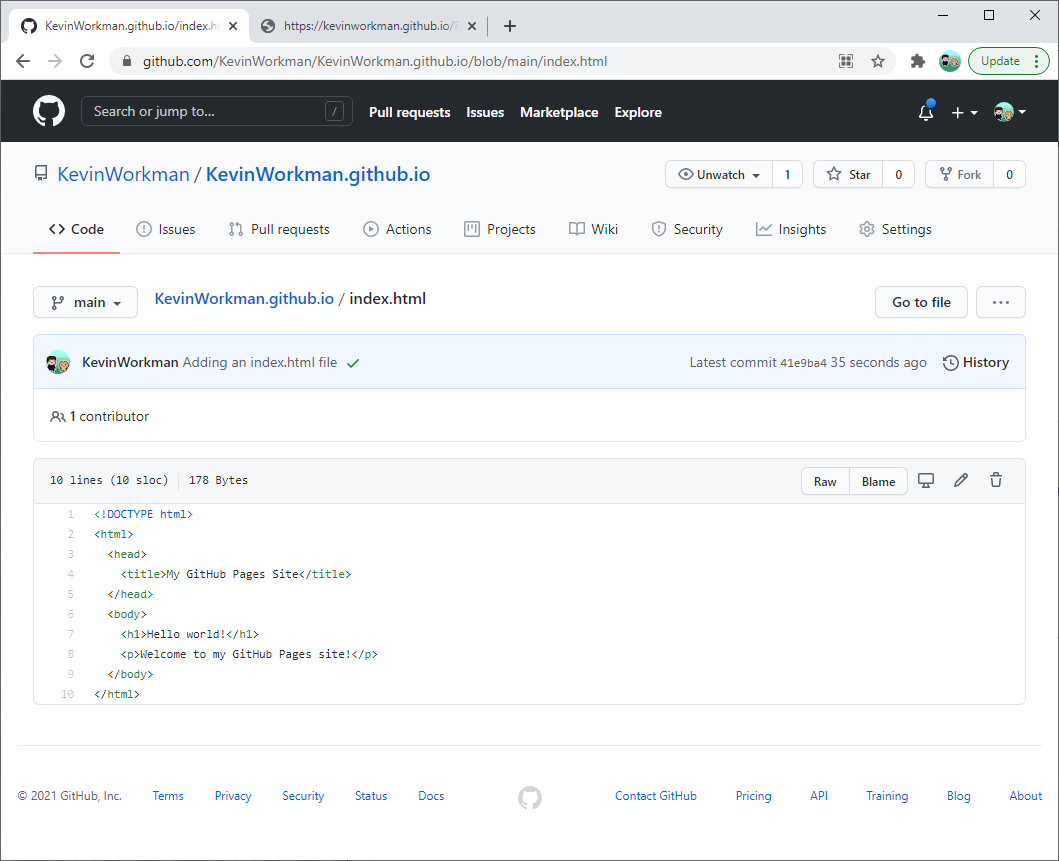
When you click into one of those individual projects within the repository, you'll see a very simple file structure. It often contains just the index.html file that holds the structure, the CSS for styling, and the JavaScript for the logic.
Conclusion
You now have a solid strategy for finding and qualifying open-source tools on GitHub. This skill is fundamental to your goal of building a rich, scalable multi-tool platform.
Here are your key takeaways:
- Focus your search on self-contained, client-side projects (HTML, CSS, JavaScript).
- Use GitHub's Advanced Search to filter by language, popularity, activity, and license.
- Evaluate potential tools by reading the README, checking for a live demo, examining the file structure for simplicity, and verifying the license.
In our next lesson, we will take this knowledge and put it into practice. You'll choose one of the simple tools you've found (like the calculator from the example repository) and learn how to use Bubble's HTML element to embed its code and bring it to life on your platform.