Hello! Welcome to your very first lesson in your journey to becoming a web developer. I'm excited to guide you as you take your first steps toward building your own journalism blog.
In this lesson, we'll start with the absolute fundamentals. Before you can write a single line of code, you need to understand the two most important tools you'll be using every day: the code editor and the web browser. By the end of our session, you will be able to explain the specific role each of these tools plays in creating a website.
Think of it like this: before a journalist writes an article, they need to know what a word processor is for (writing and editing) and what a newspaper or website is for (publishing and reading). It's the same idea here. We're getting your digital toolkit ready.
Your Two Essential Tools
At its core, building a website involves two distinct activities:
- Writing code: This is where you create the instructions that tell a computer what your website should look like and how it should behave.
- Viewing the result: This is where you see your instructions come to life as a visual, interactive webpage.
These two activities are done with two different tools.

Let's stick with the journalism analogy. Your code editor is like your word processor (e.g., Microsoft Word or Google Docs). It's a specialized environment where you'll write and edit the content and structure of your blog. Your web browser is like the published newspaper or the live blog post. It's what you and your readers use to view the finished product. You write in the editor, and you read in the browser.
The Web Browser: Your Digital Reader
You already use a web browser every day to visit websites. In web development, its role is to act as an interpreter. It reads the files you create (written in languages like HTML, CSS, and JavaScript) and renders them into the visual webpages that people can interact with.
Common web browsers include Google Chrome, Mozilla Firefox, Apple's Safari, and Microsoft Edge. For this course, I recommend using Google Chrome, as it's the most popular browser for web development and will ensure you can follow my examples exactly.
To get a more formal understanding of how browsers fit into the larger picture of the internet, please read the following short text.
Web development intro: A breakdown of the basics for ...
This excerpt from an article by HubSpot clearly explains what a website is and the role a browser plays in accessing it.
Please read the section titled '1. What is a website?'. It provides a simple but accurate definition of websites, servers, and browsers.
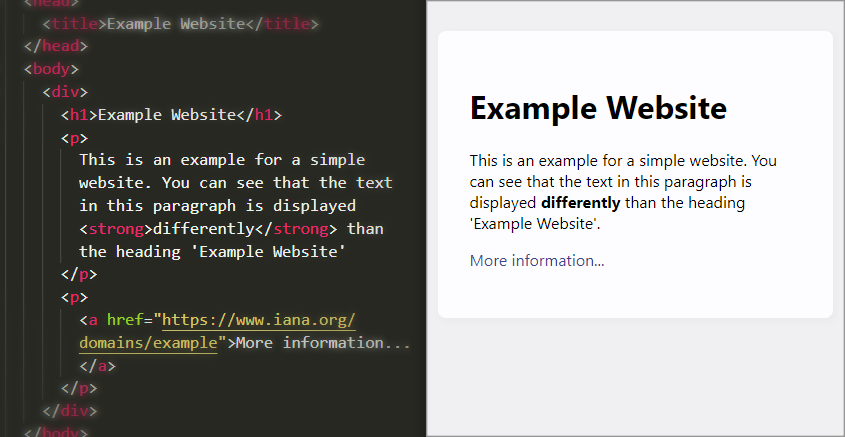
The key takeaway is that a browser's job is to take code and turn it into something visual. This image below shows that transformation perfectly. On the left is the raw HTML code, and on the right is how a browser displays it.
The Code Editor: Your Digital Workshop
So, if the browser is for viewing, where do you actually write the code? That's the job of the code editor.
You might be thinking, "Can't I just use Notepad or Microsoft Word?" While you could technically use a very basic text editor like Notepad, it would be difficult. And you should never use a word processor like Microsoft Word, because it adds a lot of hidden formatting that will break your code.
A modern code editor is a specialized tool designed to make writing code easier, faster, and less error-prone. The standard for web development today is Visual Studio Code (often called VS Code), which is free and what we will use in this course.
To get a better sense of these tools, let's hear from a professional developer.
Absolute beginner’s guide to starting web development in 2023
Kevin Powell is a well-known web development educator. In this clip, he explains the basic tools you need to get started and why a code editor like VS Code is the top choice.
Watch the video from the beginning up to the timestamp 2:41. Pay attention to his distinction between a browser and a code editor, and his reasons for recommending VS Code.
As Kevin Powell mentioned, code editors like VS Code are packed with helpful features. Here are a few of the most important ones you'll come to appreciate:
- Syntax Highlighting: This feature colors different parts of your code based on their function. It makes your code much easier to read and scan for mistakes, much like using different colored highlighters in a textbook.
- Code Completion (or Auto-suggestion): As you type, the editor will suggest possible completions, saving you time and helping you avoid typos.
- Error Highlighting: The editor will often underline simple mistakes in your code with a red squiggly line, just like a spell checker in a word processor, so you can fix them before you even test your page in a browser.
These features turn a blank text file into a powerful workshop for building websites.
Test your understanding!
Imagine you've written an article for your blog and notice a spelling mistake in the headline when you view it online. Which tool would you use to fix the mistake: the code editor or the web browser?
Show answer
You would use the code editor. The code editor is where you write and change your content (the code). The web browser only displays the result. After fixing the typo in the editor and saving the file, you would then refresh the web browser to see the corrected headline.
Conclusion
Let's summarize the key takeaways from our first lesson:
- Web development requires two primary software tools: a code editor and a web browser.
- The code editor (we'll use Visual Studio Code) is a specialized text editor used to write and edit the code that makes up your website.
- The web browser (we'll use Google Chrome) is used to view your website. It reads your code files and renders them as a visual, interactive page.
You now have the fundamental conceptual knowledge needed to get started. You understand the "what" and "why" of your main tools.
In our next lesson, we will move from theory to practice. You will install and configure Visual Studio Code on your computer, officially setting up your workspace to start building your blog.