Introduction
In our previous lesson, we explored how to filter data, a powerful way to temporarily hide rows and focus on a specific subset of your information. Filtering is about changing your view of existing data. Today, we take a significant step forward: we will learn to create new data and automate decisions within your sheet using logical functions.
This lesson introduces the IF function, along with its companions AND and OR. These functions are the fundamental building blocks of spreadsheet logic. As a data researcher, you'll use them to automate tasks like categorizing leads, flagging high-priority items, calculating commissions based on performance, or creating custom status labels—all without tedious manual entry. This is where your spreadsheet starts to "think" for you.
By the end of this lesson, you'll be able to write formulas that test for specific conditions and return different results, enabling you to build more intelligent and dynamic datasets.
The Foundation of Logic: The IF Function
At its heart, the IF function asks a simple question and performs one of two actions based on the answer. Think of it as a fork in the road for your data: if a condition is true, go left; if it's false, go right.
This decision-making process is central to almost any data task. Before we write our first formula, let's establish a clear understanding of the IF function's structure.
Google Sheets IF function – usage and formula examples
This article from the Ablebits blog provides a clear and simple explanation of the IF function, comparing it to a decision tree.
Read the first two sections of the article, from the introductory text down to where the author begins explaining the use of comparison operators. Pay close attention to the syntax breakdown: logical_expression, value_if_true, and value_if_false.
As the article explained, the syntax is:=IF(logical_expression, value_if_true, value_if_false)
logical_expression: The question or test you want to perform (e.g.,D2 > 100). This must evaluate to eitherTRUEorFALSE.value_if_true: What to put in the cell if the test isTRUE.value_if_false: What to put in the cell if the test isFALSE.
Practical Exercise 1: Automatically Prioritizing Invoices
Let's apply this to your My Freelance Invoices spreadsheet. You want to create a new column that automatically labels invoices with a large amount as "High Value".
- Open your
My Freelance Invoicessheet. - Add a new column header in cell H1 called Priority.
- In cell H2 (the first cell below your new header), type the following formula:
=IF(D2>500, "High Value", "Standard")
(This assumes your invoice amounts are in column D. Adjust if necessary.) - Press Enter. Cell H2 should now display "High Value" if the amount in D2 is over 500, and "Standard" otherwise.
- Click on cell H2, then click and drag the small blue circle (the fill handle) at the bottom-right corner of the cell down to the last row of your data. This will copy the formula to all rows, automatically adjusting the cell reference (D3, D4, etc.) for each one.
You've just automated a data labeling task. Now, if you change an invoice amount, the priority label will update instantly.
Handling Multiple Criteria with IF and AND
What if you need to check if multiple conditions are true at the same time? For example, what if you only want to flag an invoice that is both high-value and still pending? This is where the AND function is essential.
The AND function takes two or more logical expressions and returns TRUE only if all of them are true.
Syntax: AND(condition1, condition2, ...)
You use it inside the IF function as the logical expression.
IF Function with Multiple Conditions in Excel & Google Sheets
This video provides a great walkthrough of combining IF and AND to handle multiple conditions.
Watch the segment from this timestamp. The presenter explains how to check for two conditions at once—that a status is "complete" and that a cost field is not blank. This is the exact logic we will apply in our next exercise.
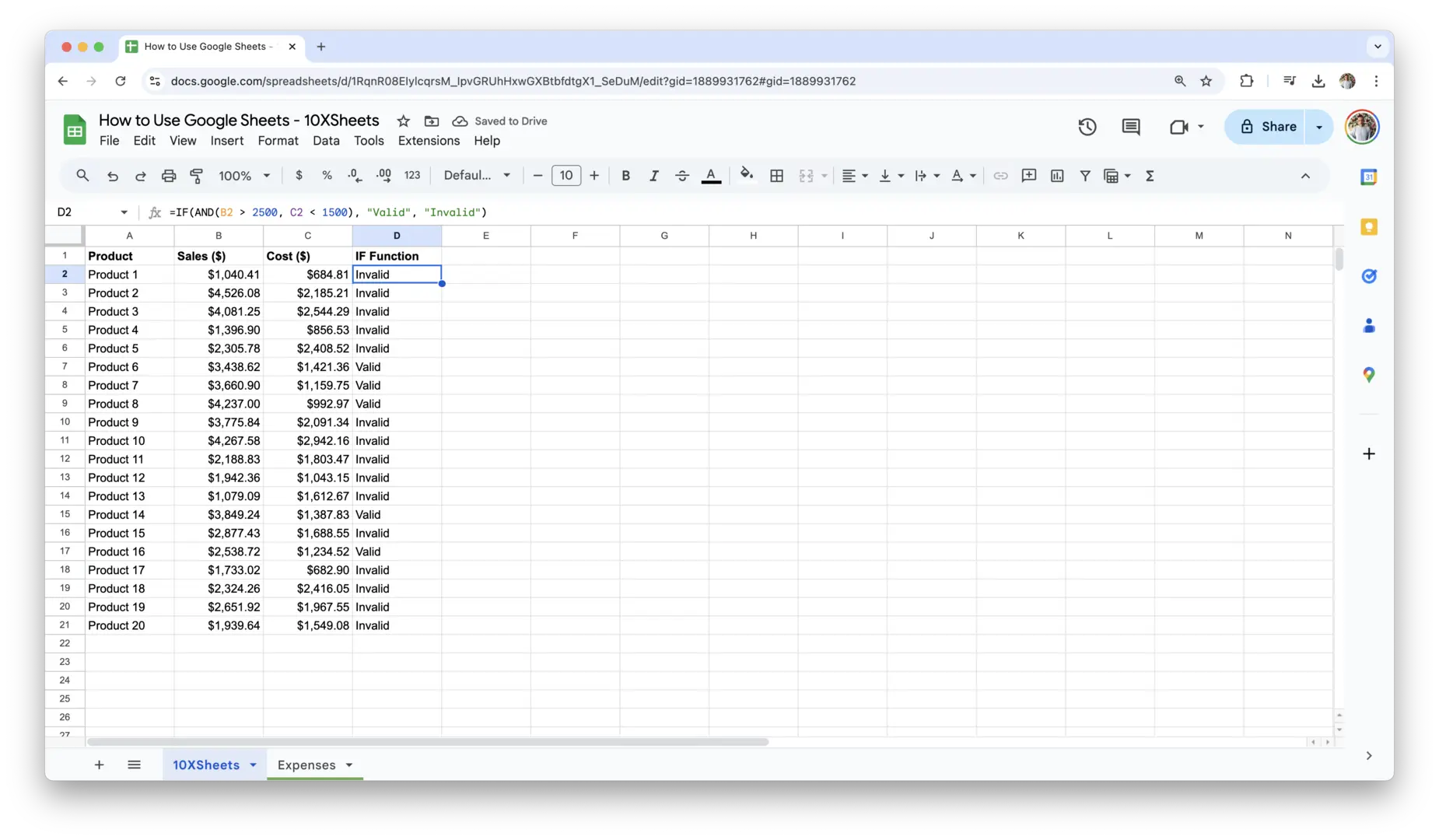
Practical Exercise 2: Identifying Urgent Follow-ups
Let's create a new column to flag invoices that require immediate attention. Our criteria for "Urgent" are: the invoice Status is "Pending" AND its Amount is greater than $100.
- Add a new column header in cell I1 called Follow-up.
- In cell I2, type the following formula:
=IF(AND(E2="Pending", D2>100), "Urgent", "")
(This assumes your Status is in column E and Amount is in column D. Adjust if needed.) - Let's break this down:
AND(E2="Pending", D2>100): This is our test. It checks if the status is "Pending" and if the amount is over 100. It's onlyTRUEif both are correct."Urgent": This is ourvalue_if_true."": This is ourvalue_if_false. Using two double-quotes with nothing between them tells Sheets to leave the cell blank if the condition isn't met. This keeps our sheet clean.
- Press Enter and drag the formula down the column.
Your sheet now automatically points out the specific invoices you need to focus on.
Handling "Either/Or" Scenarios with IF and OR
Sometimes, you don't need all conditions to be true. You might want to take action if at least one of several conditions is met. For this, you use the OR function.
The OR function returns TRUE if any of its logical expressions are true.
Syntax: OR(condition1, condition2, ...)
Similar to AND, you nest OR inside your IF function's logical test.
IF Function with Multiple Conditions in Excel & Google Sheets
Let's continue with the same video to see how the OR function works.
Watch the next segment from this point. Here, the calculation is performed if the status is either "complete" OR "pending".
Practical Exercise 3: Flagging Invoices for Special Review
Imagine you want to review all invoices that are either for a very important client, "Sunshine Navigations," OR that are for a complex service like "Market Research."
- Add a new column header in cell J1 called Review Needed.
- In cell J2, type the following formula:
=IF(OR(B2="Sunshine Navigations", C2="Market Research"), "Yes", "")
(This assumes Client Name is in column B and Project Type is in column C.) - Press Enter and fill the formula down the column.
Now you have a dynamic list of all invoices that meet either of your review criteria.
A Glimpse at More Complex Logic: The IFS function
The IF function is perfect for two outcomes (true/false). But what if you need more? For example, what if you want to classify invoices as "High" (>500), "Medium" (100-500), and "Low" (<100)?
Traditionally, this was done with "nested" IF statements, which can become messy. Google Sheets has a cleaner solution: the IFS function. It lets you check a series of conditions in order.
Syntax: IFS(condition1, value1, condition2, value2, ...)
It checks condition1. If true, it returns value1 and stops. If not, it checks condition2, and so on. You don't need to tackle this today, but knowing it exists is valuable for your future data research projects. The video you just watched introduces IFS right after the OR section if you're curious (LINK, from
Conclusion
Today you've unlocked one of the most powerful features in Google Sheets. You've moved from simply viewing data to automating logic and creating new, meaningful information within your spreadsheet.
Here are the key takeaways from our session:
- The
IFfunction is your primary tool for conditional logic, allowing you to return one value if a condition is true and another if it's false. - The
ANDfunction lets you test if all of multiple conditions are true simultaneously, perfect for specific, multi-criteria filtering. - The
ORfunction tests if at least one of multiple conditions is true, ideal for situations where several different factors can trigger the same outcome. - Combining these functions (
=IF(AND(...)),=IF(OR(...))) allows you to build sophisticated and automated data processing rules right into your sheet.
In our next lesson, we will explore another cornerstone function for data research: VLOOKUP. While IF, AND, and OR help you create data based on information in the same row, VLOOKUP will empower you to reach across your spreadsheet to find and retrieve related data from a completely different table. This is essential for enriching datasets, such as adding industry information to a list of companies.