Welcome to your first lesson in the Data Research course! Your goal is to develop practical skills for freelance work, and the journey begins with mastering the tools of the trade. The most fundamental tool for any data researcher is the spreadsheet. It’s where you will organize, clean, and analyze the information you gather.
In this lesson, we will focus on the very first step: getting comfortable with Google Sheets. By the end of our session, you will be able to navigate the Google Sheets interface, create new spreadsheets, open existing ones, and understand how your work is saved. This foundational skill will be the launchpad for everything we do in the weeks to come.
Getting Started: Creating Your First Spreadsheet
Google Sheets is a free, powerful, and web-based spreadsheet application. Because it operates in the cloud, your work is accessible from any device with an internet connection, which is incredibly useful for flexible freelance work. All you need is a Google account.
Let's begin by looking at the Google Sheets home page. This is your central hub for creating new spreadsheets and accessing ones you've worked on previously.

To see how to get here and create your first file, the following video provides a clear, step-by-step guide. It covers several ways to create a new sheet, including a very handy shortcut.
Google Sheets Tutorial for Beginners
Watch this segment from the "Google Sheets Tutorial for Beginners" by Kevin Stratvert. It will walk you through the different ways to access Google Sheets and start a new file.
Please watch from the beginning of the clip until 04:23. Pay close attention to the various methods shown: Accessing Sheets from the Google Apps menu or by going directly to sheets.google.com. Creating a new sheet from Google Drive or using the quick shortcut sheets.new. The start page, where you can start from a blank sheet, use a template, or open recent files.
The sheets.new shortcut is particularly efficient and is a favorite among frequent users. For our exercises, this will be the quickest way to get a fresh spreadsheet.
The Anatomy of a Spreadsheet
Now that you've seen how to create a spreadsheet, let's open one and get familiar with the environment. When you open a blank sheet, you'll see a grid of boxes.
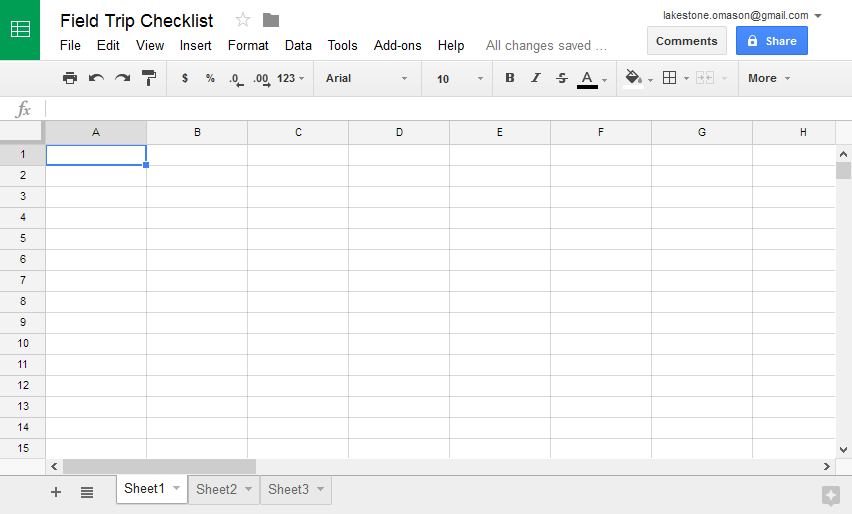
To work efficiently, you need to know the specific terminology for the different parts of this grid. The next video introduces the fundamental vocabulary of any spreadsheet—whether it's Google Sheets or another program like Microsoft Excel.
Google Sheets for Beginners - The Complete Course
This video from the "Technology for Teachers and Students" channel clearly explains the basic components of a spreadsheet. Knowing these terms is essential, as we will use them in every future lesson.
Watch the section from Anatomy of a Spreadsheet. The instructor will define and demonstrate the following key terms: Column: A vertical series of cells, identified by a letter (A, B, C...). Row: A horizontal series of cells, identified by a number (1, 2, 3...). Cell: The intersection of a column and a row, with a unique address (e.g., A1, B2). This is where you enter your data. Range: A group of selected cells, defined by the top-left and bottom-right cells (e.g., A1:C5). Sheet (or Worksheet): A single page within a file, containing the grid of columns and rows. Workbook: The entire spreadsheet file, which can contain one or more sheets.
Take a moment to internalize these terms. Being able to distinguish between a row, a column, and a cell is as fundamental to data work as knowing the difference between a word and a sentence is to writing.
Naming, Saving, and Opening Your Work
One of the best features of Google Sheets is that you don't have to manually save your work. Every change you make is saved automatically to your Google Drive. However, this makes naming your files properly very important. An "Untitled spreadsheet" is easy to lose track of.
Let's return to the first video to see how to name your file and understand the auto-save process.
Google Sheets Tutorial for Beginners
This next clip from Kevin Stratvert's tutorial covers naming, saving, and organizing your file.
Watch the segment from Naming and Saving. Focus on these actions: Naming your spreadsheet in the top-left corner. Understanding the auto-save status icon (the cloud icon). Learning where your file is stored in Google Drive.
Practical Exercise
Let's put this all together.
- Open a new browser tab and type
sheets.newinto the address bar, then press Enter. - A new, untitled spreadsheet will appear. In the top-left corner, click on "Untitled spreadsheet".
- Rename it to My First Data Project.
- Close the browser tab.
- Now, open a new tab and go to
sheets.google.com. You should see "My First Data Project" at the top of your recent spreadsheets list. - Click on it to open it again.
This simple loop—create, name, close, and reopen—is the basic workflow for managing your files in Google Sheets.
While Google Sheets saves automatically to the cloud, you will sometimes need to provide a file to a client who uses Microsoft Excel or wants a non-editable PDF. You can do this by downloading a copy of your spreadsheet in a different format.
Google Sheets cheat sheet: How to get started
This article from Computerworld provides a quick reference for many Sheets functions. We'll focus on how to download your file.
Read the section titled Download and export. This shows you how to use the File > Download menu to save a copy of your work to your computer as an Excel file, a PDF, or other formats.
Conclusion
In this lesson, you've taken the first crucial step in your data research journey. You now have the basic navigational skills to work with Google Sheets, which will be your primary tool for the initial modules of this course.
Here are the key takeaways:
- You can create a new spreadsheet quickly using the
sheets.newshortcut or from your Google Drive. - A spreadsheet file is called a workbook, which contains one or more sheets. Each sheet is a grid of columns (letters) and rows (numbers). The individual boxes are called cells.
- Google Sheets saves your work automatically. Your main job is to give your workbook a descriptive name.
- You can access all your spreadsheets from the home page at
sheets.google.com. - You can download a copy of your spreadsheet in other formats, like Excel or PDF, for sharing with clients.
Now that you are comfortable creating, opening, and saving files, you are ready to start working with data. In our next lesson, we will focus on entering text, numbers, and dates into cells and applying basic formatting to keep your data clean and readable from the very beginning.