Introduction
In the previous lesson, you architected a robust data validation pipeline. This established a critical "guardrail" at the system's entry point, ensuring data integrity. We secured the data coming in. Today, we address the other side of the security coin: securing the credentials your system uses to interact with the outside world.
The learning outcome for this session is to secure all credentials and sensitive data using n8n's built-in credential management system.
For a systems engineer, this is non-negotiable. Hardcoding API keys, tokens, or passwords directly into workflow nodes is a rookie mistake that instantly signals a lack of production experience. It exposes secrets in the workflow's JSON, makes them difficult to manage or rotate, and creates a significant security liability. Your full-stack background has undoubtedly shown you the importance of using .env files or secret managers; n8n's credential system is the direct equivalent for automation architecture. Our objective is to eliminate all hardcoded secrets and adopt this professional standard.
The Professional's Approach to Secrets Management
Before we execute, let's establish the "why." An amateur might paste an API key into an HTTP Request node header. A professional abstracts it, stores it securely, and references it. This decoupling is fundamental to secure and maintainable systems.
Best Practices for Managing Credentials Securely in Your n8n Workflows
To understand the core mechanism, start with this article from SharconAI. It explains how n8n's credential system functions under the hood.
Read the first two sections: 'Understanding Credential Storage in n8n' and 'Use n8n’s Built-in Credential Encryption'. The key takeaways are that n8n uses a centralized, encrypted database and that the N8N_ENCRYPTION_KEY environment variable is the master key that locks and unlocks this vault.
Since you are self-hosting, the N8N_ENCRYPTION_KEY is your responsibility. As noted in the Render article on production-ready architecture, losing this key means your encrypted credentials become permanently unrecoverable. You must back it up securely.
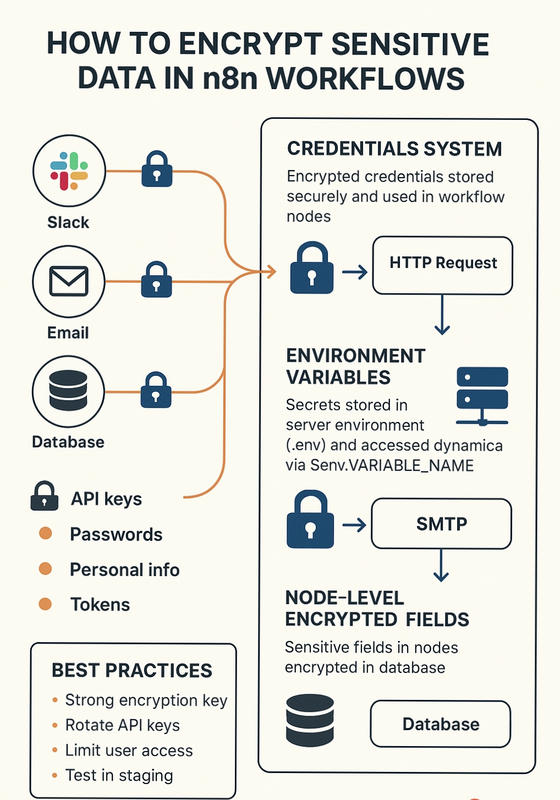
The landscape of secrets management in n8n can be visualized effectively. This diagram shows the primary methods for handling sensitive data. We will focus on the "Credentials System" as the best practice for most use cases.
Execution Patterns: From Best to Worst
There are several ways to inject a secret like an API key into an HTTP Request node. Let's analyze them from a professional standpoint.
1. Best Practice: Predefined or Generic Credentials
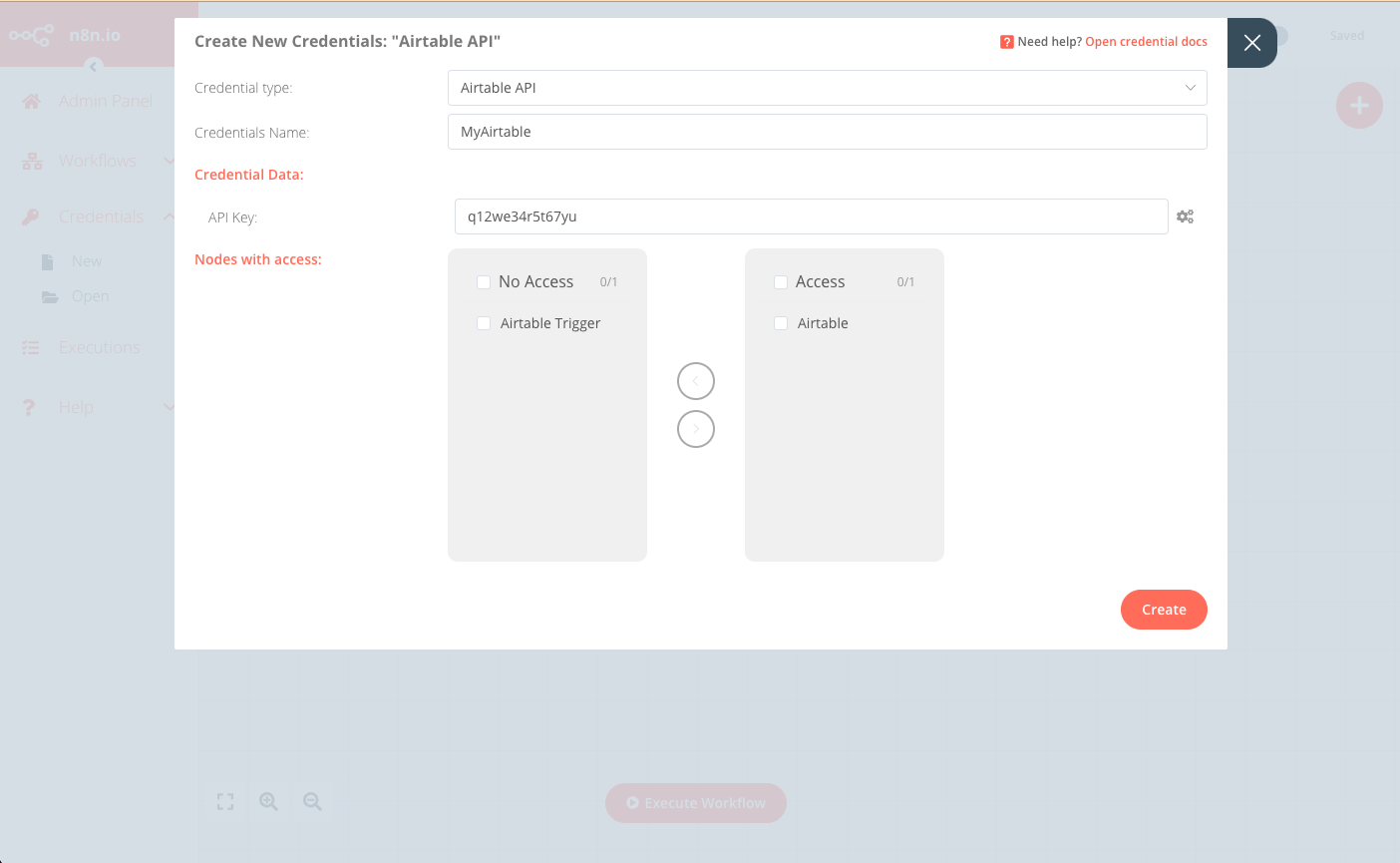
This is the standard you will be expected to meet. n8n's system stores the secret, encrypts it, and allows you to reference it from a dropdown menu.
Why 97% of n8n Workflows Fail in Production (And How to Fix It)
This video segment demonstrates the correct way to handle credentials for an API call.
Watch from 04:06 to 05:18. Notice how a 'Predefined Credential Type' (OpenAI) is selected. This completely removes the API key from the HTTP Request node's configuration. This is the gold standard.
When a pre-built credential type doesn't exist for your service, you create a Generic Credential Type. The most common is Header Auth, which allows you to define a name-value pair (e.g., Authorization and Bearer <your_api_key>) that can be reused across any HTTP Request node.
2. The Anti-Pattern: Using a Set Node
You may see a seemingly clever workaround that uses a Set node to store a secret and then references it with an expression. Do not adopt this pattern.
Why 97% of n8n Workflows Fail in Production (And How to Fix It)
The same video shows this less-secure alternative. It's critical to understand why this is an anti-pattern.
Watch from 05:18 to 06:07. The API key is placed in a Set node and then referenced in the HTTP node. While it's no longer visible in the HTTP node's UI, the key is still stored in plaintext within the workflow's JSON definition. This is mere obfuscation, not true security, and will fail any professional code review.
Practical Task: Refactor Email Utility to Use Secure Credentials
Your PROD_ [Sub] Util - Send Email workflow is a core utility. We will now harden it by removing any hardcoded SMTP credentials and replacing them with n8n's credential system.
Scenario:
Currently, your Send Email node might have the SMTP server, user, and password typed directly into its fields. We will create a dedicated SMTP credential and reference that instead. This task simulates the common engineering practice of refactoring legacy or insecure components to meet modern security standards.
Objective:
Create a new SMTP credential in n8n and update your email sub-workflow to use it, ensuring no secrets are stored in the workflow's JSON.
Implementation Steps
-
Generate a Secure App Password:
- Do not use your main account password. For services like Gmail/Google Workspace, you must generate an "App Password". This is a 16-digit passcode that gives an app access to your Google Account.
- Go to your Google Account settings -> Security -> 2-Step Verification -> App passwords.
- Create a new app password for n8n. Copy this password; you will only see it once.
-
Create the SMTP Credential in n8n:
- In your n8n instance, navigate to the Credentials tab on the left sidebar.
- Click Add credential.
- In the search box, type
SMTPand select it. - Fill out the configuration form:
- Credential Name: Give it a descriptive name, e.g.,
Gmail SMTP - your.email@gmail.com. - Host:
smtp.gmail.com - Port:
465 - User: Your full Gmail address (e.g.,
your.email@gmail.com). - Password: Paste the 16-digit App Password you generated in step 1.
- Secure: Ensure this is toggled ON.
- Credential Name: Give it a descriptive name, e.g.,
- Click Save.
-
Refactor the Email Sub-Workflow:
- Open your
PROD_ [Sub] Util - Send Emailworkflow. - Select the
Send Emailnode. - In the Credential for SMTP parameter, click the dropdown menu.
- Select the
Gmail SMTP...credential you just created. All the host, port, user, and password fields will now be managed by the credential. - Verify that the
From,To,Subject, andText/HTMLfields are still correctly mapped using expressions from the trigger node. - Activate and save the workflow.
- Open your
-
Test the Refactored Workflow:
- Go to one of your parent workflows that calls this sub-workflow (e.g.,
WIP_ [Webhook] Lead Intake...). - Manually execute the parent workflow with valid test data to trigger the email sub-workflow.
- Confirm that the email is still sent and received successfully.
- Go to one of your parent workflows that calls this sub-workflow (e.g.,
Deliverables:
- Screenshot of the SMTP credential configuration in the n8n Credentials UI. Blur or black out the User and Password fields before taking the screenshot.
- Screenshot of your refactored
Send Emailnode's parameters, clearly showing that you have selected the new credential from the dropdown. - The JSON file of the updated
PROD_ [Sub] Util - Send Emailworkflow. You can get this by exporting the workflow.
Evaluation Criteria:
- Credential Abstraction: Is a dedicated SMTP credential created and used?
- Security: If we inspect the submitted workflow JSON file, are there any plaintext SMTP passwords, usernames, or hosts present? There should be none.
- Functionality: Does the sub-workflow still execute correctly after the refactoring?
- Best Practices: Did you use an App Password instead of your main account password?
Conclusion
You have now implemented a foundational security practice that separates a hobbyist from a professional. By abstracting secrets into the n8n Credentials Manager, you have made your system more secure, more maintainable, and ready for a production environment. When you discuss your portfolio with potential clients, being able to state that "all credentials are encrypted and managed via the n8n credential store, with no hardcoded secrets" is a powerful testament to your engineering discipline.
Key Takeaways:
- The Credential Manager is Mandatory: For any production system, all secrets (API keys, passwords, tokens) must be stored in the n8n Credentials Manager.
- Distinguish Secure from Insecure Patterns: Using predefined/generic credentials is the standard. Using
Setnodes for secrets is an anti-pattern. - The
N8N_ENCRYPTION_KEYis Your Responsibility: In a self-hosted environment, this key is paramount. Back it up as you would any master password.
In our next and final lesson of this foundational module, we will complete our "workflow as code" setup. We will cover how to use Git for version controlling n8n workflow JSON files, allowing you to track changes, collaborate, and maintain a history of your work—the final piece of a professional development lifecycle.