Introduction
In the previous lesson, you engineered an Error Recovery Pipeline to handle transient failures with an intelligent retry and backoff strategy. This was a critical step in building resilient systems. However, a production-grade system must also account for the inevitable: what happens when an error is not transient, or when all retry attempts are exhausted? Simply letting the workflow fail and logging a generic error message risks permanent data loss.
This lesson addresses that final failure state. Your objective is to build a dead-letter queue (DLQ) pattern to capture and store failed items for manual review and reprocessing. A DLQ acts as a safety net, ensuring that no matter why a process fails, the original data and its context are preserved. This transforms a failure from a dead end into an actionable ticket for investigation and recovery. This is a non-negotiable component of any system that handles critical data.
The Dead-Letter Queue: An Architect's Safety Net
A Dead-Letter Queue is not an n8n-specific feature but a standard design pattern in distributed systems architecture. It's a dedicated storage mechanism for messages or data items that could not be processed successfully.
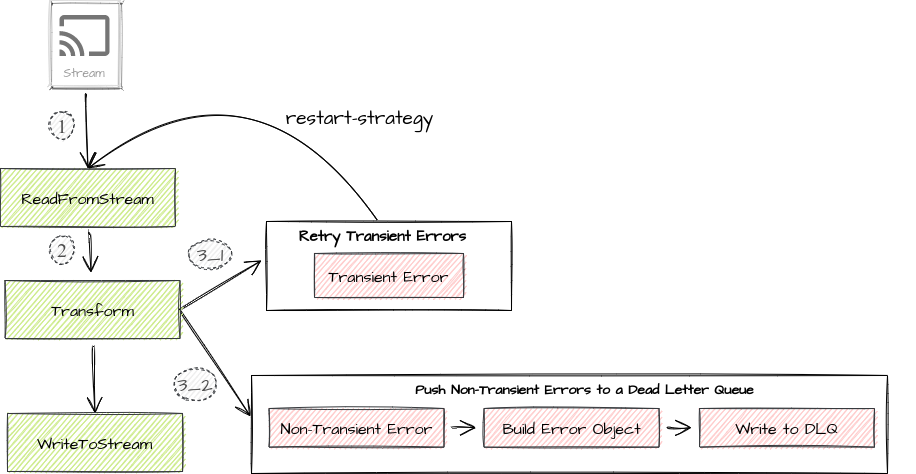
For our purposes, we will use a simple, free, and effective tool as our DLQ storage: Google Sheets.
To understand the concept and its implementation in n8n, let's review a clear explanation.
Advanced Error Handling for n8n AI Workflows
The article 'Advanced Error Handling for n8n AI Workflows' from Vatech.io provides a concise, professional overview of Dead-Letter Queues and the primary methods for implementing them in n8n.
Read the section titled 'Dead-Letter Queues (DLQ) for Failed Items'. Focus on the two implementation methods described: Separate n8n Workflow: Using a webhook to send failed items to a dedicated logging workflow. External Datastore: Directly writing failed items to a datastore like Google Sheets from the error branch of your main workflow. We will be building a hybrid of these two powerful patterns.
Practical Task: Engineer a Centralized DLQ System
We will construct a robust DLQ system in two parts:
- A Global Error Handler: A dedicated workflow that acts as a catch-all DLQ for any unhandled error across your entire n8n instance.
- An Integrated DLQ Branch: A specific branch within your existing Error Recovery Pipeline to explicitly handle items that have exhausted their retries.
Part 1: Build the Global DLQ Workflow
This workflow will serve as your centralized logging and storage system for all terminal failures.
One n8n Workflow for Unlimited Error Handling (Step-by-Step)
To start, we'll build the dedicated error-handling workflow. The video 'One n8n Workflow for Unlimited Error Handling' by Nate Herk provides a direct, step-by-step guide for this exact process.
Watch from 00:39 to 05:12. This segment covers: Creating a new workflow starting with the Error Trigger node. Linking this error workflow to a main workflow via the Settings -> Error Workflow panel. Extracting key error details (workflow name, URL, node, message) from the trigger's output. Appending this structured data to a Google Sheet. Follow the video's logic to build your own version. You do not need to implement the Slack notification part for now.
Your Task:
-
Create the DLQ Google Sheet:
- Create a new Google Sheet named
[SYS] n8n Dead Letter Queue. - Create a sheet/tab named
FailedItems. - Define the following headers in the first row:
Timestamp,WorkflowName,ExecutionURL,FailingNode,ErrorMessage,PayloadJSON.
- Create a new Google Sheet named
-
Create the DLQ Handler Workflow:
- Create a new workflow named
[SYS] Global DLQ Handler. - Add an Error Trigger node as the first step.
- Add a Google Sheets node (Append operation).
- Configure it to connect to your
[SYS] n8n Dead Letter Queuesheet. - Map the fields from the Error Trigger to your sheet columns. Pay close attention to the expressions required:
Timestamp:={{ $now.toFormat("yyyy-MM-dd HH:mm:ss") }}WorkflowName:={{ $json.workflow.name }}ExecutionURL:={{ $json.execution.url }}FailingNode:={{ $json.node.name }}ErrorMessage:={{ $json.error.message }}PayloadJSON:={{ JSON.stringify($input.item.json) }}- Crucial: This step captures the entire data item that was being processed when the failure occurred. It must be stringified to fit into a single cell. This is the "letter" in our dead-letter queue.
- Create a new workflow named
-
Activate the Global Handler:
- Go to your
[WIP] Webhook Lead Intakeworkflow. - Click the three dots in the top right, go to Settings.
- In the Error Workflow dropdown, select your new
[SYS] Global DLQ Handlerworkflow. - Save and activate both workflows.
- Go to your
Your global DLQ is now online. Any unhandled, workflow-halting error in [WIP] Webhook Lead Intake will now be captured, and its full context stored for review.
Part 2: Integrate DLQ into the Retry Loop
Now, we'll explicitly handle the case where our Error Recovery Pipeline from the previous lesson runs out of retries.
-
Return to the
[WIP] Webhook Lead Intakeworkflow. -
Locate the IF node that checks
maxRetriesReached. The false output of this node represents the path where retries are exhausted. Currently, it should connect directly to aStop and Errornode. -
Insert the DLQ Log Step:
- Drag a new Google Sheets node onto the canvas.
- Place it on the connection between the IF node's
falseoutput and theStop and Errornode. - Configure this node to append to the same
[SYS] n8n Dead Letter Queuesheet. - Map the fields. The data source is different here; it's coming from the item within the workflow, not an Error Trigger.
Timestamp:={{ $now.toFormat("yyyy-MM-dd HH:mm:ss") }}WorkflowName:={{ $workflow.name }}ExecutionURL:={{ $execution.url }}FailingNode:Data Enrichment API Call(Hardcode this, as we know exactly which step failed).ErrorMessage:={{ "Max retries exceeded. Final error: " + $json.finalError.message }}PayloadJSON:={{ JSON.stringify($json) }}
-
Ensure Final Failure: The output of this new Google Sheets node must connect to the
Stop and Errornode. The sequence is critical: Log to DLQ, then Terminate Execution. This ensures the item is saved before the workflow halts and is officially marked as 'Failed'.
Your [WIP] Webhook Lead Intake workflow is now fully resilient. It retries transient errors, and if recovery is impossible, it saves the failed item to your DLQ before terminating.
The Manual Review and Reprocessing Loop
The learning outcome includes "manual review and reprocessing." Your DLQ sheet is your review dashboard. The process is now:
- Review: Periodically check the
[SYS] n8n Dead Letter Queuesheet. - Diagnose: For each entry, analyze the
ErrorMessage,FailingNode, andPayloadJSON. Is the error due to bad input data? A permanent API change? - Act: Based on the diagnosis, you might fix the source data or adjust the workflow logic.
- Reprocess: To reprocess a failed item, you can:
- Copy the content of the
PayloadJSONcell. - Go to the original workflow (
[WIP] Webhook Lead Intakein this case). - Manually start a new execution, pasting the copied JSON data into the trigger node to rerun that specific item.
- Copy the content of the
This manual loop closes the gap, ensuring no lead or data point is ever permanently lost due to a processing failure.
Deliverables
- DLQ Handler Screenshot: A screenshot of your
[SYS] Global DLQ Handlerworkflow canvas. - Integrated Workflow Screenshot: A screenshot of your
[WIP] Webhook Lead Intakeworkflow, focusing on thefalsebranch of themaxRetriesReachedIF node, showing the newGoogle Sheetsnode followed by theStop and Errornode. - DLQ Sheet Screenshot: A screenshot of your
[SYS] n8n Dead Letter QueueGoogle Sheet containing at least one test entry from a failed execution.
Evaluation Criteria
- DLQ Architecture: Is the
[SYS] Global DLQ Handlercorrectly implemented with anError Triggerand aGoogle Sheetsnode? - Data Integrity: Does the DLQ correctly capture the timestamp, workflow context, error message, and the full original
PayloadJSON? - Pipeline Integration: Is the DLQ logging step correctly inserted into the "max retries exceeded" path of the Error Recovery Pipeline?
- Fail-Safe Logic: Does the workflow still terminate with a
Stop and Errornode after successfully writing to the DLQ, ensuring the execution is correctly marked as failed?
Conclusion
You have now implemented one of the most critical patterns for production-grade systems: the Dead-Letter Queue. Your automations no longer have silent failure points that lead to data loss. By combining a global error handler with specific DLQ logic in your retry loops, you've created a multi-layered safety net. This demonstrates a mature approach to system design, focusing not just on the "happy path" but on robustly managing failure states.
Key Takeaways:
- DLQ Prevents Data Loss: It's a reliable mechanism to capture and persist items that fail processing.
- Two Primary Patterns: You've built both a global, catch-all DLQ and an integrated, process-specific DLQ branch.
- The Payload is Paramount: Capturing the original data item (
PayloadJSON) is the most important part of a DLQ, as it enables diagnosis and reprocessing. - Log, Then Fail: The correct sequence is to secure the failed item in the DLQ before terminating the workflow execution.
In the next lesson, we will tackle a related and equally important concept: idempotency. Now that you have a mechanism to retry and reprocess items, how do you prevent accidentally creating duplicate records or sending duplicate notifications? You will learn to apply idempotency patterns to your webhook-triggered workflows, making them safe to run multiple times with the same input.