Welcome to your first lesson! Your journey into the world of Capture The Flag (CTF) competitions begins here. The command line is the single most important tool in a security professional's toolkit, and mastering it is non-negotiable. This course is designed to take you from the fundamentals to advanced exploitation, and our starting point is the bedrock of it all: the Linux operating system.
In this lesson, you will learn how to navigate the Linux file system and manage files and directories using standard command-line tools. This is the essential vocabulary and grammar you'll use to interact with almost every system you encounter in CTFs. We'll explore the layout of a typical Linux system, then learn the commands to move around, create, view, and organize files.
The "Everything is a File" Philosophy
Before we dive into commands, let's establish a core concept in Linux: everything is a file. Your documents are files, the directories that contain them are files, your hard drive is a file, and even the commands you type are programs stored as files. This elegant and powerful abstraction is what makes Linux so flexible.
To understand how these "files" are organized, we need to look at the file system hierarchy. It all starts from a single point, the root directory, denoted by a forward slash (/).
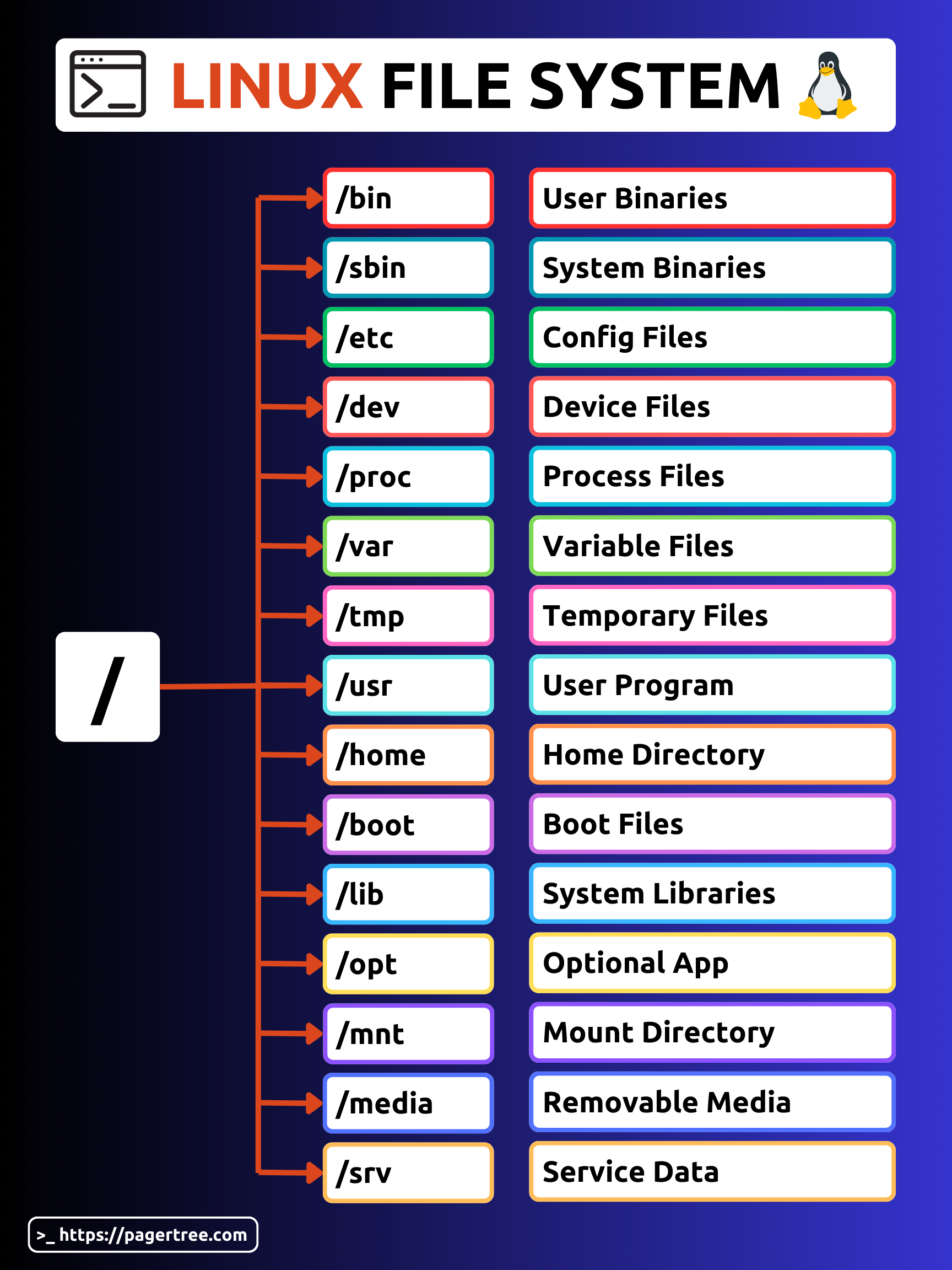
The video below provides an enthusiastic and memorable tour of these directories. The presenter, NetworkChuck, will walk you through the key locations and their purposes, reinforcing the "everything is a file" concept.
the Linux File System explained in 1,233 seconds // Linux for Hackers // EP 2
Watch this video from NetworkChuck to get a feel for the Linux file system.
Pay close attention to these segments: The Root Directory: An introduction to the root (/) and the "everything is a file" philosophy. /bin and /sbin: Learn where essential commands live. The /usr Directory: Understand this important directory for user programs. Other Key Directories: A rapid tour of /home, /etc, /dev, /mnt, and more. Don't worry about memorizing everything; focus on getting a general sense of the layout.
Navigating the File System
Now that you have a map, let's learn how to find our way around. There are three indispensable commands for navigation. The following reading from Cycle.io provides a clear, concise reference for these commands.
This article section covers the foundational commands for moving around the Linux file system.
Read the section on Navigating the Filesystem. Focus on understanding the purpose of pwd, ls, and cd, along with their most common options and shortcuts.
Let's summarize and expand on those key commands:
-
pwd(Print Working Directory): This command answers the question, "Where am I?" It prints the full path of the directory you are currently in. A path is the address of a file or directory.- An absolute path starts from the root directory, like
/home/user/documents. - A relative path starts from your current directory, like
documents/report.txt.
- An absolute path starts from the root directory, like
-
ls(List): This asks, "What's in here?" It lists the contents of the current directory. It has many useful options (also called flags or switches) that modify its behavior:ls -l: Shows a long listing format with details like permissions, owner, size, and modification date.ls -a: Shows all files, including hidden files (which start with a dot, e.g.,.bashrc).ls -h: Used with-l, it makes file sizes human-readable (e.g.,4.0Kinstead of4096).- You can combine options:
ls -lahis a very common command you will use daily.
-
cd(Change Directory): This is how you move. You can use absolute or relative paths. There are also essential shortcuts:cdorcd ~: Takes you to your home directory (e.g.,/home/yourusername).cd ..: Moves you up one level to the parent directory.cd -: Takes you to the previous directory you were in.
Managing Files and Directories
Navigation is only half the battle. In CTFs, you'll constantly need to create, copy, move, and delete files. These commands are your tools for manipulating the file system.
The following video from HackerSploit provides a fantastic, step-by-step demonstration of these file management commands.
Linux Essentials For Hackers - #3 - File Management & Manipulation
This HackerSploit video is a practical guide to the most common navigation and file management commands.
Watch the following segments to see these commands in action: Navigation: This part is a great review of pwd, ls, and cd, reinforcing what you just read. Creating and Viewing Files: Learn how to use touch, echo, and cat. Pay attention to the concept of output redirection using >. Managing Files and Directories: This covers rm, mkdir, cp, and mv. Note the difference between removing a file and removing a directory.
Let's consolidate the key file management commands from the video:
-
Creating:
touch <filename>: Creates a new, empty file.mkdir <dirname>: Creates a new directory. Usemkdir -p dir1/dir2to create parent directories as needed.
-
Viewing:
cat <filename>: Displays the entire content of a file to the screen. Best for short files.less <filename>: Displays file content one page at a time. Use arrow keys to navigate andqto quit. Essential for large files like logs.head <filename>: Shows the first 10 lines of a file.tail <filename>: Shows the last 10 lines.tail -f <logfile>is extremely useful for watching log files in real-time.
-
Copying, Moving, and Deleting:
cp <source> <destination>: Copies a file or directory. To copy a directory and its contents, you must use the-r(recursive) option:cp -r <sourcedir> <destdir>.mv <source> <destination>: Moves a file or directory. This command is also used to rename files. For example,mv oldname.txt newname.txtrenames the file in the current directory.rm <filename>: Removes (deletes) a file.rmdir <dirname>: Removes an empty directory.rm -r <dirname>: Removes a directory and all of its contents.
A Word of Caution: The rm command is powerful and irreversible. There is no "Recycle Bin" on the command line. Be especially careful with rm -r, as a simple typo could delete critical files. Always double-check your commands before hitting Enter!

Finding What You're Looking For
In CTF challenges, flags and other important files are often hidden somewhere in the file system. Simply navigating with cd and ls isn't efficient. The find command is your primary search tool.
Let's return to the Cycle.io article to learn about finding files.
Read the section on the find and locate commands. Focus on find.
The basic syntax is find <path> -name "<pattern>". For example, to find a file named flag.txt somewhere within the /var directory, you would use:find /var -name "flag.txt"
This command is incredibly powerful, with options to search by file type, size, permissions, modification time, and more. We will explore its advanced features as we progress.
Practice Makes Permanent
Theory is one thing, but muscle memory is what counts in a timed CTF environment. Now it's time to put these commands into practice. The website below provides a free, in-browser Linux terminal where you can complete guided lessons.
Practice Linux Commands Online Free | Penguin Gym Linux
Use the Penguin Gym to get hands-on experience with the commands from this lesson.
Go to the website and click on the Practice Terminal. Work through the initial lessons covering basic navigation (pwd, ls, cd) and file operations (mkdir, touch, cp, mv, rm). This will solidify your understanding and start building the muscle memory you need.
Conclusion
In this foundational lesson, you've taken your first major step into the Linux command line. You learned about the file system's structure and the core philosophy that "everything is a file." You are now equipped with the essential commands to navigate (pwd, ls, cd), manage files (mkdir, touch, cat, cp, mv, rm), and search for them (find).
These commands are the building blocks for everything that follows. The more you use them, the more they will become second nature.
In our next lesson, we will build directly upon this foundation by exploring file permissions and ownership. You'll learn how Linux controls who can read, write, and execute files, a concept that is absolutely critical for understanding and exploiting vulnerabilities.