Welcome to the final lesson in our module on Linux Command Line Essentials. In our previous session, you learned how to write basic Bash scripts to automate sequences of commands, a skill that helps you work faster and more efficiently. We took individual commands and chained them together into reusable tools. Now, we'll shift our focus from creating temporary tasks to managing the programs and applications that are already running on a Linux system.
In any given moment, a Linux system is running dozens, if not hundreds, of processes in the background. Some are user-facing applications like a web browser, while others are system-level services like a web server or a database. For your CTF goals, being able to inspect, manage, and terminate these processes is a critical skill. You might need to kill a malfunctioning tool, find a hidden backdoor process, or start and stop services on a compromised machine to achieve your objective.
This lesson will equip you with the fundamental tools for this task. You will learn how to manage running processes and services using three essential commands: ps, kill, and systemctl.
Understanding and Viewing Processes with ps
Every program or command you run on Linux starts at least one process. Each process is a running instance of a program, and the operating system assigns it a unique number called a Process ID (PID). To manage a process, you first need to identify it. The primary command for this is ps, which stands for "process status".
While ps by itself shows only the processes running in your current terminal, its real power comes from its options. A very common and useful combination is ps aux:
a: Show processes for all users.u: Display the process's user/owner and other detailed information.x: Also show processes not attached to any terminal (like background services).
This command gives you a snapshot of everything running on the system. In a CTF, sifting through this output is a common first step when looking for unusual or suspicious activity.
The following video from NetworkChuck provides a great, hacker-focused introduction to viewing processes.
KILL Linux processes!! (also manage them) // Linux for Hackers // EP 7
This video demonstrates the practical use of ps to find processes in a Linux environment.
Watch these two segments: First, see how ps can be combined with grep to find a specific application, like Firefox. Watch from the introduction to processes. Next, learn about the powerful ps aux command to see everything running on the system. Watch from this explanation of ps aux.
As you saw in the video, a common workflow is to pipe the output of ps aux to grep to filter for a process you're interested in. For a more detailed guide on ps and its various options, the following article is an excellent reference.
How to Handle Process Management with ps and kill - OneUptime
This article provides a solid foundation on what Linux processes are and how to view them with ps.
Please read the first two main sections: Understanding Linux Processes The ps Command: Viewing Processes Focus on the ps aux and Filter Processes by Name examples, as these are workflows you will use constantly.
Terminating Processes with kill
Once you have identified a process by its PID, you can interact with it using the kill command. Despite its name, kill doesn't just terminate processes; it sends them signals. A signal is a message sent to a process to notify it of an event. The process can then decide how to react.
There are many signals, but for now, we'll focus on the two most important ones for termination:
SIGTERM(Signal 15): This is the default signal sent bykill. It's a "polite" request asking the process to terminate gracefully. The process can catch this signal to perform cleanup operations (like saving files) before shutting down.SIGKILL(Signal 9): This is the "force kill" signal. It cannot be ignored or blocked by the process. It tells the operating system to terminate the process immediately, without giving it a chance to clean up. This is the last resort, used when a process is unresponsive.
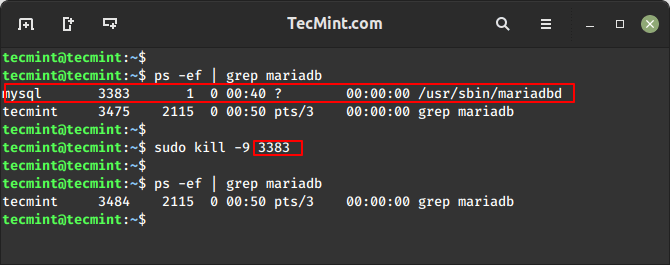
The typical workflow is:
- Find the process PID using
ps aux | grep <name>. - Try to terminate it gracefully:
kill <PID>. - If that fails, force it to terminate:
kill -9 <PID>.
This image perfectly illustrates this exact workflow for stopping a MariaDB database process.
For a more robust understanding of signals and the kill command, let's return to the article from OneUptime.
How to Handle Process Management with ps and kill - OneUptime
This part of the article explains the concept of signals and the safe way to use kill.
Please read these two sections: The kill Command: Sending Signals. Pay close attention to the table of common signals, especially SIGTERM and SIGKILL. Best Practices. This section provides crucial advice for managing processes safely.
While kill requires a PID, there are handy utilities like pkill and killall that can terminate processes by name, saving you the step of finding the PID first. For example, pkill firefox would send a SIGTERM signal to all processes named firefox.
Managing System Services with systemctl
So far, we've dealt with regular processes. However, many critical applications on a Linux system run as services (also known as daemons). These are long-running background processes that are managed by the operating system's init system. On modern Linux distributions, the init system is almost always systemd, and the command to control it is systemctl.
A key difference is that services are designed to be persistent. If you kill a service process, systemd might just restart it automatically. Therefore, you must use systemctl to manage the service's lifecycle properly.
Here are the most important systemctl commands:
systemctl status <service-name>: Checks the current status. It tells you if the service is active (running), enabled (starts at boot), and shows recent log messages.systemctl start <service-name>: Starts a service.systemctl stop <service-name>: Stops a service.systemctl restart <service-name>: Stops and then starts the service.systemctl enable <service-name>: Configures the service to start automatically when the system boots.systemctl disable <service-name>: Prevents the service from starting at boot.
Here is what the output of a status check looks like for the MariaDB service.

The following video from Learn Linux TV provides an excellent, clear tutorial on these fundamental systemctl commands.
Systemd Explained: How to Manage Linux Services Easily
This video walks through the essential systemctl commands for managing a service's lifecycle, using the Apache web server as a practical example.
Watch the segment from the hands-on demonstration. It covers status, start, stop, restart, enable, and disable.
For a detailed written guide that you can use as a reference, this DigitalOcean tutorial is an excellent resource.
Manage Systemd Services with systemctl on Linux
This tutorial provides clear explanations and examples for all the core service management commands.
Read the following sections to solidify your understanding: Service Management Starting and Stopping Services Restarting and Reloading Enabling and Disabling Services Checking the Status of Services
Conclusion
You have now reached the end of the first module and have a solid foundation in the Linux command line. In this lesson, you've learned how to interact with the programs running on your system. You can view any process with ps, find specific ones with grep, and terminate them with kill, knowing the crucial difference between a graceful SIGTERM and a forceful SIGKILL. Furthermore, you can now manage system-wide services with systemctl, controlling whether they are running now and whether they will run after a reboot. These are indispensable skills for system administration and, more importantly for your goal, for analyzing and controlling a target machine in a CTF.
This concludes our exploration of the Linux command line. In our next lesson, we will begin an entirely new module: Networking Fundamentals. We'll start from the ground up with the OSI and TCP/IP models, building the conceptual framework you'll need to understand how computers communicate and, eventually, how to exploit those communication channels.