Welcome back! In our last lesson, we explored the strategic "why" behind ad extensions (now called assets), establishing how they are a critical component of Ad Rank that boosts visibility, click-through rate, and overall campaign performance. You learned that using relevant extensions is rewarded by Google, leading to better ad positions and lower costs.
Today, we transition from the "why" to the "how." This lesson is a practical, hands-on guide to implementing the foundational assets that you will use in almost every search campaign. We will focus on the step-by-step configuration of three of the most important types: Sitelinks, Callouts, and Structured Snippets. Mastering this process is a core competency for any digital marketing role and will equip you to build more effective and prominent ads from the ground up.
The Asset Hierarchy: Account, Campaign, and Ad Group Levels
Before we begin creating assets, it's essential to understand where to add them. The Google Ads structure provides three levels for applying assets: Account, Campaign, and Ad Group. This hierarchy allows for both broad application and granular control.
The rule is simple: the most specific level wins.
- Ad Group level assets will show for that ad group, overriding any Campaign or Account level assets of the same type.
- Campaign level assets will show for all ad groups within that campaign (unless an ad group has its own assets), overriding any Account level assets.
- Account level assets will show across all campaigns and ad groups, unless they are overridden by more specific assets.
The Grow My Ads video provides an excellent explanation of this hierarchy and why it matters.
Every Google Ads Asset (Extensions): How to Setup & Optimize [Step-by-Step Tutorial]
This video clearly illustrates the asset hierarchy and its strategic implications.
Watch the segment from "you see a lot of AD assets". Pay close attention to the Nike vs. Adidas example, which perfectly demonstrates why you would use campaign-specific assets to ensure relevance.
As a best practice, you should create general, universally applicable assets at the Account level (e.g., callouts like "Free Shipping," a sitelink to your "Contact Us" page). Then, as you build out campaigns for specific product categories, you create more targeted assets at the Campaign or Ad Group level. This ensures your ads are always as relevant as possible.
Navigating to the Assets Interface
To get started, you'll need to navigate to the main assets section in your Google Ads account.
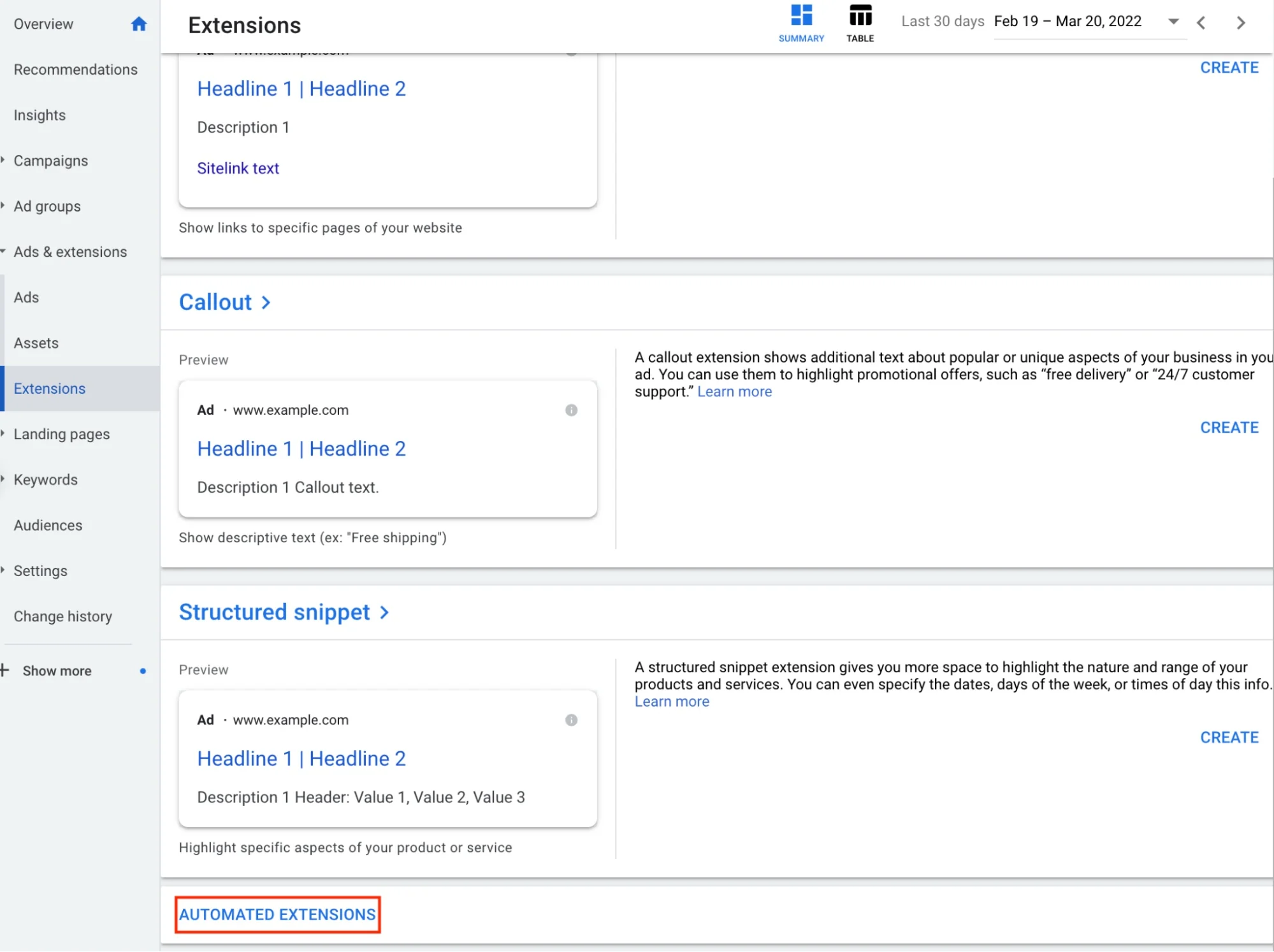
The location is straightforward. In the left-hand navigation menu, click on "Ads & assets," and then select the "Assets" sub-item. This is where all the action will happen.
1. Configuring Sitelink Assets
Sitelinks are additional clickable links that appear below your main ad, directing users to specific pages on your website. They are powerful because they dramatically increase the size of your ad and give users more options to find what they're looking for, right from the SERP.

Step-by-Step Sitelink Setup
Let's walk through the creation process.
Every Google Ads Asset (Extensions): How to Setup & Optimize [Step-by-Step Tutorial]
The "Grow My Ads" tutorial provides a clear, screen-shared demonstration of how to create a sitelink asset.
Watch the segment from creating sitelink extensions. Follow along as the presenter adds the Sitelink text, the two description lines, and the final URL. Notice the visual difference when the descriptions are included—this is key to maximizing your ad's real estate.
To reinforce those steps, here is a simple checklist you can follow:
Ultimate Google Ads Extensions 2025 Guide - Digital Market Academy
This guide from Digital Market Academy provides a concise, text-based walkthrough of the setup process.
Review the five steps listed under the heading A Step-by-Step Guide. This confirms the process you saw in the video.
Sitelink Best Practices
Creating sitelinks is easy, but creating effective sitelinks requires some strategic thought. It's not just about linking to random pages; it's about anticipating user needs and providing valuable shortcuts.
Google Ads Sitelink Extensions - Examples & Best Practices
This video from Ben Heath is dedicated to sitelink best practices and offers excellent, actionable examples.
First, watch the examples from some examples. The video covers a great range of ideas, from "Contact Us" pages to lead magnets ("Free Ad Template") and social proof ("Testimonials"). This will give you a strong creative foundation. Next, focus on the best practices discussed from some best practices. The key takeaways are: Create at least 6-8 sitelink options to allow Google to optimize. Always fill out both description lines. Be specific and align sitelinks to the ad group's theme. Use Google Analytics to identify your most popular pages. Keep mobile in mind by using shorter sitelink text (around 15 characters) where possible.
2. Configuring Callout & Structured Snippet Assets
While sitelinks provide extra navigation, callouts and structured snippets provide extra information. They are not clickable, but they add valuable context to your ad copy. Understanding the difference between them is a common interview question and crucial for proper implementation.
- Callouts: Short, punchy phrases that highlight key selling points or benefits. Think of them as bullet points for your business. Examples: "Free Shipping," "24/7 Customer Support," "Made in the USA."
- Structured Snippets: Factual details that list specific aspects of your products or services, grouped under a predefined header. Examples: "Types: Sectionals, Sofas, Loveseats," "Brands: Nike, Adidas, Puma."
The following guide offers a perfect side-by-side comparison.
Structured Snippets – The Ultimate Guide - Ed Leake
This guide from Ed Leake clearly breaks down the difference between these two asset types.
Read the introductory section and study the table comparing Callouts vs. Structured snippets. The key distinction is that callouts highlight what makes you unique, while structured snippets highlight specific aspects of what you offer.
Step-by-Step Setup: Callouts
Configuring callouts is the most straightforward of the three.
Every Google Ads Asset (Extensions): How to Setup & Optimize [Step-by-Step Tutorial]
Let's return to the "Grow My Ads" tutorial to see the setup in action.
Watch the segment on callouts from call out extensions. The process is simple: you just add the text. The best practice is to add at least four callouts so Google has options to test.
Step-by-Step Setup: Structured Snippets
Structured snippets involve a two-step process: selecting a header and providing the values.
Every Google Ads Asset (Extensions): How to Setup & Optimize [Step-by-Step Tutorial]
The "Grow My Ads" video demonstrates this two-step process.
Watch the walkthrough from structured snippet assets. Note the wide variety of headers available (Brands, Courses, Styles, Types, etc.) and how you populate the values for the chosen header.
Structured Snippet Best Practices and Examples
The biggest challenge with structured snippets is ensuring your values are compliant with Google's policies for each header. Using the wrong format or type of information will lead to disapprovals.
Structured Snippets – The Ultimate Guide - Ed Leake
The guide from Ed Leake is an indispensable resource for mastering structured snippets. It details the setup and provides a comprehensive list of examples.
First, quickly review the setup steps in the section "How to setup..." to reinforce what you saw in the video. Next, spend the majority of your time studying the extensive examples under the heading "Structured Snippet Examples." For each header (Styles, Courses, Types, etc.), review the "Allowed" vs. "Not allowed" examples. This is extremely practical knowledge that will help you create compliant and effective assets.
A Note on Automated Assets
Finally, it's critical to be aware that Google can and will automatically create assets for your account based on content from your website. While this can sometimes be helpful, it often leads to irrelevant or poorly phrased assets being shown. For a professional who wants full control over ad messaging—a key trait to demonstrate in an interview—it's vital to know how to manage this feature.
Every Google Ads Asset (Extensions): How to Setup & Optimize [Step-by-Step Tutorial]
The "Grow My Ads" video has a fantastic, hidden-gem section that shows you exactly where to find and manage these settings.
Watch the segment on automated assets starting at automated ad assets. Follow the steps carefully to navigate to the "Advanced settings" for account-level automated assets. This is where you can turn them on or off, giving you complete control over your ad copy.
Conclusion
You have now moved from theory to practice, covering the essential steps to configure sitelinks, callouts, and structured snippets. These three asset types form the backbone of any well-structured search ad, making it more informative, larger, and more effective at attracting clicks.
Key Takeaways:
- Assets can be applied at the Account, Campaign, or Ad Group level, with the most specific level taking precedence. This allows for both efficiency and granular control.
- Sitelinks are configured with text, two description lines, and a final URL. They are ideal for directing users to key pages like product categories, contact info, or special offers.
- Callouts are non-clickable text snippets used to highlight unique selling propositions like "Free Shipping" or "24/7 Support."
- Structured Snippets use a predefined header (e.g., Types, Brands, Styles) to list specific, factual attributes of your products or services.
- For maximum control, you should be aware of Google's automated asset settings and configure them to align with your strategy.
In our next lesson, we will close the loop on ad creation by learning how to use the Ad Strength indicator to assess and improve the quality and variety of your ad assets. This will show you how to interpret Google's real-time feedback to build the most powerful ads possible.