Recommended resources
The freely available resources this lesson will direct you to.
Hello! Last lesson separated the GitHub runner from the Azure website it will eventually deploy to. This lesson gives that destination a precise identity. By the end, you should be able to explain what an App Service plan provides, what a web app runs, which runtime and settings the app needs, and why its public URL is not its publishing interface.
Allow about 35–40 minutes to study and shape the explanation. In your 20-minute workshop, this material should take roughly two minutes; the rest is preparation so you can answer questions without overloading beginners.
The plan supplies capacity; the web app supplies the site
Azure App Service is a managed hosting platform for web applications and APIs. For a straightforward ASP.NET Core deployment, Azure manages much of the underlying hosting infrastructure while you remain responsible for your application, its configuration, and the deployment you authorize.
Watch the short portions of Adam Marczak’s Azure App Service (Web Apps) Tutorial that establish the hosting model and show the choices made when creating a web app.
Azure App Service (Web Apps) Tutorial
Adam Marczak’s Azure for Everyone tutorial makes the distinction between a web app and its App Service plan visible in the portal. Watch for the resource choices, not for runtime-version advice: the demonstration uses an older .NET version, whereas our later demo targets .NET 10.
Watch the hosting overview for what App Service hosts, then the plan explanation for the shared-capacity idea. In the portal demonstration, start when the presenter selects a web app and watch through plan creation: the resource choices. Notice that the app name, runtime stack, operating system, region, and plan are related choices, not five names for the same resource.
Microsoft Learn’s plan documentation supplies the more precise definition. Read its opening explanation, tier categories, and billing distinction.
Azure App Service Plans - Microsoft Learn
Read Microsoft Learn’s explanation to separate the plan’s compute and cost from the individual web apps that use it.
Under “What are Azure App Service plans?”, read the core definition. Under “Pricing tiers”, scan the tier categories. Finally, under “Considerations for running and scaling an app” → “Cost of App Service plans”, read the cost distinction. Focus on what is shared when two apps use one plan.
The App Service plan defines the compute available to its apps: notably its region, operating-system choice, pricing tier, and capacity. The tier affects both cost and available features. A web app is the separately named application resource you deploy to, configure, and visit. Every web app runs on a plan, and multiple apps can use the same plan. In dedicated tiers, those apps share the plan’s allocated compute; “dedicated” does not mean a dedicated machine for each app.
For a beginner audience, the practical consequence matters more than memorizing tiers: the plan is where you make hosting-capacity and many cost decisions; the web app is the deployment target. If another busy app shares your plan, it can compete for that capacity. Conversely, an empty paid plan can still carry a compute charge. Deployment slots and other capabilities depend on the chosen tier, so do not promise every feature on a free workshop plan.
A web app needs a compatible runtime
When you create a code-based web app, you choose the application’s operating system and runtime stack. For our later demonstration, the intended target is a Linux web app configured for a supported .NET 10 runtime. Check that combination in the Azure portal when you provision the demo: runtime availability and offered plans can vary by platform, region, and time.
There are two machines with different roles here. A GitHub-hosted runner will use the .NET SDK to build and publish the application. The Azure web app will run the published application. Installing or selecting an SDK on the runner does not configure the Azure runtime. In particular, a framework-dependent ASP.NET Core publish needs a compatible runtime at the destination. This is why a successful build does not, by itself, prove the site can start.
Keep one more boundary clear for your audience: the resource group organizes Azure resources; it is neither the compute plan nor the website. A small conceptual sketch is enough for now—we will draw the full GitHub-to-Azure architecture in the next lesson.
Azure resource group
  App Service plan: Linux, region, tier, capacity
    Web app: demo-web
      Runtime stack: supported .NET version
      Application configuration: app settings
      Public hostname: shown on the app's Overview page
      Publishing interface: used by deployment tooling
Configuration belongs to the running app, not the build runner
Suppose the same application should display “Local” on a developer’s machine and “Workshop” in Azure. You should not need to edit code and rebuild solely to change that value. App Service app settings provide values to the running application as environment variables. For ASP.NET Core, values configured in App Service can override corresponding values supplied by local configuration files.
Read Microsoft Learn’s configuration guidance with that separation in mind.
Configure an App Service App - Azure - Microsoft
Microsoft Learn explains both application values and platform settings. Use it to distinguish a value consumed by your code from a setting that controls how App Service hosts the code.
In “Configure app settings”, begin with the opening explanation; focus on environment-variable injection and configuration overrides rather than the Linux escaping example. In that section’s “Azure portal” tab, find the path Settings → Environment variables → App settings and read the visibility guidance; continue through the numbered instructions for adding and applying a setting. Then, under “Configure general settings” → “Azure portal”, read the platform and stack options. Identify where you would check the runtime rather than an application-defined variable.
The portal screenshot shows the Environment variables → App settings view. It is a useful workshop visual because the names are visible while the values remain hidden.
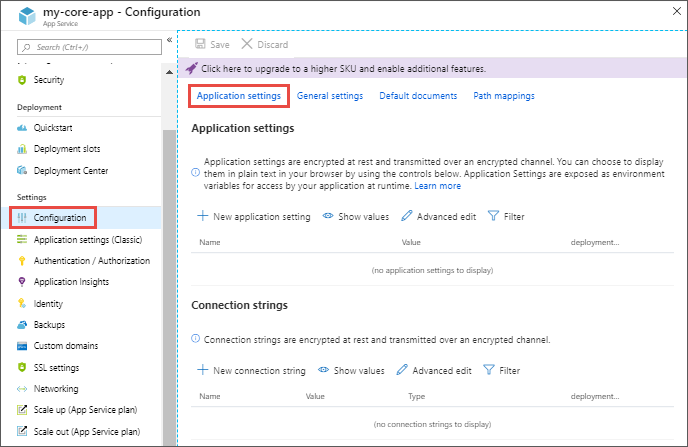
For the workshop, keep three kinds of configuration distinct:
| Item | Where it matters | Example |
|---|---|---|
| GitHub Actions secret | Available to an authorized workflow step on a runner | A credential used to authenticate a deployment |
| App Service app setting | Supplied to the application at runtime | A production-specific display value or connection setting |
| App Service platform/stack setting | Controls how Azure hosts the app | Linux runtime version or an optional startup command |
A secret stored in GitHub is not automatically an environment variable inside the deployed website. Likewise, putting a value in App Service does not make it available to an earlier build job. Decide which process needs the value, then configure it at that boundary. App settings are stored encrypted, but sensitive production values still deserve careful access control. Changing an app setting restarts the app, so it is a configuration change, not merely a cosmetic portal edit.
Visitors and deployment tooling use different interfaces
A web app has a public site URL, visible on its Overview page, where a browser can request the running application. After a successful deployment, that is the address to open to validate the demo. It is not where a GitHub Actions job sends a package by making an ordinary browser request.
Publishing uses App Service’s deployment interface. Depending on the deployment method, tooling can use App Service publishing services, commonly including its SCM/Kudu interface for package-based deployment. The exact hostname and mechanism are best left to the chosen deployment action and the app’s current Azure configuration; do not ask beginners to invent a deployment URL from the site URL. A workflow will identify the target web app, provide the appropriate authorization, and submit the published output using its deployment action.
Return briefly to the tutorial to see where an operator finds the live URL and publishing-related controls. The video shows one portal-led automation route, Deployment Center. Our later demo instead defines the build and deployment explicitly in a GitHub Actions workflow; do not imply that visiting Deployment Center is required for that workflow.
Azure App Service (Web Apps) Tutorial
Return to the Azure for Everyone portal tour to locate the app’s Overview information and deployment controls. Treat the portal layout as orientation; labels may have changed since the recording.
Watch the Overview page for the URL, state, and plan. Then watch the deployment area for publish-profile and Deployment Center references. Distinguish the address visitors open from the controls an operator or deployment tool uses to publish.
This gives you a useful diagnostic split. If the deployment job fails, inspect its workflow logs and deployment authentication or publishing errors. If the deployment succeeds but the site fails to load, check the app’s status, runtime selection, application settings, and application logs. A successful package transfer and a healthy running application are two different observations.
Workshop-ready slide — about 2 minutes
Slide title: Where does the GitHub Actions deployment land?
Talking points: “An App Service plan supplies the hosting capacity and determines much of the feature set and cost. A web app is our named deployment target inside that plan. We configure its Linux/.NET runtime and its application settings in Azure. Visitors use the public URL; the workflow uses an authorized publishing interface.”
Speaker notes: Point to the plan first, then the web app. Reuse last lesson’s distinction: the GitHub runner builds the application but does not become the website. Avoid listing pricing SKUs or publishing protocols unless someone asks. If asked whether the GitHub deployment secret belongs in App Service settings, answer: “No—it is for the workflow’s deployment process, not a value the website needs to run.”
Demo instruction: Open the web app’s Overview page and show its status, URL, and associated plan. Show the configured runtime, then open Settings → Environment variables → App settings without revealing any values. Save the public URL for post-deployment validation.
Key takeaway: Plan = hosting capacity; web app = application and deployment target; runtime and app settings = conditions for running; public URL ≠ publishing interface.
Conclusion
You can now describe the Azure destination without calling every part “the App Service.” The plan supplies shared hosting resources and influences cost and features; the web app is the named site you configure and deploy to; its runtime and app settings determine whether the published application can run correctly. Finally, keep the visitor-facing URL separate from the authorized interface used to publish code.
Next, we’ll connect this destination to GitHub in an ASCII architecture diagram that traces source code, credentials, build output, and deployment—without confusing the runner with the running website.