Hello! Welcome to our next lesson.
In the previous session, we focused on the internal navigation of your ebook by creating an accessible, clickable table of contents. We learned how to use both the automated features of the Reedsy Book Editor and the powerful manual controls of Calibre to ensure readers can easily find their way through your work.
Today, we'll shift our focus from the inside of the book to the crucial information that surrounds it: metadata. You will learn how to embed essential data like the author, title, and cover image directly into your final book files. This metadata is what online stores like Amazon KDP use to categorize, display, and help readers discover your book. Getting it right is a fundamental step toward creating a professional product and achieving your goal of generating passive income.
What is Book Metadata?
Think of metadata as the digital equivalent of a physical book's cover, spine, and back-cover blurb all rolled into one. It's the "data about your data"—structured information embedded within your ebook file that tells computers and people what your book is about.
Key pieces of metadata include:
- Title: The official title of your book.
- Author: Your name or the pen name you're publishing under.
- Cover Image: The visual representation of your book.
- Book Description (Blurb): The summary that entices readers.
- Publisher: This can be your name or a custom imprint you create.
- ISBN (International Standard Book Number): A unique identifier for your book.
- Tags/Keywords: Terms that help search algorithms categorize your book.
Given your IT background, you can think of ebook metadata as being analogous to the <meta> tags in an HTML document. Just as <title>, <meta name="author">, and <meta name="description"> provide essential information to browsers and search engines, your book's metadata provides this information to e-readers and online stores.
We will now explore how to embed this information using the two free tools we've already worked with: the Reedsy Book Editor and Calibre.
Part 1: Embedding Metadata with the Reedsy Book Editor
The Reedsy Book Editor offers an "integrated" workflow where metadata is added as a natural part of the writing and exporting process. This is the most efficient method if you are creating your book within the Reedsy platform.
Step 1: Entering Book Details and Copyright Information
Before you export your file, Reedsy provides a dedicated section to input all your core book information.
How to Use Reedsy Book Editor - Publish Drive
The article 'How to Use Reedsy Book Editor' from Publish Drive points you to exactly where these settings are located. This is the central hub for your book's metadata within Reedsy.
Read the final paragraph of the article, starting with 'To insert your info in the front matter...'. It explains that in the 'Book settings' on the export page, you can enter the title, author's name, description, and more.
This process also includes setting up your copyright page, which is critical for protecting your intellectual property—a key interest of yours.
Reedsy Studio: An Insider's Guide [Software Demo]
This clip from 'Reedsy Studio: An Insider's Guide' shows the copyright section in action, demonstrating how you can easily add your author name and title.
Watch the segment from 08:37 to 09:13. Notice how you can input your name (or pen name) and book title, which are then automatically included on the copyright page and embedded as metadata.
Step 2: Uploading the Cover Image
A book's cover is arguably its most important piece of visual metadata. Reedsy makes it simple to embed your cover directly into the ebook file during export.
Reedsy Studio: An Insider's Guide [Software Demo]
Continuing with the same 'Reedsy Studio' video, the next section shows the cover upload process.
Watch from 09:13 to 09:50. The key takeaway is that you upload your prepared cover design, and Reedsy bundles it into the final EPUB file that you'll send to retailers.
By following this streamlined process in Reedsy, you ensure that when you export your EPUB, it already contains the essential metadata needed for publication.
Part 2: Editing Metadata with Calibre
What if you've already created an EPUB file from another source, or you notice an error after exporting from Reedsy? This is where Calibre shines as a powerful "post-production" tool. It allows you to inspect and edit the metadata of any ebook in your library.
Step 1: Add Your Book to Calibre
Before you can edit a book, it must be in your Calibre library.
Intro to Calibre: How to Use the Best FREE EBook Organizer and Converter
Let's start with a quick refresher on adding books to Calibre from the 'Intro to Calibre' video by Fit Danielle Reads.
Watch from 05:27 to 07:00. This demonstrates how to import a book file from a folder on your computer into the Calibre interface.
Step 2: Editing Metadata Manually
Once the book is in your library, you can access the powerful metadata editor.

To access this screen, simply select a book in your Calibre library and click the "Edit metadata" button (or press the E key). Here, you can manually type in the correct Title, Author, Publisher, Tags, and any other information.
Editing e-book metadata — calibre 9.1.0 documentation
For a detailed reference, the official Calibre documentation explains the features of this dialog.
First, read the section 'Editing the metadata of one book at a time' to understand the basic fields. Then, review the section 'All about covers' to see the different ways you can add or change a cover image, such as dragging and dropping a file or browsing your computer.
Step 3: Downloading Metadata Automatically
One of Calibre's most impressive features is its ability to fetch metadata from online sources. If your book has an ISBN, or even just a clear title and author, Calibre can often find and import the cover, description, and tags for you.
Intro to Calibre: How to Use the Best FREE EBook Organizer and Converter
The 'Intro to Calibre' video provides an excellent demonstration of this feature in action.
Watch from 08:43 to 11:15. Pay close attention to how the user initiates the download, reviews the fetched metadata to ensure it's correct, and then applies it to the book. This review step is crucial to avoid errors.
This feature can be a huge time-saver, especially if you need to add a detailed description or relevant genre tags to your book.
Test your understanding!
You've used an AI tool to generate a draft and have exported it as a basic EPUB file named "draft_v1.epub". It has no cover, the author field is blank, and the title is incorrect. Describe the steps you would take in Calibre to prepare this file for publication with the correct metadata.
Show answer
- Add the book: Open Calibre and use the "Add books" button to import "draft_v1.epub" into your library.
- Open the editor: Select the book in the library view and click "Edit metadata".
- Edit manually: In the dialog, type in the correct Title and Author name.
- Add the cover: Drag your prepared cover image file from your computer and drop it onto the cover placeholder on the right side of the dialog.
- Save changes: Click "OK" to save the new metadata and cover to the book file.
A Note on PDF Metadata
Since you may also be creating print-on-demand books, which typically use PDF files, it's worth noting that PDFs also contain metadata. This includes much of the same information: title, author, keywords, and importantly, copyright details.
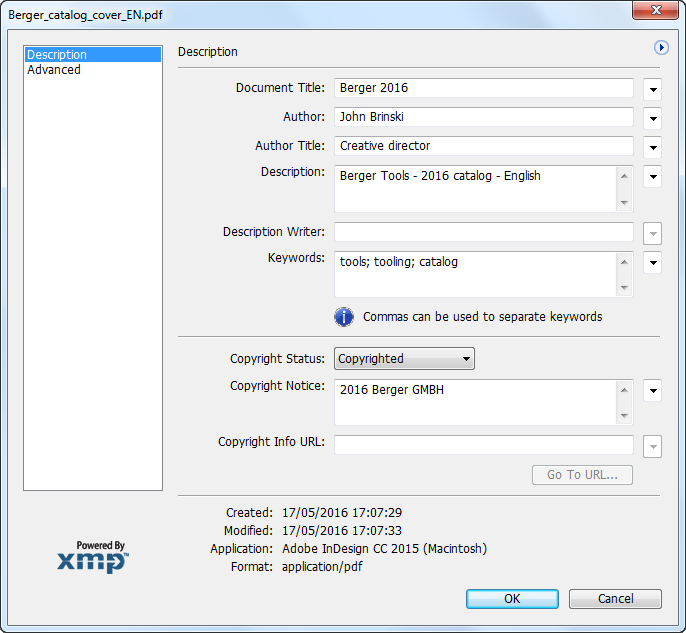
When you export a print-ready PDF from a tool like Reedsy, this information is usually embedded automatically based on the book settings you provided. However, it's good practice to be aware that this metadata exists and can be checked using PDF reader software.
Conclusion
You now know how to professionally embed the core identifying information into your ebook files. This ensures your books look professional on digital shelves and are correctly categorized by publishing platforms.
Key Takeaways:
- Metadata is the essential data about your book (title, author, cover) that is embedded directly in the file.
- The Reedsy Book Editor provides an integrated workflow, allowing you to input metadata in the 'Book settings' before you export your EPUB.
- Calibre is an indispensable post-production tool for editing metadata in existing ebook files, offering both manual control and an automatic download feature.
- Both EPUB and PDF files store metadata, which is crucial for discoverability, professionalism, and asserting your copyright.
Preview of the Next Lesson:
We've now covered the key steps for creating a navigable ebook and embedding its metadata. In our next and final lesson of this module, we will focus on the specifics of print production. You will learn how to design a print-ready PDF manuscript with correct margins, page numbering, and gutter settings, preparing you to offer physical copies of your books.