Recommended resources
The freely available resources this lesson will direct you to.
Hello! Your classifier currently works on records written directly into Python code. This lesson moves those records into a JSON file and writes the decisions back out as JSON. You’ll also give the script a setting through a Windows environment variable, so changing that setting does not require editing the source.
Plan for about 40 minutes: roughly 12 minutes of JSON video, a short reading and video on configuration, then time to build and run a local version of the research-and-decision workflow. No AWS account or API key is needed.
JSON: data that can leave your script
JSON is a text format commonly used in files and API messages. It resembles the lists and dictionaries you already know, but its spelling rules differ: JSON strings and object keys use double quotes, and JSON writes Boolean values as true and false. Python uses True and False.
Watch Corey Schafer’s Python Tutorial: Working with JSON Data using the json Module. Stop at 11:43; the later API demonstration belongs with your upcoming REST API lesson.
Python Tutorial: Working with JSON Data using the json Module
Corey Schafer shows both directions of JSON conversion, then reads and writes JSON files. Watch for the distinction between functions ending in s (strings) and those that work with open files.
Watch JSON to Python for parsing and the type mappings; Python to JSON for producing text; reading a file; and writing a file. His data is different from our research results, but the four operations are the same.
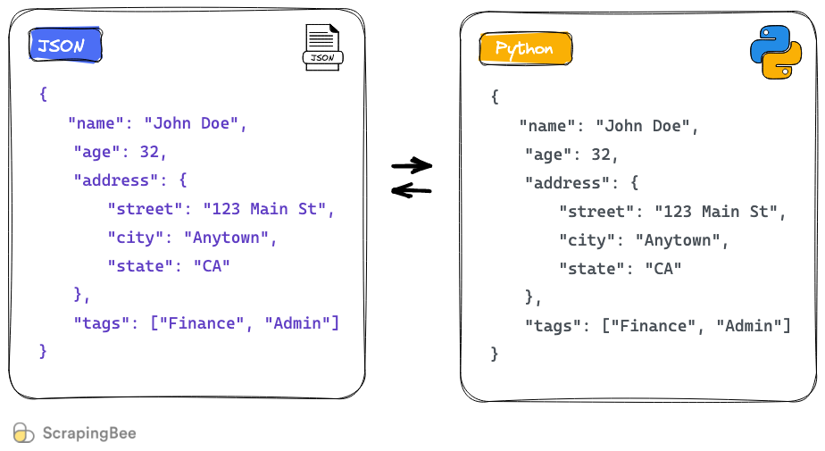
The four function names are easy to mix up. The final s means “string”:
| You have | You want | Use |
|---|---|---|
| JSON text in a string | Python data | json.loads(text) |
| An open JSON file | Python data | json.load(file) |
| Python data | JSON text in a string | json.dumps(data) |
| Python data and an open file | JSON written to that file | json.dump(data, file) |
For example, this text becomes a dictionary. Notice the change in Boolean spelling when Python reads it:
import json

json_text = '{"active": true, "score": 0.92}'
record = json.loads(json_text)

print(record["active"])  # True
print(json.dumps(record))  # {"active": true, "score": 0.92}
Converting JSON into Python data lets you use your existing loops and functions. Converting back gives another program—or a future API client—a standard data format to read. Parsing is not validation, though: valid JSON can still omit a field your classifier expects or contain a score of the wrong type. You will add checks around untrusted data in later lessons.
Keep settings separate from code
Your mock results are ordinary project data. An API credential is different: putting a real key in a Python file risks sharing it whenever you share the code. Other settings, such as a label for a local run, may also need to vary between runs without a code change.
Read Store config in the environment from The Twelve-Factor App for the principle behind that separation.
Store config in the environment
The Twelve-Factor App explains which values count as deploy-specific configuration and why they should not be embedded in source code.
In “III. Config,” under “Store config in the environment,” start with the opening paragraph defining config. Continue through the litmus test about sharing a codebase without exposing credentials. Then read the paragraph beginning “Another approach to config” and the closing environment-variable rationale. Focus on the separation of values that vary from code that stays the same.
An environment variable is a named value supplied to a running process. In Python, os.environ.get("NAME") retrieves it as a string, or returns None if it is absent. The following Windows-focused video demonstrates the Python lookup; we’ll use the VS Code PowerShell terminal rather than its Windows settings screens to set a temporary variable.
Python Quick Tip: Hiding Passwords and Secret Keys in Environment Variables (Windows)
In Python Quick Tip: Hiding Passwords and Secret Keys in Environment Variables (Windows), Corey Schafer explains the hard-coding risk and demonstrates retrieving values with os.environ.get().
Watch the risk, then skip the Windows settings demonstration to the Python lookup. We will not copy the video's practice of printing credential values.
In your VS Code PowerShell terminal, set a harmless run label:
$env:RESEARCH_RUN_LABEL = "local-trial"
That setting is available to Python processes launched from this terminal. It does not change your Python file, and you would need to set it again in a fresh terminal. Environment variables help separate configuration from code, but they are not a secret vault: do not print their sensitive values or include them in JSON reports. For this lesson, do not enter a real credential into the terminal; commands containing one may be retained in shell history. You’ll handle real sandbox credentials through an appropriate secret-delivery mechanism later.
Read results, classify them, and write a report
In research-decision-api, create mock_results.json. This is a local stand-in for research results that will eventually arrive from a provider:
{
  "query": "Which sources should we review?",
  "results": [
    {"title": "Official release notes", "score": 0.92, "active": true},
    {"title": "Community overview", "score": 0.63, "active": true},
    {"title": "Archived announcement", "score": 0.96, "active": false},
    {"title": "Old roundup", "score": 0.20, "active": true}
  ]
}
Compare this with last lesson’s Python records. The structure is familiar, but true and false are lowercase because the file is JSON, not Python source code. A JSON file must contain one complete JSON value; unlike a Python collection, it cannot have comments or a trailing comma after its final item.
Now create json_demo.py beside that file:
import json
import os


def classify_result(score: float, active: bool) -> str:
    if active and score >= 0.8:
        return "accepted"
    elif active and score >= 0.5:
        return "review"
    else:
        return "skipped"


run_label = os.environ.get("RESEARCH_RUN_LABEL", "local")
tavily_api_key = os.environ.get("TAVILY_API_KEY")

if tavily_api_key:
    print("Tavily key is set; this demo still uses local results.")
else:
    print("Tavily key is not set; using local results.")

with open("mock_results.json", "r", encoding="utf-8") as input_file:
    data = json.load(input_file)

decisions = []
counts = {"accepted": 0, "review": 0, "skipped": 0}

for result in data["results"]:
    status = classify_result(result["score"], result["active"])
    decisions.append({"title": result["title"], "status": status})
    counts[status] += 1

report = {
    "query": data["query"],
    "run_label": run_label,
    "decisions": decisions,
    "counts": counts,
}

with open("decision_report.json", "w", encoding="utf-8") as output_file:
    json.dump(report, output_file, indent=2)

print("Wrote decision_report.json")
open(..., "r") opens the input for reading; json.load(input_file) turns its JSON into Python dictionaries and lists. The with block closes the file when reading is finished. The classifier then works on those Python values exactly as it did last lesson.
For output, "w" opens the report for writing and replaces any existing file of that name. json.dump(..., indent=2) writes readable JSON rather than a tightly packed line. The report deliberately contains the run label but not tavily_api_key. Reading a credential for a future provider call does not mean it belongs in output data.
Run the script from the project folder:
python json_demo.py
If your virtual environment is not activated, use .\.venv\Scripts\python.exe json_demo.py. Open the generated decision_report.json in VS Code. Its decisions and counts should match last lesson: one accepted, one review, and two skipped. Its run_label should be "local-trial". If you had not set RESEARCH_RUN_LABEL, the code’s non-secret default would be "local".
The script currently assumes that mock_results.json exists and has the expected fields. If it is missing or malformed, the run will fail rather than produce a report. In the next lesson, you’ll learn to handle such expected failures and report them usefully.
What you can now move between systems
You can read JSON from a file into Python data with json.load, process it with your existing classifier, and write a JSON report with json.dump. For JSON already held in a string, use loads and dumps instead. You can also load a run-specific setting through os.environ without editing the program—and keep credential values out of source files and reports.
The next lesson adds exception handling and structured logs, so a missing file or invalid JSON produces a useful diagnostic rather than an unexplained failure.