Recommended resources
The freely available resources this lesson will direct you to.
Hello! In the previous lesson, you mapped the recording you want: one shared audio source for the three people in the room, one group video source, and separate sources for a remote guest if one joins. Now you can turn that plan into a Riverside studio. The aim is not simply to make a call look and sound good live; it is to capture original audio and video that an editor can work with afterward.
This lesson covers creating the studio and choosing its recording settings. You will select the actual microphone and camera devices in a later lesson, so for now the focus is on what Riverside is set up to record.
A studio is the recording space, not the episode
Riverside uses a studio as a reusable recording space. You can make one studio for the podcast rather than a new studio for every conversation. Recordings take place within it; depending on the interface you see, you may also be able to organize an episode’s related material in a project. Keeping those levels distinct makes it easier to find the editor’s files later.
Watch the opening portion of Riverside.fm Tutorial for Beginners: Easy Guide to High-Quality Recording from StartupWise for a quick view of that organization. Its interface may differ slightly from the one in your account.
Riverside.fm Tutorial for Beginners: Easy Guide to High-Quality Recording
StartupWise distinguishes the reusable studio from projects used to group related recordings and media.
Watch studios and projects. Notice that the studio is the main environment, while a project can keep material for one installment together. You do not need to create a project to understand or set the recording quality.
A studio name such as “Podcast Room” describes its continuing purpose. An individual recording or project can have an episode-specific title later. This small naming decision helps when you return to the dashboard after several sessions.
The guide Best Settings for Your Riverside Studio: A Feature-by-Feature Guide, by Ane Cotovan, shows the dashboard creation route and the initial audio-and-video choice.
Best Settings for Your Riverside Studio: A Feature-by-Feature Guide
Read the studio-creation portions to see which choices belong at creation and which can be adjusted after the studio exists.
In “Managing Multiple Studios” and “Creating a New Studio,” read the setup context, ending at the dashboard plus-sign instruction. Then, in “Configuring Studio Settings” and “Studio Settings,” read the initial choices. Focus on retaining both picture and sound and on where to find the Recording settings afterward.
Create the studio for the material you intend to deliver
Sign in to Riverside and, from the dashboard, look for New, Create studio, or a plus sign. Interface labels change, but the task is the same: create a recording space, give it a clear name, and check its initial options before entering it.
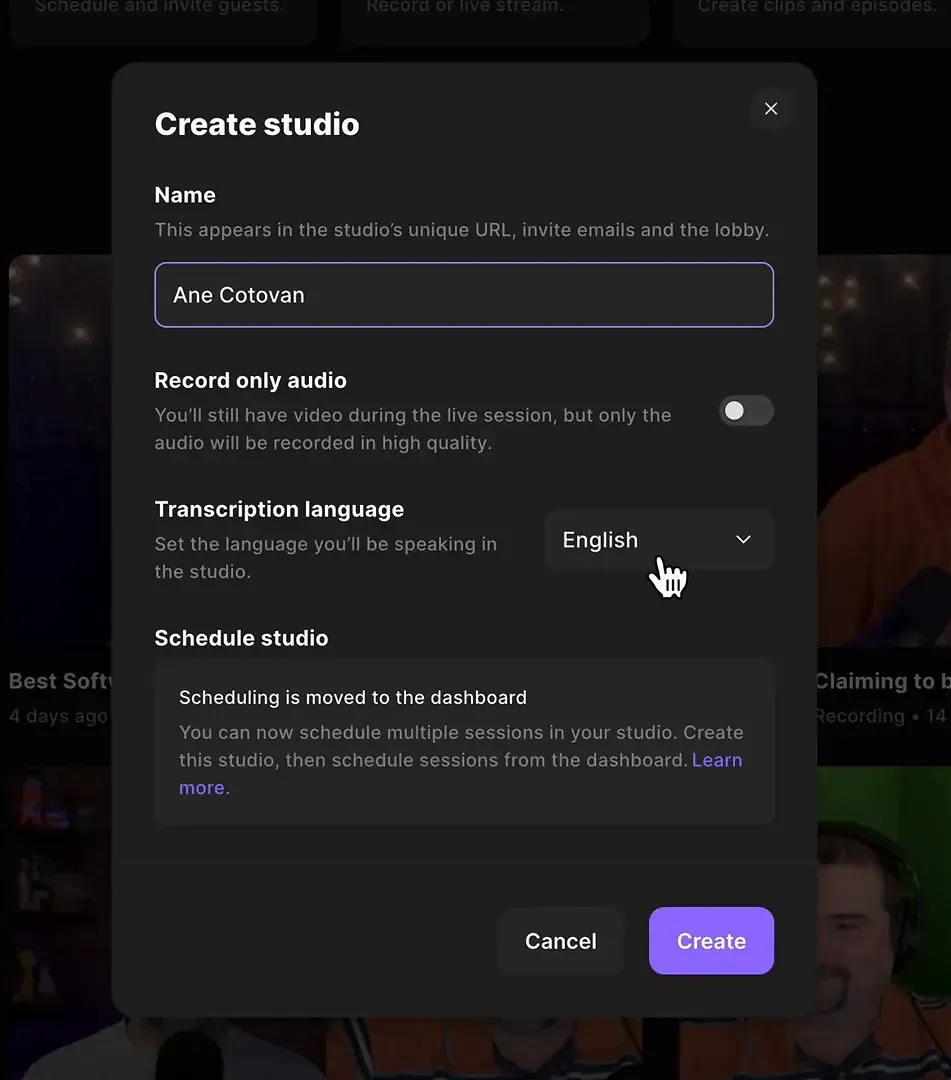
In the creation window:
- Name the studio for its ongoing use. A general podcast name is more useful here than a date or an individual episode title.
- Leave “Record only audio” off. Your editor needs the group shot as well as the conversation, even if the first published version turns out to be audio-only. An audio-only studio choice would remove that flexibility.
- Set the transcription language to the language expected in the conversation. This helps Riverside interpret speech for transcripts; it does not change how the microphone captures sound or replace an audio-quality setting.
- Create the studio. If you need to schedule a future session, look on the dashboard after creation. The illustrated creation window says scheduling has moved there, so do not rely on an older tutorial’s scheduling button appearing in this pop-up.
Creating the studio is not the same as starting a recording. Before pressing Record, open its settings and confirm what kind of files the session will produce. If Riverside offers a lobby or privacy control, you may choose how guests enter, but that is separate from the audio and video quality decisions here.
Choose quality for the original files, not just the live view
In the studio, open Settings—often a gear icon—and find Recording. First confirm the video-and-audio recording mode if it appears there. Then work through audio processing, sample rate, and video quality. The important distinction is between a setting that affects the original recording and a feature that makes the live conversation easier to conduct. A sharp-looking call preview alone does not prove that the group camera is being recorded at the intended quality.
StartupWise shows where these controls appear in the studio interface.
Riverside.fm Tutorial for Beginners: Easy Guide to High-Quality Recording
Return to the StartupWise tutorial for its tour of Settings and the Recording panel. Use it to locate controls rather than treating its highest-quality selections as mandatory for every setup.
Watch recording settings. Follow the gear icon into the Recording section, noting the choices for recording mode, noise reduction, audio sample rate, and video resolution.
Preserve usable audio
For a recording that includes video, choose 48 kHz audio if Riverside offers that setting. This is a practical video-production convention and a straightforward choice to communicate to an editor. If a device or plan only supports 44.1 kHz, that does not make the audio unusable: sample rate cannot compensate for a poorly positioned microphone, distortion, or excessive room noise.
For noise reduction during recording, the safer starting choice for an editor-directed workflow is off, where the setting is available. Processing intended to remove noise can also change the texture of speech. Keeping the original relatively unprocessed gives the editor more room to decide what needs cleaning. This does not mean ignoring noise: you will prepare the room and listen to test recordings in later lessons.
Best Settings for Your Riverside Studio: A Feature-by-Feature Guide
Return to Cotovan’s guide for its explanation of why recording-time noise reduction may be a poor default when someone else will edit the original audio.
In “Studio Settings,” begin where the guide introduces the Recording tab. Read the audio guidance, stopping after its recommendation to handle noise in post-production. Treat that as a starting policy; you will judge the actual sound from a rehearsal.
Select a realistic video resolution
Resolution describes the image’s pixel dimensions. A 1080p group shot is a sound starting target if the camera connection and Riverside settings support it. 4K can give an editor more room to crop into a wide three-person shot, but it also produces larger files and can increase processing and upload time. It is an option to discuss with the editor, not a requirement for good raw material. Neither setting can create detail that the camera or its connection fails to supply.
Riverside’s Resolution: What It Is & Practical Tips explains that trade-off and shows where to change the recording setting.
Resolution: What It Is & Practical Tips | Riverside
Read Riverside’s explanation to distinguish a useful resolution choice from simply selecting the largest number offered.
In “What is resolution?” and the questions that follow it, read the resolution comparison. Notice why 1080p is often sufficient and when cropping might justify 4K. Then, in “How to change the default resolution of your recording on Riverside,” use the “Before a studio session” steps: read the setting steps. These refer to the Recording setting, not the separate Live Stream resolution.
In Recording, choose Advanced and up to 1080p if those controls are available and the group camera supports them. “Up to” is important: selecting a maximum does not guarantee that every connected camera will deliver it. If you later decide 4K is worth the larger files, confirm the camera can provide it and allow for the extra upload time. Make this choice before the session; Riverside’s resolution guidance says changing it during a session requires stopping the current recording first.

If your Recording panel also offers a frame rate, choose one the camera can reliably supply and keep it consistent with the editor’s intended workflow. The illustrated panel offers 24, 25, and 29.97 frames per second. There is no need to select a number just because it is highest; agreement about the setting and a successful test file matter more. You can note the chosen frame rate for the editor without making it a technical obstacle to creating the studio.
Check the plan against your actual signal map
You can now describe the studio’s intended recording configuration in one sentence: video and audio enabled; one combined room-microphone recording and one group-camera recording intended; a separate guest source if someone joins remotely. Riverside’s quality settings do not alter the physical fact that one shared microphone combines the three in-room voices. They also do not prevent a phone joining separately from supplying an unwanted second room microphone. Those device-level choices come later.
Before leaving Settings, use this compact record of decisions:
| Setting | Starting choice | Why |
|---|---|---|
| Studio | One reusable podcast studio | Keeps sessions in a consistent recording space |
| Recording mode | Video and audio | Retains both kinds of raw material for the editor |
| Transcription language | Language expected in the session | Supports transcription, not sound quality |
| Recording-time noise reduction | Off, if available | Preserves editing flexibility |
| Audio sample rate | 48 kHz, if available | Suitable choice for audio accompanying video |
| Video resolution | Advanced, up to 1080p if supported | Clear group footage without requiring 4K-sized files |
| Frame rate, if offered | A supported, consistent choice | Makes the intended capture setting explicit |
These are planned settings, not yet proof of an editor-ready recording. In particular, a settings panel cannot tell you whether the Windows computer has selected the external microphone or whether the phone camera is providing the intended group shot. A short test and inspection of the resulting files will answer those questions later. If you cannot find an option because your interface or plan differs from the examples, record what is actually available rather than assuming a tutorial’s screen matches yours.
Key takeaways
A Riverside studio is the reusable space for your podcast; a recording is an individual capture within it. Create the studio with video and audio enabled, choose the appropriate transcription language, then review its Recording settings before starting a session. For the editor, a sensible initial configuration is relatively unprocessed audio at 48 kHz if available and group video up to 1080p if supported. Higher specifications are useful only when the camera, workflow, and resulting files justify them.
Next, you will check that the Windows computer, browser, connection, power, and storage are ready to carry out this recording plan.