Recommended resources
The freely available resources this lesson will direct you to.
Hello! Last lesson, you created a local Git repository and used git status and git diff to inspect changes. You also made a small starter commit for clinic_preview.py, then edited the script without committing that edit. map_preview.html may still be untracked.
Today you’ll turn those files into deliberate project checkpoints. The key is to choose what belongs in each checkpoint, inspect that selection, and only then commit it. Plan on about 35–40 minutes, mostly in VS Code and PowerShell.
What does git add actually select?
Last time, the file-lifecycle diagram helped distinguish untracked from modified files. Look now at its staged state: git add selects file contents for the next commit, while git commit records that selection in the repository’s history.
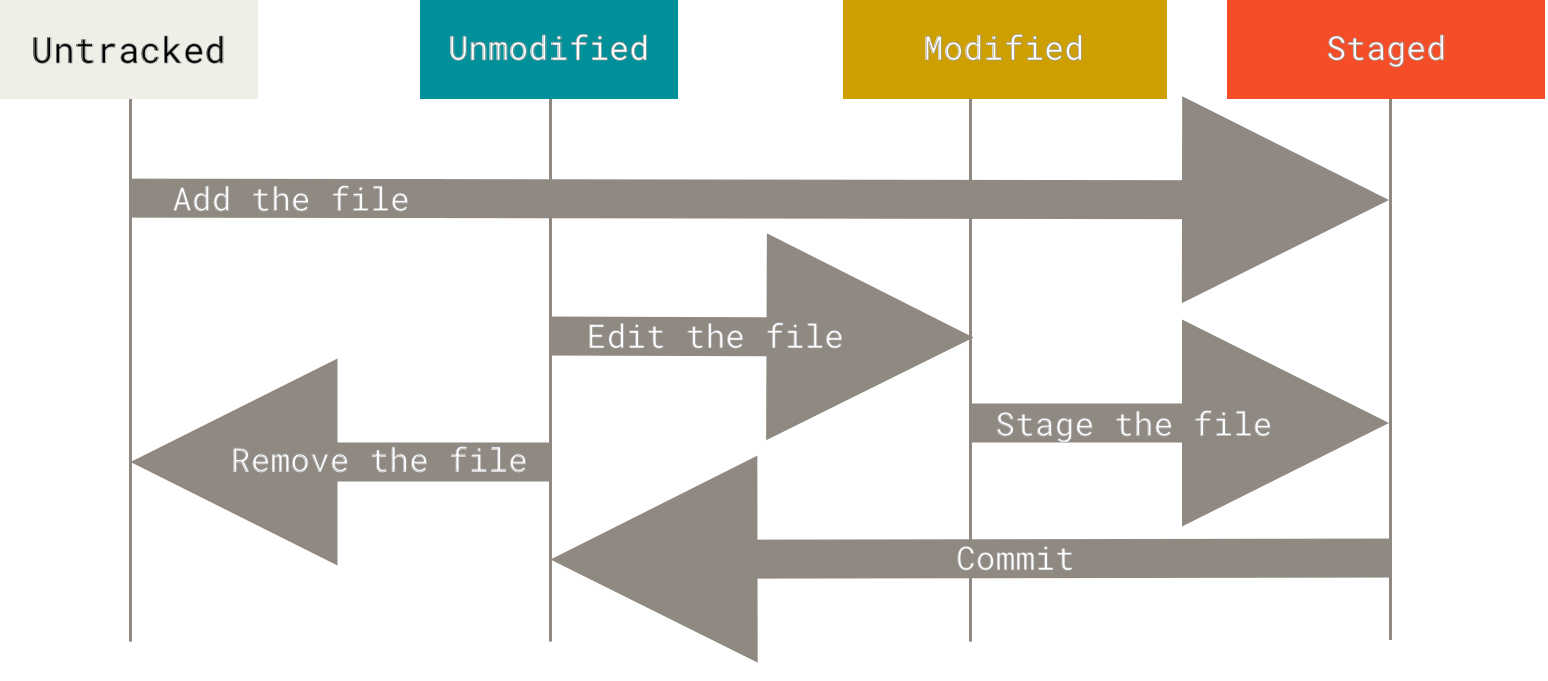
Watch the staging demonstration in Deeecode’s What are Staged Changes in Git? The example uses JavaScript files, but the same commands apply to your Python and HTML files.
What are Staged Changes in Git?
Deeecode demonstrates how staging specific files determines what a commit contains.
Watch file selection and notice that some edited files remain unstaged. Then watch the commit: the unstaged file remains outside the recorded checkpoint.
The official Pro Git chapter adds one detail worth keeping in mind: Git stages the contents a file had when you ran git add. Editing that file again does not automatically update the staged copy.
Recording Changes to the Repository
Read the “Tracking New Files” and “Staging Modified Files” subsections of Pro Git to connect the video’s demonstration to Git’s status messages.
In “Tracking New Files,” begin where the author explains what “untracked” means. Read through the staged status example. Then, in “Staging Modified Files,” start at the explanation of a tracked file under “Changes not staged for commit.” Continue through the staged-copy explanation and the following instruction to add the file again after another edit. Focus on which version a commit would contain.
Select the Python change for one checkpoint
Open the same workspace folder as last lesson—gis-shell-lab or gis-shell-lab-2—in VS Code. In its PowerShell terminal, confirm you are in the repository and inspect its current state:
Get-Location
git status
git diff
If you followed the previous lesson exactly, clinic_preview.py is modified but not staged, and map_preview.html is untracked. If your status differs, read it before proceeding; do not run git init again or commit changes you cannot identify.
Our first checkpoint is about the Python script’s description of a future interactive clinic map. Save the file in VS Code with Ctrl+S, then stage only that file:
git add .\clinic_preview.py
git status
git diff --staged
git status should now place clinic_preview.py under “Changes to be committed.” git diff --staged shows the lines selected for this checkpoint. map_preview.html should remain untracked: it is not part of this Python-script change. Avoid git add . here; it could select unrelated files you have not reviewed.
Notice the contrast with the commands from last lesson. Plain git diff shows changes not yet staged. git diff --staged shows changes selected for the next commit. If every current edit to the Python file is staged, plain git diff will now have no output—even though the staged diff does.
See why saving a file is not the same as restaging it
Before committing, make one more small, related improvement. At the end of clinic_preview.py, add:
print("Next step: display clinic locations on a map.")
Save with Ctrl+S, then run:
git status
git diff
git diff --staged
You may see clinic_preview.py listed twice in git status: once under “Changes to be committed” and once under “Changes not staged for commit.” That is not an error. The earlier edit is staged; the newly added line is still only in your working file. Compare the two diffs to see the distinction.
Both edits serve the same purpose, so include them in one coherent checkpoint. Update the staged copy and inspect it again:
git add .\clinic_preview.py
git status
git diff --staged
The staged diff should now contain both Python changes. Before every commit, this is your practical check: Does “Changes to be committed” list only the files I intend, and does the staged diff show the contents I intend?
If you accidentally stage an unrelated file, you can remove it from the staging area without deleting your working file:
git restore --staged -- .\map_preview.html
Use that command only if map_preview.html has been staged prematurely; otherwise, leave it alone.
Record the checkpoint, then make a separate one
The commit records what is staged, not every file in the folder. Read the relevant parts of Pro Git before making your two commits.
Recording Changes to the Repository
Return to Pro Git for the distinction between the two diffs and the meaning of a commit message.
In “Viewing Your Staged and Unstaged Changes,” find the explanation immediately after the plain git diff example. Read the diff comparison. In “Committing Your Changes,” read what a commit includes. Finally, find the paragraph beginning “Alternatively, you can type your commit message inline” and read the message example. You can skip the editor-based commit procedure: we’ll supply messages with -m.
Once your staged diff contains the intended Python edits and no unrelated files are staged, record them:
git commit -m "Describe future interactive clinic map"
git status
Git prints a short commit identifier and a summary of the recorded changes. The commit is local to your computer; it has not uploaded anything to GitHub. Seeing map_preview.html still listed as untracked afterward is expected—it was deliberately excluded.
Now consider a second, distinct checkpoint: the starter web page. Open map_preview.html in VS Code and check that it is the page you intend to keep. Do not commit a file containing passwords, API keys, private information, or unexpectedly large generated data. If this is the starter page from earlier lessons, select and record it separately:
git add .\map_preview.html
git status
git diff --staged
git commit -m "Add map preview starter page"
git status
For a newly staged file, git diff --staged displays its contents as additions. If map_preview.html is missing or is not ready to keep, skip this second commit rather than creating or staging something just to follow the commands.
To see your recent checkpoints, run:
git log -3 --oneline
You should see the Python checkpoint and, if you made it, the HTML checkpoint, along with the starter commit from last lesson. The exact identifiers will differ on your computer.
What to carry forward
A useful Git checkpoint has a clear purpose. git add selects the exact saved contents to include; git status and git diff --staged let you review that selection; git commit -m "..." records it with a message that explains the change. An untracked or unstaged file remains outside the commit, and editing a staged file requires another git add if you want the latest edit included.
Next, you’ll create a branch so you can work on a change separately, then merge it back—including how to handle a simple conflict.