Recommended resources
The freely available resources this lesson will direct you to.
- Python Virtual Environments - Full Tutorial for Beginnerswww.youtube.com
- Python Virtual Environment and pip for Beginnerswww.youtube.com
- Repeatable Installs - pip documentation v26.1.2pip.pypa.io
- Install packages in a virtual environment using pip and venv - Python Packaging User Guidepackaging.python.org
Hello! This course begins with the tools you’ll use to build coding automation, then moves through how LLMs work, API applications, retrieval, MCP, and a repository-triage project. In this first module, the goal is to make your Python tools dependable before they begin reading repositories or calling services.
Today you’ll create a project-specific Python environment, record exact dependency versions, and prove that those dependencies can be installed in a fresh environment. Allow about 40 minutes, including the terminal work.
Why give a Python project its own environment?
Suppose a build-log analyzer and a code-review tool need different releases of the same Python library. Installing everything into the system Python makes those requirements compete. A virtual environment gives each project its own package installation directory and Python executable, so installing a library for one project does not change the other project’s packages.
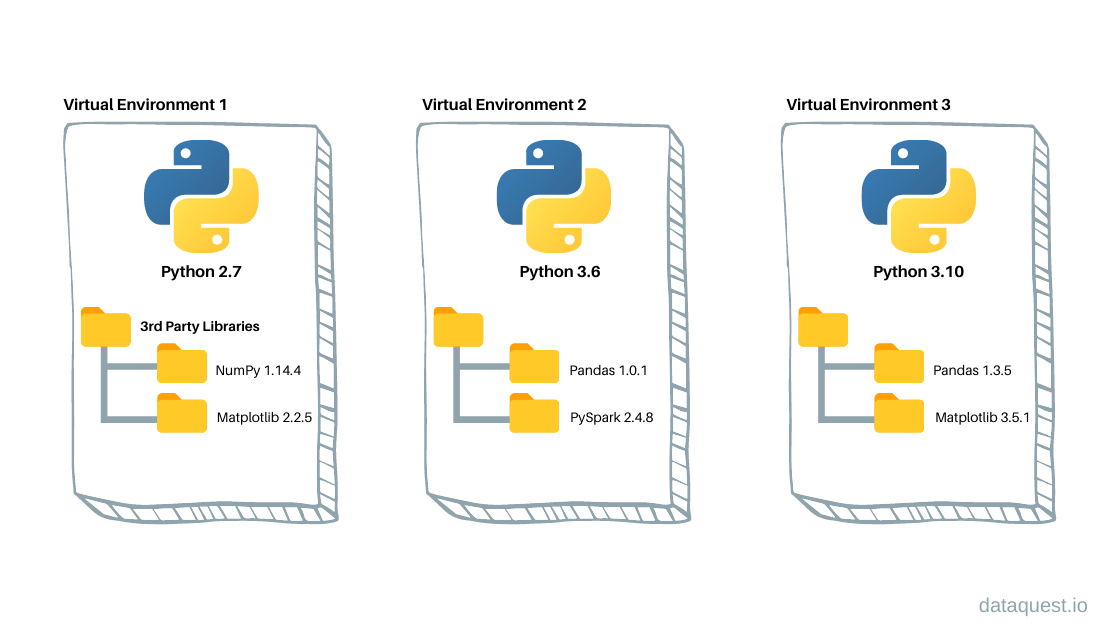
An important distinction: venv uses a Python interpreter already installed on your machine. It does not download a new Python version. If you want the environment to use a particular Python release, create it with that release’s interpreter. For this course, use a currently supported Python 3 release; Python 3.11 or newer is a good choice if available.
Watch the first part of Tech With Tim’s Python Virtual Environments – Full Tutorial for Beginners. The video names its directory env; we’ll use .venv, which serves the same purpose.
Python Virtual Environments - Full Tutorial for Beginners
Tech With Tim demonstrates the dependency conflict that environments solve, then creates one and installs a package.
Watch the motivation, environment setup, and package installation. Focus on what changes when the environment is active; the Linux commands below use .venv rather than the video's env.
Activation is convenient, but it is not the isolation mechanism itself. Activating an environment changes your shell’s PATH so commands such as python find the environment’s executable first. You can also invoke that executable directly as .venv/bin/python without activating anything.
Create the environment and verify your interpreter
In a Linux terminal, make a small project directory—or use a new, empty directory you already have:
mkdir -p coding-automation-lab
cd coding-automation-lab
python3 --version
python3 -m venv .venv
source .venv/bin/activate
The -m venv option runs Python’s built-in environment-creation module. The final argument, .venv, is the directory it creates. Now check which interpreter and package installer your shell will use:
command -v python
python --version
python -m pip --version
The path printed by command -v python should end in .venv/bin/python; the pip output should likewise refer to .venv. If either points elsewhere, stop and check your current directory and activation command before installing packages.
Use python -m pip rather than a bare pip throughout this lesson. It asks the particular python you selected to run its pip module, reducing the chance of installing into a different environment. In VS Code or Cursor, also select .venv/bin/python as the workspace’s Python interpreter so editor features and terminal commands use the same environment.
A virtual environment is generated local state, not project source. Put this in the project’s .gitignore file (create the file if necessary):
/.venv/
/.venv-check/
The second line anticipates a temporary verification environment later in the lesson. Keep your Python files outside either environment directory. If you leave this terminal session, the environment still exists; run source .venv/bin/activate again when you return.
If python3 -m venv .venv fails because venv or ensurepip is unavailable, your Linux Python installation may need its distribution’s venv package. Install that through your system package manager, then retry. If pip reports an externally managed environment, check which Python you are invoking rather than forcing a system-wide installation.
Record exact project dependencies
Later in the course, you’ll call an HTTP API from Python. We can install requests now as a small example, without making an API call yet. With .venv active, run:
python -m pip install requests
python -m pip freeze > requirements.txt
cat requirements.txt
python -m pip check
requests is the package you deliberately chose. It may need other packages to work; these are transitive dependencies. pip freeze records the installed versions of both the package you chose and its dependencies. In requirements.txt, look for a line beginning requests== and for additional package lines. The == means “install this exact version,” rather than whichever release is newest on the day someone installs it.
Watch the remainder of the tutorial for the export-and-reinstall workflow:
Python Virtual Environments - Full Tutorial for Beginners
The tutorial now shows how to export installed versions to a requirements file and use that file to populate another environment.
Watch requirements files, then project layout. Focus on sharing the requirements file rather than the environment directory. Our verification environment will use the name .venv-check.
The pip documentation makes a useful distinction between version pinning and stronger forms of repeatability:
Repeatable Installs - pip documentation v26.1.2
Read pip’s “Repeatable Installs” documentation to understand precisely what a version pin guarantees—and what it does not.
Under “Pinning the package versions,” read the pinning discussion. Start with the paragraph about protection from newly released versions; stop after the paragraph describing this strategy as easy to implement. Notice why freezing also captures transitive dependencies.
For this small, fresh environment, freezing is a practical way to create a pinned manifest. In a long-lived environment, however, pip freeze can also capture unrelated packages you installed experimentally. Review the file before committing it. When you intentionally change a dependency, install the chosen release, test your project, and regenerate and review requirements.txt; don’t silently replace pins with unbounded package names.
Prove the manifest can rebuild the project
The useful artifact is not the populated .venv directory. It is the ability to build another environment from the tracked manifest. First leave the current environment, then create a second one using the same system Python:
deactivate
python3 -m venv .venv-check
source .venv-check/bin/activate
python -m pip install -r requirements.txt
python -m pip check
python -c 'import requests; print(requests.__version__)'
The -r option tells pip to read package specifications from the file. pip check reports incompatible or missing installed dependencies; the import confirms that Python can find requests in this new environment.
On the same machine and Python version, you can also compare the installed-package snapshot with your manifest:
python -m pip freeze | diff -u requirements.txt -
No output means the two lists match. If you see differences, inspect them rather than assuming the reinstall failed: an accidentally added package in either environment, or a changed dependency resolution, may explain them.
Commit requirements.txt and .gitignore, not .venv or .venv-check. Also record the Python version you used in your project documentation: requirements.txt pins packages, not Python itself. Version pins improve repeatability, but they do not by themselves guarantee identical behavior across operating systems or protect against a compromised package source. Those are separate concerns we’ll handle when they become relevant.
Takeaways
You now have two independent environments: the working .venv and a fresh .venv-check built from the same pinned requirements.txt. The essential habit is to verify the interpreter before installing, keep generated environments out of version control, and make dependency changes deliberately.
In the next lesson, you’ll use this Python project to read repository text, JSON, and configuration files with pathlib—the first step toward tools that can inspect an unfamiliar codebase.