Recommended resources
The freely available resources this lesson will direct you to.
- What is a Digital Cinema Package? DCP Creation in Premiere & Davinciwww.youtube.com
- Creating a DCP for Film Festival Submission: My Findings!www.youtube.com
- Film Festival Submission Guide: File Specs & Delivery | Fast.iofast.io
- [PDF] Technical Specifications For Festival Presentation - Sundance Institutewww.sundance.org
Welcome to the final lesson of your course! It's a significant moment. You have journeyed from exploring the fundamental language of cinema to articulating a unique artistic vision and, in our last session, crafting a distribution strategy to connect your work with the world.
Today, we address the last, critical link in that chain: the technical delivery of your film. Our learning outcome is to export a final film file to common technical specifications for submission. This lesson is about translating your artistic creation into a universally playable, professional-quality digital format that meets the exacting standards of festivals and screening venues.
We will cover the essential technical language of video files, the specifications for the two primary deliverables—screeners and exhibition copies—and the practical steps to export them from standard editing software. Let's ensure your film not only looks and sounds exactly as you intended but also arrives in the perfect format for programmers and audiences.
1. The Language of Digital Video
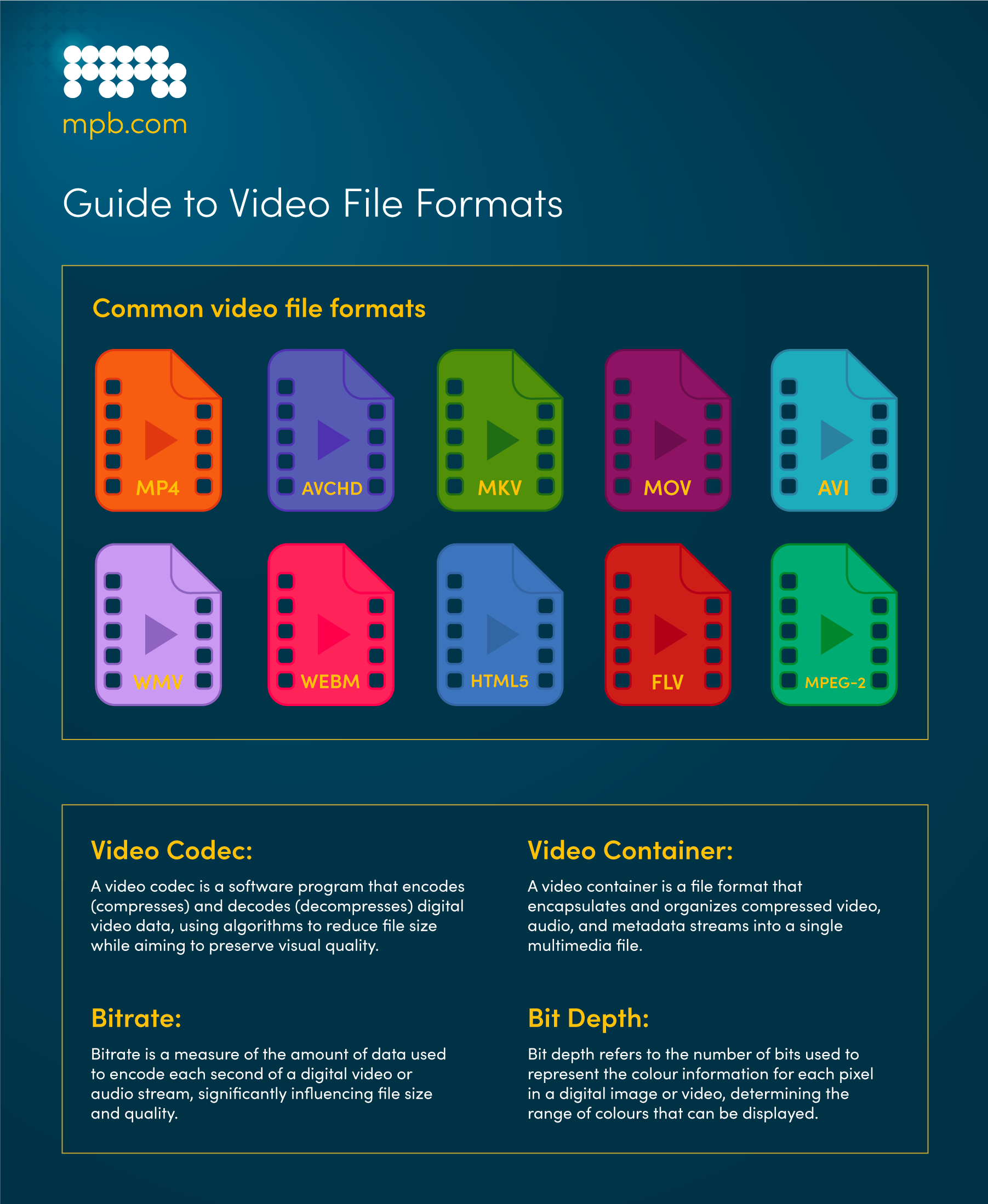
Before you can export, you need to speak the language. A video file isn't a single thing; it's a combination of elements. Understanding these will demystify the export process.
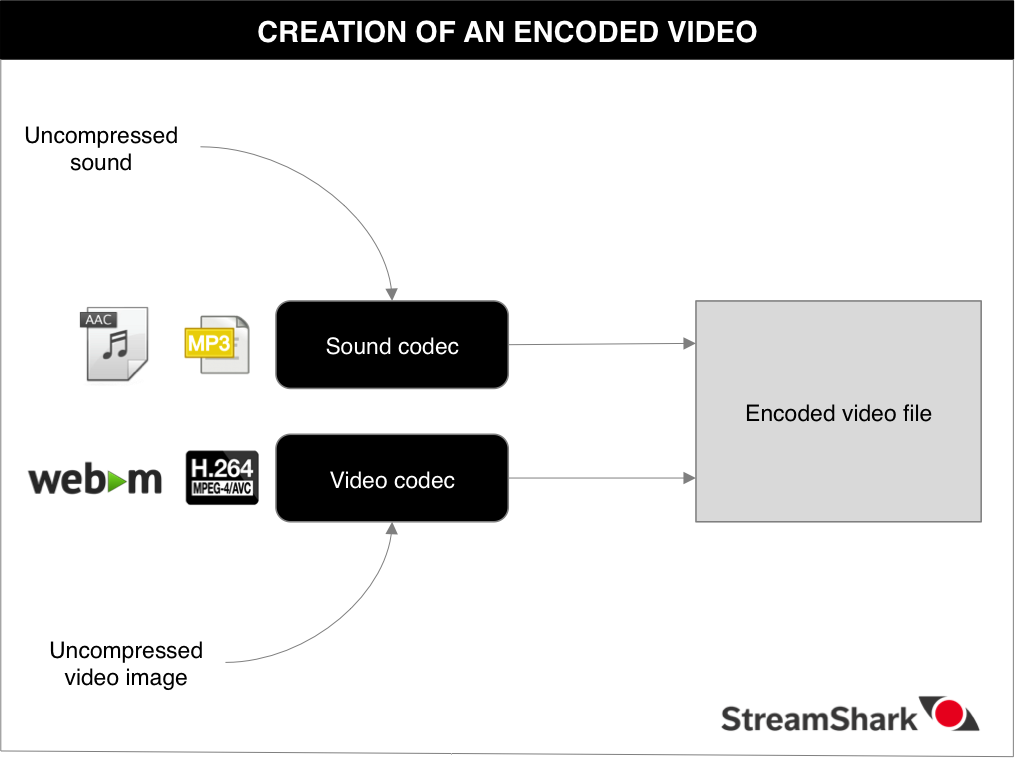
- Codec (Coder-Decoder): This is an algorithm that compresses your video and audio data to make the file size manageable. Think of it as the specific method used to pack your film's data. Common video codecs include H.264, ProRes, and JPEG 2000.
- Container: This is the file format that holds the video, audio, and metadata together. It's the "box" that everything comes in. You'll recognize these by their file extensions, like .MP4, .MOV, or .MXF.
The two images below provide a great visual summary of these concepts.
Now, let's look at the two main types of files you'll need to create.
2. The Screener Copy: Your Film's First Impression
A screener is what you submit to festivals for consideration. Programmers watch hundreds of these. The goal is to provide good quality at a reasonable file size, making it easy to stream and download.
The article below provides an excellent overview of the standard specifications.
Film Festival Submission Guide: File Specs & Delivery
The 'Film Festival Submission Guide' from Fast.io clearly lays out the typical requirements for screener copies.
Please read the section 'Screener File Formats and Technical Specs'. Also, review the answer to the second question in the 'Frequently Asked Questions' section for a concise summary. Focus on the specifications for H.264 and ProRes.
As you read, the most common standard for screeners is:
- Codec: H.264
- Container: .MP4
- Resolution: 1920x1080 (1080p)
- Audio: AAC Stereo
This combination offers the best balance of quality and compatibility. Almost every festival submission platform, like FilmFreeway, will accept this format. For a short film, you might also consider exporting a higher-quality ProRes 422 file in a .MOV container if a festival specifically requests it, as the file size will be more manageable than for a feature.
3. The Exhibition Copy: The Digital Cinema Package (DCP)
If your film is selected for a theatrical screening, you will be asked to provide an exhibition copy. The global standard for this is the Digital Cinema Package (DCP). A DCP is not a single video file; it's a folder containing highly specialized, uncompressed files that commercial cinema projectors are built to read.
What is a DCP?
Let's start with a clear definition of what a DCP consists of.
What is a Digital Cinema Package? DCP Creation in Premiere & Davinci
This video from MASV provides a concise explanation of what a DCP is and its core components.
Watch the segment from 00:35 to 01:06 to understand the fundamental structure of a DCP, including the JPEG 2000 codec and the MXF container.
Key takeaways are:
- Video: Encoded with the JPEG 2000 codec, where every frame is a high-quality image.
- Container: Video and audio are wrapped in separate .MXF (Material Exchange Format) files.
- Metadata: XML files contain the "playlist" and packaging data that tells the projector how to assemble and play the film.
- Resolution: Standardized theatrical resolutions like 2K Flat (1998x1080) or 2K Scope (2048x858).
How to Create a DCP
Modern editing software like DaVinci Resolve and Adobe Premiere Pro have built-in tools to create DCPs. While there are dedicated (and expensive) services for this, it's possible to create a high-quality DCP yourself, which is invaluable for an independent filmmaker.
The following videos walk through the process in both Premiere Pro and DaVinci Resolve.
What is a Digital Cinema Package? DCP Creation in Premiere & Davinci
The MASV video continues by demonstrating the step-by-step process of exporting a DCP in both Premiere Pro and DaVinci Resolve.
Watch the walkthroughs for the software you are most comfortable with, or watch both to compare: Premiere Pro (01:06 - 04:18): Pay attention to setting the sequence to the correct frame rate (24fps) and DCI resolution (Flat or Scope). DaVinci Resolve (04:18 - 06:44): Note the options for resolution, the importance of 'Interop' packaging for compatibility, and the standard file naming conventions.
Crucial Details and Troubleshooting
Creating a DCP involves more than just clicking "export." There are critical details that can make the difference between a successful screening and a technical disaster. The next video, from a filmmaker sharing his own experience, highlights some vital, real-world issues.
Creating a DCP for Film Festival Submission: My Findings!
In 'Creating a DCP for Film Festival Submission,' Martin Leon Lindstedt shares essential tips and troubleshooting he discovered while preparing his own film.
Please watch these three key segments: Audio Setup (02:08 - 05:39): Skim this section to understand the difference between stereo and a 5.1 surround mix for theatrical presentation. Theaters expect at least a 3-channel (Left, Center, Right) or full 5.1 mix. Correcting Washed-Out Blacks (07:44 - 08:57): This is a critical tip. A common issue is incorrect data levels making the image look faded. He shows the exact setting ('Data Levels: Full') in Resolve to fix this. Verifying Your DCP (06:47 - 07:44): Never send a DCP without testing it. He shows how to use the free software DCP-o-matic to ensure your file will play correctly.
4. Always Read the Manual: Festival Technical Specifications
While these are the standards, every festival provides its own detailed technical specification sheet. You must read it carefully and prepare your files accordingly.
Let's look at a real-world example from one of the world's top festivals.
Technical Specifications For Festival Presentation - Sundance Institute
This document from the Sundance Institute is a perfect example of the detailed technical requirements you will receive from a major festival.
Read the following two sections: 'DCP SPECIFICATION FOR IN PERSON SCREENINGS': Notice the requirements for frame rate, resolution, 5.1 audio, and naming conventions. 'ONLINE SCREENING FILE SPECIFICATION': Compare this to the DCP specs. You'll see they ask for a ProRes LT file at 1920x1080 with specific audio channel mapping. This serves as their high-quality 'screener'.
This document proves the point: you will often need to create at least two master files: one for online screening/selection and one for theatrical exhibition.
5. Practical Exercise: Pre-Export Checklist
Imagine your experimental short film has been accepted into the Ann Arbor Film Festival. Congratulations! Their technical contact has asked for two files: an online screener and a DCP for the theater.
Based on this lesson, create a pre-export checklist. For each file type, list at least 5 key technical settings you would need to confirm or set before you press "Render." This will help solidify your understanding of the differences between the two formats.
1. Online Screener (for the festival's streaming platform)
- Codec:
- Container:
- Resolution:
- Audio Format:
- Frame Rate:
2. Exhibition DCP (for the in-person cinema screening)
- Codec:
- Container/Wrapper:
- Resolution (Choose one standard):
- Audio Format:
- Frame Rate (Theatrical standard):
Think of this as the final quality check before your work goes out the door.
Conclusion
This lesson marks the end of your formal curriculum, and with it, you've gained the final, practical skill needed to deliver your films to the world. You've navigated the entire filmmaking process—from conceiving an artistic idea to strategically planning its distribution and now, technically preparing it for submission.
Key Takeaways:
- Two Deliverables: You'll almost always need a compressed screener (like an H.264 MP4) for submissions and an uncompressed exhibition copy (usually a DCP) for theatrical screenings.
- Know the Lingo: Understanding codecs, containers, resolution, and bit rate is essential for professional delivery.
- The DCP Standard: Theatrical exhibition relies on the Digital Cinema Package (DCP) format, which has specific requirements for video (JPEG 2000), audio (5.1 surround), and resolution (2K/4K).
- Verify Everything: Always check your festival's specific technical requirements and test your exported files before sending them.
You began this journey with the goal of becoming a film director with a unique artistic approach. You've studied the theory, analyzed the masters, developed your voice, and planned your film's place in the world. Now, you hold the technical keys to complete that process.
Congratulations on completing this course. The tools are yours. We are all excited to see the work you will create and share.