Recommended resources
The freely available resources this lesson will direct you to.
Welcome back! In our previous lesson, we established the critical distinction between the compute-bound prefill phase and the memory-bound decode phase in LLM inference. This theoretical understanding is the foundation for diagnosing performance, but to be effective in an Ops role, you need to see it in action.
Today, we transition from theory to practice. You will learn how to use the NVIDIA System Management Interface (nvidia-smi), the single most important command-line tool for any engineer working with NVIDIA GPUs. Your goal is to master monitoring GPU utilization, memory usage, and thermal state. Given your extensive experience with Linux system monitoring tools like top, htop, and observability platforms, you'll find the concepts here very familiar—we're simply applying them to a new, specialized piece of hardware.
1. Introducing nvidia-smi
The NVIDIA System Management Interface, invoked by the nvidia-smi command, is a utility that ships with the NVIDIA drivers. It's your window into the real-time status of every NVIDIA GPU in a system. For an LLM Ops engineer, this is the equivalent of htop or vmstat for a CPU—an indispensable first-stop for health checks and performance debugging.
To get a quick overview of what nvidia-smi is and its purpose, watch the first minute of this video.
How To Monitor and Manage GPUs with Nvidia-smi Command
This video from Liv4IT provides a concise introduction to the nvidia-smi utility.
Watch from the beginning until the introduction. The speaker gives a clear definition of the tool and its function.
nvidia-smi allows you to query everything from driver versions to power consumption and active processes, making it fundamental for the reliability and performance monitoring you're aiming to master.
2. Interpreting the nvidia-smi Output
Running the nvidia-smi command without any arguments gives you a comprehensive snapshot of the GPU's current state. Let's break down its output. The information is dense, but every piece is valuable for diagnosing different kinds of issues.
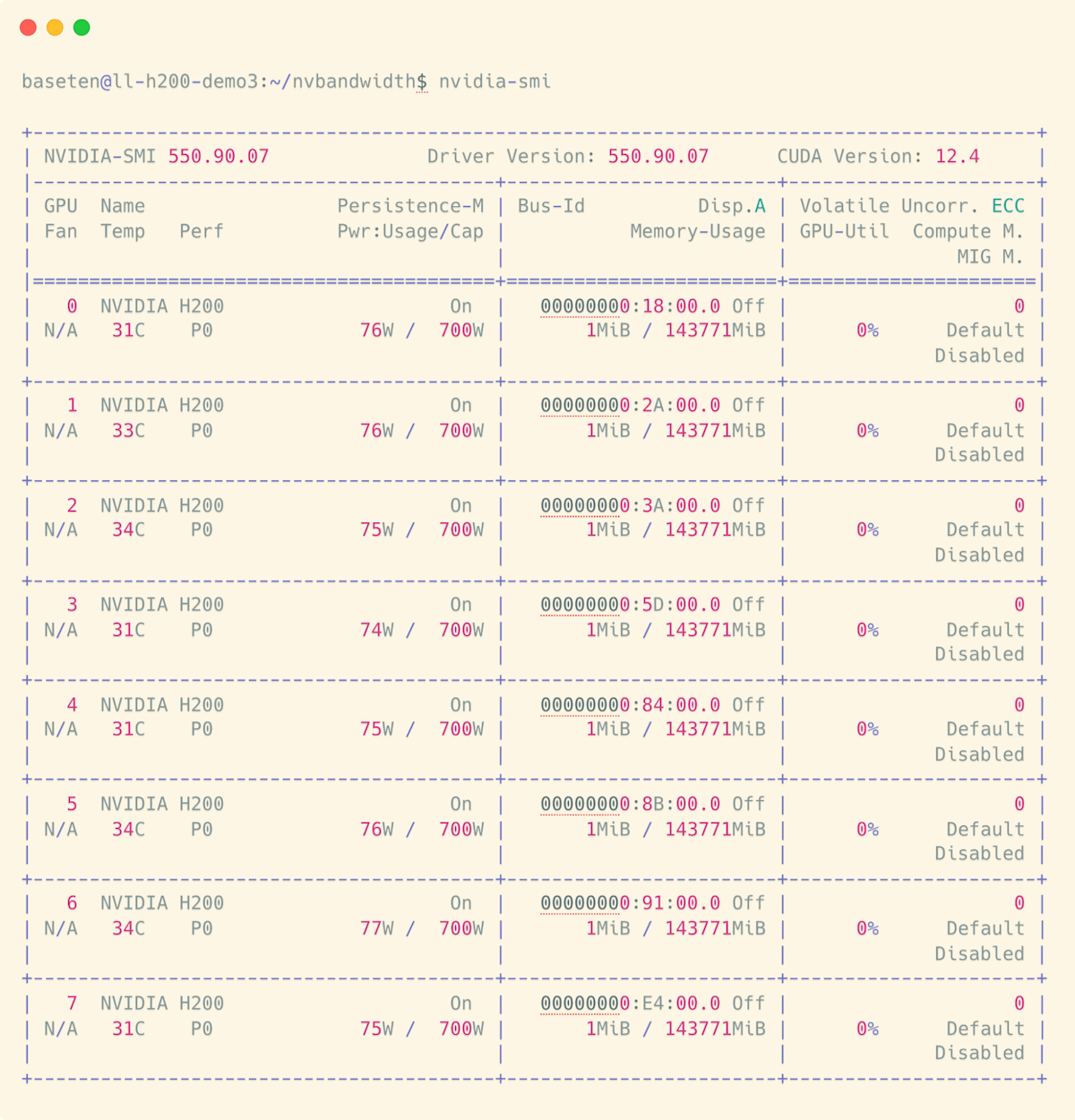
Now, let's dive into the details of each section.
[PDF] NVIDIA NVSMI GPU MONITORING & DEBUGGING
This section from the WOLF Advanced Technology whitepaper provides an excellent, detailed breakdown of the standard nvidia-smi output.
Read the section titled "nvidia-smi: Basic GPU Status (Utilization, Temperature, Memory, Drivers)". As you read, pay close attention to the explanation of these key metrics: GPU-Util: GPU Utilization. This is the metric that most directly reflects the concepts from our last lesson. A value near 100% indicates a compute-bound task (like prefill). Memory-Usage: Shows how much of the GPU's High Bandwidth Memory (HBM) is in use. This is critical for ensuring your model and its KV cache fit. Temp: The core GPU temperature. Essential for monitoring thermal health. Pwr: Usage / Cap: Real-time power draw versus the GPU's configurable power limit. Hitting the cap can cause performance throttling. Perf (Performance State): The "P-State" indicates the GPU's performance level. P0 is the maximum performance state, while higher numbers like P8 or P12 are idle or low-power states. A GPU running a workload should be in P0. Active Processes: The table at the bottom shows which processes (by PID) are currently using the GPU. This is vital for identifying which application is consuming resources.
Let's contrast the idle state with a GPU under heavy load.
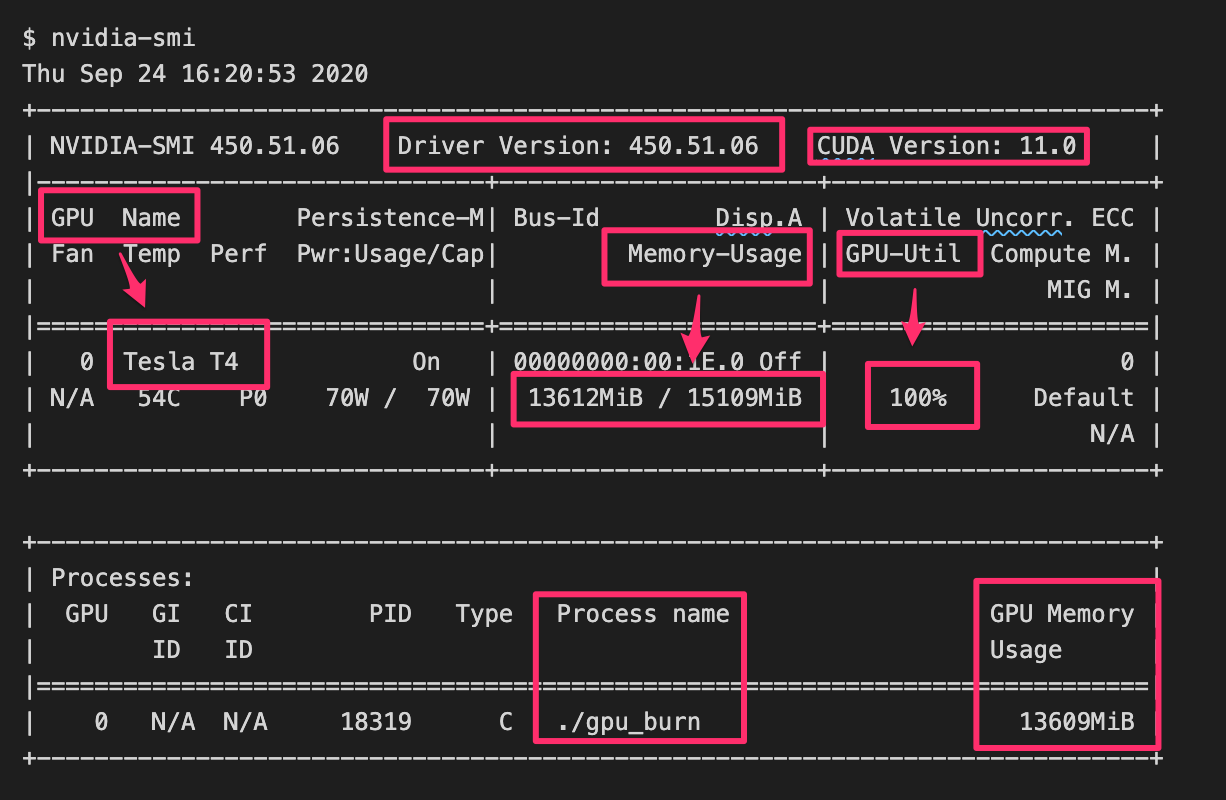
Understanding the difference between these two states is the first step in diagnosing performance. An idle GPU that should be working, or a loaded GPU that isn't at 100% utilization, are both indicators of potential problems upstream (e.g., data loading bottlenecks) or hardware constraints (e.g., power or thermal throttling).
3. Live Monitoring and Deeper Queries
A static snapshot is useful for a quick check, but LLM workloads are dynamic. You need to observe how metrics change over time. The most common way to do this in a Linux environment is with the watch command.
# This command re-runs nvidia-smi every second, giving you a live dashboard.
watch -n 1 nvidia-smi
This is the command you will likely have running in a terminal window for most of your hands-on work with GPUs. nvidia-smi also has a built-in loop mode (-l or --loop), but watch is a more general-purpose and widely used utility.
When the summary view isn't enough, you can request a much more detailed report using the query (-q) flag.
# Display all available data in a verbose, human-readable format
nvidia-smi -q
The output of nvidia-smi -q is extensive, but it contains crucial details not available in the default view, such as throttle reasons. This is particularly important for investigating thermal issues.
[PDF] NVIDIA NVSMI GPU MONITORING & DEBUGGING
Let's return to the WOLF whitepaper for a practical use case.
Read the section "2. Thermal-Throttling Investigation". It shows how to use nvidia-smi -q to look for the Throttle Reason field. If you see reasons like Thermal or Power, you've found a key performance limiter.
This ability to pinpoint the exact reason for throttling is a powerful debugging feature that separates superficial monitoring from deep, actionable analysis. Your SRE experience with root cause analysis will be invaluable here.
4. Practical Application to LLM Workloads
Now, let's connect nvidia-smi back to the prefill and decode phases. Imagine you are serving an LLM and a new request arrives.
-
During Prefill: You would run
watch -n 0.5 nvidia-smiand expect to seeGPU-Utilspike to nearly 100%.Memory-Usagewould jump as the KV cache for the prompt is computed and stored.Pwr:Usagewould also increase significantly as the GPU enters theP0performance state to handle the compute-intensive load. -
During Decode: As the model generates tokens one by one, you would observe the
GPU-Utildrop to a lower, more consistent level (e.g., 30-60%). This is the signature of a memory-bound workload—the compute cores are often idle, waiting for data (model weights and KV cache) to be fetched from HBM. TheMemory-Usagewill remain high and slowly increase as the KV cache grows with each new token.
By watching these metrics, you can directly observe the performance characteristics we discussed. If the GPU-Util during prefill is unexpectedly low, it might suggest the application isn't feeding data to the GPU fast enough. If Temp climbs and the Throttle Reason in nvidia-smi -q shows Thermal, you know your cooling is insufficient for the workload.
Conclusion
In this lesson, you've learned to use nvidia-smi, the cornerstone of GPU monitoring. This moves you from theoretical knowledge to practical, hands-on observability, a core skill for an LLM Ops Engineer.
Here are your key takeaways:
nvidia-smiis the primary command-line tool for monitoring NVIDIA GPU status in real-time.- The key metrics to watch are GPU Utilization, Memory Usage, Temperature, Power Usage, and Performance State (P-State).
- You can create a live dashboard using
watch -n 1 nvidia-smito observe how these metrics change under load. - For deep debugging,
nvidia-smi -qprovides detailed information, including critical throttle reasons that explain performance limitations. - These metrics allow you to observe the signature of LLM workloads: high utilization during the compute-bound prefill phase and lower utilization during the memory-bound decode phase.
In our last lesson, you learned that the KV cache consumes a large amount of GPU memory. So far, you've learned how to observe that memory usage with nvidia-smi. In our next lesson, we will get quantitative. You will learn how to calculate the exact memory required for the KV cache based on the model's architecture, batch size, and sequence length. This predictive ability is essential for capacity planning and preventing out-of-memory errors.