Recommended resources
The freely available resources this lesson will direct you to.
Welcome back. Your Vite project is running, and you know how to check its types. Last time, you changed the starter page without yet examining how React produced it. This lesson replaces that page with typed function components, then traces what React does when a component receives new props or updates its own state. Allow about 40 minutes, including the videos and a short experiment in your project.
A component describes part of the interface
A React function component is a function whose name begins with a capital letter and whose return value describes UI. That description is usually written in JSX: markup-like syntax inside a .tsx file. JSX is not an HTML string. React uses the value returned by the component to work out what should appear in the browser.
Watch these portions of React Tutorial for Beginners by Programming with Mosh for the component-to-JSX connection:
In React Tutorial for Beginners, Programming with Mosh creates a function component and places it inside another component. Watch for the distinction between defining a component and using it in JSX.
Watch the component for the .tsx file, capitalized name, and JSX return value. Continue with using it inside App. Finally, watch JSX expressions to see why braces can display a JavaScript value. You do not need to copy the video's project setup.
A component can also receive props—inputs supplied by its parent. In <Counter label="User activity" />, label is a prop. The component can use it to decide what text to return, but it should not modify it. Read the React documentation’s example before adding TypeScript:
React’s Passing Props to a Component shows how a parent supplies values and a child reads them. Focus on the direction of ownership: the parent chooses the input.
In “Passing props to a component,” read Step 1, “Pass props to the child component,” beginning with passing and reading props through the paragraph after Step 2 that explains how parent and child can change independently. Then go to “How props change over time.” Start at changing props and finish the short warning immediately afterward about not changing props inside the child.
TypeScript adds a contract to that input. The React TypeScript Cheatsheets page shows the compact form we will use: type the props parameter and let TypeScript infer the component’s return type.
Function Components | React TypeScript Cheatsheets
Function Components from React TypeScript Cheatsheets shows how an ordinary function can receive typed props and return JSX.
In “Function Components,” read from normal functions, including the examples between those phrases. Focus on the named AppProps type and the function parameter ({ message }: AppProps). The explicitly annotated return type is an option, not a requirement for this lesson.
For example, this is a complete typed component:
type CounterProps = {
  label: string
}

function Counter({ label }: CounterProps) {
  return <h2>{label}</h2>
}
The braces in ({ label }: CounterProps) destructure the props object; the braces in <h2>{label}</h2> insert a JavaScript expression into JSX. They look alike but serve different purposes. TypeScript will reject <Counter label={42} /> because this component requires a string.
Props are inputs; state is component memory
If Counter needs a number that changes while someone uses the page, a prop alone does not give it control over that number. React’s useState hook gives a component a current value and a setter. Calling the setter requests another render using the updated value; changing an ordinary local variable does not.
The video demonstrates the difference between a local variable and state:
Return to React Tutorial for Beginners by Programming with Mosh for its state demonstration. The useful moment is when assigning to an ordinary variable fails to update the screen, but a state setter works.
Watch state and rerenders. Follow the failed variable assignment, the useState pair, and the observation that two instances of the same component keep separate state. The example uses a list; our implementation below uses smaller counters.
This React diagram captures the last point. Both components have a count value, but neither shares the other’s value merely because they were created from the same function.
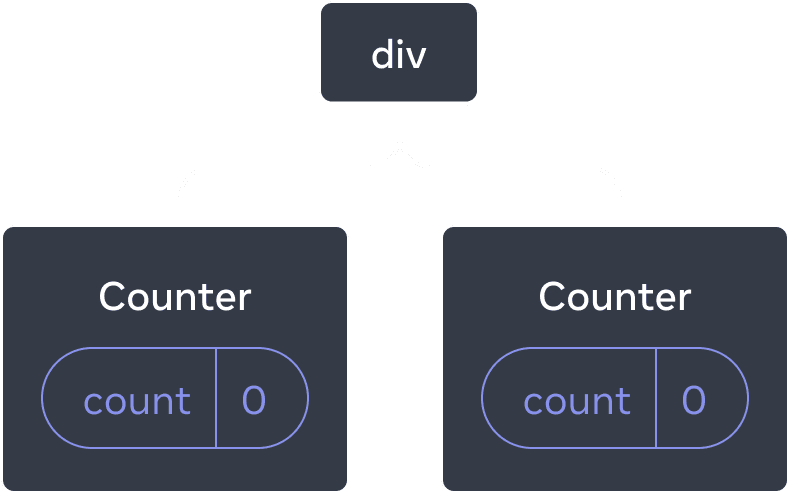
A render means React calls a component function to obtain its current UI description. A render does not necessarily mean every browser DOM element changes. React compares the new result with what was previously displayed and applies the changes that are needed. Keep those two events—calling components and changing the DOM—separate when you inspect logs.
Build and trace two counters
With the development server running, replace the contents of src/App.tsx with the following. You can leave the starter CSS files in the project; this example does not import them.
import { useState } from 'react'

type CounterProps = {
  label: string
}

function Counter({ label }: CounterProps) {
  const [count, setCount] = useState(0)
  console.log(`render Counter: ${label}, count=${count}`)

  return (
    <section>
      <h2>{label}</h2>
      <p>Count: {count}</p>
      <button type="button" onClick={() => setCount(count + 1)}>
        Add one to {label}
      </button>
    </section>
  )
}

function App() {
  const [heading, setHeading] = useState('User activity')
  console.log(`render App: ${heading}`)

  return (
    <main>
      <h1>{heading}</h1>
      <button
        type="button"
        onClick={() =>
          setHeading(
            heading === 'User activity' ? 'Account activity' : 'User activity',
          )
        }
      >
        Change heading
      </button>

      <Counter label={heading} />
      <Counter label="Other activity" />
    </main>
  )
}

export default App
Here, App renders two instances of Counter. The first receives an expression, heading, as its label; the second receives a fixed string. Each Counter owns its own count. The onClick functions call state setters; the mechanics and typing of browser events get their own lesson later.
Open the browser console and compare what appears after each action. Do not save a file between actions: Vite’s development updates are a different reason for components to run and would muddy the trace.
| Action | Components you should expect React to render | What changes on screen |
|---|---|---|
| Load the page | App, then both Counter instances |
The heading and both counters appear at zero. |
| Click the first counter’s button | The first Counter |
Its count increases; App and the second counter do not need to render for this state update. |
| Click Change heading | App, then both Counter instances |
The page heading and first counter’s label change. Both counts are retained. |
The final row has a useful subtlety. Updating App’s state makes App render again. React then renders its child counters in this ordinary setup, even though the second counter’s label prop is still the same string. Thus, “a component renders only when its props change” is not an accurate rule. A parent render can also cause a child render. Conversely, a child’s own state update does not, by itself, require its parent to render.
The counts survive the heading change because React is rendering the same Counter instances in the same positions. The diagram’s independent state is still attached to those instances. Changing a prop does not reset a component’s state by default.
You may see some console messages twice rather than once. The Vite starter commonly wraps App in React’s StrictMode in src/main.tsx; during development, Strict Mode can call render functions extra times to help expose problems. Use the logs to identify which components run for each action, rather than treating their exact number as a production guarantee. Also notice that a logged render need not produce a visible DOM change: when the second counter renders after Change heading, its displayed label and count remain the same.
After observing the behavior, run your existing type check:
npm run typecheck
What the trace tells you
A component function describes UI from its current props and state. Props arrive from a parent and must be treated as read-only. State belongs to a particular component instance and is changed through its setter. Either a parent rendering its children or a component updating its own state can lead React to call a component again; React then decides what, if anything, must change in the browser.
You have now built a typed component and traced both paths through your small component tree. Next, you’ll make props contracts more expressive, including optional values and callback functions that let a child communicate an action to its parent.