Recommended resources
The freely available resources this lesson will direct you to.
Welcome to our new module on Network Services and Security. In the previous module, we focused on Network Address Translation, culminating in a lesson on troubleshooting NAT configurations. You learned how to use a systematic approach and key show and debug commands to diagnose and fix issues.
Now, we shift our focus from translating addresses to automatically assigning them. This lesson introduces one of the most fundamental network services: the Dynamic Host Configuration Protocol (DHCP). You likely have a conceptual understanding of DHCP's role, but today we will go deep into its operational mechanics and practical configuration. Your goal is to learn how to configure a router to act as a DHCP server and a DHCP relay agent. This skill is essential for automating network setup and management, saving countless hours of manual work.
1. The DHCP Process: Why and How?
Imagine manually assigning an IP address, subnet mask, default gateway, and DNS server to every single device in a large company. It would be incredibly time-consuming and prone to errors like typos or duplicate IP addresses. DHCP automates this entire process.
When a new device (a DHCP client) connects to the network, it needs to get its IP configuration. It does this by having a "conversation" with a DHCP server. This conversation always follows a four-step process known as DORA:
- Discover: The client broadcasts a
DHCPDISCOVERmessage to the entire local network, essentially shouting, "Are there any DHCP servers out there?" - Offer: Any DHCP server that hears the broadcast can reply with a
DHCPOFFERmessage, offering an IP address and other configuration parameters. - Request: The client receives one or more offers and chooses one. It then broadcasts a
DHCPREQUESTmessage, indicating which server's offer it would like to accept. Broadcasting this informs all servers of its choice. - Acknowledge (Ack): The chosen server finalizes the lease and sends a
DHCPACKmessage back to the client, confirming the assignment. The client can now use the IP address.
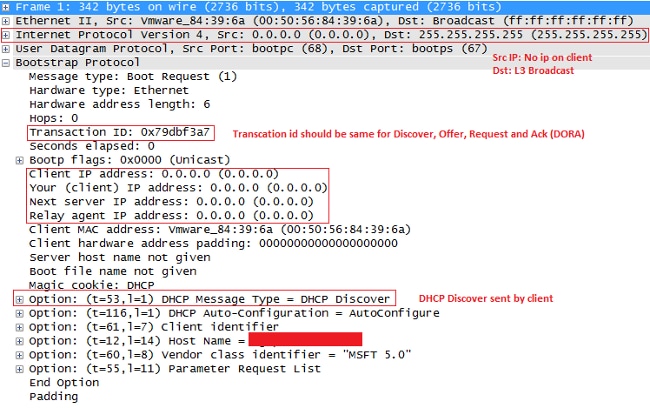
The following image shows a packet capture of the initial DHCPDISCOVER message. Notice that the client's source IP is 0.0.0.0 and the destination is a broadcast address (255.255.255.255), which is exactly what you'd expect from a device that has no IP address yet.
To see this entire DORA process explained in detail, watch the following segment from Jeremy's IT Lab.
Free CCNA | DHCP | Day 39 | CCNA 200-301 Complete Course
This video provides a CCNA-level explanation of the DHCP process, complete with packet captures.
Watch the section explaining the DORA four-message exchange. Pay attention to: The purpose of each message: Discover, Offer, Request, and Ack. Which messages are broadcasts and which can be unicast. The UDP ports used: Client (port 68) and Server (port 67). The concept of an IP address "lease."
2. Configuring a Router as a DHCP Server
In small networks, it's common and convenient to configure the local router to also act as the DHCP server. This is a core competency for any network administrator.
The configuration involves a few key steps:
- Exclude Addresses: First, you should tell the DHCP server which IP addresses it should not hand out. These are typically reserved for static assignment to devices like the router itself, switches, or servers.
- Create a DHCP Pool: This is the collection of addresses and configuration options to be assigned to clients. You give the pool a name.
- Define the Network: Specify the subnet of addresses that the pool can draw from.
- Define Essential Options: Configure the default gateway and DNS server addresses that will be given to clients along with their IP.
- (Optional) Define Lease Time: You can specify how long a client can use an IP address before it must be renewed.
The following video demonstrates exactly how to implement this on a Cisco router.
Free CCNA | DHCP | Day 39 | CCNA 200-301 Complete Course
This segment provides a practical demonstration of configuring a Cisco router as a DHCP server.
Watch the section on DHCP server configuration. Follow the commands used: ip dhcp excluded-address [low-ip] [high-ip] ip dhcp pool [pool-name] network [network-address] [subnet-mask] default-router [ip-address] dns-server [ip-address] lease [days] [hours] [minutes] After the configuration, observe the use of the show ip dhcp binding command, which is crucial for verifying which clients have been assigned which IP addresses.
For a quick textual reference of these commands, you can consult the following guide.
DHCP Server Configuration on Cisco Router
This resource provides a clear, table-based summary of the DHCP server configuration commands.
Review the section "Configure a DHCP Server on Cisco router". The table format gives a concise overview of the commands and their purpose, which is useful for future reference.
3. Configuring a DHCP Relay Agent
A major challenge with DHCP is that the initial DHCPDISCOVER message is a broadcast. As you know from your networking studies, routers do not forward broadcast traffic between subnets. So, what happens if your clients are in one VLAN (e.g., 192.168.10.0/24) but your company uses a centralized DHCP server in a different VLAN (e.g., 192.168.100.0/24)?
The client's broadcast will never reach the server.
The solution is to configure the client's default gateway router to act as a DHCP Relay Agent. The router listens for DHCP broadcasts on its interface. When it hears one, it "catches" it and forwards it as a unicast packet directly to the DHCP server's IP address.

This function is enabled with a single, powerful command on the router interface that faces the clients: ip helper-address.
Let's see how this concept works and how to configure it.
Free CCNA | DHCP | Day 39 | CCNA 200-301 Complete Course
These sections first explain the concept of a relay agent and then show the simple command used to configure it.
First, watch the conceptual explanation of a DHCP Relay Agent to understand the problem it solves. Next, watch the relay agent configuration. The key command is ip helper-address [server-ip], applied on the interface that receives the client broadcasts.
Practice Question
Now, test your understanding of the DHCP relay agent configuration. Consider the scenario and options presented in the following video clip.
Free CCNA | DHCP | Day 39 | CCNA 200-301 Complete Course
This is a practice question from a CCNA exam simulator.
Watch the question from 33:00 to 35:16. Pause the video and determine which router needs the ip helper-address command, on which interface it should be applied (implied by the network design), and what the destination IP address should be. Then, watch the explanation to check your answer.
The key is that the ip helper-address command is configured on the Layer 3 interface that serves as the gateway for the DHCP clients. It points to the IP address of the actual DHCP server.
Conclusion
In this lesson, you have learned how to automate IP address assignment using DHCP. We've moved from the foundational theory of the DORA process to the practical Cisco IOS commands for implementing two distinct DHCP roles on a router.
Key Takeaways:
- DORA Process: DHCP relies on a four-step message exchange: Discover, Offer, Request, and Acknowledgment.
- DHCP Server Configuration: You can configure a router to act as a DHCP server for a local network using the
ip dhcp poolcommand and defining the network, default-router, and other options. Theip dhcp excluded-addresscommand is used to reserve static IPs. - DHCP Relay Agent: When a DHCP server is on a different subnet from clients, you must configure a relay agent. The
ip helper-addresscommand on the client's gateway interface converts DHCP broadcasts into unicasts, allowing them to reach the remote server. - Verification: Use
show ip dhcp bindingto see active leases on a DHCP server andshow ip interfaceto verify a helper address is configured.
This lesson forms the first building block in our module on essential network services and security. In our next lesson, we will shift to Layer 2 and explore how to configure port security on a switch to prevent MAC address-based attacks, a fundamental step in securing your local network.