Recommended resources
The freely available resources this lesson will direct you to.
- Jira for Beginners (FREE COURSE!)www.youtube.com
- What Makes Up a Jira Project - Part 1: Work Item & Work Typeswww.youtube.com
- Defining a project | Administering Jira applications Data Center 11.3 | Atlassian Documentationconfluence.atlassian.com
- Working with issues | Jira Software Data Center 9.17 | Atlassian Documentationconfluence.atlassian.com
Hello! This course will build your Jira skills from the information recorded in individual issues through searches, boards, reports, and finally an evidence-based SQA audit. The emphasis is on Jira Server/Data Center concepts that transfer across versions, rather than administration or features specific to the latest Jira Cloud interface.
Here is the complete roadmap before we begin. Each module contains several focused lessons and practical review time. At roughly 5–6 hours per module, the program takes about 40–48 hours: one module per week over eight weeks, or approximately 7–8 hours per week if you complete it in six.
| Week | Module | SQA focus |
|---|---|---|
| 1 | Jira’s information model | Projects, issues, types, fields, history, and reviewable records |
| 2 | Issue Navigator and filters | Finding, arranging, saving, and exporting review sets |
| 3 | JQL foundations | Writing reliable queries for everyday SQA questions |
| 4 | Advanced JQL | Ageing defects, stalled work, testing delays, and release risk |
| 5 | Kanban boards | Columns, Quick Filters, swimlanes, WIP, and bottlenecks |
| 6 | Scrum, workflows, and releases | Transitions, dependencies, release scope, and traceability |
| 7 | Dashboards and metrics | Flow reports and indicators without misleading conclusions |
| 8 | Practical SQA audit | Scoping, sampling, evidence, findings, and follow-up |
This first lesson takes about 35–40 minutes. Its question is foundational: What is a Jira project, what is an issue, and what can each tell you about a delivery process? We will stay with that distinction today; the next lesson examines Epic, Story, Task, and Bug in detail.
A project defines the boundary
In everyday speech, a “project” might mean an initiative with a start and end date. In Jira, a project is primarily an organized collection of issues. A team might use one to track work on a product or service across multiple releases. Its name and project key give that collection a recognizable identity.
Read the short definition in Atlassian’s Defining a project. Although this administration page is from a newer Data Center documentation set, we are using only its enduring definitions—not its project-creation instructions.
Defining a project | Administering Jira applications Data Center 11.3 | Atlassian Documentation
Read Atlassian’s definition of a Jira project and its explanation of the project key. These are useful even when you have no permission to configure projects.
Near the top of the page, before “On this page,” read the project definition. Then, under “Creating a project,” find “About the project details” and read the key explanation. Stop there; the surrounding setup procedures are administrator tasks.
Suppose a software product has a Jira project with the key APP. That key identifies the project, while APP-218 identifies one particular issue within it. The project offers a way to review a defined body of work: for example, what has been recorded for that product and which issues need attention. It can also provide context for how that work is organized. The precise fields, permissions, and workflows you encounter depend on the local configuration.
For SQA, a project is therefore a useful starting boundary, not a complete audit conclusion. “There are 40 issues in the project” tells you neither how many are defects nor whether testing was adequate. You first need to inspect or select the relevant issues.
An issue records a particular item of work
An issue is the individual Jira record. Depending on its type, it might describe a defect, a requested capability, or a task. It has an issue key and summary, and it can hold details and changes that help people follow the work. A project contains many issues; an issue belongs to a project. This distinction holds whether people locally call an issue a ticket or simply an item.
Atlassian’s Jira Software Data Center 9.17 guide shows both the definition and where to find an issue’s identifying details.
Working with issues | Jira Software Data Center 9.17 | Atlassian Documentation
Read Atlassian’s Working with issues to connect the idea of an issue with what you see on a board or in a full issue view.
In “What is an issue?”, read the issue overview. Pay particular attention to the labels “On a board (Scrum project — backlog)” and “Full view (e.g. via search results)”: the compact board view and full view may expose different amounts of detail.
Imagine APP-218 has the summary “Checkout fails when an address contains an apostrophe.” The project tells you which collection to look in. The issue is where you would look for the specific failure, its current state, and the recorded work on it. Another issue, APP-219, could concern an unrelated checkout improvement. Sharing a project does not make those two records the same work item or prove that one caused the other.
The annotated Jira project screenshot below makes the difference visible. The left sidebar identifies the project area; the backlog on the right displays issue rows with individual keys such as JIRA-19. It is an interface example, not a guarantee that a backlog displays every issue in its project. We will examine how boards select their issues later in the course.
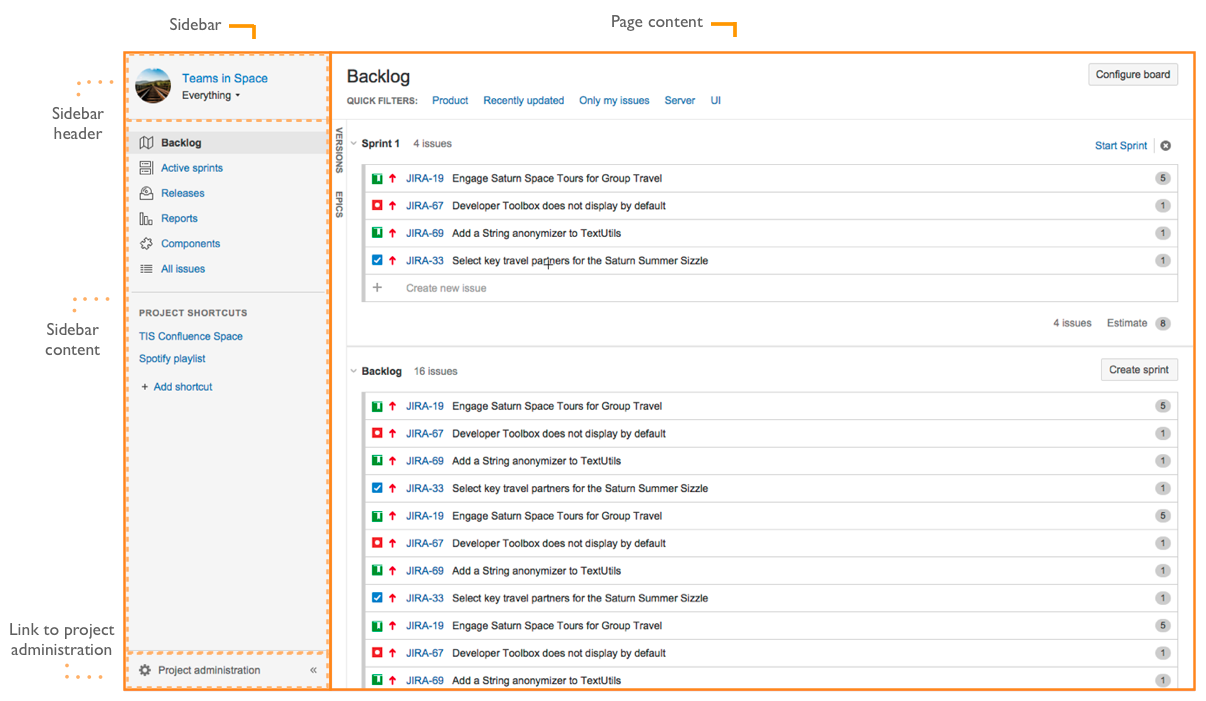
What becomes visible to SQA?
The two levels answer different questions. At project level, you can establish the scope of a review: which collection of work you are examining and whether you may need to look in more than one project. At issue level, you can examine a specific recorded item and the information available about its handling.
Consider a release review. Looking at the relevant project helps you identify the body of work to investigate. Looking at a particular unresolved defect issue helps you investigate that defect: what was reported, where it stands, and what evidence its record contains. The project gives your review a boundary; issues provide the inspectable records within it. Neither alone proves that the software is ready to release.
This distinction also guards against a common error: treating a convenient Jira screen as the whole process. A backlog, board, or search result is a view. Before drawing an SQA conclusion, you need to know which issues the view includes and what its records can—and cannot—demonstrate. Later modules will give you the search and filter skills to make that scope explicit.
A short, read-only tour
If you have access to your Jira instance, spend about 5–8 minutes observing rather than changing anything:
- Open a project you can view. Find its name or key and note what the project navigation offers. The labels may differ from the screenshot.
- Open one issue and locate its issue key and summary. Compare the project key with the prefix of the issue key.
- Return to a project view. Notice how much less detail an issue row shows than the opened issue. Do not assume the visible rows represent every issue in the project.
If you do not have access yet, use the annotated screenshot for the first and third observations and the Working with issues guide for the full-view comparison. No administrator permission or issue edits are needed.
Key takeaways
A Jira project groups issues and establishes a practical boundary for examining work. An issue is one identifiable record inside that boundary; its key combines the project prefix with an issue number. For SQA, projects help you define where to look, while issues give you specific work to inspect. A screen showing some issues is not necessarily a complete project-wide view, and a Jira record is evidence to assess—not proof by itself that a process was followed.
Next, we will distinguish Epics, Stories, Tasks, and Bugs so you can tell what kind of work an issue is intended to represent before evaluating it.