Recommended resources
The freely available resources this lesson will direct you to.
Hello! The previous lesson ended with a useful rule for application state: keep one authoritative value where possible, rather than letting multiple mutable copies drift apart. Build configuration has a similar maintenance problem. If several Android modules repeat dependency coordinates and version numbers, an upgrade can leave them inconsistent.
In this lesson, you’ll configure a Gradle version catalog: a shared file that gives libraries and build plugins meaningful aliases. You’ll use those aliases in Kotlin Gradle scripts, migrate existing declarations safely, and check what the build actually resolves. This is the build foundation you’ll reuse as the course moves into multi-module projects.
What the catalog centralizes
An Android dependency declaration might look like this:
dependencies {
    implementation("androidx.lifecycle:lifecycle-runtime-ktx:2.8.6")
}
The string contains a group, an artifact name, and a requested version. If another module uses a related Lifecycle artifact, repeating its version creates an opportunity for drift. A catalog lets both declarations refer to one version entry while retaining separate names for the artifacts.
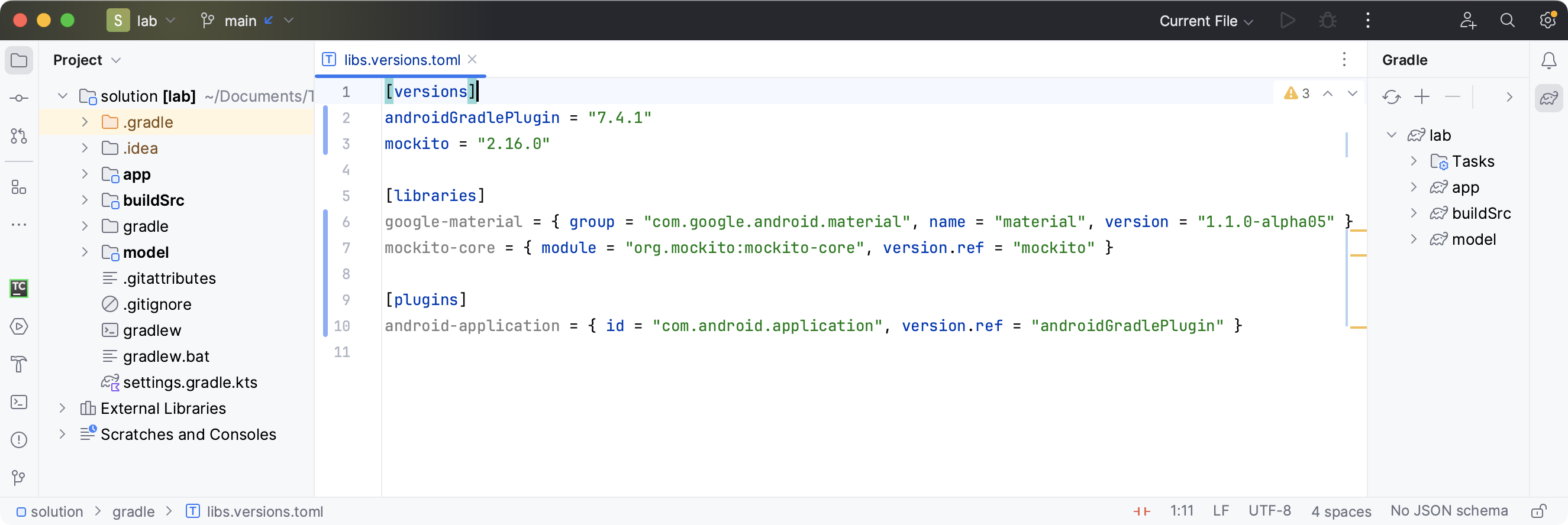
Gradle automatically recognizes a file named gradle/libs.versions.toml at the root of the build. Android Studio may already have created it for your project; if so, edit that file rather than making a second catalog.
Watch Philipp Lackner’s Modern Dependency Management With Version Catalogs for the IDE workflow. The recording uses the Android Studio defaults and dependency versions available at the time; focus on the file structure and migration actions rather than its particular numbers.
Modern Dependency Management With Version Catalogs - Android Studio Tutorial 💻
Philipp Lackner demonstrates creating a catalog, converting an existing library declaration, and moving plugin versions into it.
Watch catalog setup for the file location, TOML sections, and conversion of a library declaration. Then watch plugin migration for the difference between a library accessor and a plugin alias. You can skip the longer middle migration: our example below makes the resulting files explicit.
A catalog entry does not install a dependency by itself. It defines something a module can request. The module still chooses where it belongs—for example, implementation(...) for production code or testImplementation(...) for a test dependency.
Define shared versions and library aliases
Read the Android Developers’ Migrate your build to version catalogs guide for the standard location and the order of a safe migration. Notice that it permits catalog references and direct declarations to coexist while you convert them.
Migrate your build to version catalogs | Android Studio | Android Developers
Read the Android Developers’ migration guide to see how a catalog is introduced without requiring a one-step rewrite of the build.
In “Create a version catalog file,” read the file-location guidance and the three section names immediately below it. In “Migration steps,” read the migration advice. Continue through “Migrate dependencies,” beginning at the dependency procedure, and inspect its TOML example. Finally, locate “Migrate plugins” and read from the plugin procedure through the plugin TOML example that follows.
Here is a compact catalog for an illustrative Android build. Keep the known-compatible versions from your own project when migrating; the numbers below are examples, not an upgrade recommendation.
# gradle/libs.versions.toml

[versions]
agp = "8.6.1"
kotlin = "1.9.25"
lifecycle = "2.8.6"

[libraries]
androidx-lifecycle-runtime-ktx = { module = "androidx.lifecycle:lifecycle-runtime-ktx", version.ref = "lifecycle" }
androidx-lifecycle-viewmodel-ktx = { module = "androidx.lifecycle:lifecycle-viewmodel-ktx", version.ref = "lifecycle" }

[bundles]
lifecycle = ["androidx-lifecycle-runtime-ktx", "androidx-lifecycle-viewmodel-ktx"]

[plugins]
android-application = { id = "com.android.application", version.ref = "agp" }
kotlin-android = { id = "org.jetbrains.kotlin.android", version.ref = "kotlin" }
The roles of the four sections are distinct:
[versions]names numbers you want to reference. Both Lifecycle libraries useversion.ref = "lifecycle", so changing that entry changes the version requested for both.[libraries]gives dependency coordinates aliases.moduleholds the group and artifact name;version.refidentifies the version entry.[bundles]names a set of library aliases often requested together. It saves declarations, but does not choose compatible versions for those libraries.[plugins]names Gradle plugins by plugin ID and version reference. Applying an Android plugin is different from adding an Android library todependencies.
The dashed library alias androidx-lifecycle-runtime-ktx becomes the Kotlin accessor libs.androidx.lifecycle.runtime.ktx. The plugin alias android-application becomes libs.plugins.android.application. These accessors give you completion and typo checking in build scripts, but a readable naming scheme still matters: someone reviewing a build should be able to tell which artifact an alias means.
Gradle’s Version Catalogs reference covers the TOML syntax, bundles, plugin entries, and an important limit on what “centralized version” means.
Read Gradle’s version catalog reference to connect the TOML declarations with their generated build-script accessors and to distinguish a requested version from an enforced one.
In the introduction above “Using a catalog,” read from the overview, paying particular attention to the conflict-resolution warning. In “Creating a catalog,” start at the conventional location. Under “The TOML format,” read the “Versions,” “Libraries,” “Bundles,” and “Plugins” subsections from the declaration examples; then inspect the Kotlin plugins example immediately below. In “Importing a catalog from a file,” read the opening callout containing the automatic-import reminder; custom imports later in that section are not needed here.
Centralized does not mean enforced. A catalog records what your build requests. Another dependency, a platform, or a constraint can affect the version Gradle ultimately selects. Likewise, using one Lifecycle version reference is a deliberate choice for those two artifacts; it does not mean every AndroidX library should share one version number.
Consume the catalog in build scripts
In a typical root build.gradle.kts, plugin aliases can be declared with apply false: the root makes their versions available without applying those Android plugins to itself.
// Root build.gradle.kts — relevant lines only
plugins {
    alias(libs.plugins.android.application) apply false
    alias(libs.plugins.kotlin.android) apply false
}
The app module applies the plugins and chooses its dependencies:
// app/build.gradle.kts — relevant lines only
plugins {
    alias(libs.plugins.android.application)
    alias(libs.plugins.kotlin.android)
}

dependencies {
    implementation(libs.androidx.lifecycle.runtime.ktx)
    implementation(libs.androidx.lifecycle.viewmodel.ktx)
}
If the app always needs both libraries, it can replace those two implementation lines with:
implementation(libs.bundles.lifecycle)
A second module can use libs.androidx.lifecycle.viewmodel.ktx without spelling out its version again. The catalog is available across modules in this build; it does not force every module to include every entry.
This is also where a catalog bundle must not be confused with a bill of materials (BOM). A bundle expands to the library aliases you listed. A BOM is a dependency used as a Gradle platform to provide version guidance for a family of artifacts. In a Compose build, for example, the Compose BOM can have a versioned catalog entry while a Compose UI entry has no version of its own:
[versions]
composeBom = "2024.09.00"

[libraries]
androidx-compose-bom = { module = "androidx.compose:compose-bom", version.ref = "composeBom" }
androidx-compose-ui = { module = "androidx.compose.ui:ui" }
dependencies {
    implementation(platform(libs.androidx.compose.bom))
    implementation(libs.androidx.compose.ui)
}
The platform(...) call is significant: merely listing those two aliases in a catalog bundle would not make the BOM govern the UI artifact. When adapting an existing Compose project, preserve its working BOM and compiler-plugin configuration rather than treating this small example as a complete Compose setup.
Migrate and verify one change at a time
For an existing project, first record the dependency and plugin versions it currently uses. Add their entries to gradle/libs.versions.toml, sync Gradle so the accessors are generated, and replace one declaration at a time. For example, replace:
implementation("androidx.lifecycle:lifecycle-runtime-ktx:2.8.6")
with:
implementation(libs.androidx.lifecycle.runtime.ktx)
Do the same for plugin declarations, using alias(libs.plugins...) in plugins {} rather than implementation(...). Remove an old explicit plugin version when its catalog alias takes over; retaining competing declarations makes it harder to tell which configuration is authoritative. Keep your existing android { ... } configuration and dependency configurations intact—moving coordinates into a catalog is not a reason to change application behavior.
After each small set of edits, sync and run the build or tests appropriate to that project. For an app with a debug variant, these commands provide two different checks:
./gradlew :app:assembleDebug
./gradlew :app:dependencyInsight --dependency androidx.lifecycle:lifecycle-runtime-ktx --configuration debugRuntimeClasspath
The first checks that the build still assembles. The second helps answer a subtler question: which Lifecycle runtime version was actually selected, and why? On Windows, use gradlew.bat in place of ./gradlew. If an accessor is unresolved, check the TOML alias spelling and version.ref, then sync; if resolution selects an unexpected version, inspect the dependency graph rather than assuming the catalog enforces its request.
Key takeaways
Put shared dependency and plugin versions in the root build’s gradle/libs.versions.toml, give their coordinates meaningful aliases, and consume those aliases from each module’s build script. Use a bundle to shorten a group of declarations, not to manage version compatibility; use platform(...) when consuming a BOM. Migrate incrementally and verify both a successful build and, when necessary, the resolved version.
Next, you’ll use the build configuration foundation to create product flavors and build types, where different variants of the same app need intentionally different settings.