Recommended resources
The freely available resources this lesson will direct you to.
Hello and welcome to your first lesson in Advanced Statistics for Analytics. We're starting our journey by establishing a solid foundation for all the practical work to come. In line with your preference for cloud-based tools that bypass complex local setup, this lesson is dedicated to achieving our first learning outcome: setting up a cloud-based Python environment for data analysis.
We will be using Google Colaboratory, or "Colab," as our primary tool throughout this course. By the end of this lesson, you will understand what Colab is, how it works, and you will have created and configured your own notebook, ready for the data analysis tasks in our upcoming lessons. This is our digital workbench, and mastering its setup is the first crucial step toward building and interpreting the machine learning models that are central to your goals.
What is Google Colab? A High-Level View
At its core, Google Colab is a free, interactive Python environment that runs entirely in your web browser. Think of it as a word processor for code, but one that's connected to a powerful computer on the internet. This setup means you don't need to install Python or any data science libraries on your own machine; Google provides the resources for you.
To understand the architecture, consider the following diagram:
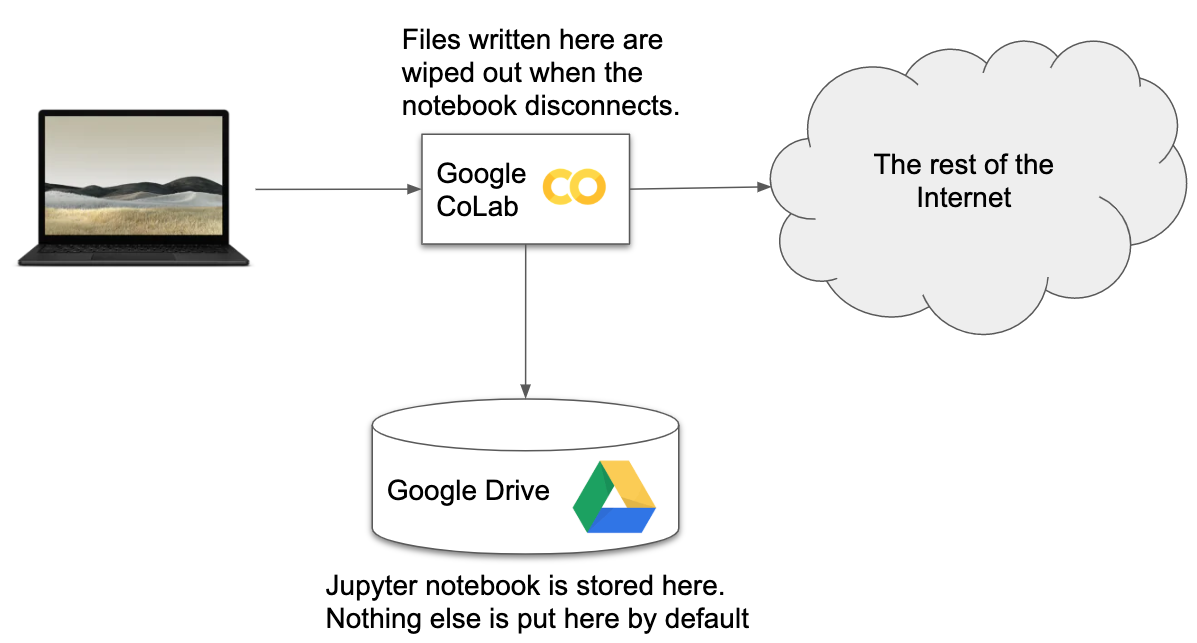
This distinction between your saved notebook (.ipynb file) and the temporary runtime environment is crucial. We'll soon see how to manage this effectively.
To get a quick video overview of what Colab is and how it relates to the popular Jupyter Notebook format, please watch the first few minutes of the following tutorial.
Complete Beginner's Tutorial to Google Colab
This video from the Greg Hogg channel provides a concise introduction to the Colab environment.
Watch the segment from the beginning to the overview, which explains what a notebook is, how it runs on Google's servers, and why it's so beneficial for learning machine learning without needing a powerful computer.
Getting Started: Your First Colab Notebook
Now it's time to create your own notebook. We'll use a comprehensive guide from DataCamp to walk through the initial steps and explore the key features of the environment.
Google Colab Tutorial for Data Scientists
This article provides an excellent, structured introduction to Google Colab, covering its purpose, basic operations, and major advantages.
Please read the following sections: Start with the introduction to reinforce your understanding of what Colab is. Follow the steps in the section Creating your first notebook to open Colab and create a new notebook. Go ahead and do this now in a separate browser tab. You'll need a Google account. Feel free to name your new notebook "Module 1 - Python Essentials". Finally, read through the section on Why you should use Colab to learn about its main benefits, particularly the pre-installed libraries which we will be using extensively.
As you've just read and experienced, a Colab notebook is made of cells. The two fundamental types are Code cells, where you'll write and execute Python code, and Text cells, where you can write notes and structure your analysis using a simple formatting language called Markdown.
To see this in action, watch this short clip.
Practical Introduction to Google Colab for Data Science
This video by Data Professor clearly demonstrates the difference between code and text cells and shows the process of running your first cell.
Watch the portion covering cells and resources. Notice how the first time you run a code cell, Colab connects to a backend machine and allocates resources like RAM and disk space.
Managing Data and Persistent Storage
As we established with the architectural diagram, the runtime environment is temporary. If you upload a data file directly to the Colab interface, it will be deleted when your session ends (typically after a period of inactivity or after 12 hours). This would be inconvenient for any serious work.
The standard solution is to mount your Google Drive. This creates a persistent connection between your Colab notebook and your Google Drive storage, allowing you to read and write files that will be there the next time you open your notebook.

To understand this process and other ways of working with data, please return to the DataCamp article.
Google Colab Tutorial for Data Scientists
This section of the tutorial covers the essential topic of loading data into your Colab environment.
Read the section Working with data. Pay special attention to the part about mounting Google Drive, as this is the method we will use most often in this course.
Action: Go to your Colab notebook now. Create a new code cell, type the following code, and run it by pressing Shift+Enter or clicking the play icon. Follow the authentication prompts to mount your Google Drive.
from google.colab import drive
drive.mount('/content/drive')
After running this, you should see a new drive folder appear in the file browser pane on the left-hand side. This is your portal to persistent storage.
Managing Python Libraries
One of the greatest conveniences of Colab is that most of the libraries needed for data science—such as pandas, NumPy, and scikit-learn—are already installed. You can simply import them and start working.
However, you will occasionally need a library that isn't included by default. In these cases, you can easily install it using the pip command, which is Python's standard package manager.
This next video provides an excellent practical demonstration of how to check for, install, and manage libraries in Colab. It also covers a critical "gotcha" regarding runtime restarts.
Complete Beginner's Tutorial to Google Colab
This clip from Greg Hogg's tutorial is a must-watch for understanding how to manage the software environment in your notebook.
Please watch the segment on installing packages. The key takeaways are: You can list all installed packages with !pip list. You can install a new package with !pip install package-name. Sometimes, after an installation, Colab will prompt you to restart the runtime. This is essential for the new library to be recognized correctly.
Limitations and Advanced Features
Finally, it's important to be aware of both the advanced capabilities and the limitations of the free version of Google Colab.
-
Hardware Accelerators (GPUs/TPUs): For training large machine learning models, you can switch the runtime from a standard CPU to a more powerful Graphics Processing Unit (GPU) or Tensor Processing Unit (TPU). While we won't need this for our initial lessons, it's a key feature that makes Colab a powerful tool for advanced ML. You can find this setting under
Runtime > Change runtime type. -
Limitations: The free service has limits. Runtimes are capped at around 12 hours, and access to GPUs can vary. Storage in the temporary environment is also limited. The article you read earlier contains a good summary of these points.
Google Colab Tutorial for Data Scientists
This final section provides a realistic overview of Colab's constraints.
Please quickly read the section on limitations to set your expectations correctly for using the tool.
Conclusion
Congratulations on completing your first lesson! You have successfully set up your cloud-based Python environment, which will serve as our platform for the rest of the course.
Here are the key takeaways:
- Google Colab is a free, browser-based Python environment that requires no local installation.
- Your notebook files (
.ipynb) are saved persistently in Google Drive, but the runtime environment (where code executes and temporary files live) is ephemeral. - You should mount your Google Drive in each session to access and save data files persistently.
- Most essential data science libraries are pre-installed, and you can add new ones using the
!pip installcommand.
You are now fully prepared for our next step. In the following lesson, we will put this environment to immediate use as you learn to load, inspect, and summarize datasets using the pandas library.