Recommended resources
The freely available resources this lesson will direct you to.
Hello! In our last session, you conducted a benchmark that clearly demonstrated the performance advantage of continuous batching with vLLM over the static batching used in a standard Transformers pipeline. You now have empirical evidence for why modern serving frameworks are essential for efficient LLM inference.
Today, we will take the next logical step. Instead of just using vLLM as a library within a script, you will learn how to deploy it as a persistent, standalone API server. This is a foundational skill for an LLM Ops engineer, as it's the primary pattern for making models available to other applications. We'll start with a local deployment using Docker and then see how these concepts translate directly into a production-style Kubernetes environment, leveraging your deep experience with container orchestration.
1. vLLM: From Library to Serving Engine
So far, you've used vLLM to process a batch of prompts in a Python script. However, its primary use case is to run as a long-lived service that listens for HTTP requests, a role we call a serving framework or inference server.
These frameworks are specialized applications built to do one thing exceptionally well: serve LLMs at scale. They handle incoming traffic, manage complex batching strategies like continuous batching, optimize GPU memory and compute, and expose a standardized API for client applications.
vLLM on Kubernetes in Production
The video "vLLM on Kubernetes in Production" from Kubesimplify offers a great introduction to vLLM's role as a serving engine.
Watch this first segment, what is vLLM?, where the speaker explains its core function as an inference engine, its key optimization feature (PagedAttention), and its support for an OpenAI-compatible API, which is crucial for easy integration.
As you just heard, vLLM's ability to provide a high-performance, OpenAI-compatible API makes it a powerful choice for building robust AI services. Now, let's get it running.
2. Hands-On: Deploying vLLM with Docker
Your background in containerization and cloud infrastructure will make this process very familiar. We will use the official vLLM Docker image to launch a local inference server. This encapsulates all the necessary dependencies, like CUDA and PyTorch, into a single, portable unit.
Getting Started with vLLM Docker: GPU-Powered Inference ...
This guide from Remio AI provides a concise walkthrough for getting started with the official vllm/vllm-openai Docker image.
Please read the section "Quickstart Using the official vllm/vllm-openai Docker image." Focus on the docker pull and docker run commands, and the curl example for testing the endpoint. This will give you a clear overview of the steps we are about to take.
Your Turn: Launch the Inference Server
Now, let's launch your own vLLM server. Make sure you have Docker, NVIDIA drivers, and the NVIDIA Container Toolkit installed on your system.
-
Open your terminal and run the following Docker command. This will download the
vllm/vllm-openaiimage and start a container.docker run --rm --gpus all -p 8000:8000 \ vllm/vllm-openai \ --model mistralai/Mistral-7B-Instruct-v0.2 \ --gpu-memory-utilization 0.90The first time you run this, Docker will download the image, and then vLLM will download the
Mistral-7B-Instruct-v0.2model weights. This may take several minutes depending on your internet connection.Let's break down that command:
--rm: Automatically removes the container when it exits.--gpus all: Grants the container access to all available GPUs on your host machine.-p 8000:8000: Maps port 8000 on your host to port 8000 inside the container, exposing the API.vllm/vllm-openai: The name of the Docker image.--model ...: This is an argument passed to the vLLM server inside the container, telling it which model to load from Hugging Face.--gpu-memory-utilization 0.90: This practical flag tells vLLM to use up to 90% of the GPU's memory, leaving a small buffer for other processes.
-
Interact with the API
Once you see log messages indicating the server is running and the model is loaded, open a new terminal window. You can now send requests to your local LLM server.Use this
curlcommand to send a chat completion request, just as you would to the OpenAI API:curl http://localhost:8000/v1/chat/completions -H "Content-Type: application/json" -d '{ "model": "mistralai/Mistral-7B-Instruct-v0.2", "messages": [ {"role": "user", "content": "As an LLM Ops Engineer, what are the three most important metrics to monitor for an inference service?"} ] }'You should receive a JSON response containing the model's answer. Congratulations, you've successfully deployed and queried a high-performance LLM!
You can also interact with it using Python, which is how most applications would integrate with it.
import requests
import json

response = requests.post(
    "http://localhost:8000/v1/chat/completions",
    json={
        "model": "mistralai/Mistral-7B-Instruct-v0.2",
        "messages": [
            {"role": "user", "content": "What is the difference between a Kubernetes DaemonSet and a Deployment?"}
        ],
        "max_tokens": 250,
        "temperature": 0.7
    }
)

print(json.dumps(response.json(), indent=2))
3. From Local Docker to Production Kubernetes
Running a single Docker container is perfect for development, but for a production system, you need orchestration for reliability and scalability. Given your expertise, you know this is where Kubernetes shines.
The docker run command you just executed contains all the core elements you would define in a Kubernetes manifest.
- The image
vllm/vllm-openaibecomes theimagein your Pod's container spec. - The command-line arguments like
--modelbecome theargsfor the container. - The
--gpusflag is handled by the Kubernetes device plugin for NVIDIA GPUs. - The port mapping
-p 8000:8000is managed by a KubernetesService.
This diagram shows a typical architecture for deploying a GPU-accelerated service like vLLM on Kubernetes.
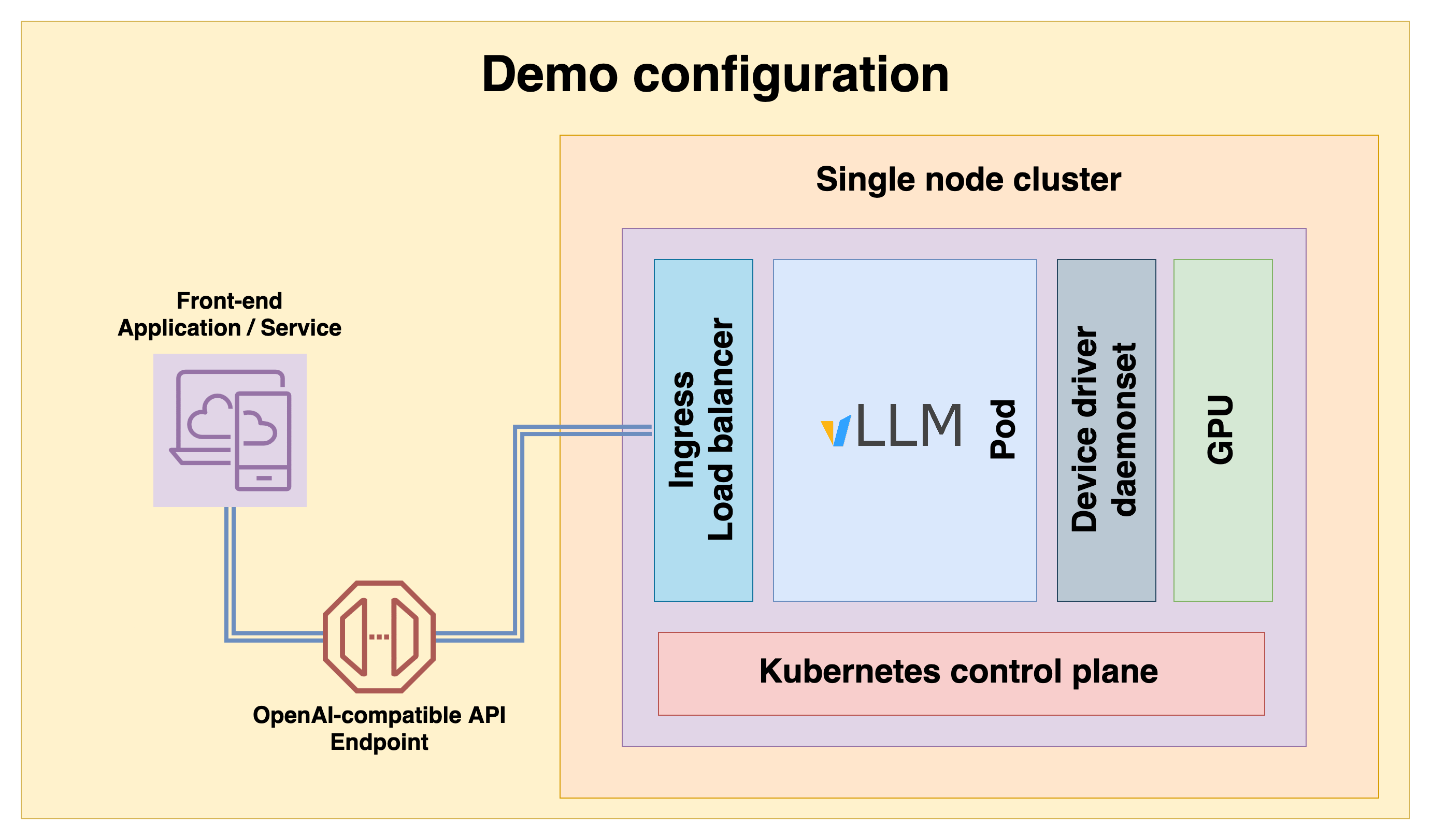
The video we looked at earlier provides an excellent walkthrough of this exact setup in practice. Watching it will connect what you just did locally to a full-fledged, production-ready deployment pattern.
vLLM on Kubernetes in Production
Let's return to the "vLLM on Kubernetes in Production" video to see how to scale our local deployment.
Please watch the following sequence of clips. They demonstrate how to translate our docker run command into a robust Kubernetes deployment. First, see how to set up Kubernetes to recognize GPUs using the NVIDIA device plugin. This is the magic that allows Pods to request GPU resources. Next, examine the vLLM DaemonSet configuration. Pay close attention to the YAML spec, where you'll see familiar arguments like the model name and memory utilization being passed to the container. Then, see how a Kubernetes Service is created to expose the vLLM pods as a single, stable endpoint within the cluster. Finally, watch the demonstration of testing the service from another pod using curl with the internal DNS name, closing the loop on the entire deployment.
This video provides a practical blueprint for the kind of infrastructure you would build as an LLM Ops Engineer.
Conclusion
In this lesson, you've made the critical transition from using vLLM as a script-based tool to deploying it as a robust, network-accessible service. This is the cornerstone of building any application powered by self-hosted LLMs.
Here are the key takeaways:
- vLLM as a Service: High-performance frameworks like vLLM are designed to run as standalone servers, handling the complexities of GPU management and request batching.
- Containerized Deployment: Using official Docker images is the standard, reproducible way to deploy vLLM, bundling all dependencies for portability.
- OpenAI-Compatible API: vLLM exposes an API that mirrors OpenAI's, which drastically simplifies integration with existing tools and client libraries.
- Path to Production: The simple
docker runcommand for local deployment contains the core configuration that scales up directly into Kubernetes manifests for production, using standard concepts like Pods, Services, and device plugins.
In our next lesson, we will explore another popular high-performance serving framework: Text Generation Inference (TGI) by Hugging Face. By deploying an LLM with TGI, you will be able to compare its features and configuration with vLLM, giving you a broader understanding of the enterprise-focused tools available.