Recommended resources
The freely available resources this lesson will direct you to.
Hello! In the last lesson, you decoded floating-point bit patterns and saw that byte order must be settled before interpreting a multi-byte value. This lesson brings the module together: you’ll inspect a file’s actual bytes with a hex-dump tool, then decide which bytes are text, which could be integers, and what the dump cannot tell you on its own.
You can do the lab on your Mac or in an ARM64 Linux virtual machine. Allow about 35–40 minutes, including time to run and inspect the commands.
What a hex dump shows
A hex dump does not change a file. It presents its bytes in a form you can inspect: a file offset on the left, hexadecimal byte values in the middle, and a rough text view on the right. The offset is a position measured from the beginning of the file, not a memory address. Offset 00000040, for example, is hexadecimal for 64: the first byte shown is the file’s 65th byte.
Watch these portions of showing actual file bytes with hexdump by anthonywritescode. Notice the difference between bytes in a file and what a terminal chooses to display when given those bytes.
showing actual file bytes with hexdump (beginner - intermediate) anthony explains #224
The video introduces hexdump as a way to inspect file and stream bytes, then demonstrates its hex-and-text display.
Watch the byte-level view for why ordinary terminal output can be misleading. Then watch the canonical display; focus on how a non-printable control byte appears in hex even when the text column shows only a dot.
The supplied image shows a related tool, xxd. Unlike hexdump -C, its default display visually groups pairs of bytes into four-digit chunks. Those chunks are not automatically two-byte integers.
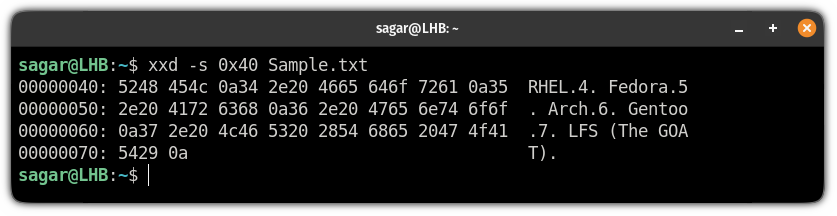
In the first line, 5248 means the two successive bytes 52 48, which spell RH in ASCII. A little later, 0a is a newline byte, represented by a dot in this display. But a dot in the text column can also be a literal period: the byte 2e is ASCII .. When that distinction matters, trust the hex bytes, not the text column.
Inspect a file whose layout you know
Create a small file with deliberately mixed contents. Run this in a terminal; python3 writes exactly the bytes specified, without adding a newline at the end:
python3 - <<'PY'
from pathlib import Path

data = (
    b"DEMO"
    + (0x12345678).to_bytes(4, "little")
    + (-2).to_bytes(2, "little", signed=True)
    + "OK\né".encode("utf-8")
    + b"\x00"
)
Path("sample.bin").write_bytes(data)
PY

hexdump -C sample.bin
You should see a 16-byte row like this, followed by a final offset of 00000010:
00000000  44 45 4d 4f 78 56 34 12  fe ff 4f 4b 0a c3 a9 00  |DEMOxV4...OK....|
00000010
Each two-digit hex value in the middle is one byte. The first byte, 44, is at offset 00; 45 is at offset 01. The byte 78 is at offset 04, not offset 08: printed hex digits are not separate file bytes. The final 00000010 marks the position just after the data. Since hexadecimal 10 is decimal 16, it also confirms the file’s length.
Here is the interpretation specified by the code that made this file:
| Offsets (hex) | Bytes | Interpretation |
|---|---|---|
00–03 |
44 45 4d 4f |
ASCII DEMO |
04–07 |
78 56 34 12 |
Little-endian, 32-bit unsigned integer 0x12345678 |
08–09 |
fe ff |
Little-endian, 16-bit signed integer |
0a–0c |
4f 4b 0a |
ASCII OK followed by newline |
0d–0e |
c3 a9 |
UTF-8 encoding of é |
0f |
00 |
A zero byte |
The four integer bytes appear as 78 56 34 12 because we chose little-endian order when writing them. Their value is 0x12345678, or in decimal. Likewise, interpreting fe ff as a little-endian unsigned 16-bit value would give 0xfffe, or ; interpreting the same two bytes as signed two’s complement gives .
The text column cannot explain those choices. It happens to render the integer’s 78 56 34 bytes as xV4, but we did not put the text xV4 into the file as a text field. It renders the UTF-8 bytes c3 a9 as dots even though together they encode é. A dump supplies bytes and positions; a file format, program, or other context supplies their meaning.
Select a region and avoid a byte-order trap
Read the Linux hexdump(1) manual’s descriptions of canonical output and the controls for limiting a dump. These short entries give you a precise reference for the commands used here; the same short-form options used in this lab work on macOS as well.
hexdump(1) - Linux manual page
Read the Linux manual page to identify what -C displays and how -n and -s select part of a file. Its FORMATS section also explains why the one-byte display is a safer starting point than some multi-byte displays.
In the OPTIONS section, find -C, --canonical. Begin at “Canonical hex+ASCII display” and read through the note about hd; the text column describes its right-hand side. In the same section, find -n, --length and -s, --skip; read both entries in the length-and-skip passage. In FORMATS, read the final paragraph, beginning “Note that the default format,” through its last sentence about byte-order-independent output; pay particular attention to the byte-order warning.
Now display just eight bytes beginning at file offset 4:
hexdump -C -s 4 -n 8 sample.bin
The displayed data begins with 78 56 34 12 and continues through fe ff 4f 4b. Its starting offset is 00000004; the ending offset is 0000000c. Here -s 4 skips four file bytes, and -n 8 reads eight. These values are decimal command arguments, though the dump prints offsets in hexadecimal.
Stay with -C when establishing the actual byte sequence. Some hexdump formats combine adjacent bytes into multi-byte units and print those units using the machine’s native byte order. That can make the output look rearranged. A display format does not rearrange the bytes in the file.
Look at a file you did not create
A file’s first bytes sometimes provide a clue to its format. Try a bounded inspection of an existing executable:
hexdump -C -n 16 /bin/ls
On an ARM64 Linux system, an ELF executable commonly begins 7f 45 4c 46; the text column shows .ELF, with the initial dot standing for byte 7f. On macOS, /bin/ls is a different executable format, so expect different starting bytes. The exercise is to read what is there, not to force it to match one platform’s example.
A recognizable header is evidence about a file’s intended format, not proof that every later byte is valid. Conversely, readable characters inside a binary file do not make the whole file a text file. This is why a small, offset-aware dump is useful when debugging an unexpected file: you can check its header, an apparent newline or zero byte, or a particular integer field without asking a text viewer to interpret the entire file.
Key takeaways
Use a hex dump to establish byte values and file offsets first. Then interpret selected bytes using an explicit width, byte order, signedness, or text encoding. Treat the printable-character column as a convenience, not an authority: a dot may hide a control byte or a UTF-8 byte, and readable characters may occur inside an integer.
This completes the module on data representation. Next, you’ll move from how bits represent data to how digital logic operates on bits, starting with Boolean expressions and truth tables.