Recommended resources
The freely available resources this lesson will direct you to.
Welcome back. In our last lesson, we successfully established a clean architecture for our project by creating a dedicated mobile workspace within your Turborepo and configuring a pipeline to build and sync your web application.
Today, we shift our focus from the monorepo structure to the web application itself. A React SPA running in a browser environment behaves differently from one loaded inside a native WebView via the file:// protocol. This lesson will guide you through configuring your SPA's Vite build and routing to ensure it functions correctly within the Capacitor environment. We'll address the two most common pitfalls: broken asset paths and non-functional client-side routes.
1. From Web Server to File System: A New Context
When you run your SPA with bun run dev, Vite provides a development server that handles requests. When deployed, it's typically hosted on a static or Node.js server. In both cases, a server is responding to HTTP requests.
Capacitor changes this paradigm. It packages your static web assets (HTML, CSS, JavaScript) into the native app bundle. When the app launches, the native WebView loads your index.html directly from the device's file system, using a URL that starts with file://. This distinction is critical because there is no web server to intelligently handle requests or rewrite URLs. All asset paths and routing logic must work within this file-based context.
The guide below provides a high-level overview of integrating various frameworks with Capacitor. Pay close attention to its initial points about static files, as they form the basis for our work today.
framework-to-capacitor | Skills Mark... · LobeHub
This resource from LobeHub provides a useful compatibility matrix and clarifies the fundamental requirement for static assets.
Focus on the Framework Support Matrix. The key takeaway is the line stating "Capacitor requires static HTML/CSS/JS files. SSR (Server-Side Rendering) does not work in native apps." This reinforces that our goal is to produce a fully self-contained static build.
2. Configuring Vite for Relative Asset Paths
By default, Vite's build process often generates absolute paths for your assets in the final index.html. For example: <script type="module" src="/assets/index-12345.js"></script>. The leading / tells the browser to look for the file at the root of the domain.
When loaded via file://, this absolute path points to the root of the device's file system, which is incorrect and will fail to load your app's JavaScript and CSS. We need to instruct Vite to use relative paths instead, like ./assets/index-12345.js, which correctly points to the assets folder relative to the index.html file.
This is achieved with a simple one-line change in your web app's Vite configuration.
- Open the Vite configuration file for your web app, located at
apps/web/vite.config.ts. - Add the
base: './'property to thedefineConfigobject.
Your configuration should look similar to this:
// apps/web/vite.config.ts
import { defineConfig } from 'vite'
import react from '@vitejs/plugin-react'

export default defineConfig({
  plugins: [react()],
  // Add this line
  base: './',
  build: {
    // Your existing build configuration
    outDir: 'dist',
  },
})
This change is fundamental for a successful Capacitor build. The following resource highlights this exact configuration.
Transform Your Bolt.new Project into Native Mobile Apps with Capacitor
This Capgo blog post demonstrates manual configuration for a Vite project, confirming the importance of the base property.
In the section on "Manual Configuration by Framework," review the code example for React + Vite. Notice the base: './' property. Then, skim the "Troubleshooting Common Issues" section, where the first tip for Vite projects is to ensure base: './' is set.
3. Adapting React Router for a Serverless Environment
The second major challenge is client-side routing. You are likely using BrowserRouter from react-router-dom, which leverages the browser's History API to create clean URLs like /profile or /settings. This works beautifully in a web server environment because you can configure the server to serve your index.html for any non-asset route, letting React Router take over.
In Capacitor's file:// context, trying to directly load or refresh a page at the path /profile will cause the WebView to look for a file at file:///profile, which doesn't exist. This results in a blank screen.
The solution is to use HashRouter. This router stores the current location in the hash portion of the URL (e.g., file:///index.html#/profile). Since the hash fragment is never sent to the server (or in our case, interpreted by the file system), it allows react-router-dom to handle routing entirely on the client side without causing "file not found" errors.
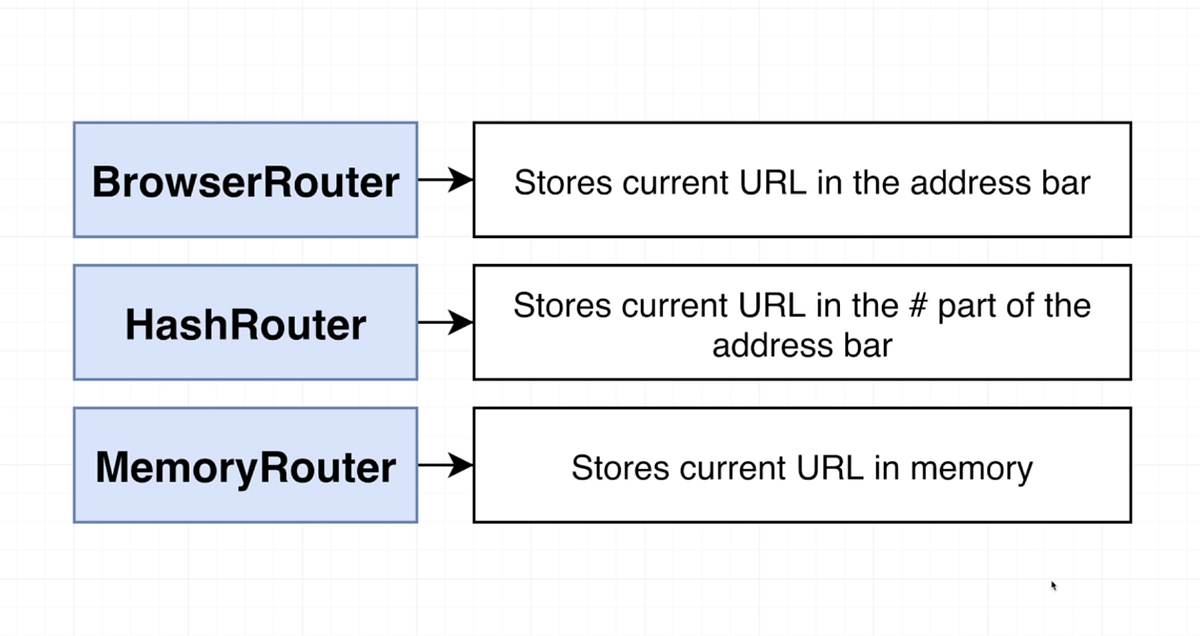
To implement this, you'll need to make a small change where you define your app's routes.
- Locate the component where you've set up your routing (likely
App.tsxor a similar top-level component). - Change the import from
BrowserRoutertoHashRouterand use it to wrap your routes.
// Before
import { BrowserRouter, Routes, Route } from 'react-router-dom';

function App() {
  return (
    <BrowserRouter>
      <Routes>
        {/* Your routes here */}
      </Routes>
    </BrowserRouter>
  );
}

// After
import { HashRouter, Routes, Route } from 'react-router-dom';

function App() {
  return (
    <HashRouter>
      <Routes>
        {/* Your routes here */}
      </Routes>
    </HashRouter>
  );
}
This is the standard and recommended practice for Capacitor applications, as confirmed by the following guide.
framework-to-capacitor | Skills Mark... · LobeHub
This guide explicitly addresses routing and why HashRouter is the preferred choice for mobile.
First, read the section on React Router Configuration, which shows the exact code change we just discussed. Then, look at the "Common Issues and Solutions" section. The item Routing Doesn't Work identifies using history mode as the cause and switching to hash routing as the solution.
4. Verifying Your Changes
With both configurations in place, it's time to run a build and see the results. Using the script we created in the last lesson, execute the following command from your monorepo root:
bun run mobile:sync
This command will:
- Trigger the
buildscript in yourapps/webworkspace, using the updated Vite configuration. - Once the build is complete, it will run
capacitor syncto copy the new static assets fromapps/web/distinto your nativeiosandandroidprojects.
After the command finishes, you can verify the changes yourself. Open the file apps/web/dist/index.html. You should now see that all <script> and <link> tags use relative paths (e.g., href="./assets/..."), confirming that your base: './' change was successful.
Conclusion
You have now properly configured your React SPA to run seamlessly within a Capacitor WebView. By addressing the specific constraints of the file:// protocol, you've prevented the most common sources of error when moving a web app to a native shell.
The key takeaways from this lesson are:
- Capacitor loads your web app from the local file system, not a web server, requiring a build of static HTML, CSS, and JS files.
- Configuring
base: './'invite.config.tsis mandatory to ensure asset paths are relative and resolve correctly. HashRouteris the recommended routing strategy for SPAs in Capacitor, as it avoids file system errors by managing routes in the URL hash.
Your web assets are now correctly prepared. In our next lesson, we will dive into the native projects themselves. We will explore the structure of the ios and android folders generated by Capacitor, identifying the key files and understanding their roles in hosting your web app.