Recommended resources
The freely available resources this lesson will direct you to.
Hi! We’ll start by making your tracks dependable before mixing them. In this module, you’ll prepare music in Rekordbox so that timing tools and track markers reflect what you actually hear. Today’s job is an audit, not a repair: you’ll learn to spot an implausible BPM, a downbeat on the wrong beat, and a grid that fails to follow the music. The next lesson will cover correcting those problems.
Allow about 40 minutes, including time to inspect a couple of your own house or techno tracks.
What Rekordbox is claiming about a track
When Rekordbox analyzes a track, it estimates its tempo in beats per minute (BPM) and places a beat grid over the waveform. Think of the grid as two related claims: “beats occur at these times” and “this beat is beat one of a bar.” In much house and techno, you can count a bar as one, two, three, four. A grid can get the first claim right while getting the second wrong.
Watch how those claims appear on screen, then see an example in which Rekordbox chooses the wrong starting beat.
How To Beatgrid Tracks In Rekordbox - Free DJ Tutorial
Watch “How To Beatgrid Tracks In Rekordbox” from Digital DJ Tips for its explanation of beat markers, red bar markers, and an incorrectly placed first beat.
Watch grid basics, paying attention to the four-beat count and what the red marker denotes. Continue with the missed beat: notice that an automatically placed marker is a proposal to check against the audio, not proof that the first sound is beat one.
The enlarged waveform shows individual beat lines; red markers identify the first beat of a bar every four beats. A tall waveform peak may be a kick, clap, vocal, or effect. It tells you that something happened, not automatically which beat of the bar it was.
Rekordbox’s manual is useful here because it states precisely what its analysis and display provide. Read the short passages below; you do not need to learn the editing controls yet.
Read the Rekordbox instruction manual to distinguish analyzed information from the musical evidence you will use to check it.
In “Collection — Analysis of music files” (p. 14), read how analysis runs, from the description of Normal and Dynamic modes through the appearance of waveform information. Then find “EXPORT mode — Checking the beat (beat grid)” (p. 74) and read the display description. Focus on the measured BPM, individual beat lines, and first-beat-of-bar marks. The following “Adjust the beat grid” subsection (pp. 74–75) identifies the GRID panel; leave its adjustment steps for the next lesson.
Three ways an analysis can be wrong
1. The BPM is wrong. Sometimes the displayed number is approximately half or double the beat rate you intend to use: a track counted at 64 BPM may be heard and gridded more usefully at 128 BPM. Another error is a value that bears little relation to the repeating pulse. Neither a genre label nor a store’s BPM listing settles the question by itself; listen to a steady rhythmic section and count what the markers are following.
A rough independent check is to count beat intervals while timing a section:
For example, 16 intervals taking 7.5 seconds suggest about 128 BPM. For an audit, you usually need only enough precision to distinguish “roughly 128” from “roughly 64” or “nowhere close.” Count intervals rather than confusing the number of sounds you heard with the gaps between them.
2. The beat lines have the wrong position. If the lines consistently fall just before or after the steady kicks, the grid is offset. You may hear a double attack, often called a flam, when a metronome click lands close to—but not with—the beat. Be careful during an intro: a syncopated percussion hit can appear between beats, and a kick need not play on every beat. Compare several repetitions of the underlying pulse.
3. The bar markers have the wrong identity. A click can land accurately on every beat while the red “one” lands where you hear two, three, or four. That is a misplaced downbeat, not necessarily a BPM error. Count aloud through several bars and listen for recurring musical evidence: where a drum pattern resets, a bass pattern begins, or a new section enters. The first audible sound may be a pickup or effect rather than beat one.
There is one more distinction worth watching for: drift. A grid that fits near the start but increasingly misses beats later suggests its spacing does not match the track’s tempo. A grid that misses by roughly the same amount throughout suggests an offset instead. Some recordings genuinely vary in tempo, so do not force a fluctuating track into the assumption that one fixed BPM must fit everywhere.
A repeatable audit in Rekordbox
Use Export mode for this walkthrough. Load a house or techno track and bring up its enlarged waveform. In the screenshot below, the arrow points toward the GRID area beneath the waveform. Rekordbox layouts vary by version; if yours looks different, look for the grid or grid-edit controls associated with the loaded deck.
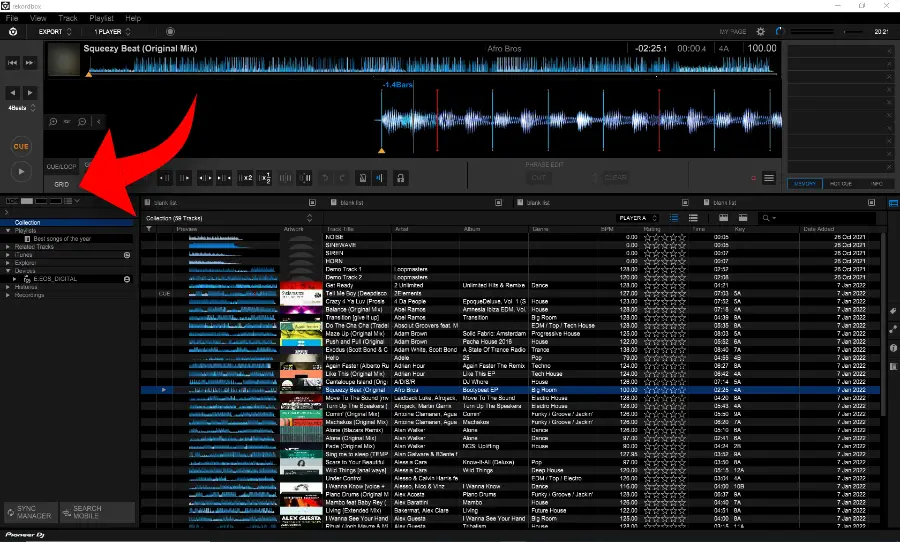
Make the check in this order:
- Find a reliable section. Skip a beatless opening or ambiguous vocal pickup. Play a passage with a steady pulse, and note the displayed BPM. Does the grid mark the pulse you count, or only every other beat? Are the beat intervals roughly consistent with the number?
- Check beat alignment nearby. Zoom in enough to compare beat lines with several clear rhythmic attacks. Listen as well as look: waveforms can make a layered kick appear to begin slightly before its strongest peak.
- Check the bar count. Count “one, two, three, four” through several repetitions. Do the red markers land on your recurring one? If every line meets a beat but the red marker consistently lands on your two, record that as a downbeat error, not simply “bad BPM.”
- Check again later. Move to the middle and then to a later steady section. A correct-looking intro does not establish that the grid stays aligned. Compare whether any error stays constant or grows.
The GRID panel also offers a metronome. This brief segment shows where it is; use the click as another comparison with the music, not as a replacement for listening to the music.
How To Beatgrid Tracks In Rekordbox - Free DJ Tutorial
Return briefly to “How To Beatgrid Tracks In Rekordbox” to locate the grid metronome and recognize the analysis lock control.
Watch click and lock. For now, use the click to hear whether the grid tracks the beat. Do not lock a track merely because its opening looks correct; finish checking its bar position and a later section first.
The metronome can expose an offset or drift, but a click on beat two sounds just as on time as a click on beat one. You still have to count the bars. If the click and the drums agree but the red markers disagree with the musical “one,” you have found precisely the error a timing-only check would miss.
Turn observations into a useful verdict
Try the audit on two tracks you might actually mix. For each, note the displayed BPM and give the analysis one of these verdicts: ready, BPM suspect, beat lines offset, downbeat misplaced, later drift, or uncertain. More than one label can apply. “Uncertain” is a sound decision for a sparse intro: move to clearer sections before deciding, rather than treating the most prominent peak as a kick.
If you find a problem, leave the edit for next time. What matters today is being able to describe it precisely: “The beat lines follow the kicks, but the red marker falls on beat two,” or “The lines fit early on and become progressively late.” Those observations tell you far more than “the grid looks wrong.”
Takeaway
A reliable audit checks tempo, individual beat placement, bar-one placement, and alignment over time. Rekordbox’s analysis gives you a starting estimate; listening and checking multiple sections tell you whether to trust it. Next, you’ll use the GRID controls to correct the BPM and alignment of a fixed-tempo house or techno track, then verify the result across the track.