Recommended resources
The freely available resources this lesson will direct you to.
Introduction
In our last lesson, you successfully installed Node.js and npm, completing the foundational setup of your development environment. You've already had a brief interaction with the command line by running node -v and npm -v to verify the installation. Today, we're going to build on that experience and learn how to use the integrated terminal as a primary tool for navigating and managing your projects.
This lesson addresses the learning outcome: Use the integrated terminal within your code editor to run basic command-line operations. While you're likely accustomed to managing files and folders through a graphical user interface (GUI) like Windows Explorer or macOS Finder, software developers rely heavily on the command line for its speed, power, and scriptability. Mastering a few basic commands is a crucial step toward an efficient, professional workflow.
By the end of this session, you'll be able to create directories, navigate the file system, and manage files—all from within your code editor. This will set the stage perfectly for our next lesson, where we'll start writing our first program.
The Integrated Terminal: Your Command Center
Your code editor, whether VS Code or Cursor, includes a fully-featured integrated terminal. This is a command-line interface (CLI) built directly into the editor, allowing you to run commands without switching windows. The commands you type are interpreted by a program called a shell. Common shells include Bash and Zsh on macOS/Linux, and PowerShell or Command Prompt on Windows.
Let's begin by opening the terminal.
- In your code editor, go to the top menu and select View > Terminal.
- Alternatively, use the keyboard shortcut:
Ctrl+` (the backtick key, often found below theEsckey).
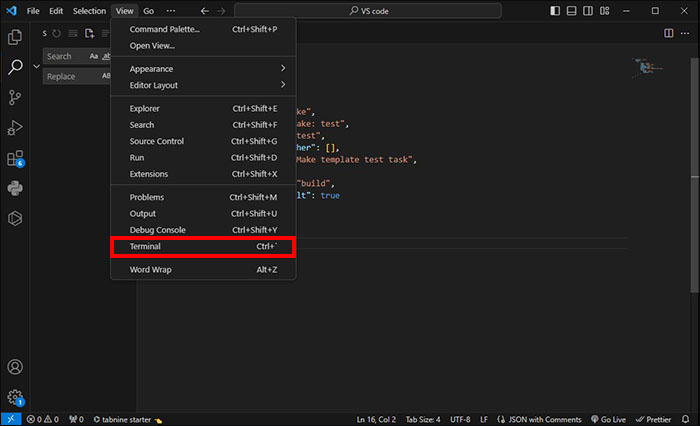
For a quick visual overview of the terminal interface in VS Code, the following video is helpful.
VS Code for Absolute Beginners
This segment from a Coder Coder video provides a clear visual demonstration of how to open, manage, and interact with the integrated terminal in VS Code.
Watch the section from the beginning, which shows how to open the terminal, create new terminal instances, and switch between different shells.
Core Navigation Commands
The first and most common use for the terminal is navigating your computer's file system. Let's practice the three most fundamental commands: pwd, ls, and cd.
This comprehensive video from Traversy Media covers these commands and more. We'll watch it in segments as we introduce each concept.
Command Line Crash Course For Beginners | Terminal Commands
This video provides a great introduction to why the command line is important for developers and clarifies the terminology.
If you're curious about the 'why' behind the command line and the difference between terms like 'terminal' and 'shell', watch from the beginning up to the overview. Otherwise, you can proceed directly to learning the commands.
Now, let's learn the commands for navigation.
-
pwd(Print Working Directory): This command tells you where you are. It's like the "You are here" marker on a map. Typepwdand press Enter. It will print the full path to your current folder. -
ls(List): This command lists the contents (files and folders) of your current directory. Typelsand press Enter. -
cd(Change Directory): This is how you move around. To move into a directory you see in thelsoutput, you typecd <directory_name>. To move back up to the parent directory, you usecd ...
The following clip demonstrates these exact commands.
Command Line Crash Course For Beginners | Terminal Commands
This part of the "Command Line Crash Course" demonstrates the essential navigation commands.
Watch from the start of the navigation section. Pay close attention to the demonstrations of pwd, ls (including options like -l and -a), and cd (including cd .. to move up and cd by itself to go home).
File and Directory Management
Now that you can navigate, let's create a dedicated space for our projects.
-
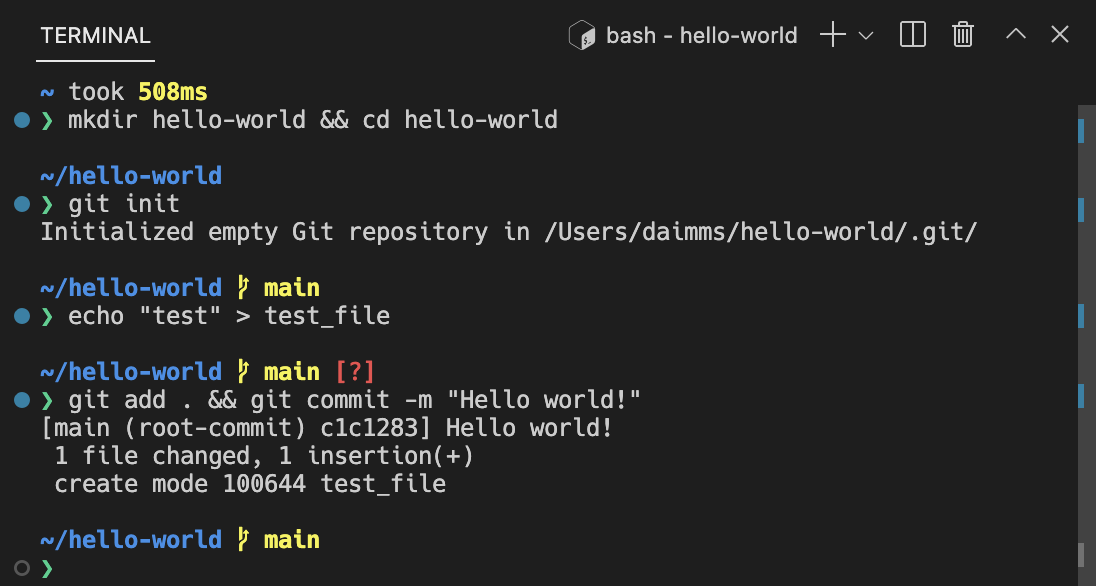
mkdir(Make Directory): This command creates a new folder. Let's make a folder for your first project.mkdir my-first-app -
Now, navigate into your new directory:
cd my-first-appYou can confirm you're in the right place by running
pwd. -
touch(Create File): This command creates a new, empty file. Let's create the JavaScript file we'll use in the next lesson.touch index.jsNote: On some Windows configurations (like standard Command Prompt),
touchmay not be available. A universal alternative isecho. > index.js. -
rm(Remove): This command deletes files and directories. Use this with caution! Deletions via the command line are often permanent and don't go to a Recycle Bin.- To remove a file:
rm index.js - To remove an empty directory, you'd first navigate out of it (
cd ..) and then runrmdir my-first-app. - To remove a directory and everything inside it, you use
rm -r my-first-app. The-rflag stands for "recursive".
- To remove a file:
Let's watch a demonstration of these file and directory commands.
Command Line Crash Course For Beginners | Terminal Commands
This segment shows how to create and delete files and directories, which are the fundamental building blocks of any project setup.
Watch from the demonstration of mkdir, touch, and rm. The video clearly explains the difference between removing a file and removing a directory.
For a more detailed, text-based explanation of navigation and file management, the following article is an excellent resource.
The Front-End Developer's Guide to the Terminal
This guide by Josh W. Comeau provides a friendly and practical walkthrough of essential terminal commands for JavaScript developers.
Focus on two sections. First, read the Navigation section, which reinforces pwd, ls, and cd. Then, jump to the section on Flags to better understand how options like -r modify command behavior, using rm and ls -la as examples.
Essential Quality-of-Life Tips
A few simple tricks can make your terminal experience much faster and cleaner.
- Tab Autocompletion: When typing a command or file/directory name, press the
Tabkey. The shell will attempt to complete it for you. If there are multiple possibilities, it will often show you a list. This is perhaps the single most important habit for efficient terminal use. - Command History: Use the
Up ArrowandDown Arrowkeys to cycle through your previously executed commands. - Clear the Screen: If your terminal gets cluttered, type
clearor use the shortcutCtrl+Lto get a fresh screen. - Stop a Command: Some commands run continuously (like a development server). To stop them, press
Ctrl+C.
These essential shortcuts are covered well in this short video clip.
Command Line Crash Course For Beginners | Terminal Commands
This clip covers the most important keyboard shortcuts for working efficiently in the terminal.
Watch from the beginning of the shortcuts section. Also, you can see how to view your full command history by watching the final clip on the history command.
Conclusion
You've taken a significant step today. By learning to navigate your file system and manage files from the command line, you're adopting a core practice of modern software development.
Here are the key takeaways and commands from this lesson:
- The integrated terminal allows you to run commands directly within your code editor.
- Navigation:
pwd(where am I?),ls(what's here?), andcd(let's go somewhere). - File Management:
mkdir(create a directory),touch(create a file), andrm(remove a file or directory). - Efficiency: Use Tab Autocompletion constantly, navigate your command history with the arrow keys, and use
Ctrl+Cto stop processes.
You've now created a project directory named my-first-app and an empty file within it called index.js.
In our next lesson, we will bring our AI assistant into the picture. We'll open that index.js file and use GitHub Copilot to help us write and understand our very first "Hello, World" program in JavaScript.