Recommended resources
The freely available resources this lesson will direct you to.
- HTML Tables Tutorial with CSS Styling - Crash Coursewww.youtube.com
- Use of rowspan and colspan attribute to Create non-structured Table in HTMLwww.youtube.com
- HTML table basics - Learn web development | MDNdeveloper.mozilla.org
- <table>: The Table element - HTML - MDN Web Docs - Mozilladeveloper.mozilla.org
Hello! Welcome back to your front-end programming course.
In our last lesson, you learned how to build HTML forms to collect user input. We've moved from displaying content to creating interactive experiences. Now, we'll shift back to displaying data, but in a highly structured way.
This lesson addresses the learning outcome: Structure tabular data such as pricing tables or user lists using table, thead, tbody, tr, th, and td elements.
As a UI/UX designer, you frequently design components that present data in rows and columns—like pricing plans, feature comparisons, or user dashboards. Today, you'll learn the HTML vocabulary to build the skeleton of these designs.
1. What is a Table and When Should You Use It?
An HTML table is used to present tabular data—information that is logically organized in a grid of rows and columns.
It's crucial to distinguish this from using tables for page layout. In the early days of the web, developers used tables to position elements like headers, sidebars, and footers. This is now considered a bad practice for several reasons:
- Accessibility: Screen readers interpret tables row by row, column by column. When used for layout, this makes the page content confusing for visually impaired users.
- Maintainability: The code for table-based layouts is complex and difficult to update.
- Responsiveness: Tables are not inherently flexible and are difficult to adapt for different screen sizes, like mobile phones.
We now use CSS for layout, which we'll cover in detail later. For now, remember: use tables for data, not for layout.
To solidify this concept, please read the first two sections of the 'HTML table basics' guide from MDN Web Docs. It clearly defines what a table is and why you should avoid using them for layout.
Read the sections titled 'What is a table?' and 'When should you avoid HTML tables?'. Focus on the definition of tabular data and the reasons why using tables for layout is a bad practice.
2. The Building Blocks of a Table
An HTML table has a clear, hierarchical structure. Let's look at the essential tags that form any table.
<table>: The container for the entire table.<tr>: Stands for "table row." It defines a single row.<td>: Stands for "table data." It defines a single cell within a row.<th>: Stands for "table header." It's a special type of cell used for titles of rows or columns. Browsers typically render<th>text as bold and centered.
This infographic provides a great visual map of how these elements fit together.
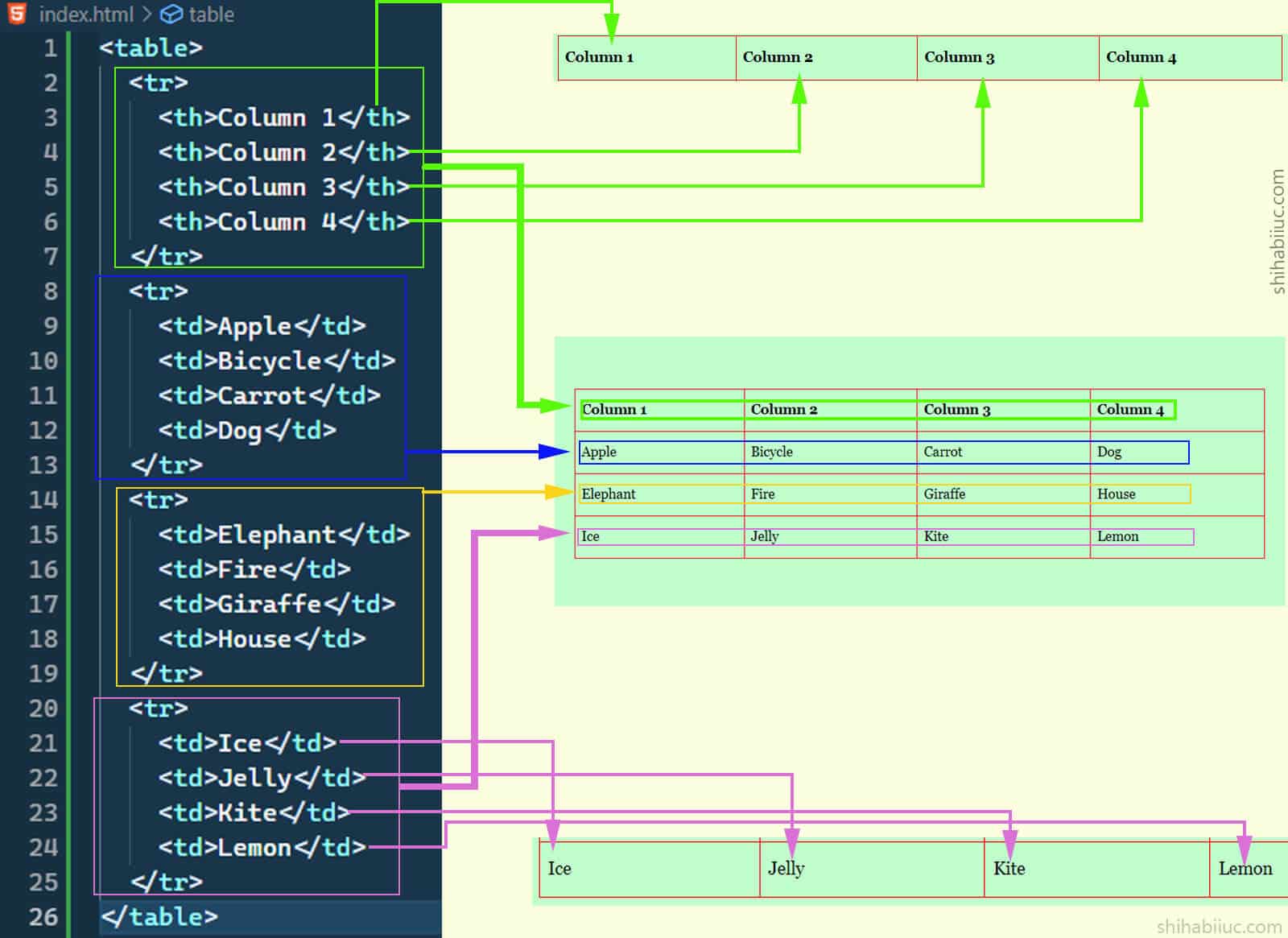
Now, let's see this in action.
HTML Tables Tutorial with CSS Styling - Crash Course
This video from the 'FollowAndrew' channel provides a clear, practical demonstration of how to build a basic table from scratch.
Watch from 08:47 to 11:39. The instructor explains a great mental model: first, figure out the number of rows and columns you need, then build the basic grid. This is very similar to how you might plan a layout in a design tool.
3. Adding Semantic Structure
Just like we used <header>, <main>, and <footer> to give our page semantic meaning, we can do the same for tables. This improves accessibility and gives us more control when we apply CSS later.
<thead>: Groups the header content of the table. This is where you'd put your column titles (<th>).<tbody>: Groups the main body content of the table.<tfoot>: Groups the footer content, which might contain summaries or totals.<caption>: Provides a title or description for the entire table. It should be the first child of the<table>element.
These tags don't change the visual appearance much by default, but they create a much more robust and meaningful structure.
<table>: The Table element - HTML - MDN Web Docs
The MDN Web Docs for the <table> element provide excellent examples of how to progressively add these semantic elements. Please read the following sections.
In the 'Examples' section, read the sub-sections 'Explicitly specifying table section groups' and 'Table caption and column summary'. Observe how <thead>, <tbody>, <tfoot>, and <caption> are added to the HTML structure.
4. Merging Cells for Complex Layouts
Sometimes, a simple grid isn't enough. You might have a header that spans multiple columns or a data cell that spans multiple rows. We can achieve this using the colspan and rowspan attributes.
colspan="2": Makes a cell (<td>or<th>) span across two columns.rowspan="3": Makes a cell span down across three rows.
When you merge cells, you must remember to remove the <td> or <th> elements that are now occupied by the spanned cell.
HTML Tables Tutorial with CSS Styling - Crash Course
The 'FollowAndrew' video has an excellent, easy-to-follow explanation of colspan and rowspan. The process he demonstrates is a reliable way to avoid breaking your table layout.
First, watch the conceptual explanation from 02:41 to 03:58. Then, watch the practical implementation from 12:36 to 15:28. Pay close attention to his rule: add the span attribute, then delete the cell that is being merged into before you save and refresh.
5. Practice: Build a Pricing Table
Now it's time to put it all together. Your task is to create the HTML structure for a pricing table, a component you've likely designed many times.
Instructions:
- Create a table with a
<caption>that reads "Subscription Plans". - Use
<thead>for the header row. The headers should be: "Plan", "Features", and "Price". - Use
<tbody>to create three rows for three different plans:- Basic Plan: Includes "10 Projects", costs "$10/month".
- Pro Plan: Includes "Unlimited Projects" and "Collaboration Tools". This plan's "Plan" cell should span two rows. The price is "$25/month".
- Enterprise Plan: The first cell should be blank (because of the
rowspanfrom the Pro Plan). It includes "Dedicated Support" and costs "$50/month".
- Use
<th>for the plan names in the first column to indicate they are row headers. You can use thescopeattribute for better accessibility (<th scope="row">).
Starter Code:
<!DOCTYPE html>
<html lang="en">
<head>
    <meta charset="UTF-8">
    <title>Pricing Table</title>
    <style>
        /* A little bit of CSS to make the table readable */
        table {
            border-collapse: collapse;
            width: 100%;
        }
        th, td {
            border: 1px solid #dddddd;
            text-align: left;
            padding: 8px;
        }
        thead {
            background-color: #f2f2f2;
        }
    </style>
</head>
<body>

    <!-- Your table code goes here -->

</body>
</html>
Click to see the solution
Solution:
<!DOCTYPE html>
<html lang="en">
<head>
    <meta charset="UTF-8">
    <title>Pricing Table</title>
    <style>
        /* A little bit of CSS to make the table readable */
        table {
            border-collapse: collapse;
            width: 100%;
        }
        th, td {
            border: 1px solid #dddddd;
            text-align: left;
            padding: 8px;
        }
        thead {
            background-color: #f2f2f2;
        }
    </style>
</head>
<body>

    <table>
        <caption>Subscription Plans</caption>
        <thead>
            <tr>
                <th>Plan</th>
                <th>Features</th>
                <th>Price</th>
            </tr>
        </thead>
        <tbody>
            <tr>
                <th scope="row">Basic</th>
                <td>10 Projects</td>
                <td>$10/month</td>
            </tr>
            <tr>
                <th scope="row" rowspan="2">Pro</th>
                <td>Unlimited Projects</td>
                <td rowspan="2">$25/month</td>
            </tr>
            <tr>
                <td>Collaboration Tools</td>
            </tr>
            <tr>
                <th scope="row">Enterprise</th>
                <td>Dedicated Support</td>
                <td>$50/month</td>
            </tr>
        </tbody>
    </table>

</body>
</html>
Note: In the solution, I've used rowspan on both the plan name and the price for the "Pro" plan to show different ways you can structure complex data. The practice task can be interpreted in a few ways, and this is one valid structure.
Conclusion
Excellent work! You now have the skills to structure complex tabular data semantically and accessibly. This is a fundamental skill for creating common UI components that display organized information.
Key Takeaways:
- HTML tables are for tabular data only, not for page layout.
- The core structure consists of
<table>,<tr>(rows), and<td>(data cells). - Use
<th>for header cells to provide semantic meaning and default styling. - Group your table sections with
<thead>,<tbody>, and<tfoot>for better structure and accessibility. - Use
colspanandrowspanto merge cells and create more complex table layouts.
In our next lesson, we'll wrap up our HTML fundamentals by looking at the final key elements for structuring content: <div> and <span>. These are general-purpose containers that you will use extensively with CSS to create layouts and apply styles.