Recommended resources
The freely available resources this lesson will direct you to.
Welcome to the first module. Over the next few lessons, you will build the basic developer habits needed to work comfortably with Python, automation tools, and local AI projects. The terminal may initially feel less intuitive than Finder, but it gives you a precise way to inspect and move through your project files—the same workflow you will later use to run scripts, manage Git repositories, and start local services.
In this lesson, you will learn to locate yourself in the macOS file system, inspect folders, move between them, and choose correctly between absolute and relative paths. Everything here is read-only navigation: you will not delete, modify, or create anything.
The terminal’s map of your Mac
Open Terminal with Spotlight: press Command-Space, type Terminal, then press Return. You will see a prompt that may end in %. The prompt is Terminal waiting for a command; do not type the % itself.
Finder and Terminal show the same files in two different forms:
- Finder lets you open folders visually.
- Terminal lets you describe a location with a text path and issue a command.
A file holds information, such as notes.txt or a future Python script like agent.py. A directory—called a folder in Finder—holds files and other directories. Directories inside other directories form a hierarchy.
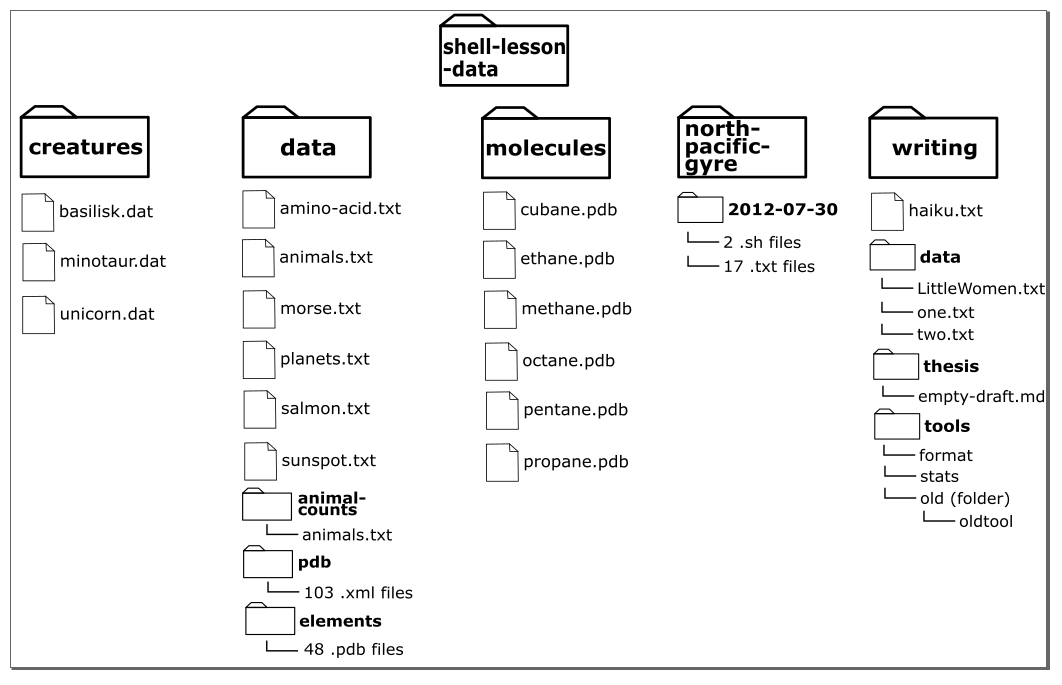
At the top of the hierarchy is the root directory, written as:
/
On macOS, personal accounts normally live under /Users. Your own home directory will usually look like:
/Users/your-short-username
For example, if the account name were sam, the home directory would be /Users/sam. Your actual username will be different, so do not copy that example literally.
macOS Terminal (zsh) - The Beginners' Guide
Watch “macOS Terminal (zsh) - The Beginners' Guide” from Academind to connect Finder’s folder view with the terminal’s directory hierarchy, then see the first two navigation commands in use.
Watch the folder map for the relationship among root, Users, and a home directory. Then watch location and listing for pwd and ls. Notice that a newly opened Terminal generally starts in the home directory.
Your three core navigation commands
Nearly all terminal navigation begins with three commands:
| Command | Meaning | What it does |
|---|---|---|
pwd |
print working directory | Shows your current location as a path |
ls |
list | Shows what is in a directory |
cd |
change directory | Moves Terminal’s current location |
The key idea is the current working directory. At every moment, the shell has one current directory—its current “here.” A command with no path normally operates there.
Start with:
pwd
You may see something similar to:
/Users/your-short-username
That output is your current location, not a command to type. It is also the full path from the root directory to your home directory.
Next, inspect the current directory:
ls
You will likely see names such as Desktop, Documents, Downloads, Library, or Pictures. What appears depends on your Mac and how you use it.
To see what is inside a directory without moving into it, give ls a path:
ls Documents
If Documents exists in your home directory, Terminal lists its contents while leaving your current directory unchanged. Confirm that with:
pwd
A useful inspection variant is:
ls -F
On macOS, -F appends a marker to help classify entries. Most importantly, a trailing / means the item is a directory. For example:
Documents/ Downloads/ project-notes.txt
Here, Documents/ and Downloads/ are directories; project-notes.txt is a file.
You can also use:
ls -la
This is a more detailed listing:
-lmeans “long format,” including dates and sizes.-aincludes hidden entries, whose names start with a period, such as.zshrcor.git.
For now, treat ls -la as an inspection tool. You do not need to interpret every column yet.
Moving with cd
To enter an existing directory, write cd followed by its name:
cd Documents
Then verify rather than assuming:
pwd
ls
If the directory changed successfully, pwd now ends in /Documents.
To return to your home directory at any time, use either:
cd
or:
cd ~
Both are safe reset commands when you lose track of where you are.
Relative paths: directions from where you are
A relative path is interpreted relative to your current working directory. It does not begin with /.
Suppose pwd displays:
/Users/your-short-username
Then this is a relative path:
cd Documents
It means: “Starting from where I am now, enter the Documents directory.”
You can describe several levels at once. From your home directory, this command enters a projects folder and then an agent-playground folder inside it:
cd projects/agent-playground
That only works if both directories already exist in that arrangement. In a future project, this compact form is much more useful than moving one folder at a time.
Two special relative paths are fundamental:
| Path | Meaning | Example use |
|---|---|---|
. |
the current directory | ls . lists the current directory |
.. |
the parent directory, one level up | cd .. moves up one level |
If you are in:
/Users/your-short-username/Documents
then:
cd ..
takes you to:
/Users/your-short-username
The two dots are not an abbreviation for “back.” They specifically mean “parent directory.” That distinction matters: going up a level is based on folder structure, not on where you visited previously.
You can go up multiple levels:
cd ../..
Each .. moves up one directory level. Use pwd immediately afterward until this becomes intuitive.
macOS Terminal (zsh) - The Beginners' Guide
Continue with Academind’s “macOS Terminal (zsh) - The Beginners' Guide” for visual demonstrations of cd, home and root shortcuts, then the distinction between absolute and relative paths.
Watch changing directories, paying particular attention to cd /, cd ~, and cd ... Then watch path choices for the two ways to reach the same folder. The final point about portable project-relative paths will matter later when you share code through Git.
Absolute paths: a complete address
An absolute path begins with /, the root directory. It gives the complete address of a file or directory from the top of the file system.
For example:
cd /Users/your-short-username/Documents
This command means the same thing regardless of your current directory. You could be deep inside another folder or even at /; the destination is fully specified.
Compare these two commands:
cd Documents
cd /Users/your-short-username/Documents
The first is relative: it works only when Documents is inside your current directory. The second is absolute: it names one exact location on your Mac.
A good working rule is:
- Use absolute paths when you need an unambiguous location on your own computer.
- Use relative paths when working inside a project.
The project rule matters because another developer’s username will not match yours. A path such as:
/Users/your-short-username/projects/my-agent/config.json
will fail on someone else’s Mac. But a relative path such as:
config.json
or:
data/config.json
can still work when the project folder is moved or cloned elsewhere.
The home-directory shortcut
Typing your entire home path is inconvenient, so the shell expands ~ to mean “my home directory.”
| Path | Meaning |
|---|---|
~ |
your home directory |
~/Documents |
the Documents directory inside your home |
~/Desktop |
the Desktop directory inside your home |
For example:
cd ~/Downloads
This is especially convenient because it works no matter where you currently are. It is not technically a normal relative path; before running the command, the shell expands ~ to your home directory’s full path.
Specify files and folders in Terminal on Mac - Apple Support
Read Apple Support’s concise macOS reference to consolidate how paths identify locations and how the ., .., and ~ shortcuts work.
Start with the opening explanation of paths, then read the shortcut table. In the table, read the three shortcut entries for ., .., and ~. Relate each entry to a command you have already run: ls ., cd .., and cd ~/Documents.
A safe navigation routine
When using Terminal, avoid guessing about your location. Use this repeatable routine:
- Run
pwdto establish where you are. - Run
ls -Fto see which entries are directories. - Use
cdwith a path that you can see exists. - Run
pwdagain to confirm the move. - Use
cdorcd ~to recover if you are somewhere unexpected.
Try this short, non-destructive drill. Replace Documents with another directory shown by your own ls -F output if needed.
cd ~
pwd
ls -F
cd Documents
pwd
ls -F
cd ..
pwd
You should end back in your home directory.
Tab completion
The shell can complete folder and file names for you. This reduces typing and prevents many spelling mistakes.
For example, type:
cd Doc
Then press the Tab key. If only one matching directory begins with Doc, Terminal completes it to Documents/. Press Return to run the command.
If there are multiple possible matches, press Tab twice to view them. Tab completion is worth using constantly—especially later when project paths become longer.
Folder names with spaces
A path with a space needs special treatment because Terminal normally uses spaces to separate parts of a command.
For a folder called Agent Projects, write:
cd "Agent Projects"
The quotation marks tell the shell that both words form one folder name. An alternative is:
cd Agent\ Projects
The backslash protects the following space. For now, prefer quotes because they are easier to read.
In your own projects, choose names such as agent_projects, agent-projects, or agent_projects_2026 to avoid unnecessary quoting. Consistent, simple names make terminal work easier.
Common navigation mistakes
Most early errors are useful signals rather than serious problems.
“No such file or directory”
For example:
cd: no such file or directory: Documents
Usually one of these is true:
- You are not in the directory you thought you were.
- The name is misspelled or capitalization differs.
- The folder is somewhere else.
Use:
pwd
ls -F
Then either navigate from the directory you are in or use a ~/... or absolute path.
Trying to enter a file
cd works only with directories. If ls shows notes.txt, this fails:
cd notes.txt
That is expected: notes.txt is a file, not a place you can enter.
Forgetting that capitalization matters
macOS setups often appear forgiving in Finder, but command-line tools and developer environments can be case-sensitive. Documents, documents, and DOCUMENTS should be treated as different names. Use ls and Tab completion instead of relying on memory.
Confusing .. with .
.means this directory..means the parent directory
So:
cd .
leaves you where you are, while:
cd ..
moves you up one level.
Mastery check
You have met the outcome when you can reliably do all of the following without modifying any files:
- State your current location using
pwd. - List the contents of your current folder with
ls. - List a different folder without entering it, such as
ls ~/Documents. - Move into a visible subdirectory with
cd folder-name. - Move up with
cd ..and return home withcd ~orcd. - Explain why
/Users/your-short-username/Documentsis absolute whileDocumentsis relative. - Use Tab completion rather than manually typing a long folder name.
You now have a dependable map of your Mac’s file system: / is the root, ~ is your home, pwd tells you where you are, ls shows what is available, and cd changes your location. Relative paths describe a route from your current directory; absolute paths provide a complete address.
Next, you will use this navigation foundation to create, edit, and run your first Python script through VS Code and Terminal.