Recommended resources
The freely available resources this lesson will direct you to.
Hello. This course will take you from planning a Windows-hosted remote management service to testing and maintaining it across a larger group of PCs. We’ll start with the network picture: what runs on the server, what runs on each PC, and how your browser reaches them. Understanding those connections will make the later installation and troubleshooting steps much easier.
A quiet agent installation can reduce interruptions during an approved deployment. It does not mean concealing management from users or bypassing authorization. For now, we are explaining the system—not installing or controlling anything. Allow about 40 minutes, including the short videos and readings.
The three parts of MeshCentral
MeshCentral has three main components. The server is the central service you will eventually run on a Windows host. It serves the web application, maintains information about accounts and devices, checks permissions, and coordinates connections. The browser console is that web application running in an administrator’s browser; you do not need to install a separate console on every administrator’s PC. The MeshAgent is software installed on each managed endpoint, such as a Windows 10 or 11 PC.
Watch this brief architecture introduction before tracing the network traffic. Notice the distinction between where the web application is supplied from (the server) and where its interface runs (your browser).
MeshCentral - Design & Architecture
Watch “MeshCentral - Design & Architecture” from the MeshCentral channel for its picture of the browser application, server, and agent.
Watch three components. Focus on the server’s coordination and permission checks, rather than the programming languages mentioned near the end.
The server is not an agent installed on every PC. Equally, opening the console in a browser does not enroll the browser’s PC as a managed endpoint. Enrollment requires an agent installed on the PC you intend to manage. Once installed and running, that agent contacts its configured MeshCentral server and can appear in the appropriate device group.
The MeshCentral Guide gives a useful short overview of that setup-and-enrollment relationship. Read it for the roles of the server, device group, and agent; treat its four steps as a conceptual outline, not as deployment instructions for your environment.
MeshCentral Guide - MeshCentral Documentation
Read the opening overview in the official MeshCentral documentation to connect the three components to the basic enrollment process.
In “Introduction,” start with the server overview and continue through the four numbered steps ending with management of the available endpoints. Focus on the step where an installed agent attempts to connect back to the server.
That phrase connect back matters. In the ordinary agent-based arrangement, the endpoint initiates its connection to the server. The server then has a continuing way to communicate with an online agent, subject to the administrator’s permissions and the system’s policies. This is different from assuming that the server must first open an unsolicited connection to each Windows PC.
Following the connections during a remote session
Picture a small, private network. Suppose the Windows server has address 192.168.50.10, an administrator’s PC has 192.168.50.31, and a managed PC has 192.168.50.24. These addresses are examples only.
The administrator enters the server’s address or internal DNS name in a browser. The browser connects to MeshCentral over HTTPS. Separately, the agent on the managed PC connects to the same server. MeshCentral’s main web port is commonly TCP 443 for both browsers and agents, although a deployment can be configured to use another port. You therefore need both types of client to reach the server; an agent being reachable from your administrator’s PC is not the basic requirement.
After those initial connections, MeshCentral uses WebSockets for ongoing, two-way communication. A WebSocket lets an established connection carry updates without repeatedly reloading the page. Some control information is exchanged as JSON messages; a desktop view or file transfer also carries session data, which should not be thought of as merely a series of page refreshes.
What happens when you select remote desktop in the browser? MeshCentral ordinarily arranges a session between your authenticated browser and the selected agent, then relays that session through the server. In that arrangement, desktop data travels through the server even when all three machines are on the same local network. The server is more than a directory of PCs: it helps establish the session and carries its traffic.
Read the first part of “Browser to agent relay and WebRTC” for this distinction. The implementation mentions tokens and multiple WebSocket connections; you only need the larger idea that the server authorizes and joins the two sides of a session.
Design and Architecture - MeshCentral Documentation
Read the official MeshCentral design explanation to distinguish the normal server-relayed session from an optional direct session.
Under “Browser to agent relay and WebRTC,” read the relay explanation, beginning with desktop, terminal, and file sessions and ending with the cost of relaying data. Then find the paragraph beginning “A unique feature of MeshCentral is its use of WebRTC.” Read the WebRTC discussion through the paragraph explaining when a session can become more efficient. You can stop there; the subsequent message-by-message switch procedure is beyond this lesson.
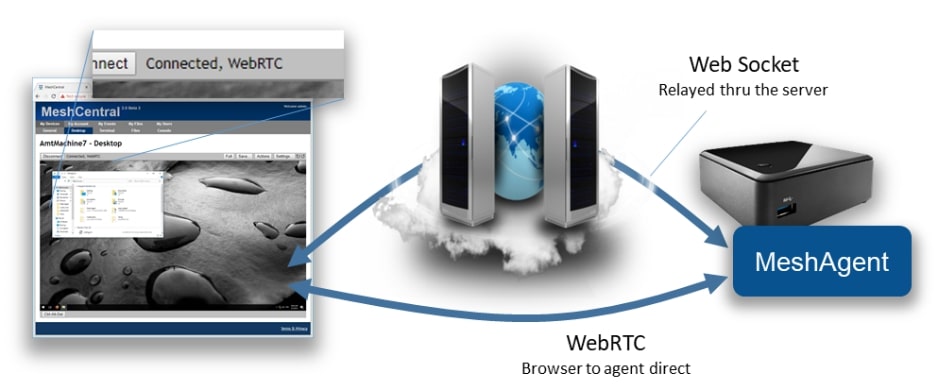
The direct path in the image is an option, not a promise. WebRTC can allow browser-to-agent session traffic to avoid the server when enabled and when network conditions permit it. It does not remove the need for the server, the agent’s server connection, or permission checks. For an initial deployment, understand and test the ordinary relayed path first; do not assume that a direct path will work across every firewall or network segment.
This short continuation of the architecture video shows why the direct option can be useful on a local network.
MeshCentral - Design & Architecture
Return to “MeshCentral - Design & Architecture” for its explanation of optional direct browser-to-agent traffic.
Watch direct sessions. Focus on the contrast with routing all session data through the server, and note that the video describes WebRTC as optional.
One practical consequence: closing the browser ends your console session, not the installed agent. Similarly, an offline agent cannot offer a live remote desktop session just because its device record remains visible in the console.
What “on the local network” actually means
“Local” can describe both where the server is reachable and a particular MeshCentral discovery mode. Those ideas should not be confused.
In MeshCentral’s LAN mode, agents can discover a server using local-network multicast rather than a preconfigured, permanent server address. This can be convenient for a small test on one network segment. Multicast discovery, however, should not be assumed to cross routers or reach every subnet in an organization. For a deployment across many PCs, you will need to check the actual network layout instead of treating “100 PCs on the organization’s network” as one automatically discoverable group.
MeshCentral can also be given a stable server name. Agents can then be directed to that name, provided internal DNS resolves it and network rules permit the connection. A named server does not have to be public on the Internet: an internally resolvable name and restricted network access can still serve a local deployment. The name, address, mode, and firewall rules will be chosen and verified in later modules.
Watch how the MeshCentral mode demonstration distinguishes multicast discovery from a configured hostname. Its configuration screen is illustrative; there is no need to edit a configuration file yet.
MeshCentral - LAN, WAN and Hybrid mode
Watch “MeshCentral - LAN, WAN and Hybrid mode” from the MeshCentral channel to see how agents find a server in different modes.
Watch LAN discovery for the explanation of multicast and its network limits. Then watch named-server mode for the role of a configured hostname. Concentrate on how an agent finds its server, not on copying the demonstration settings.
For the example network above, an administrator’s browser and a managed PC each need a route to the MeshCentral server and access to its configured HTTPS port. If you use an internal name rather than an address, they also need working internal DNS. The normal relayed arrangement does not require opening an inbound remote-desktop port on every endpoint for the administrator’s browser. An optional direct WebRTC session has additional network considerations, which is another reason not to rely on it as the sole path.
Why reaching the right server is a security question
A connection that succeeds is not automatically a connection you should trust. Your browser checks the server’s HTTPS certificate against the name you visited and the certificate authorities it trusts. Your agent also needs to establish that it is talking to its intended MeshCentral server; its checks are not identical to a browser’s certificate checks. MeshCentral documents an additional agent-to-server verification step for this purpose.
The following passage explains the distinction without requiring you to work through the cryptographic message format.
Design and Architecture - MeshCentral Documentation
Read the official design explanation to understand why an agent must verify the server even when the server’s public-facing HTTPS certificate changes.
In “Agent to server handshake,” find the paragraph beginning “One big difference between the agent connecting and a typical browser is how the server is authenticated.” Read the authentication overview, stopping just before the paragraph about preventing an attacker in the middle. Focus on the distinction between the browser’s certificate trust and the agent’s additional server check; you do not need the detailed handshake for this lesson.
Keep three boundaries in mind as you plan the service:
- Network boundary: Which administrator browsers and endpoint groups can reach the server? An internal deployment should not become Internet-accessible by accident.
- Identity boundary: Is the browser connected to the intended HTTPS site, and is each agent connected to its intended server? Do not make dismissing browser certificate warnings a normal operating procedure.
- Permission and privacy boundary: A working connection can enable desktop viewing, terminal commands, and file access. Who may use those capabilities, when users are notified, and what is recorded must be decided before broad deployment.
These boundaries also help locate faults. If the browser cannot load the console, look first at its route to the server, name resolution, service availability, and HTTPS connection. If the console works but a PC never appears online, investigate that PC’s agent installation, its route to the server, and its server identity settings. If the PC is online but a remote session fails, investigate session permissions and the session’s network path. This is a map for later troubleshooting, not a reason to weaken security controls to make a test pass.
Key takeaways
MeshCentral’s Windows-hosted server supplies the browser console and coordinates managed devices. An installed agent normally initiates a connection to that server; an administrator’s browser independently connects to the server. Remote-session traffic ordinarily passes through a server relay, while optional WebRTC may provide a direct browser-to-agent data path when enabled and feasible. “Local network” does not by itself guarantee discovery, DNS resolution, routing, or authorization.
In the next lesson, you will define the authorization, user-notification, and privacy boundaries for managing the PCs. That policy work comes before turning a quiet installation into a wider deployment.