Recommended resources
The freely available resources this lesson will direct you to.
Hello. Last lesson gave you pass-or-fail tests for enrolling, using, auditing, and removing an RMM agent. Before you can run those tests, you need to know which computers count, where they connect, and which network and directory services support them. This lesson turns the planned 100-PC rollout into an inventory you can use for a pilot and a 10-day deployment.
You will inventory five things: a possible Windows server, the existing Active Directory (AD) domain, the relevant network ranges, internal DNS, and the Windows 10/11 endpoint groups. Do not install an agent or change server settings during this inventory. The goal is a verified planning record, not a new configuration. Allow about 40 minutes for the short viewing and reading sections and the inventory outline.
Start with the connection you need to support
A typical local deployment has three participants. An administrator opens the MeshCentral browser console on the server. Each enrolled PC runs an agent that connects to that server. The browser and agents therefore need a usable server address, but they may reach it from different parts of the network.
The first video shows a small AD environment with a server and a Windows client. Treat its names and addresses as lab examples, not values to copy.
Installing Active Directory Domain Services in Windows Server 2022, along with DNS and DHCP
Watch the selected parts of “Installing Active Directory Domain Services in Windows Server 2022, along with DNS and DHCP” by Troy Berg to see where server identity, DNS, and computer accounts appear in a Windows environment.
Watch the topology for the distinction between a server's fixed address and a client's assigned address. Then watch the DNS check to see the domain's DNS zone and server record in the DNS console. Finally, in the Active Directory Users and Computers demonstration, watch the computer account appear in the directory. You are observing where to find inventory evidence; you do not need to build the video's lab.
Keep these identities separate in your record:
- Server computer name: the Windows machine being considered to host MeshCentral.
- Server IP address: the address PCs currently use to reach that machine; whether it is stable still needs checking.
- Internal DNS name: the name administrators and agents are intended to use. An example would be
rmm.example.test, but your organization must choose a name in a namespace it controls. - AD domain name: the directory namespace to which PCs belong. It is not automatically the MeshCentral server name.
For each possible server, record its computer name, Windows version, current role, IP address, network segment, approximate available resources, and the team responsible for it. Mark whether it is already a domain controller or runs another important service. Do not choose the host yet: the next lesson evaluates which role and workload are appropriate.
Map network ranges and DNS from the clients’ point of view
A network range identifies a set of addresses. Administrators often write one in CIDR notation, such as 192.0.2.0/24; this is an illustrative range, not an address to use for your server. Different floors, wireless networks, or VPN connections may have different ranges even if they belong to the same AD domain.
Inventory every range containing approved PCs and the range containing the proposed server. For each, note whether a PC can reach the server across the existing network. Also record the administrator network from which the browser console will be used. Do not assume that “on the local network” means “on the same subnet.”
Active Directory Sites and Services may already associate subnets with AD sites. That can help you locate existing ranges, but an AD site is not a firewall rule or proof that traffic between ranges is permitted. Tech Pub’s “Overview of Active Directory Sites and Services” gives a brief view of these mappings:
Overview of Active Directory Sites and Services
Watch this short segment to recognize how an administrator records a subnet against an AD site, without changing the site's configuration.
Watch subnet mappings. Notice the subnet notation and site assignment; use the view as one inventory source, then confirm which ranges actually contain the PCs in your rollout.
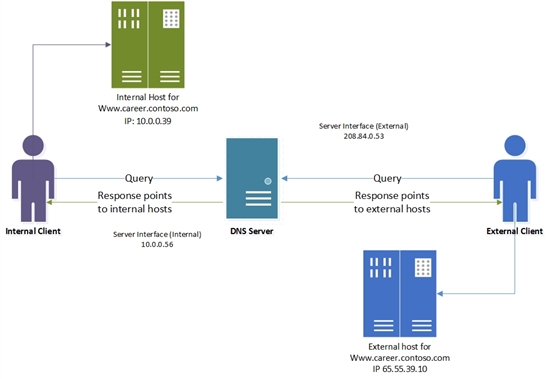
DNS translates a name into an address. For this deployment, find out which DNS servers a sample PC uses and who manages the internal DNS zone that could contain the RMM server name. Record the proposed name, whether a record already exists, and which client networks can resolve it. A PC using a different resolver may receive a different answer—or no answer—despite an apparently correct record elsewhere.
The following image illustrates split-view DNS: internal and external clients receive different addresses for the same example host name. It is a reminder to check answers from the networks that matter, not a suggestion to make your RMM server publicly accessible.
MeshCentral’s Windows quickstart distinguishes a discovery-oriented LAN mode from WAN/Hybrid setup and lists ports associated with its default Windows installation. Read it to identify questions for the inventory, not to open every listed port.
Quickstart - MeshCentral Documentation
Read the MeshCentral Windows quickstart's installation-prompt and firewall sections to understand which server-name and network choices must be recorded before installation.
In “Installation Prompts Explained,” compare the LAN Mode and WAN/Hybrid Mode rows, from server discovery options. In “Windows Defender Firewall Settings,” read from the default-ports sentence through the listed ports. Note the discovery and optional-feature ports separately from the eventual browser and agent connection. The final configuration and approved features—not this default list alone—will determine the firewall rules.
Although the quickstart says LAN mode does not require a fixed IP or DNS name, a stable internal name is useful for a managed rollout spanning many PCs and possibly multiple subnets. Record whether one can be provided; a later lesson will configure and test it. For now, distinguish “DNS name exists” from “a test PC in each relevant range resolves it correctly.”
A compact network record could look like this:
| Record | What to capture |
|---|---|
| Server range | Proposed server's current IP, subnet, and whether its address is fixed or assigned |
| Endpoint ranges | Subnet, approximate approved-PC count, and any route or firewall boundary |
| Console users | Network ranges from which authorized administrators will browse to the server |
| DNS | Resolver addresses used by sample PCs, internal zone owner, proposed server name, and observed answer |
| Traffic decision | Which ranges need access; which ports and optional features are still to be decided |
You can obtain a sample PC’s IP, gateway, and DNS resolver addresses through its Windows network settings or ipconfig /all. Record observations from an approved sample in each distinct range; avoid treating one desk PC as evidence for the whole network.
Inventory the domain and the PCs that belong in the rollout
Active Directory holds computer accounts, but an account is not proof that a PC is currently powered on, reachable, or approved for RMM. An organizational unit (OU) is a directory container that can help define where a deployment policy applies. A security group can identify approved members. Neither should be mistaken for a MeshCentral device group, which you will create later in the RMM console.
Begin with the domain’s DNS name and the location of the approved workstation accounts. Then identify how your organization separates pilot PCs, general workstations, laptops, and any excluded machines. If the current directory structure does not provide those distinctions, record that as a planning gap rather than guessing from computer names.
Microsoft’s Get-ADComputer reference provides a read-only way to inspect computer accounts when the Active Directory PowerShell module and appropriate directory read access are available.
Get-ADComputer (ActiveDirectory)
Read Microsoft Learn’s Get-ADComputer examples and the -Properties parameter description so you can interpret a directory inventory rather than assuming its default output contains everything needed.
In “Examples,” examine Example 2’s name, DNS-hostname, and IPv4-address query; then continue through Examples 4 and 5 for a location-scoped query and the domain-wide query. The accompanying explanations run from the example notes. Under “Parameters,” find “-Properties” and read property selection. Focus on the difference between finding an AD object and verifying a live, eligible endpoint.
For example, an authorized administrator could start with a read-only query like this on a machine with the AD module. Replace the illustrative search base with the approved workstation OU in the real domain:
Get-ADComputer -Filter * `
  -SearchBase "OU=Workstations,DC=example,DC=test" `
  -Properties DNSHostName,OperatingSystem,LastLogonDate,IPv4Address |
  Select-Object Name,DNSHostName,Enabled,DistinguishedName,
                OperatingSystem,LastLogonDate,IPv4Address
The output gives leads, not a final target list. An Enabled account may belong to a retired PC. An empty or old IP address does not necessarily mean the PC is ineligible. AD’s operating-system text may be absent or insufficient to distinguish Windows 10 from Windows 11 reliably; confirm uncertain cases using an approved endpoint inventory source or the PC itself. LastLogonDate helps flag accounts for review, but is not a live connectivity test.
Reconcile the directory results with the authorized asset list and the policy boundaries established earlier. Your final endpoint inventory should identify:
- Pilot: a small, explicitly approved set representing the Windows 10/11 and network variations you need to test.
- Production waves: approved PCs grouped in a way that permits a controlled 10-day rollout.
- Excluded or pending: servers, retired accounts, unapproved PCs, and devices awaiting an ownership or policy decision.
For each approved PC, retain an asset identifier, computer name, intended pilot or production wave, current OU or other targeting basis, confirmed Windows version where available, network range, and exception status. Keep this inventory in an access-controlled organizational location: computer names, network ranges, and directory structure are operationally sensitive. You do not need passwords or users’ personal files in it.
Most importantly, reconcile the count to the acceptance target from last lesson. If the goal says 100 approved PCs but the directory query finds 112 computer accounts, do not deploy to 112 or quietly change the target. Identify which 100 are approved and why the other 12 are excluded or pending. Conversely, if only 96 approved PCs appear in the chosen OU, find the four missing PCs or record an unresolved gap before treating that OU as the rollout scope.
Turn observations into a deployment-ready record
Your inventory is ready for the next stage when another authorized administrator can answer these questions without guessing:
- Which Windows server or servers are candidates, and what roles do they already perform?
- What is the existing AD domain, and which OU or approved group identifies each endpoint wave?
- Which ranges contain the server, administrators, and approved PCs?
- Which DNS service will provide the intended internal server name, and which client ranges have had their DNS settings checked?
- Which 100 PCs form the approved denominator, including PCs currently offline or awaiting attention?
- Which answers remain unverified, and who can confirm them?
Mark each fact as observed, confirmed by the responsible administrator, or proposed. For example, an existing server IP might be observed, while the eventual RMM hostname is still proposed. This prevents a planning assumption from becoming an unnoticed deployment setting.
The inventory also connects directly to your earlier acceptance tests. The approved PC list defines the enrollment denominator; the proposed device groups determine where each PC should appear; the network and DNS records identify places to test connectivity; and the pilot list identifies PCs on which to verify access, auditing, and removal.
Key takeaways
A useful RMM inventory is more than a list of computer names. It records server candidates, the AD domain and targeting structure, client and server network ranges, internal DNS, and a reconciled set of approved Windows endpoints. Directory queries provide a starting point, but eligibility, Windows version, reachability, and authorization need confirmation. Keep unresolved items visible rather than filling them with assumptions.
Next, you will use this inventory to select a dedicated Windows host and decide whether its existing role is appropriate for the expected workload.