Recommended resources
The freely available resources this lesson will direct you to.
Welcome to the next step in your Python journey! In our previous lesson, we explored built-in modules like math and random, which come included with every Python installation. While powerful, they represent only a fraction of what's possible with Python. The true strength of the Python ecosystem lies in the vast collection of specialized tools built by the global community.
This lesson is your gateway to that world. We will focus on pip, the standard package manager for Python. You will learn how to use this essential command-line tool to find, install, and manage external packages. Mastering pip is the single most important step to unlocking the libraries for data science, machine learning, and AI—such as NumPy, Pandas, and Scikit-learn—that are central to your goal of building NLP applications.
By the end of this lesson, you will be able to install any external Python package, setting the stage for us to dive into data manipulation with NumPy.
1. What is pip?
So far, you've used modules that are part of Python's standard library. But what if you need functionality that isn't built-in, like tools for complex numerical computation or for building neural networks? For that, we turn to external packages. A package is a collection of Python modules bundled together, and pip is the tool we use to manage them.
Think of it this way:
- The Python Package Index (PyPI) is a massive online repository—like an app store—that hosts tens of thousands of third-party Python packages.
pip(Package Installer for Python) is the command-line program you use to connect to PyPI, download packages, and install them on your computer.
The W3Schools tutorial on Python PIP offers a concise introduction to these concepts.
This short article provides a clear, high-level overview of what pip is and how it works.
Please read the first section, What is PIP?, to get a solid definition. Then, skip down to the section Download a Package to see the basic installation command. Finally, read the short section on Using a Package, which connects the installation step to the import statement you already know.
As the reading mentions, pip is included by default with modern Python versions (3.4+), so you should already have it installed.
2. Interacting with pip via the Command Line
Unlike import, which you write inside a Python script, pip commands are run in your computer's terminal or command prompt. This is a text-based interface for interacting with your computer's operating system directly.
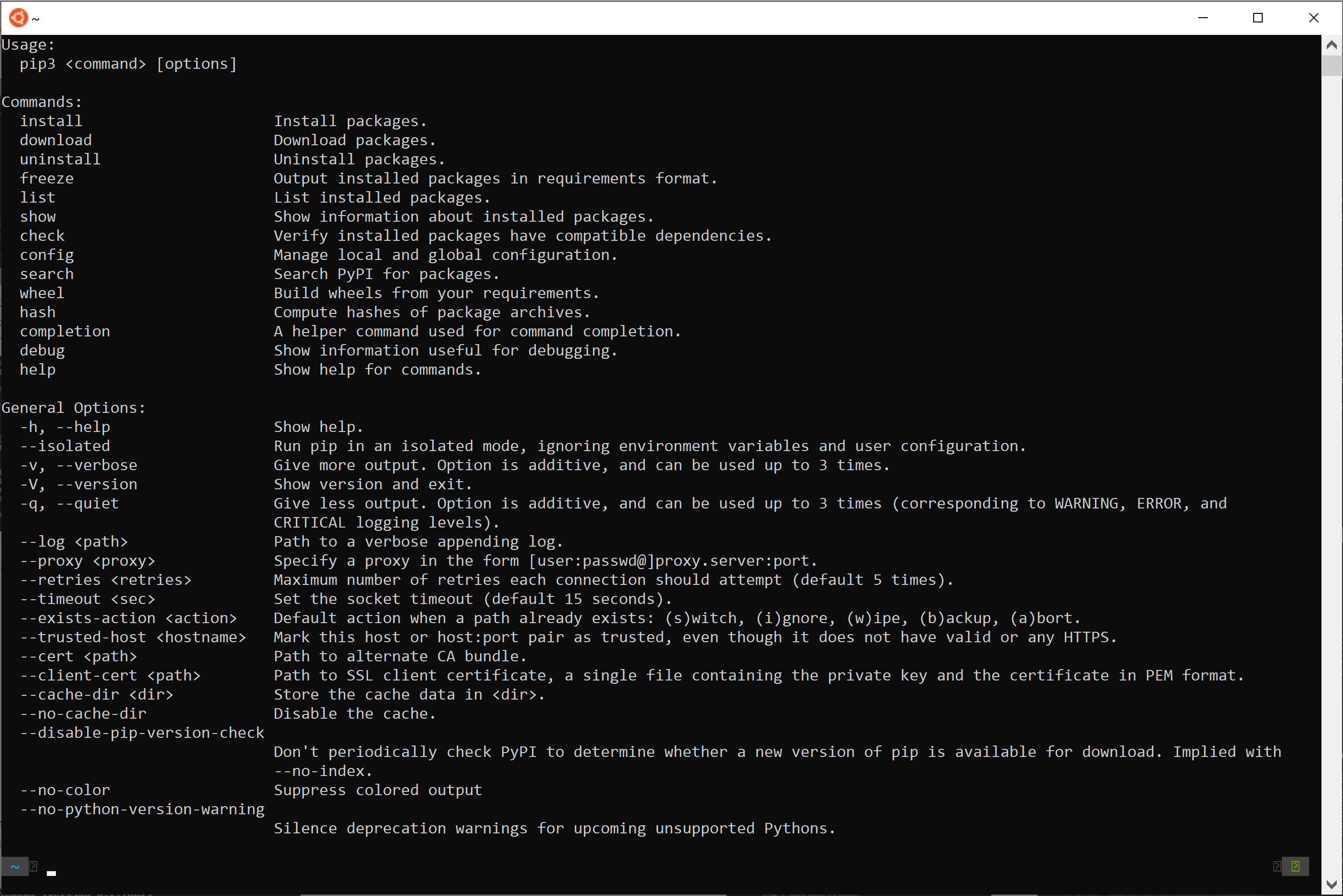
When you run a pip command, you're not writing Python code; you're telling the pip program to perform an action, such as installing a new package. You can see the variety of commands pip offers by asking for its help menu.
3. Essential pip Commands
The video "pip - An in-depth look at the package management system" by Corey Schafer provides an excellent, practical walkthrough of the most common pip commands you'll use.
Python Tutorial: pip - An in-depth look at the package management system
This video is a great demonstration of the fundamental pip workflow: searching, installing, listing, and uninstalling packages.
Watch the first segment where the presenter demonstrates how to search and install a package. Then, continue with the next part, which shows how to list and uninstall packages. This covers the complete lifecycle of managing a package.
Let's break down the most critical commands, using best practices.
A. Checking Your pip Version
First, it's good practice to verify that pip is installed and accessible. A potential pitfall for developers is having multiple Python versions on one machine. To ensure you are installing packages for the correct Python version, it's safest to run pip as a module using the -m flag.
Open your terminal (Command Prompt on Windows, Terminal on macOS/Linux) and type the following command:
python -m pip --version
This command tells your system's primary python interpreter to run its associated pip module. This avoids ambiguity and is the recommended way to use pip. The Real Python article "Using Python's pip to Manage Your Projects' Dependencies" explains this well.
Using Python's pip to Manage Your Projects' Dependencies – Real Python
This section explains the benefits of using python -m pip over just pip.
Please read the section titled Running pip as a Module. The key takeaway is understanding why this syntax is safer and more explicit.
B. Installing a Package
This is the most important command. To install a package from PyPI, you use pip install followed by the package name. Since our next topic is NumPy, let's install it now.
In your terminal, run:
python -m pip install numpy
pip will connect to PyPI, find the latest version of NumPy, download it, and also fetch any other packages that NumPy depends on (its "dependencies").
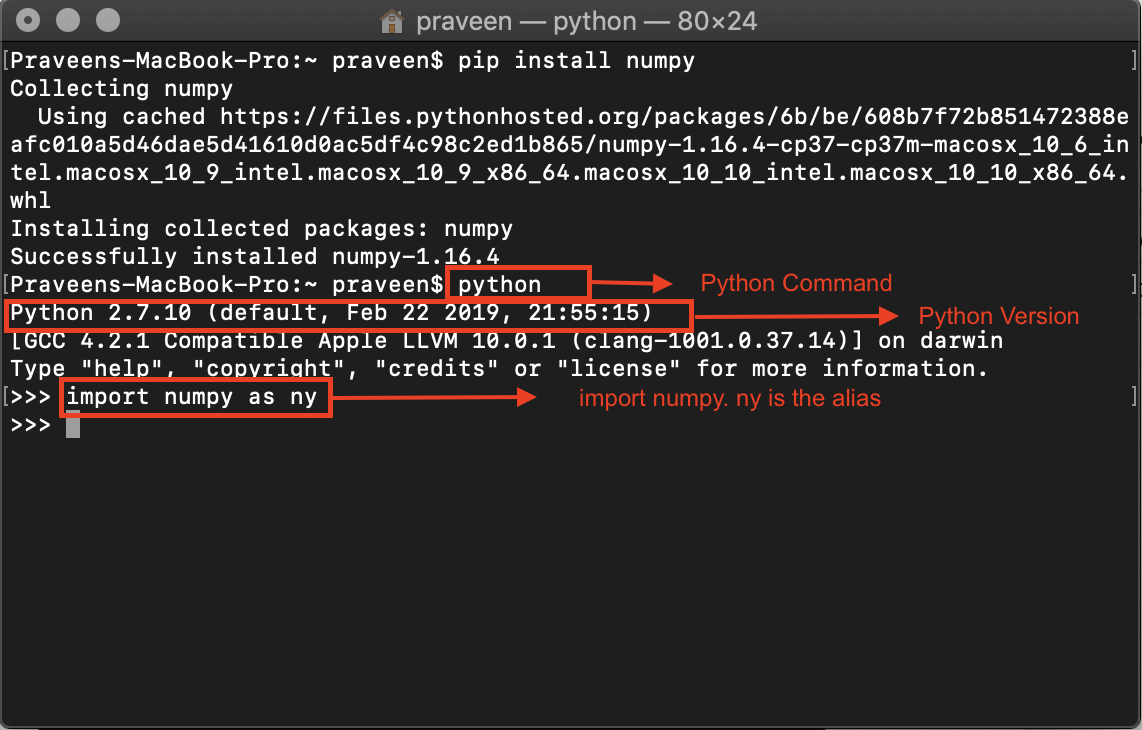
The video "How to install numpy, pandas and matplotlib" also provides a live demonstration of this process.
How to install numpy, pandas and matplotlib Python libraries on Windows 10 64-bit
This video shows the full workflow of verifying a Python/pip installation and then installing a data science library.
Watch the section on verifying the installation to see the version command in action. Then, watch the next part where the presenter demonstrates how to install NumPy.
C. Listing Installed Packages
To see all the packages currently installed in your Python environment, use the list command:
python -m pip list
This is useful for confirming that your installation was successful. You should see numpy and its dependencies in the list.
D. Uninstalling a Package
If you no longer need a package, you can remove it cleanly using uninstall:
python -m pip uninstall numpy
pip will ask for confirmation before removing the package and its files.
4. Your Turn: Install NumPy and Verify
Now it's time to put this into practice. This exercise will confirm you can install the foundational library for our upcoming lessons.
-
Open your terminal (Command Prompt or PowerShell on Windows, Terminal on macOS/Linux).
-
Install NumPy by running the following command:
python -m pip install numpy -
Verify the installation by listing your installed packages:
python -m pip listLook for
numpyin the output list. -
Confirm it's usable in Python. Open a Python interactive session by typing
pythonin your terminal and pressing Enter. Once you see the>>>prompt, type the following lines:import numpy as np print(np.__version__)This should print the version number of the NumPy library you just installed. You can then type
exit()to leave the Python interpreter.
Completing these steps successfully means you are fully prepared for the next stage of our course.
Conclusion
In this lesson, you've acquired a critical skill for any Python developer: managing external packages with pip. You are no longer confined to Python's standard library and can now pull from the vast, powerful ecosystem of community-built tools.
Key Takeaways:
pipis the command-line tool for installing and managing Python packages.- PyPI (Python Package Index) is the central repository where packages are hosted.
- The most robust way to run
pipis withpython -m pip <command>to ensure you're using the correct Python installation. - The essential commands are
install,list, anduninstall.
You successfully installed NumPy, the cornerstone library for numerical computing in Python. In our next lesson, we will immediately put it to use. You'll learn how to create and manipulate NumPy arrays, the fundamental data structure that makes large-scale mathematical and data operations incredibly fast and efficient.